Payment registrations
Payment registration that reconciles itself
Still juggling spreadsheets, paper receipts and bank statements to work out your real cash position? Register payments where your invoices already live, match them to the bank automatically, and always know what is actually paid.
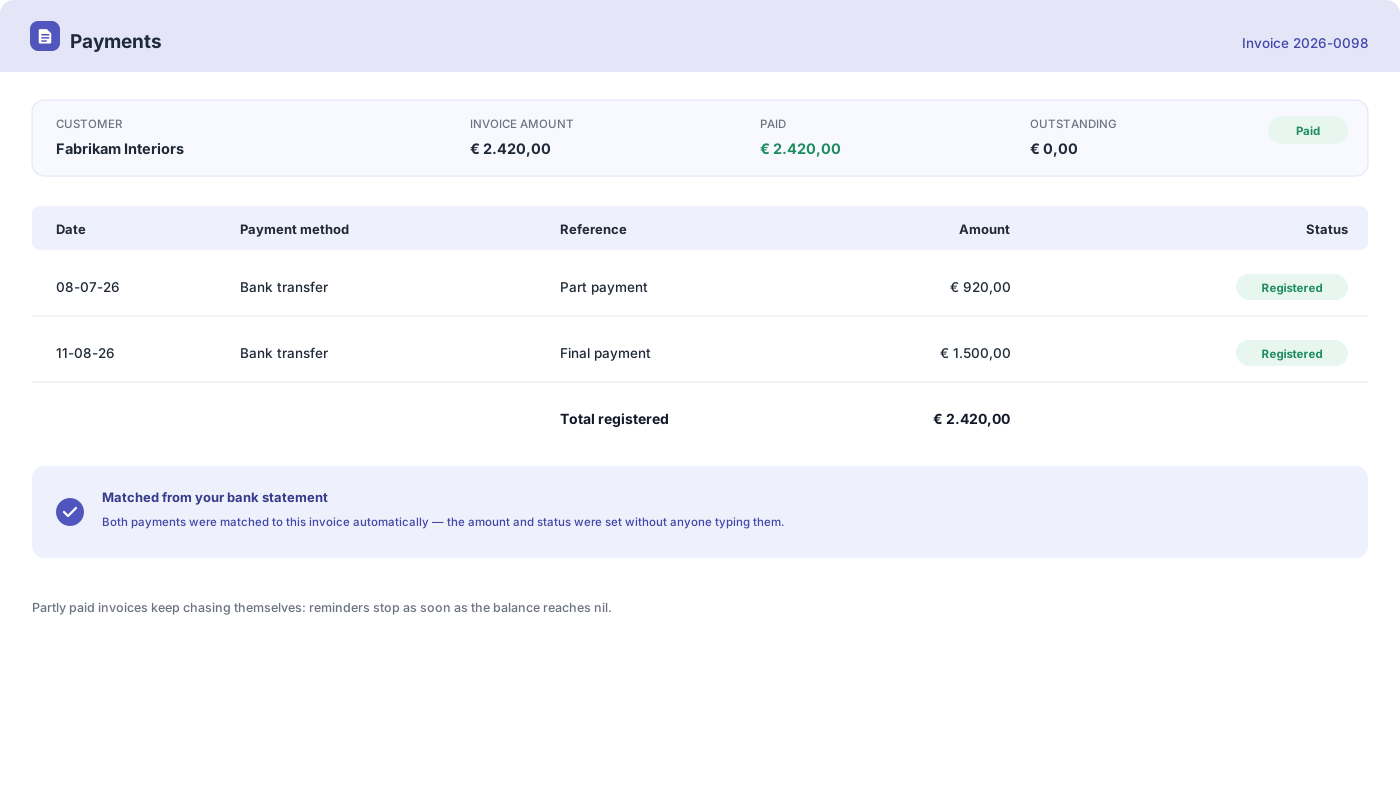
Everything on the payment
Manual payment tracking, gone
Tracking payments by hand is slow and error-prone, and the cost is not just the time — it is not knowing where you stand. Registering them in the same system fixes both.
- Amounts copied from the document
- Register a payment against an invoice or a purchase and the amounts are copied in from the document itself, so the figure you record is the figure that was actually billed.
- Attachments and notes
- Attach a receipt or a remittance advice to the registered payment, and use the description field for anything the next person will need to know.
- Tell the customer or supplier
- Email the customer or the supplier to confirm the payment has been made and registered, so a chase does not arrive the day after the money went out.
- Record how it was paid
- Transfer, cash, card payment, iDeal, PayPal, automatic collection, a deposit or a credit note — the payment method is on the record, and on the list, so a query about how something settled has an answer.
- Automatic matching
- Bank transaction lines are matched automatically against your invoices and purchase documents, so the lines that need a person are the only ones you open.
- Paid, partly paid, and the status follows
- Register a payment and the system works out whether the document is settled in full, partly paid or overpaid, then updates that document’s account status to match. No second step.
The payments list
Every payment, in one place
Individual registrations roll up into a list of their own — one for what customers have paid you, one for what you have paid suppliers. It is where you go to answer who paid, when, how, and how long they took about it.
Every payment in one list
Sales payments and purchase payments each have their own screen, showing the document, the customer, the amount, the date, the method and the bank statement the money came in on.
DSO on the record
Days sales outstanding is a column, not a calculation you do afterwards. You can see how long each invoice actually took to get paid, and by whom.
Choose your columns
Add or drop columns — document date, label, who created or last changed the record — and save the arrangement, so the list opens showing what you care about.
Export or open the journal
Export the list to PDF, Excel or CSV with the columns you picked, or open the journal data behind any single payment when the bookkeeping is what you are checking.
What you gain
Know your real cash position
Integrated payment registration is not really about recording payments. It is about trusting the numbers in your system enough to make decisions on them.
Reconciliation without the data entry
Matching payments to invoices, purchases and bank statements happens automatically, so reconciliation becomes a review of what did not match instead of a line-by-line comparison.
Lower Days Sales Outstanding
When you know instantly what is unpaid, you follow up faster. Following up faster is the whole mechanism by which DSO comes down.
Audit-ready paper trail
A clear, automated record of what was paid, when, and against which bank statement makes tax time and financial reviews substantially less painful.
Numbers you can trust
When payments are registered immediately and accurately, you close the gap between an invoice being paid and knowing you can spend the money.
How it works
From payment received to books closed
Step 1Register the payment
Record the payment against the invoice or purchase. The amounts come from the document, and you can add an attachment or a note while you are there.
Step 2Match it to the bank
Import your bank statement or connect the account directly, and let the transaction lines be matched to the documents they belong to.
Step 3See where you stand
The document status updates to paid or partly paid, and your reports show who pays well and which accounts are still outstanding.
Payment registration questions, answered
What is payment registration?
Do I have to type in the amount?
Can I attach a receipt or add notes to a payment?
How does bank reconciliation work?
What happens if a customer only pays part of an invoice?
Can I see which bank statement a payment came from?
Which payment methods can I record?
Can I see how long customers take to pay?
Can I get the payments out of the system?
More answers in our FAQ and help center.
Related
What your payments settle
Trust the numbers in your system
With our software we make the lives of entrepreneurs easier. Free to start, and 14 days free on every paid plan.