Document design
Document design and invoice templates
Your invoice template is the last thing a customer reads about a job — make it look like your business. Logo, colours, fonts, columns, field names and footers, set on your design and carried by every document built from it.
Free plan available · 14-day trial on paid plans · No credit card
What you can change
Every part of your invoice template is yours
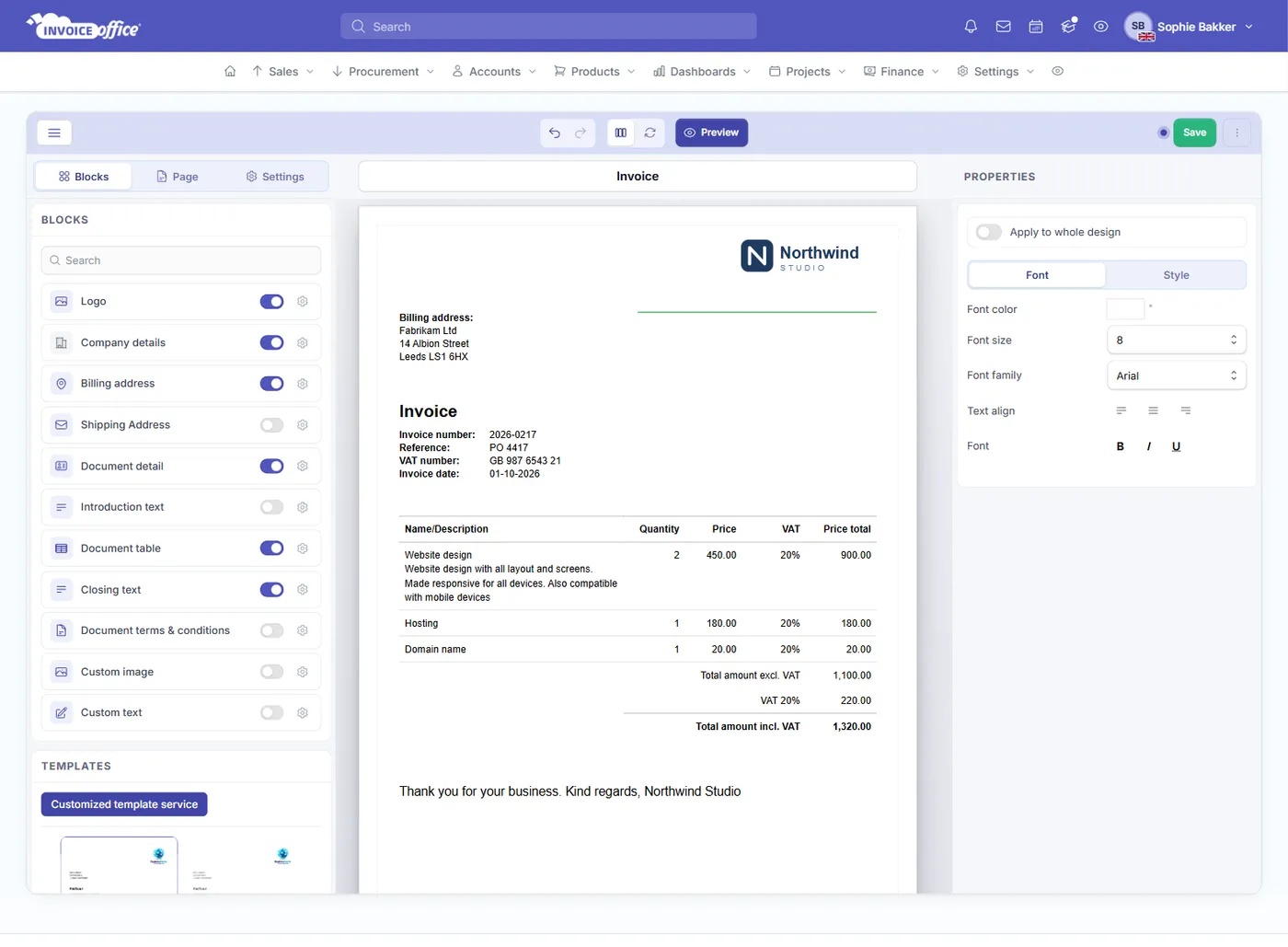
One screen, two editors: the design holds what the document says, the template holds where everything sits. Blocks drag into place on the page, and each opens its own Content and Style tabs.
- Designs are held
- Per languageDesigns are held
- Type
- Per documentType
- Override
- Per customerOverride
- Drag the blocks where you want them
- Switch on the blocks you need — Logo, Company details, Billing address, Shipping Address, Document detail, Introduction text, Document table, Closing text, Document terms & conditions, Custom image and Custom text — then drag them into place on the page. Up to three blocks share a row, and Move left, Move right and Full width tidy them up.
- Start from a design we ship, or your own
- Invoice Office ships a set of system designs to work from. Open one, use Create duplicate to make it yours, or start a new design — and mark whichever you settle on as the default.
- Your logo — or your name in type
- Upload a logo image and set its size and alignment, or flip Show text and print styled Logo text instead. Add a background image, with its own transparency, so the page is yours end to end.
- Decide exactly what appears
- Switch the product table’s columns on or off, drag them into the order a customer expects and rename them — and do the same for the document details. Hide the product description if you only want names. Nothing you never fill in has to stay on the page.
- Style it down to the line
- Select any block and its Style tab carries the font colour, size and family. The product table adds Line height, separate fonts for its headings and rows, and its own styling for the totals, so a cramped row is a one-field fix rather than a redesign.
- Add your own text and images
- Custom text and Custom image blocks put anything else you need on the page — a payment notice, a seasonal message, a certification badge — placed in its own spot on the page rather than squeezed into a footer.
- Labels in your own words
- Field names and values renames the words printed on the document — Due date into Payable by, Customer Number into Account no. Switch Use default design off on that design first, then Modify Field names and values and type your wording beside the field.
- A footer that maintains itself
- The Company details block holds up to four header and footer texts, filled with placeholders from your company details, so they stay right when your address or bank account changes. Header and logo can repeat on every page, attachments can travel with every document built from the design, and a cover image can print in front of it.
How designs are organised
Five levels of document design — knowing them saves rework
Most confusion with document design comes from editing the wrong design and wondering why nothing changed on the invoice. Here is how the levels fit together.
Held per language
Designs are stored per language, so a French invoice can carry a different layout from your Dutch one. The flip side is worth knowing: change something in one language and the others are untouched, so make the change in each language you invoice in.
Held per document type
Invoices, quotes, order confirmations, packing notes, credit notes, payment reminders and the purchase-side documents each get their own design. Recurring invoices deliberately reuse the invoice design, so a change there covers both.
A basic and an advanced editor
The basic editor puts everything on one screen: blocks, page and settings on the left, your document in the middle. The advanced editor, part of the Pro license, splits a design from its document template — the layout and styling — so one template can sit under many designs and a restyle there reaches all of them.
The Document type is the base
The design whose type is Document is the base for every other design in that language. Wherever a block or section of another design has Use default switched on, it follows the base — so you set something once there rather than once per document type, and switch Use default off where one document type needs its own.
And a customer can override it
A customer who needs their own look — a different logo, a co-branded invoice — gets a design chosen on their record for invoices, quotes, order confirmations, packing notes, credit notes and payment reminders. Pick that customer on a document and their design is selected for you.
How it works
Three steps to your own invoice
Step 1Open Document designs
In Settings, open Document designs and pick the language you want to work in. The list shows every design you have, its document type, its title and which one is the default.
Step 2Open one, or duplicate it first
Open a design to edit it, or use Create duplicate to copy one that ships with Invoice Office before you change anything — a system design is easier to copy than to fight.
Step 3Arrange, style and save
Switch on the blocks you need, drag them where you want them and click a block to set its content and style. Then Preview the PDF and Save.
Document design questions, answered
Where do I find the document design settings?
Can I use my own logo on invoices?
Can invoices and quotes look different from each other?
What is the Document design type for?
Can I move things around on the page?
Can a specific customer get their own invoice design?
Can I create my own invoice template?
Do I have to redo my design for every language?
Can I change the field names on my documents?
Can I add a footer or a signature?
Can I put a cover page in front of the document?
More answers in our FAQ and help center.
Related
Step-by-step for every part of the design
- What the Pro license adds
- Create and manage design templates
- Customize the document layout
- Upload your logo
- A design for one customer
- Set footers and signature
- Add bank account details to invoices
- Rename the labels on a document
- Reorder the product table columns
- Change the table line height
- Multi-language invoicing
- Invoices
Send an invoice that looks like you
Set your design once and every document carries it. Free to start, and no credit card to try it.