Tax return report
Your tax return report, already added up
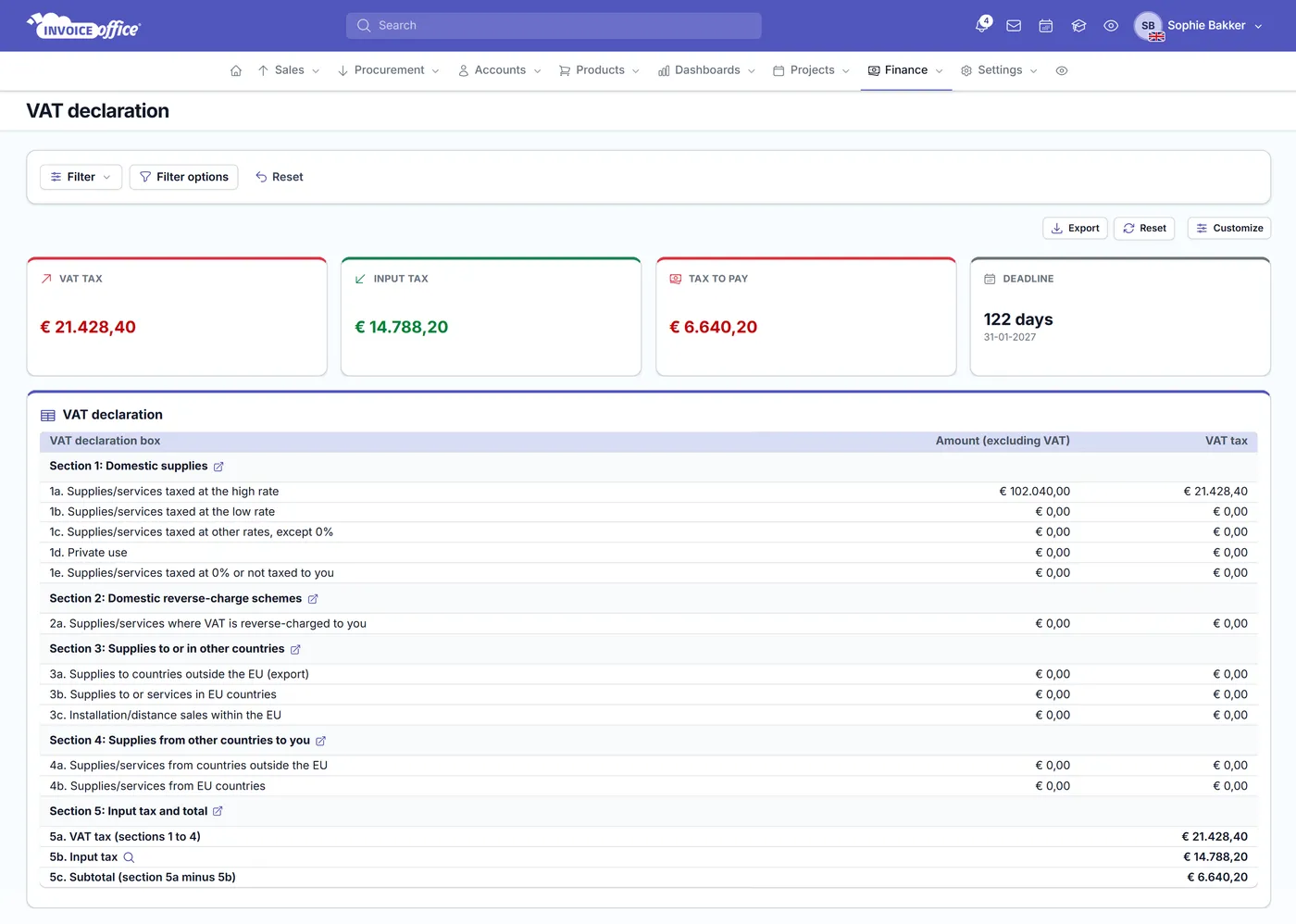
Filing does not have to start with a shoebox. The tax return report totals the invoices, purchases and payments already in Invoice Office, lays them out box by box, and shows you the tax to pay and the days left to file it.
Everything in the report
Everything the return asks for
The data your return needs is already in Invoice Office — every invoice you sent, every purchase you registered, every payment you matched. The report is where it adds up.
- Tax to pay, on a tile
- The report opens on the numbers you actually file: VAT tax charged, input tax you can reclaim, and the tax to pay once one is set against the other.
- A deadline countdown
- A deadline tile shows the filing date for the period you are looking at and how many days are left, so the return stops being something you remember late.
- Box by box, the way you file
- The statement lists every declaration box with the amount excluding VAT and the VAT tax beside it, laid out in the same order as the return you have to submit.
- Built from documents, not re-keyed
- Figures come straight from the invoices, purchases and payments already in Invoice Office rather than being copied into a sheet, which removes the usual source of filing corrections.
- Drill to the actual document
- Open any box and go through to what produced the figure — the documents behind it, or the journal entries they posted, depending on your country layout. Checking a number takes a second.
- Export to PDF, Excel or CSV
- Send the PDF to your accountant, or take Excel or CSV when the numbers need to go into a filing tool or be worked on further.
Period and layout
Set it up once, file from it every period
The report is driven by two things: the period you are filing for, and the declaration layout your VAT codes report into. Set both the way you file, save the view, and the next return opens ready.
Pick the period in one click
Current quarter, last quarter, current month, current year, last 12 months, year to date — or set an exact date range of your own. The whole report follows it.
Show only the blocks you use
Customise toggles each part of the report on or off — the VAT tax, input tax and tax-to-pay tiles, the deadline countdown, and the declaration statement itself.
Save the view you file from
Save a filter once and apply it again next period, so the quarter you file every three months opens the same way instead of being set up from scratch.
Set the declaration layout
The boxes themselves are configurable. The VAT declaration layout in your settings defines the sections the report is built from, and your VAT codes feed them.
How it works
From your documents to a filed return
Step 1Open the report
Go to Finance, then Reports, then VAT declaration. Everything the return needs is already there from the invoices and purchases you have been recording all period.
Step 2Pick the period
Choose the quarter, month or year you are filing for from the filter, or set your own date range. The tiles, the boxes and the deadline all follow it.
Step 3Check, then export
Drill from any box through to what is behind it, confirm the tax to pay, then export to PDF for your accountant or to Excel or CSV to file from.
Tax return report questions, answered
What is the tax return report?
Which period does it cover?
Can I see what makes up a figure?
Does it tell me when the return is due?
Can I change what the report shows?
Do I have to set it up again every period?
Can I export it for my accountant?
More answers in our FAQ and help center.
Related
What your return is built from
Ready to simplify tax season?
With our software we make the lives of entrepreneurs easier. Free to start, and 14 days free on every paid plan.