Pick lists
Pick list software built on your packing notes
Invoice Office builds your pick list from your packing notes: one total per product, every line with its delivery date and stock location, and picked quantities recorded as you go. Take orders months ahead, sort them by delivery date, and you know exactly what has to ship when.
Know what ships, and when
Plan deliveries by delivery date
Orders rarely arrive in the order they have to leave. Put the delivery date on the packing note when the order comes in, and the planning takes care of itself.
- A delivery date on every packing note
- Give each packing note the date the goods have to go out, at the moment the order comes in. Months ahead is fine — the date stays on the note until it is time to ship.
- Sort the overview by delivery date
- The packing notes overview has a Delivery date column. Sort on it and every delivery lines up in the order it has to leave, next to the customer name, status and label.
- See what is scheduled from the home page
- Add the Packing notes card to your home page with Customize. Its Deliveries scheduled tile counts the finalized packing notes with a delivery date of today or later, and opens straight onto that list.
The Picklist Report
Pick from one list, not twenty packing notes
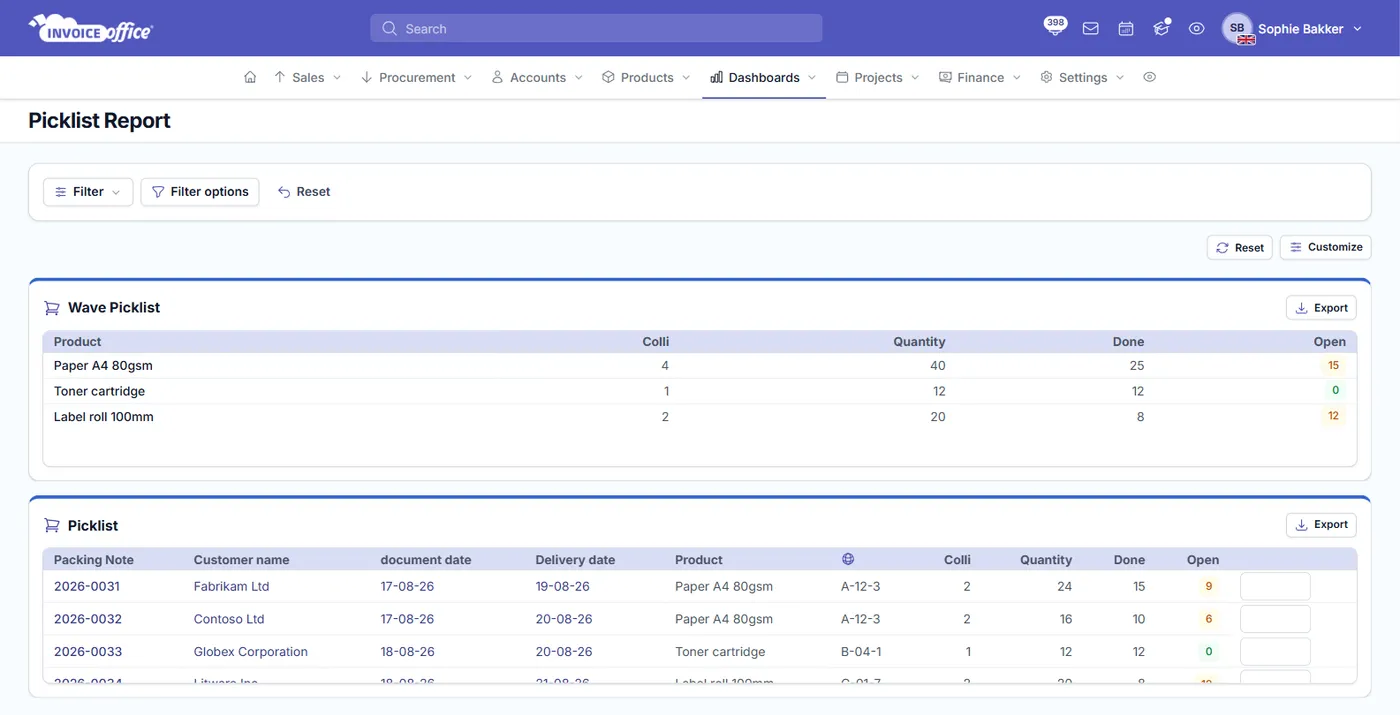
Open Dashboards → Picklist and your packing notes become one list of what has to come off the shelf — totalled per product for the picker, broken down per line for the packer.
Wave Picklist: one total per product
The same product on twenty packing notes is one line here — Product, Colli, Quantity, Done and Open — so it comes off the shelf in one trip instead of twenty.
Picklist: every line, with its delivery date
Underneath, the work is broken down per packing note line: Packing Note, Customer name, document date, Delivery date, Product, Stock location, Colli and Quantity.
Record what has been picked
Enter the quantity you have just picked on a line and it is added to Done; Open shows what is left, on the line and in the Wave Picklist totals. Lines still to pick stay at the top.
Export to PDF, Excel or CSV
Prefer to pick from paper or a handheld? Each card has its own Export button for PDF, Excel or CSV, and a large Excel or CSV export runs in the background and notifies you when the file is ready.
Seasonal planning
Christmas orders in June, shipped in December
Hampers, gift boxes, seasonal stock: the orders trickle in all year and leave in one rush. This is how that looks in Invoice Office.
Step 1Take the orders all year
Christmas hampers ordered in June, September and November each get a packing note with their December delivery date, so nothing depends on someone remembering.
Step 2Line up the delivery run
When December comes, sort the packing notes overview by Delivery date — or open Deliveries scheduled — and you see exactly which packages ship on which day.
Step 3Pick, pack and ship
Open Dashboards → Picklist, set the date range to cover when those orders were taken, pick each product once from the Wave Picklist, record what is done per line, and send the goods with their packing notes.
Pick list questions, answered
What is a pick list?
Can I see which orders have to ship on a given date?
What is the difference between the Wave Picklist and the Picklist?
Which packing notes does the pick list include?
Can I record what has already been picked?
Which plan includes the pick list?
Where does the stock location come from?
More answers in our FAQ and help center.
Related
From order to shelf to shipment
Every delivery on time, every item picked
Packing notes, pick lists and invoices in one place. Try Pro free for 14 days, no credit card.