Stock management
Online stock management that updates itself
An online stock management and inventory system that runs off the documents you already raise. Turn on the Enable stock management switch on the product page and let the work do the counting: finalised documents take stock out, purchases put it back in, and you are notified before a product runs short.
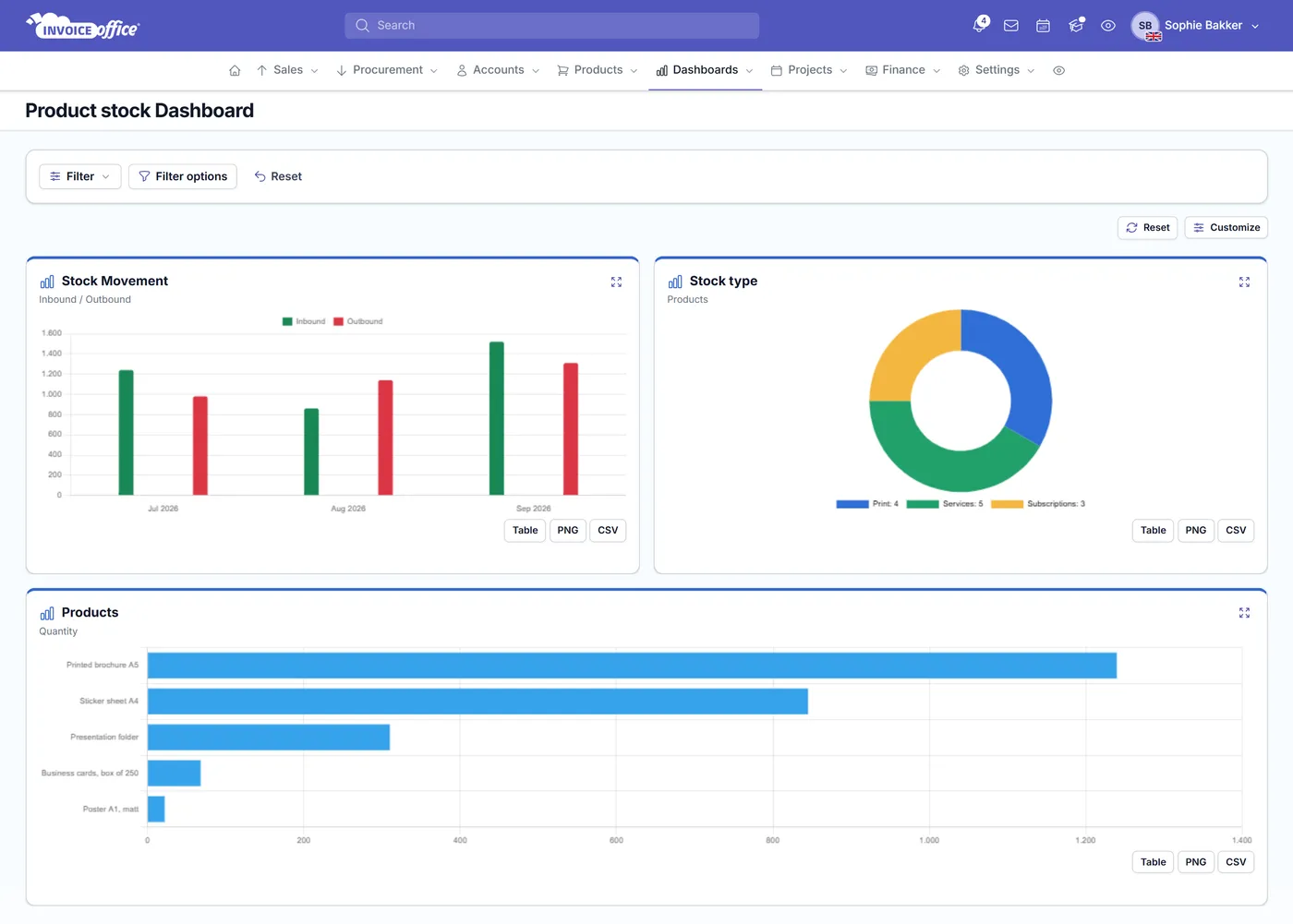
Everything on your stock
Real-time visibility, no manual counting
Stock figures go wrong when keeping them right is somebody’s job. Wire the movements to the documents and purchases that cause them and the count looks after itself.
Enable stock management per product
Enable stock management is a single switch on the product page. From that point the product carries its Stock quantity, its Stock location and its Minimum stock, with no separate system to keep in step.
Documents reduce stock automatically
Stock reduction lets you choose which document types take stock out for a product. As soon as a document of that type is finalised or sent, the products on it come off the level. Inbound documents — credit notes and purchases — always put stock back regardless of that list.
Book in what actually arrived
Finalising a purchase order never moves stock — it is a promise, not goods. When the delivery comes in, Add to stock on that purchase order books in what you received, line by line, even if only part of it arrived. Finalising a purchase puts stock back in too; use one or the other for a delivery.
Delivery status on every purchase order
Each purchase order shows a Delivery status — Not delivered, Partial delivery or Full delivery — kept up to date as you use Add to stock, so the purchase order list tells you what is still on its way.
Backorders when stock runs short
Switch on Backorder in your company settings and an order confirmation reserves stock instead of consuming it. Anything you cannot cover goes into backorder, stock coming in on a purchase or credit note goes to the oldest open order first, and the Backorder report shows what is still to deliver.
Stock workflow status
A stock-managed product carries a Stock workflow status alongside its quantity, with its own history, so where an item has got to in your process is recorded on the product rather than tracked in someone’s head. The Stock workflow status editor and its history are part of the Pro license.
Every movement on the record
Stock mutations list the full history of a product’s movements, from purchases through to hand-made corrections — Add stock mutation fixes a discrepancy and is recorded alongside every automatic movement. The stock dashboard charts inbound and outbound movement across the whole catalog.
A picklist for the warehouse
Dashboards → Picklist turns your packing notes into one list: a Wave Picklist totals each product across them, and the Picklist shows every line with its Stock location, so whoever picks the order is told where to find it.
The right stock type per product
Give each product a Stock type — Stocked Product, Serialized Product, Non-stocked Product or Service — so the catalog says plainly which items you hold on a shelf and which you never count.
What you track
Four things per product
Switch tracking on and a product starts carrying everything needed to answer the only questions that matter: how much have I got, where is it, and when should I buy more? It all lives on the same product record, and it is your purchases that put stock back on the shelf.
Stock quantity
The live count of what you hold, moving as documents are finalised, deliveries are added to stock and purchases are registered — so the number on screen is the number in the building.
Stock location
Record where a product physically sits. Once entered, the Stock location can also be printed on packing notes and pick lists, so whoever picks the order is told where to find it.
Minimum stock
Set the level a product should not fall below. That threshold is what turns a stock figure into a decision about when to reorder.
Automatic notification
When stock reaches the Minimum stock level you receive a notification automatically, so a shortage is something you head off rather than discover when an order cannot be filled.
How it works
Set it up once, then just check it
Step 1Enable it on the product
Turn on the Enable stock management switch for the products that need it, then set the Stock location and the Minimum stock level you want to be notified at.
Step 2Let your documents move it
Pick the document types under Stock reduction. Sales take stock out as those documents are finalised or sent; Add to stock on a purchase order, or a registered purchase, puts it back in.
Step 3Review and correct
Read Stock mutations to see every movement on a product, and use Add stock mutation whenever a physical count disagrees with the system.
Stock management questions, answered
How do I start tracking stock for a product?
Does stock update automatically when I send a document?
Do purchase orders and purchases update my stock levels?
Can I book in a partial delivery?
What happens when I sell more than I have in stock?
Can I get alerts when stock runs low?
Can I record where stock physically sits?
How do I correct a stock discrepancy?
Does stock management need a paid plan?
More answers in our FAQ and help center.
Know what you have, always
With our software we make the lives of entrepreneurs easier. Free to start, and 14 days free on every paid plan.