Supplier management
A supplier management system in one dashboard
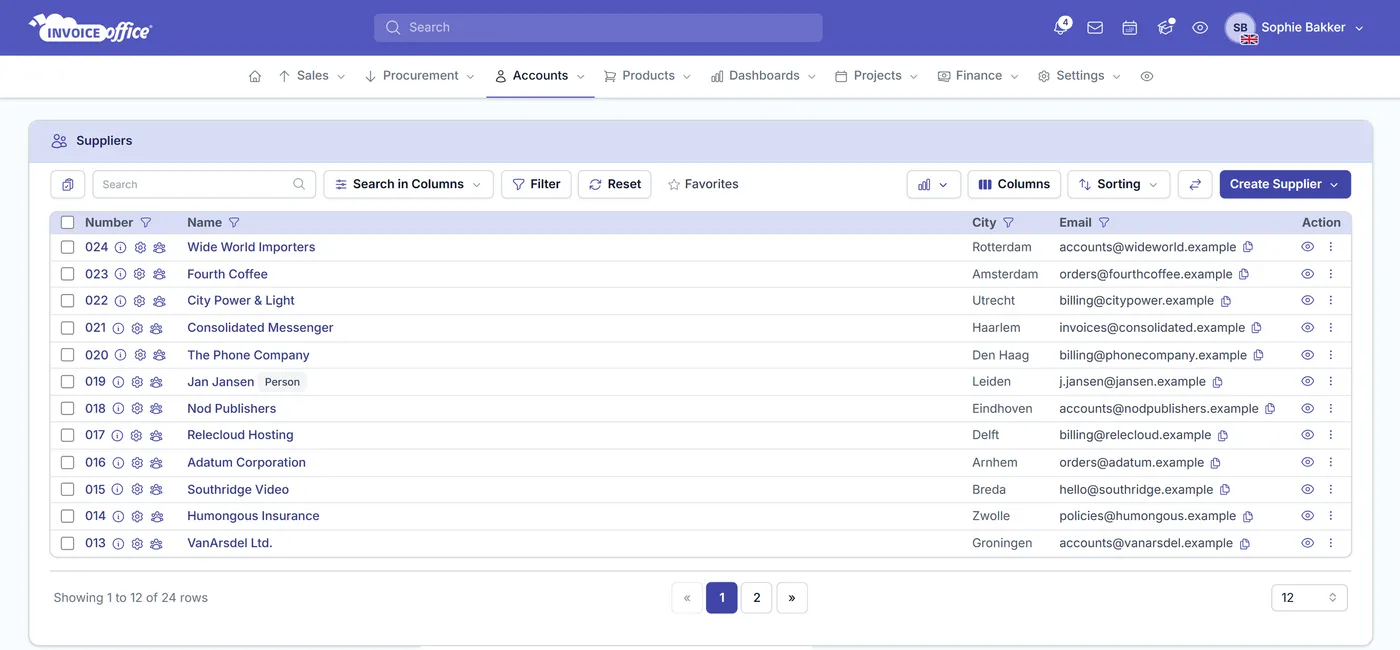
A supplier management system built into the software you buy with. Invoice Office gives every supplier a single source of truth — information, settings, addresses, contact persons, purchases, payments, logged contact and attachments — so you always know where the relationship stands.
Everything on the supplier
A 360-degree view of every supplier
Everything you know about a supplier in one place — what you ordered, what you were invoiced, what you have paid and what was agreed. If a company sits on both sides of your books, the same record does customer management too.
Centralized supplier dashboard
Stop hunting through spreadsheets and disparate systems. One dashboard per supplier covers purchases, purchase orders, credit notes, documents, payments, tasks and notes, with purchases, DSO and payment status charts — over whatever date range you pick, down to a custom from and to date.
The whole supplier record
CoC number, VAT number, Peppol identifier, bank account and BIC, industry, legal form and your own Label. An Is customer flag covers the companies you both buy from and sell to, so they stay one account.
Order from one place, receive at another
The Billing address is the one that belongs on the purchase order; Shipping Address and Other entries cover the depot the goods leave from and the site you want them delivered to. Per address you also control whether the country prints at all — and in which language it is translated.
Know who takes the order
Add your account manager, the sales desk and whoever handles returns with Create Contact, or bring the list in at once with Import Contact person — then point the supplier’s purchase order send-to address at the one who actually processes orders.
Every price agreement on the record
Relation management turns the supplier into a CRM: log the call where the discount was agreed, the email confirming a lead time, a WhatsApp, LinkedIn message, SMS or meeting — and upload the contract or price agreement as an attachment, so the terms are on the account when you need to hold them to it.
Purchases & purchase orders
Create purchase and Create purchase order sit on the supplier’s own Action menu, and read straight off the record — so the address, currency, VAT code, cost account and payment terms are already right when you raise one.
Supplier settings
Configure a supplier once
Every supplier can be configured with their own settings. Select them on a purchase or a purchase order and the right currency, VAT code and cost account are already applied, in their own document language — and a purchase order goes out to the supplier’s default send-to address and name. Its document design, sequence number, email template and the price list you agreed are all kept on that same page, so nobody has to remember what was arranged with whom.
Cost account & VAT code
Set the cost account a supplier’s spend is booked to and the VAT code that applies, so every purchase lands in the right place in your books without anyone choosing it by hand.
Currency, language & payment
Currency code, language, payment method and purchase payment days are all set on the supplier — so a foreign supplier on 60 days is treated that way every time, not just when someone remembers.
Purchase order defaults
Set the document design, the sequence number and the email template for this supplier’s purchase orders, plus the default send-to email address and name they actually go out to.
Price list per supplier
Record the price list you agreed with this supplier on their own settings page, next to their cost account and payment days, so the terms live on the account instead of in somebody’s inbox. Price lists are applied on sales documents — invoices and quotes — which is part of the Pro license.
How it works
From new supplier to a full purchase history
Step 1Add the supplier
Under Accounts → Suppliers, use Create Supplier for a company or Create individual supplier for an individual — or import a whole list with the six-step wizard: source, upload, map fields, preview, import, done. Then add their addresses and contact persons.
Step 2Set their defaults
Configure cost account, VAT code, currency, language, payment method and purchase payment days once. Every purchase and purchase order for this supplier then picks up the cost account, VAT code, currency, language, payment method and due date on its own.
Step 3Buy, pay and keep the record
Raise a purchase or purchase order straight from the supplier’s Action menu. Documents, payments, logged conversations and attachments all collect on the supplier, so the full history stays in one place.
Supplier management questions, answered
What is a supplier management system?
Can one record be both a supplier and a customer?
Can I send the order to one address and take delivery at another?
How do I add contact persons to a supplier?
Can I set a different price list or currency per supplier?
Where do I keep what a supplier agreed on price?
How do I see what I spend with a supplier?
Step-by-step guides: add a new supplier, import customers, suppliers and products and create a purchase order.
More answers in our FAQ and help center.
Related
What your supplier records feed into
Get your buying side under control
Add your suppliers, agree their terms once, and raise the next purchase order from the account itself. Free to start, and 14 days free on every paid plan.