Bank statements
Bank statement import, matched to your invoices
Bank statement import that does the reconciling for you. Upload the MT940 or CSV your bank gives you, or connect the account outright — lines are matched to your invoices and purchases as they arrive, and the documents they settle are updated to match.
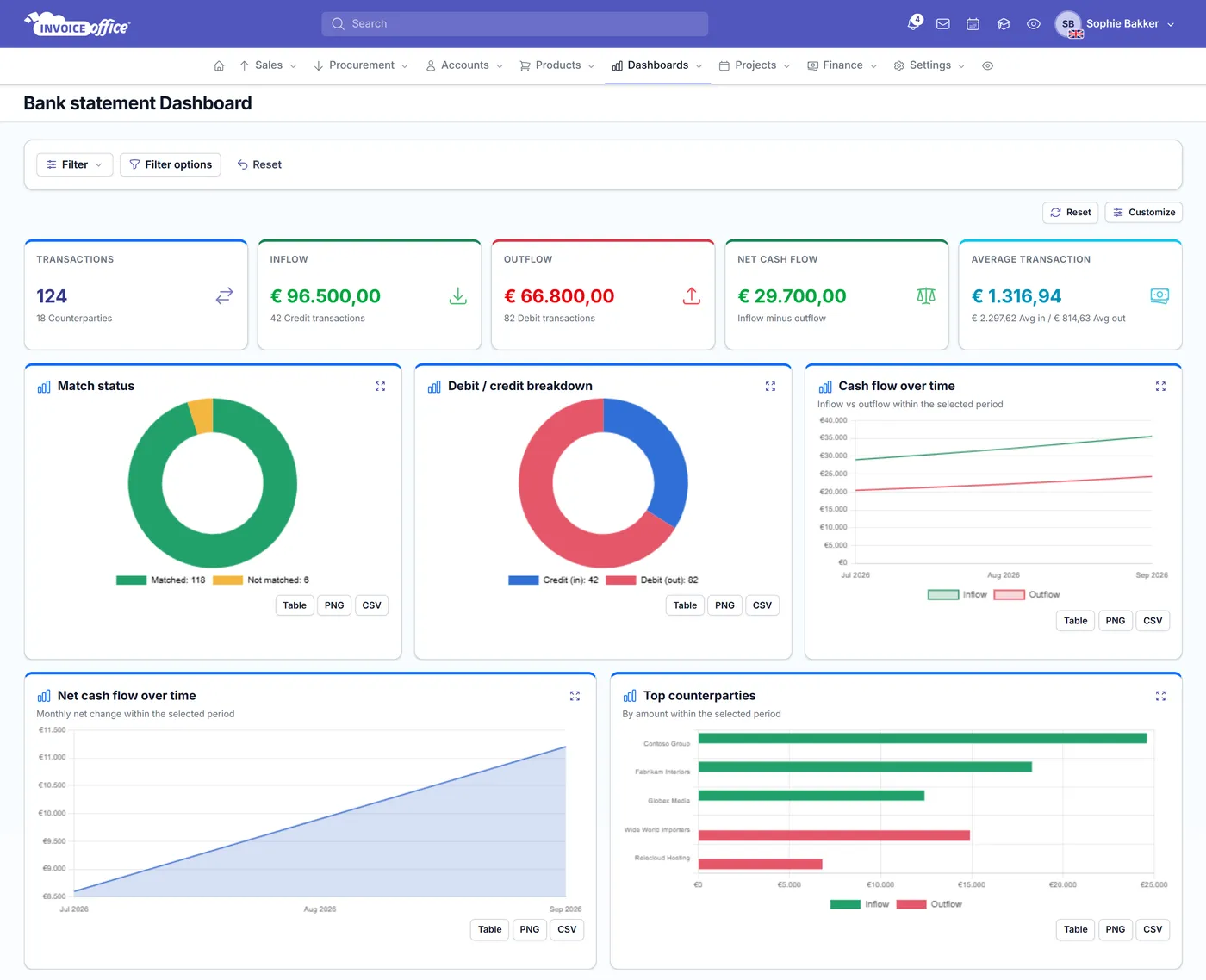
Everything on the statement
Stop the manual grind
Hand-keying transactions is slow, error-prone, and the least valuable thing you could be doing with the hour. Import the statement once and the rest follows from it.
- Import MT940 or CSV
- Upload the file your bank gives you — MT940, MT940 Structured, the .txt and .swi variants, or a CSV — and every transaction on it is ready to work with. No retyping.
- Or connect the account
- Rather than downloading a file each week, connect your bank account through Ponto and transactions are fetched for you on a schedule.
- Matched as they arrive
- Lines are matched to the invoices and purchases they belong to during the import itself, and each one tells you how it got there: automatically matched, a suggested match, manually matched, or match failed.
- Register payment, income or expense
- Every line can be dealt with from the list: register a payment against a document, or book it as income or an expense when there is no document behind it. The whole statement gets accounted for.
- Documents updated automatically
- Connect the payment to an invoice or a purchase and that document’s account status is updated straight away — paid, Partial Payment or Overpaid, depending on the amount. No separate trip to update it.
- Nothing quietly left behind
- The account, its opening amount and its closing balance sit at the top, with a count of the lines still unprocessed. Filter to debits, credits or a date range, or search the descriptions.
Getting the statement in
The import does more than import
Two switches sit on the import, both on by default. They are the difference between a screen full of transactions to work through and a statement that has already settled the documents it was always going to settle.
A three-step import
Choose where the data is coming from, upload the file, import it. You land on the statement with its lines already matched, not on a blank screen with work to do.
Match and register in one pass
Leave “Match and register payment” switched on and the import does not just bring the lines in — it settles the documents it matched automatically at the same time.
Tell people it arrived
Switch on “Automatically send payment notification” and the confirmation goes out as the payment is registered, so nobody chases money that is already in.
Map an unfamiliar CSV
If your bank’s CSV does not use the columns anyone else uses, the import detects what is in the file and lets you map the columns yourself. A sample file shows the shape it expects.
How it works
From statement to settled books
Step 1Import or connect
Upload the MT940 or CSV file your bank gives you, or connect the account through Ponto so transactions are fetched without a download every week.
Step 2Let it match
Lines are matched to your invoices and purchases as they come in, each marked automatically matched, suggested match, manually matched or match failed so you know what to look at.
Step 3Clear what is left
Work down the unprocessed lines: register a payment against a document, or book it as income or an expense. Documents settle as you go.
Bank statement questions, answered
Which bank statement formats can I import?
Can I connect my bank instead of uploading a file?
What does the matching actually do?
What happens when a line is matched to an invoice?
Can I handle lines that are not invoices or purchases?
My bank’s CSV has unusual columns. Will it still work?
Does the customer get told the payment came in?
More answers in our FAQ and help center, or follow the step-by-step guide to importing and reconciling bank statements.
Related
What your statement settles
Turn admin time into strategic time
With our software we make the lives of entrepreneurs easier. Free to start, and 14 days free on every paid plan.