A proforma invoice in Invoice Office — sometimes called a proforma bill or preliminary invoice — shows your customer exactly what they will pay: lines, prices, VAT and totals, before the goods are shipped or the work is delivered. Use it to ask for payment up front or to agree the amounts first. A proforma never creates bookkeeping entries; when the deal goes ahead, you turn it into a regular invoice from its Action menu. See proforma invoices for what the document covers.
Step 1 — Open a new proforma invoice
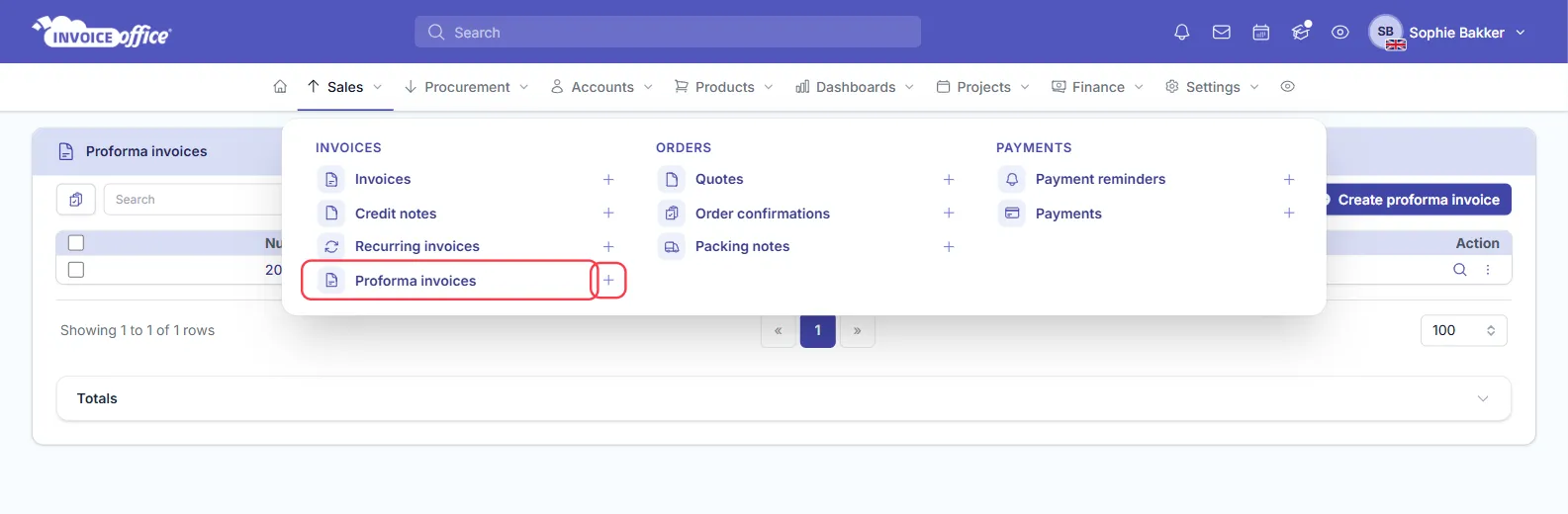
Open Sales in the menu bar and click Proforma invoices to see the list, or the plus icon next to it to start a new one straight away. On the list page, Create proforma invoice opens the same form.
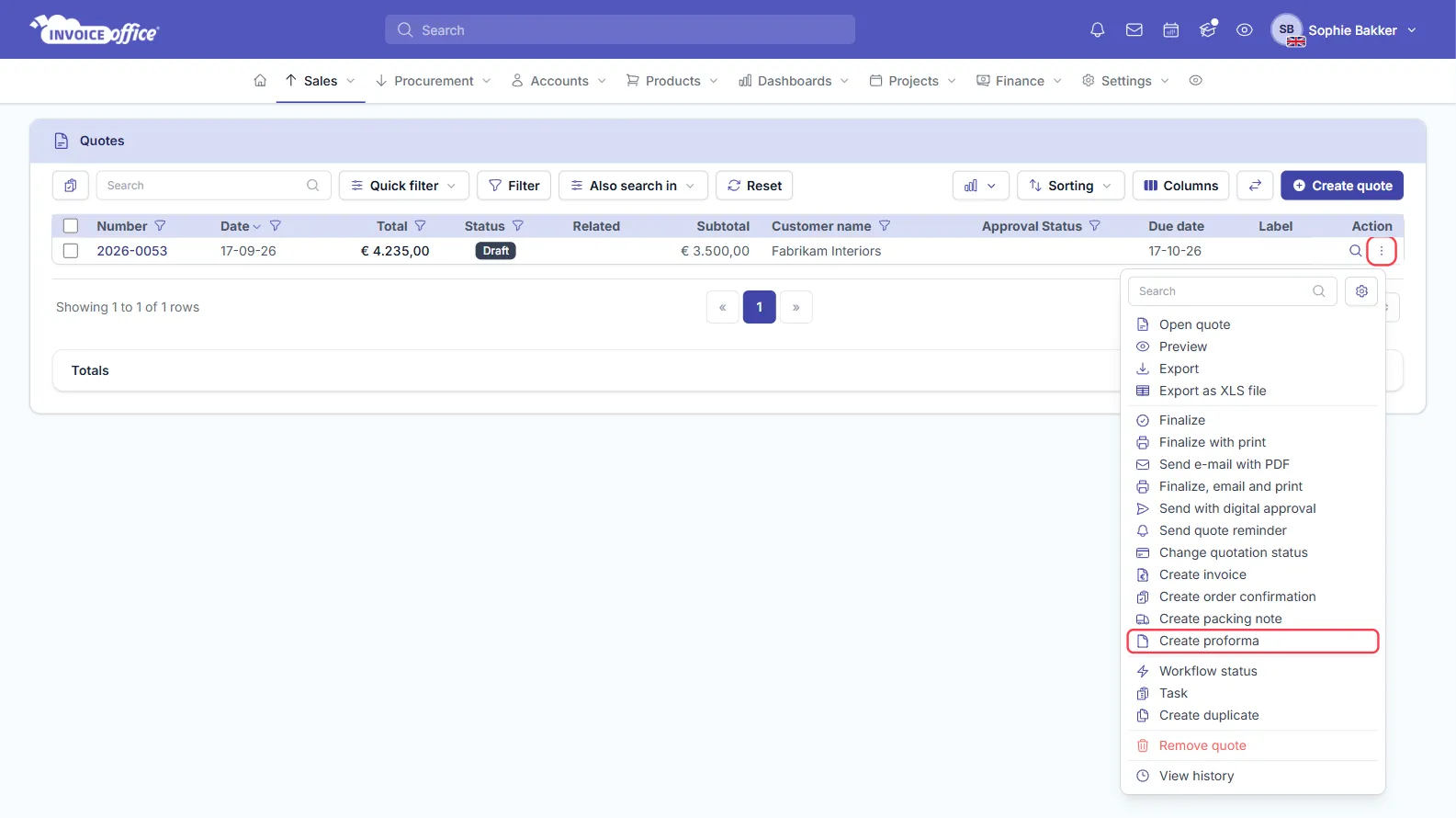
Already sent the customer a quote? Go to Sales → Quotes, open the Action menu on the quote and choose Create proforma. The proforma opens with the customer and lines from the quote. The Action menu on an invoice, an order confirmation or a packing note has the same option.
Step 2 — Fill in the customer, lines and dates
The proforma form works like the invoice form. The number at the top is a preliminary number; it is fixed when you finalize the document.
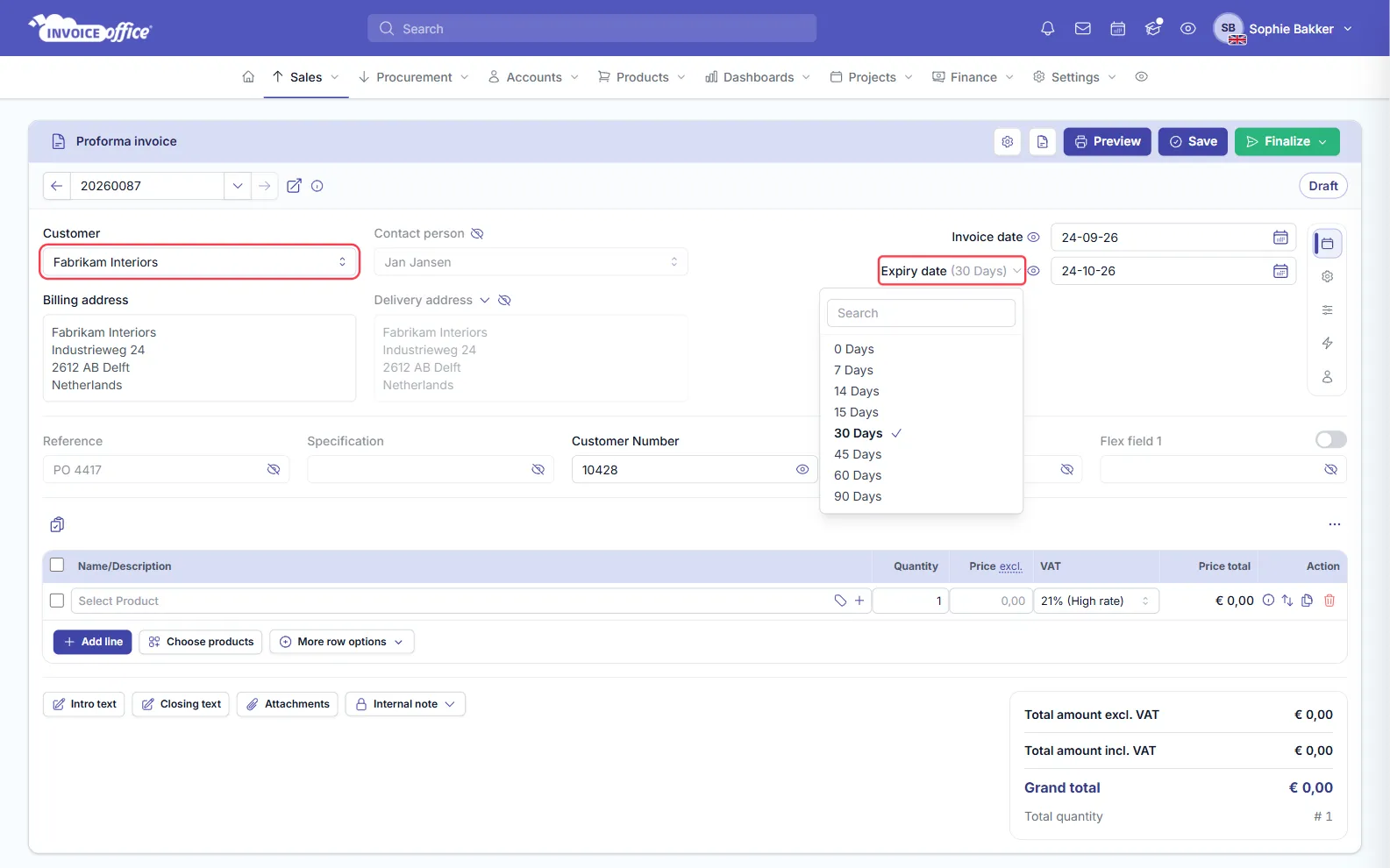
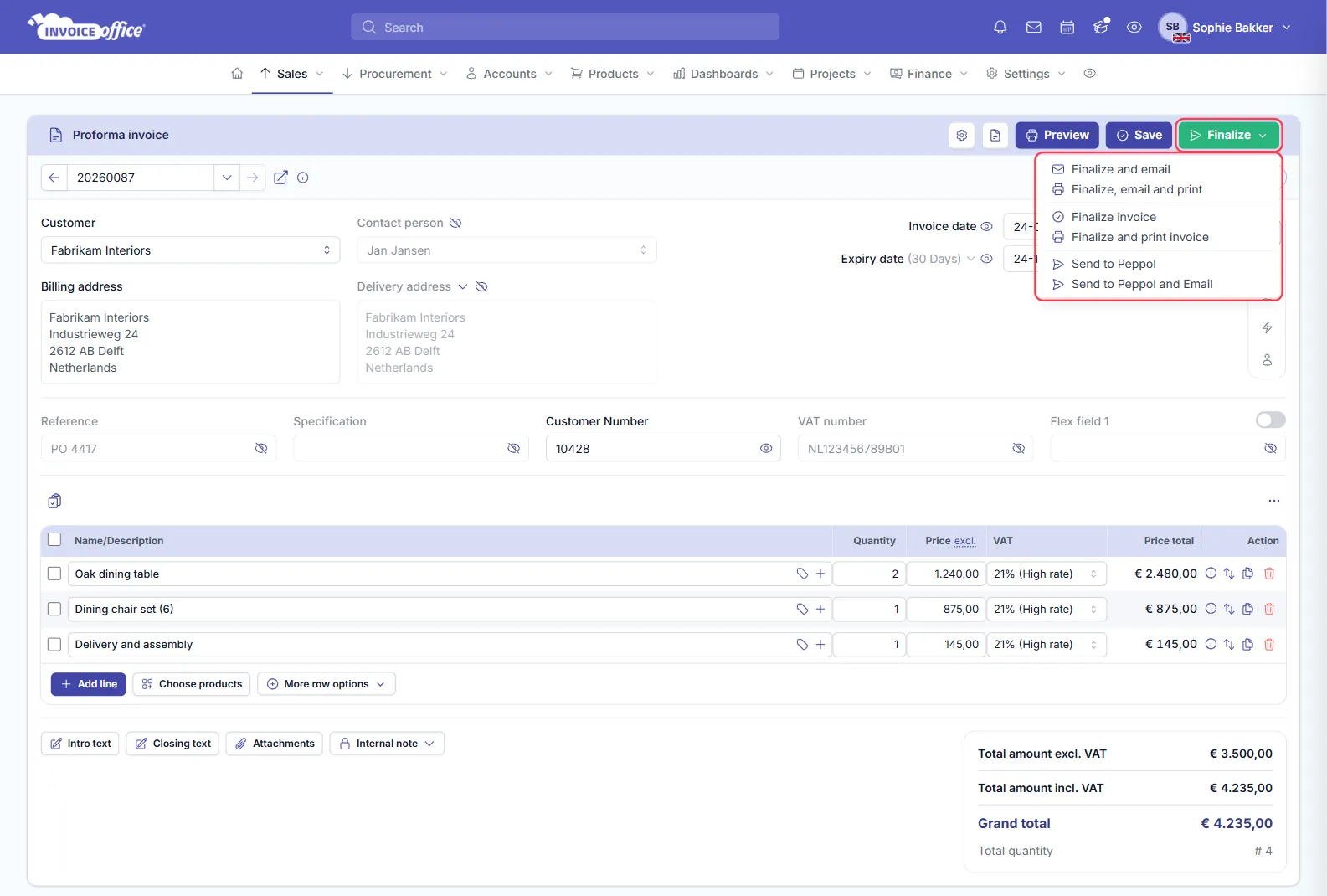
- Customer — click Select customer and pick the customer. The contact person, billing address and delivery address fill in automatically where the customer’s record has them.
- Invoice date — check the date; it is today by default.
- Expiry date — set how long the proforma is valid. Pick a preset from the dropdown (0 to 90 days) or choose a date.
- Reference, Specification, Customer Number and VAT number — fill in any you need; all are optional.
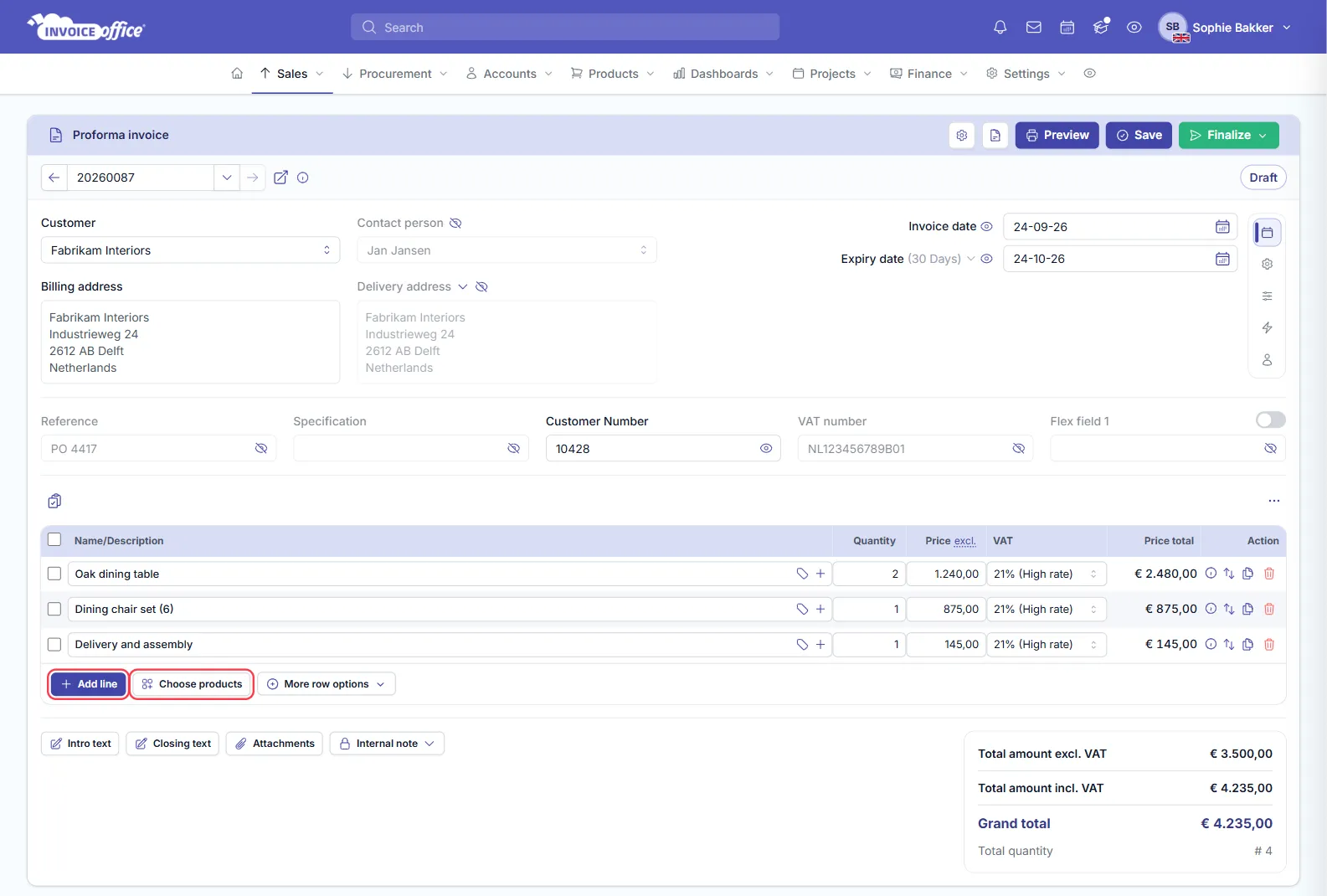
- Lines — for each line enter the Name/Description, Quantity, Price excl. and VAT rate; the Price total is calculated for you. Use Add line for another row, or Choose products to pick several saved products at once.
- Intro text, Closing text and Attachments — add them below the lines if you need them.
Step 3 — Preview, save or finalize
- Preview shows the proforma as your customer will see it.
- Save stores it as a draft so you can finish it later.
- Finalize opens a menu to issue it: Finalize and email, Finalize, email and print, Finalize invoice and Finalize and print invoice — plus Send to Peppol and Send to Peppol and Email if Peppol is connected.
From the Action menu on the proforma list you can also Preview it, Export it as a PDF or XLS file, Send e-mail with PDF, or — once it is finalized — copy its Public document link.
Step 4 — Convert the proforma to an invoice
When the customer goes ahead, go to Sales → Proforma invoices, open the Action menu on the proforma and choose Create invoice.
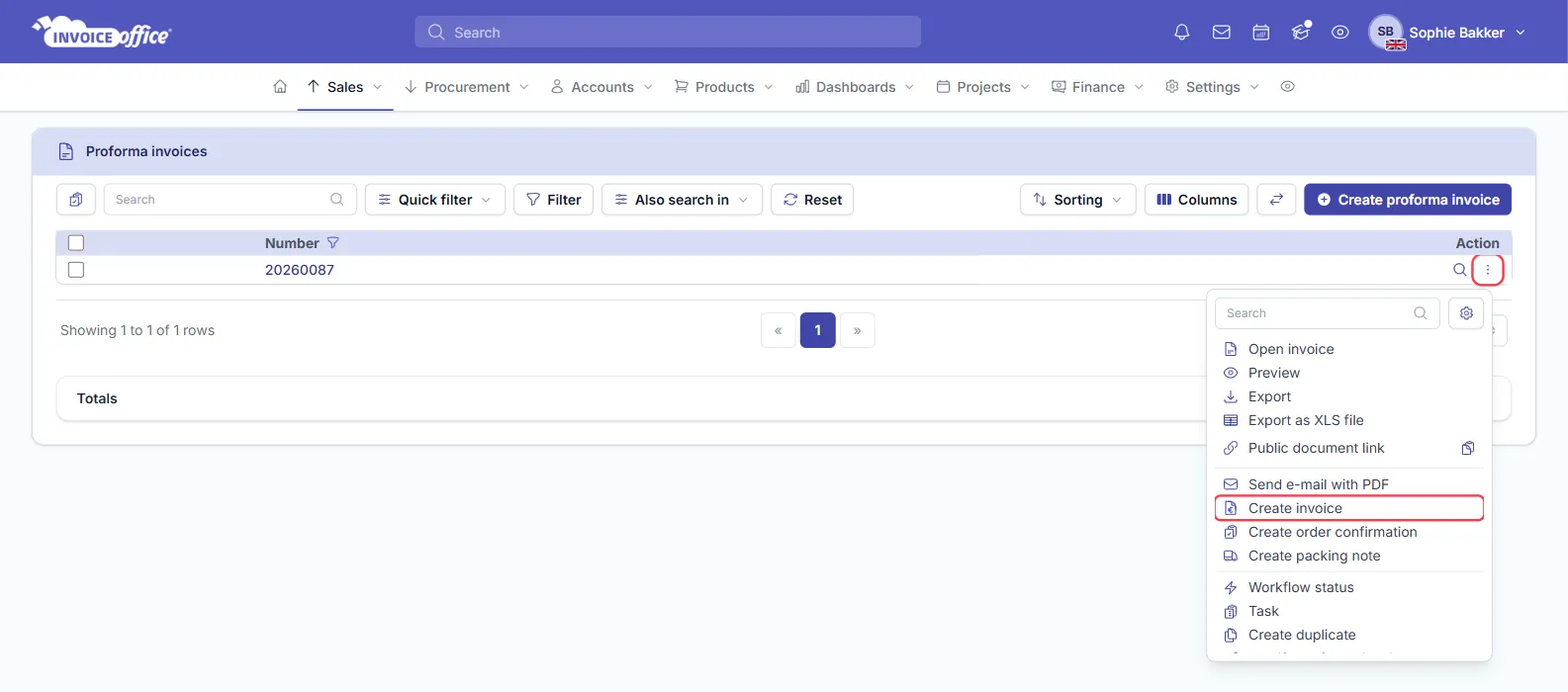
Invoice Office creates a new invoice with the proforma’s customer, lines and attachments and opens it. The invoice is a draft dated today; it takes its number from your invoice series when you finalize it, and the two documents stay linked. Check it, then finalize and send it — see Create an invoice for the finalize options.
The same menu can also turn the proforma into an order confirmation or a packing note.
Proforma invoice vs. regular invoice
| Proforma invoice | Invoice |
|---|---|
| A preliminary bill — what you will charge | The actual bill for goods or services |
| Has an Expiry date for how long it is valid | Has an Expiry date, plus a Payment date that registers the payment |
| Creates no bookkeeping entries, even when finalized | Creates bookkeeping entries (revenue and VAT) when finalized |
| No payments or payment reminders on the proforma list | You register payments and send payment reminders |
In short: send a proforma when the customer needs to see or approve the amount first; send an invoice when you are billing for what was delivered.