A quotation, also known as a quote, is the document a supplier sends a potential client listing the proposed prices for their goods or services. In Invoice Office it uses the same form as an invoice, so anything you already know about invoicing applies here — and an accepted quote converts into an invoice in one step.
Step 1 — Open a new quote
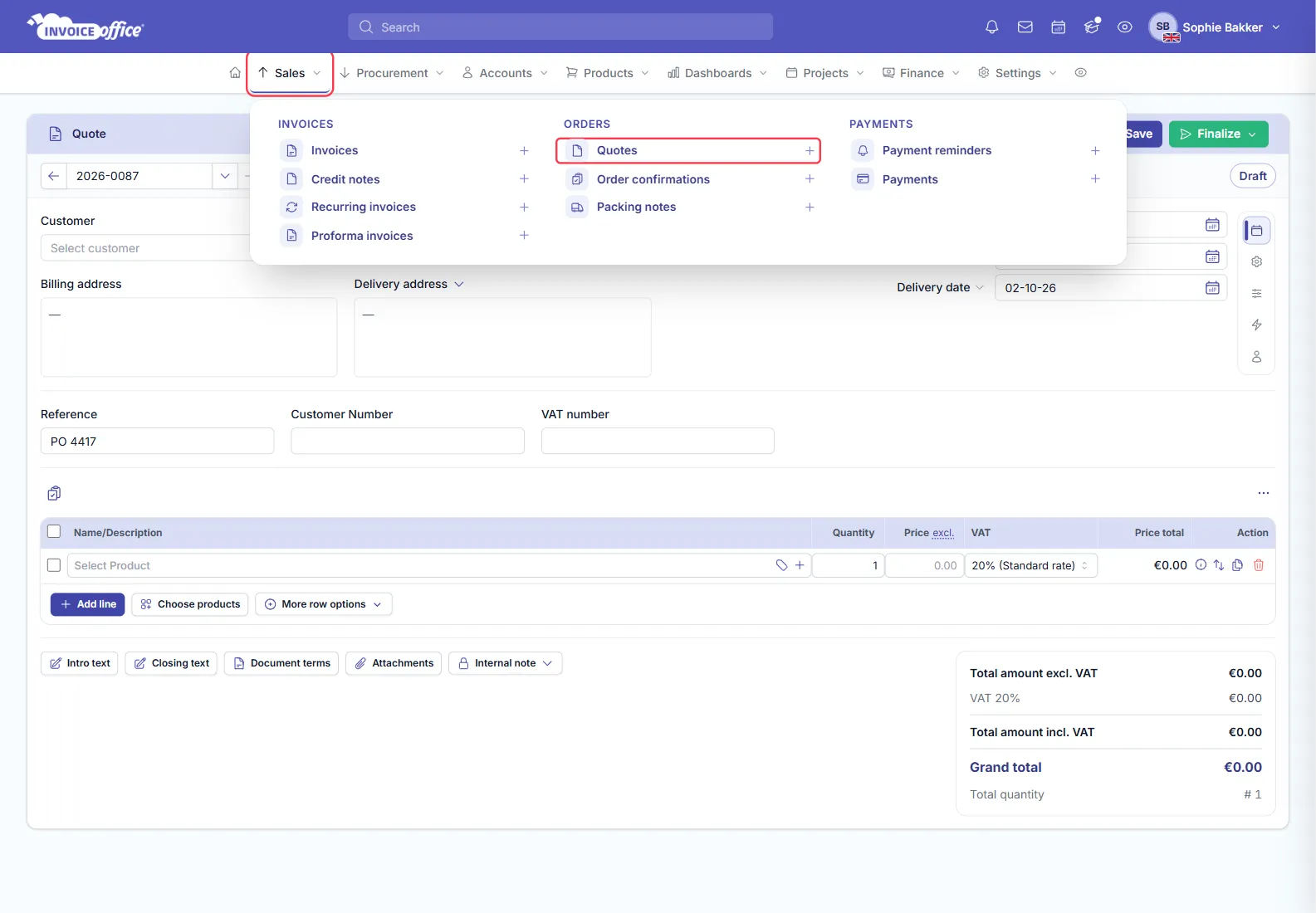
From the menu bar, open Sales and click Quotes, then Create quote on the list. The plus icon beside Quotes in the menu opens a new one directly.
Step 2 — Fill in the basics
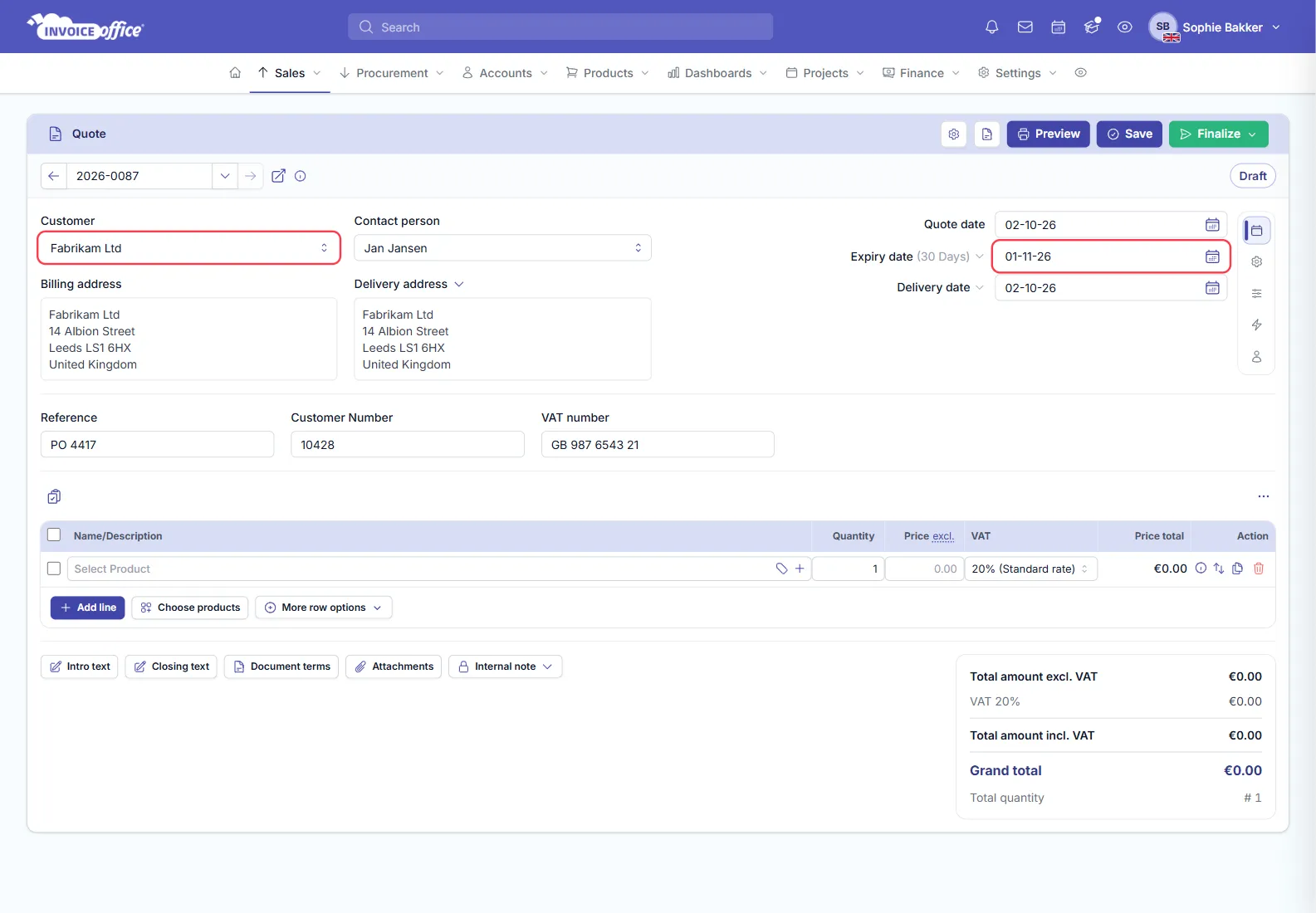
With the create quote form open, complete the customer, the quote date, the expiry date and the delivery date. The expiry date is how long your prices stay valid — it arrives set to 30 days ahead, so it is worth setting deliberately.
Selecting the customer auto-fills the contact person, delivery address and billing address, where those are available for that customer.
Step 3 — Add your products
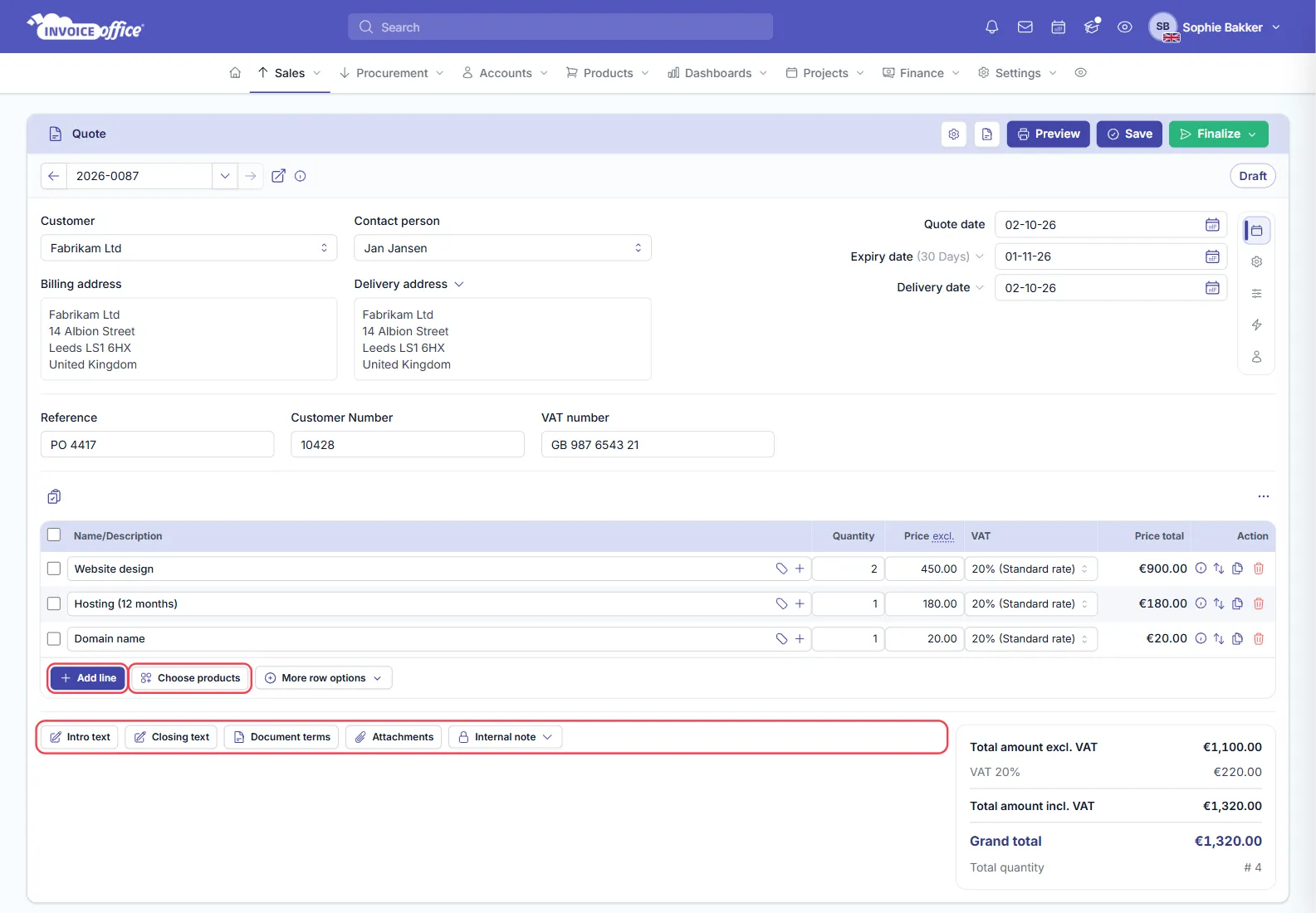
Add the products you are quoting for — Add line for a single row, or Choose products to pick several from your catalog at once. Each line shows the quantity, the price excluding VAT, the VAT rate and the line total, and the totals panel keeps a running subtotal, VAT and grand total.
There are also options to add intro text, closing text, document terms, attachments and an internal note — useful for specifications that belong with the offer.
Step 4 — Preview, save or finalize
Three buttons sit in the top-right of the quote card.
Preview shows the quote as it will look when it reaches the customer.
Save stores it so you can send it later. It stays a Draft until you finalize it.
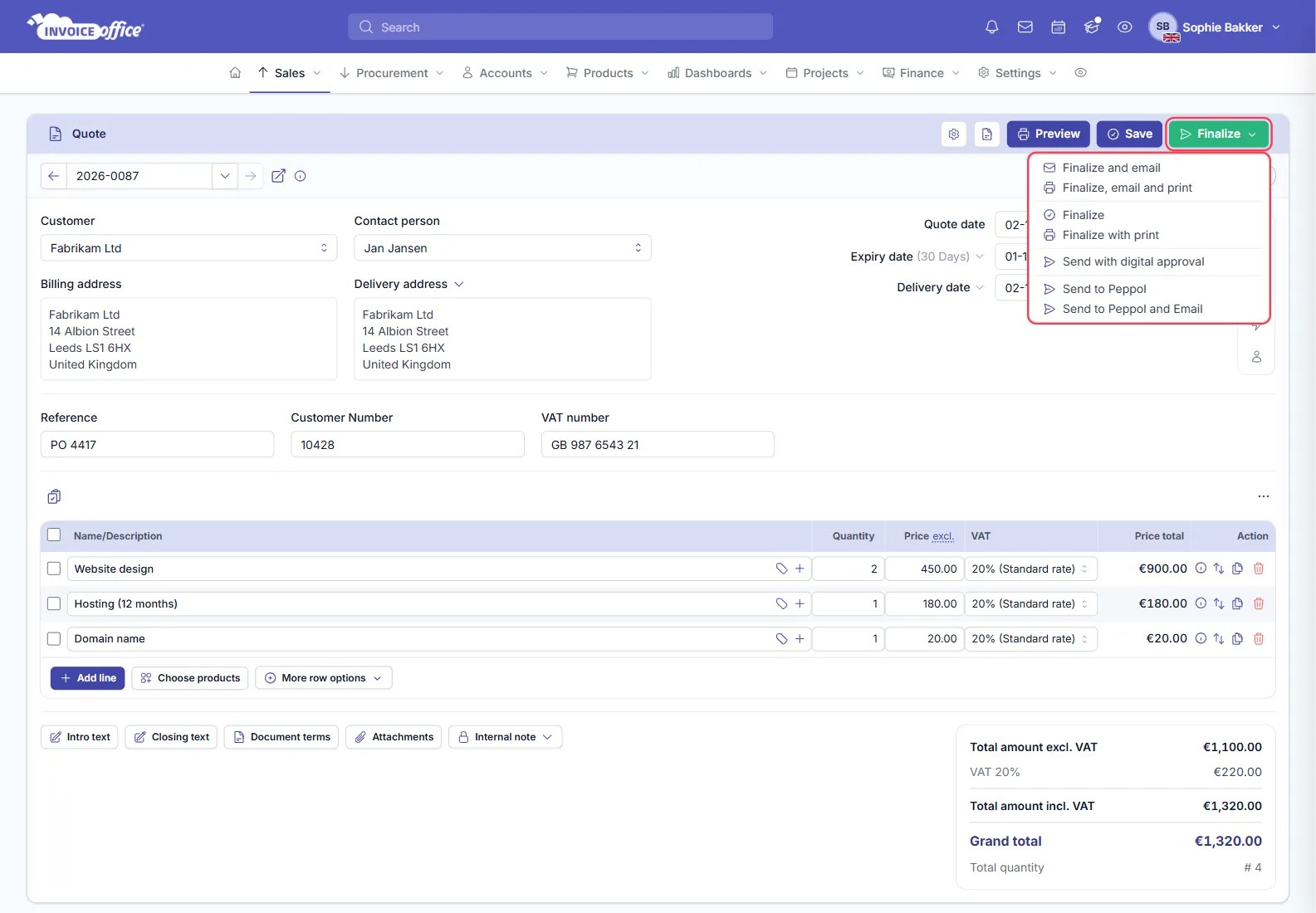
Finalize opens a menu of seven ways to issue it:
- Finalize — finalises the quote and nothing else.
- Finalize with print — finalises it and prints it.
- Finalize and email — finalises it and emails the customer.
- Finalize, email and print — all three at once.
- Send with digital approval — emails the quote with a link the customer uses to approve it online; see the customer portal and online quote approval.
- Send to Peppol — issues it over the Peppol network.
- Send to Peppol and Email — both.
When the customer approves
Go to Sales → Quotes and open the Action menu on the quote — the ⋮ button in the Action column. Change quotation status records the customer’s answer, and your overview of offers then shows the quote as approved.
Create invoice in the same menu turns the quote into an invoice — nothing is retyped and nothing is lost between the two documents. See Convert a quote to an invoice for the whole flow, and Create an invoice for the rest of that form. The menu also converts a quote into an order confirmation, a packing note or a proforma — see Create a proforma invoice.
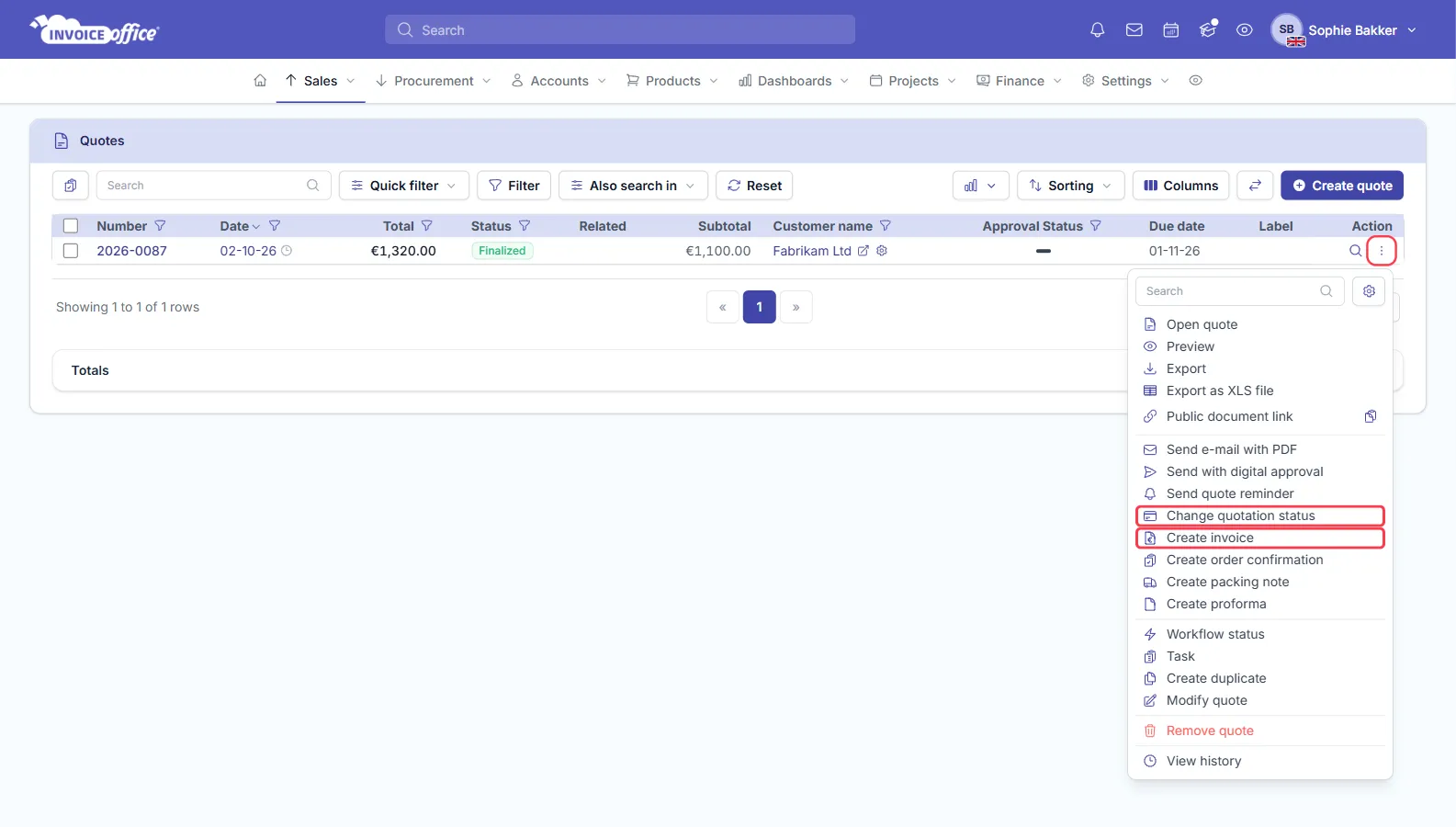
Two options in that menu are specific to quotes: Send with digital approval lets the customer accept the offer online, and Send quote reminder chases one you have not heard back on.