A packing note, or packing slip, is the document that travels with the goods and lists what is in the delivery. In Invoice Office it is built from the same form as your other documents, so the customer and product details you already have are reused — but it carries no prices, which is exactly what you want in the box.
Where to start
You can create a packing note in three ways:
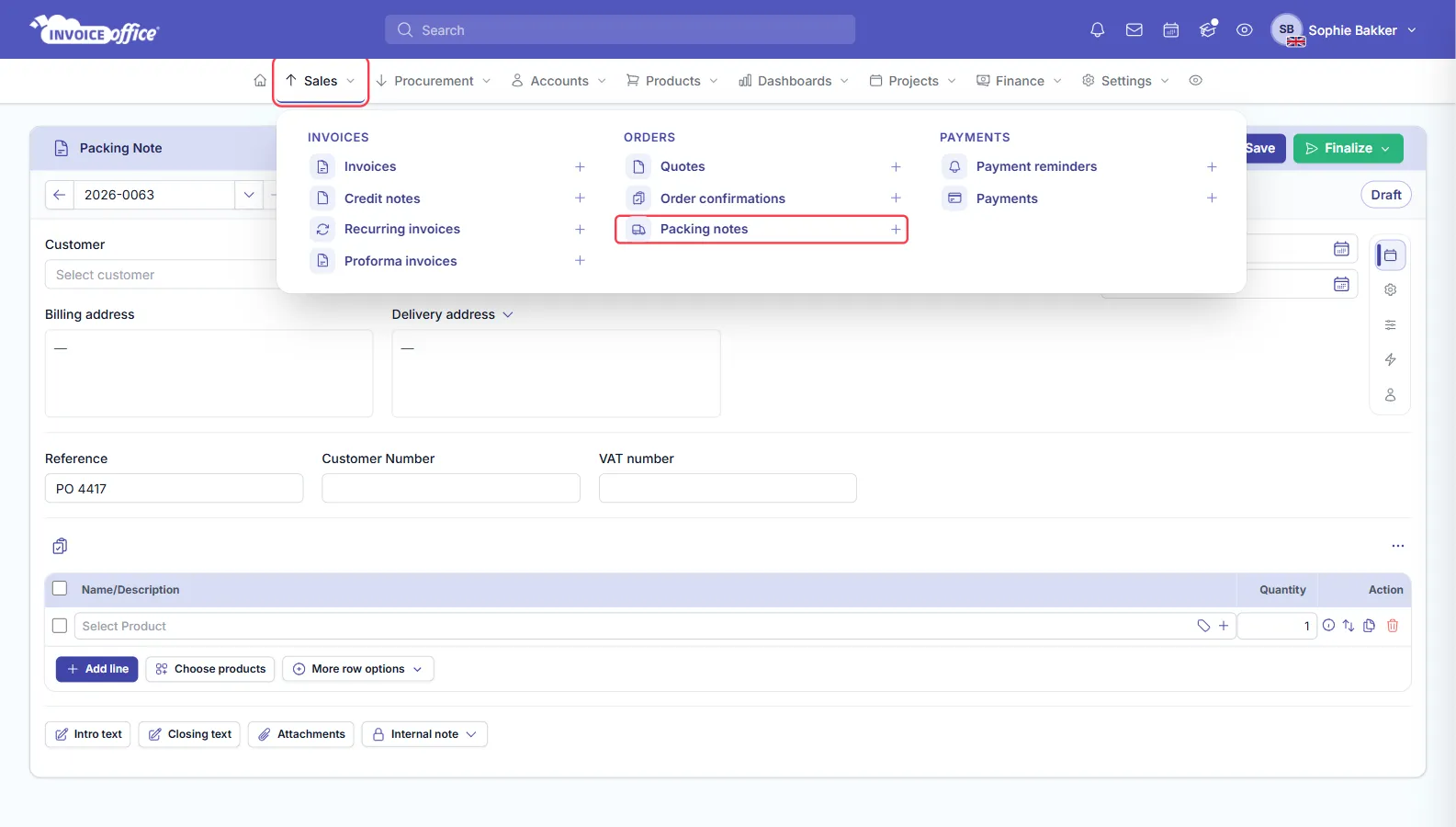
- Option A — from the menu bar, open Sales and click Packing notes, or the plus icon beside it for a new one.
- Option B — from Accounts → Customers, open the Action menu on the customer receiving the delivery and choose Create packing note.
- Option C — from Products → Action → Create packing note, starting from what you are shipping.
Fill in the packing note
A new packing note opens. Fill in the details you need:
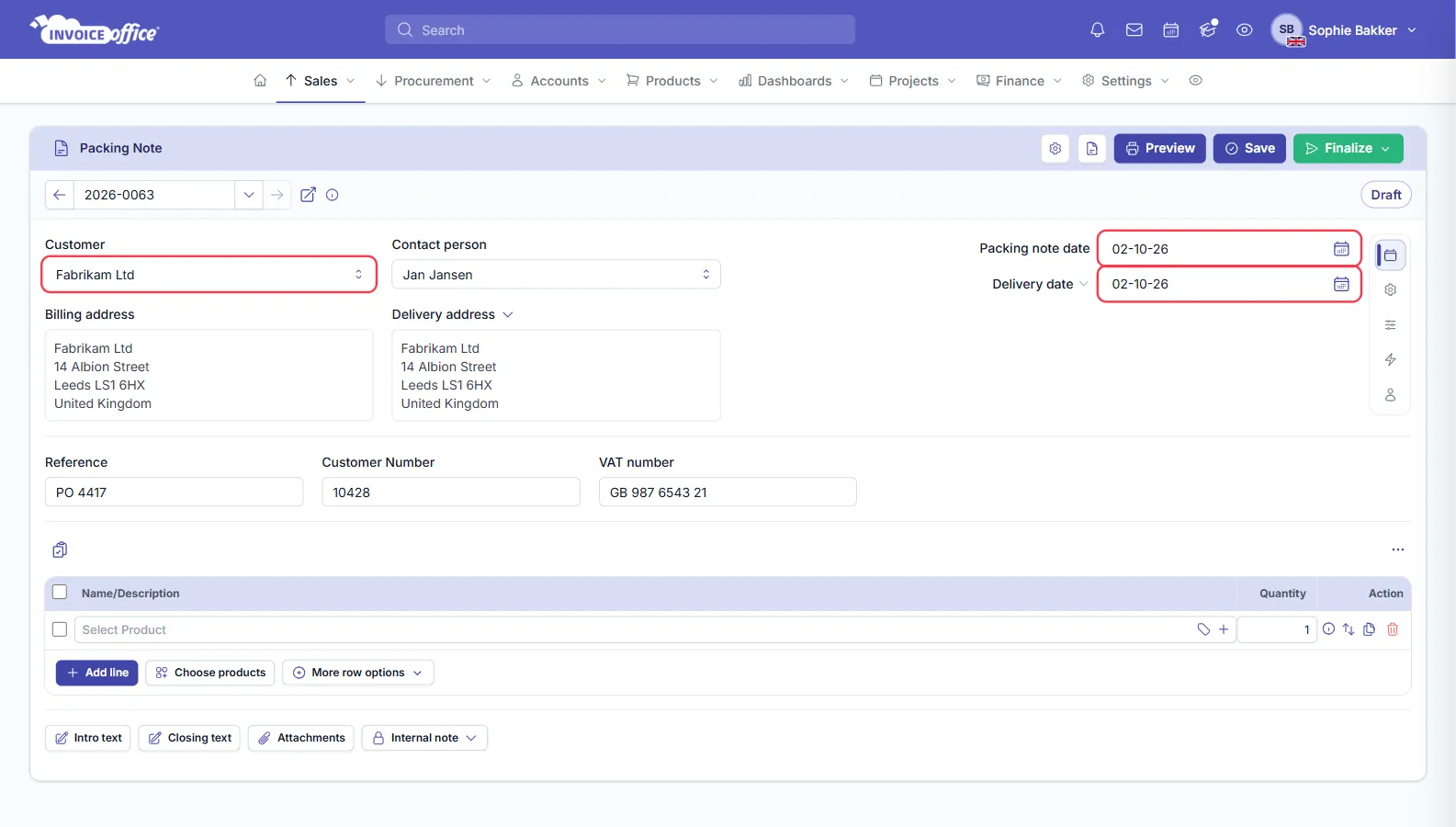
- Customer — selecting the customer fills in the contact person and both addresses automatically.
- Packing note date and delivery date — see Show the delivery date on your documents if the delivery date is not visible on your document.
- Customer number and VAT number, if you show them.
Add what is being delivered
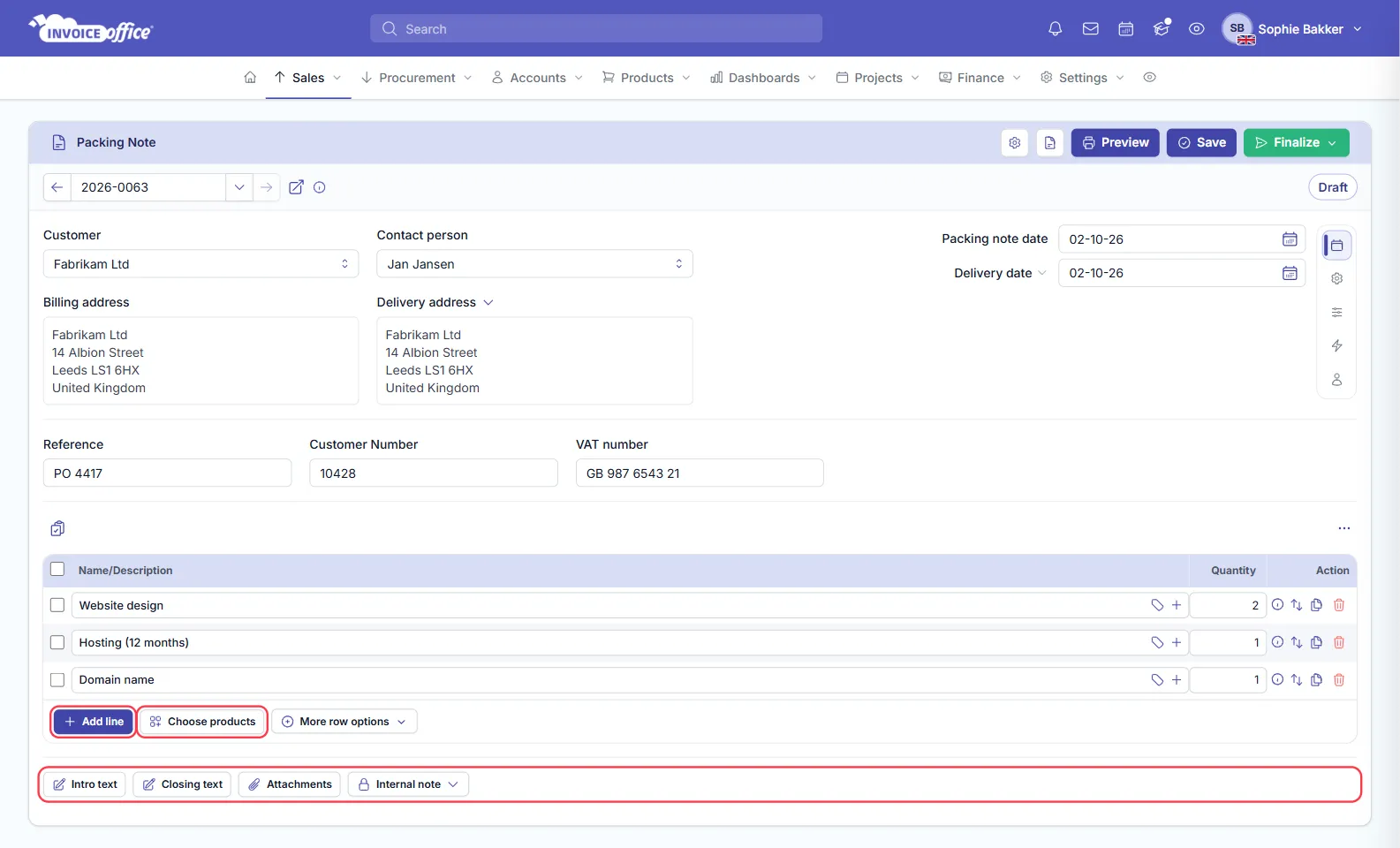
Add the products with Add line, or Choose products to pick several from your catalog at once.
A packing note’s line table holds only the name or description and the quantity — no unit price, no VAT, no line total, and no totals panel. That is deliberate: the document travels with the goods, so the amounts stay on the invoice. If you do want figures on it, switch the columns on through ⋯ → Display Columns above the table.
You can still add intro text, closing text, attachments and an internal note.
Preview, save or finalize
Three buttons sit in the top-right of the packing note card.
Preview shows the packing note as it will look when it reaches the customer.
Save stores it so you can send it later. It stays a Draft until you finalize it.
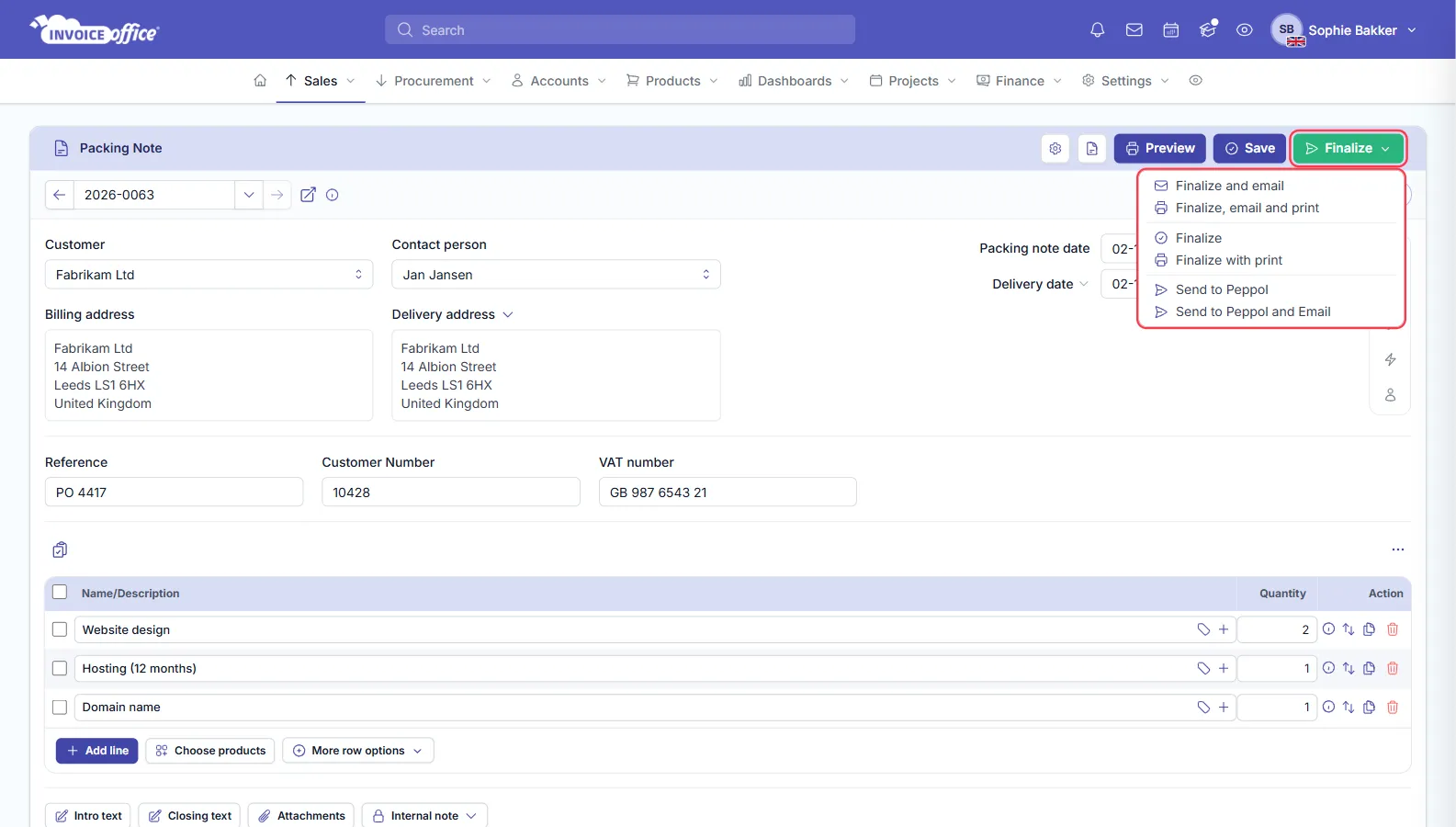
Finalize opens a menu of six ways to issue it:
- Finalize — finalises the packing note and nothing else.
- Finalize with print — finalises it and prints it.
- Finalize and email — finalises it and emails the customer.
- Finalize, email and print — all three at once.
- Send to Peppol — issues it over the Peppol network.
- Send to Peppol and Email — both.
Most packing notes get printed rather than emailed, since they travel in the box with the goods — Finalize with print is the usual choice.