To add an extra licence to your Invoice Office account, you buy one more seat of the licence you already have under Settings → Licenses, pay online, and then add your colleague as a user. Each software user needs a licence, so adding a colleague who works in invoices, quotes or the books means one extra seat. You can do it yourself in a few minutes; there’s no need to contact us unless you need more than 10 seats.
Open the licence page
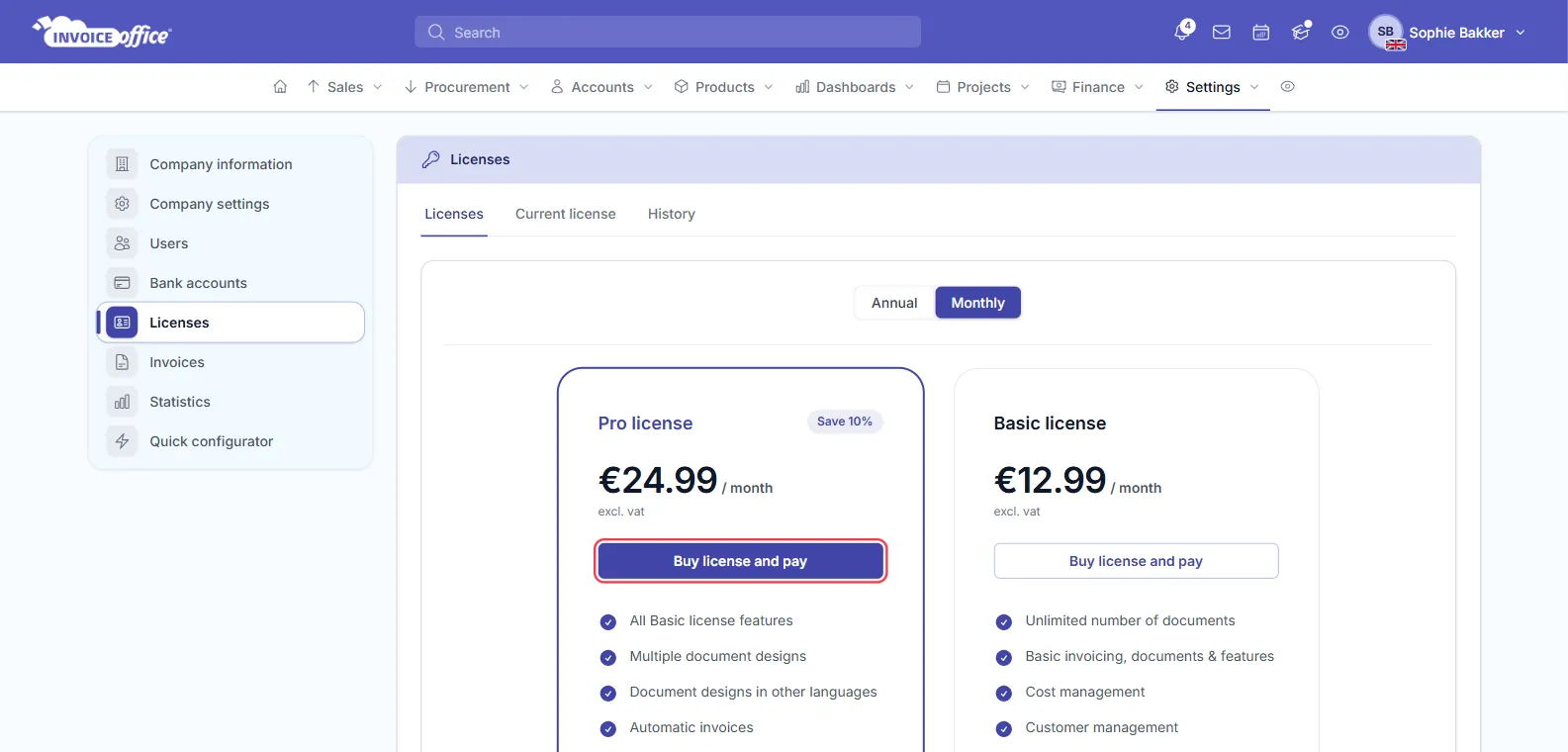
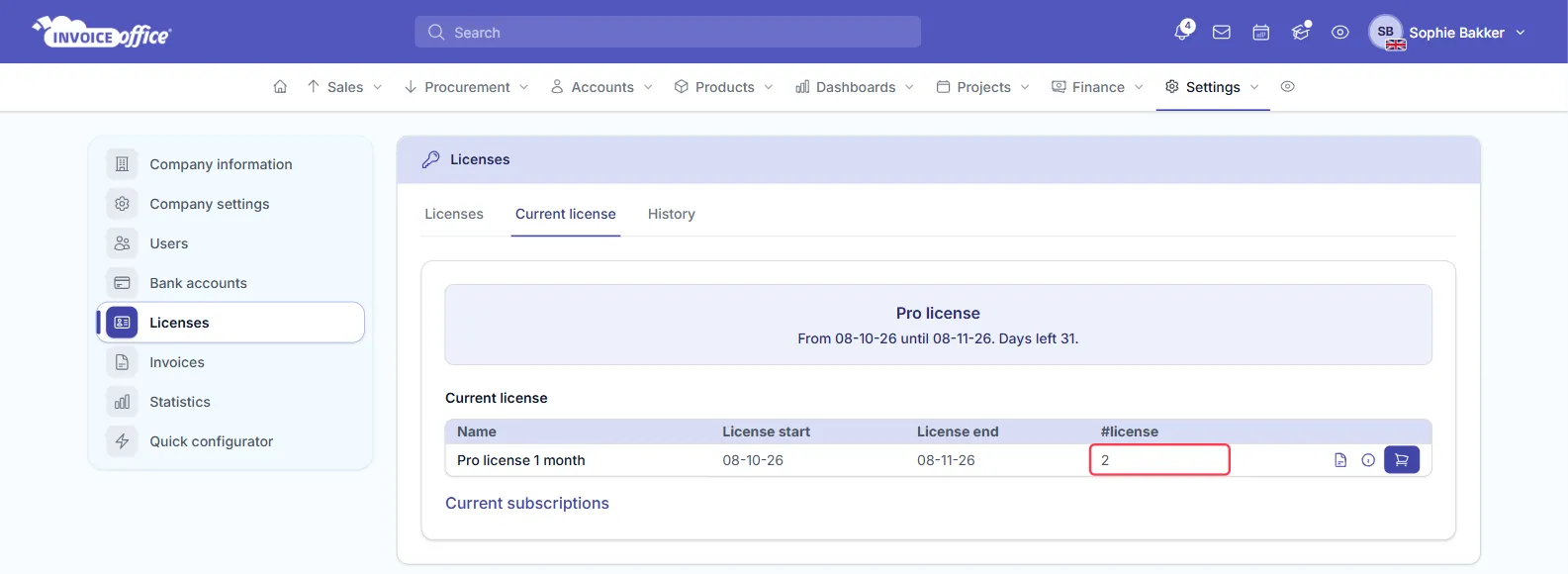
Go to Settings → Licenses. The page has three tabs:
- Licenses: the Pro and Basic licences and the options you can buy, per year (Annual) or per month (Monthly).
- Current license: the licence you have now, its start and end date and how many seats it has in the #license column.
- History: earlier purchases.
Buy the extra seat
-
On the Licenses tab, choose Annual or Monthly: the same period as your current licence. If your licence is annual, a monthly licence can’t be bought on top of it.
-
Click Buy license and pay on the licence you already have, Pro license or Basic license. (On the Current license tab, the cart button on your licence’s row opens the same window.)
-
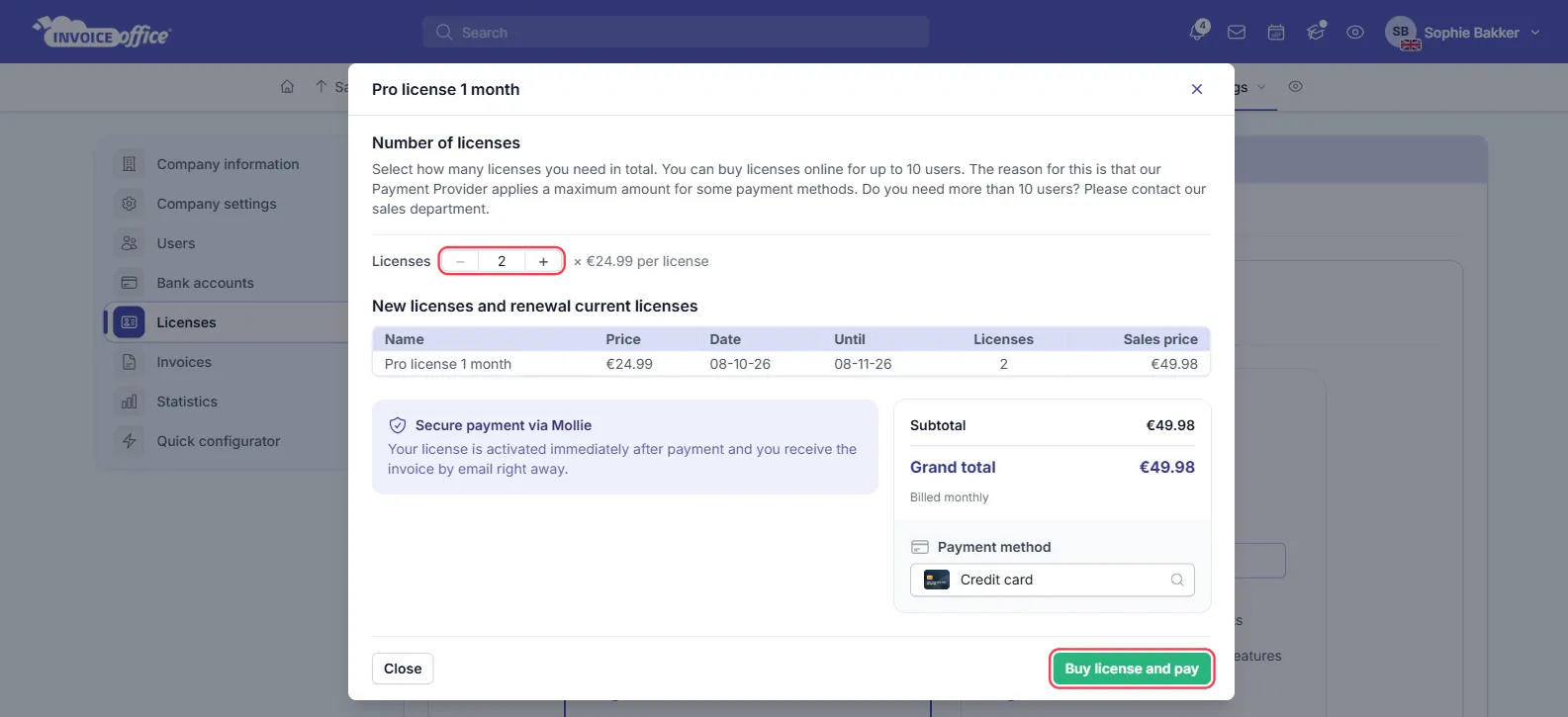
The window opens with Number of licenses already set to your current number plus one (or to your number of software users, if that’s higher). Use + to add more seats and − to go back; it won’t go below that starting number. You can buy up to 10 seats online; for more, contact our sales department. If your licence ends today or has already expired, the window opens at your current number of seats instead, because the purchase renews your licence. Click + to add the extra seat in the same purchase.
-
Check the overview: New licenses and renewal current licenses shows the licence, its price per licence, the period and the total for all seats. Below it are the Subtotal, any refund for your current licence, the VAT (when VAT applies) and the Grand total.
-
Choose a Payment method, for example credit card, PayPal or Apple Pay.
-
Click Buy license and pay. You’re taken to Mollie, our payment provider, to pay.
Your licence is activated as soon as the payment comes through (straight away with a card, PayPal or Apple Pay), and the invoice is emailed to you. The Current license tab then shows the new number of seats.
How billing works when you add a seat
Buying a seat renews your licence for all seats at once:
- The new period starts today. The licence runs for a full year or month from the day you buy, for every seat, not only the new one.
- You’re credited for the time you already paid. If your current licence still has days left, the window adds a refund line for the remaining period: the part you paid for those days is deducted from the total.
- VAT depends on your billing country. Businesses in the Netherlands pay Dutch VAT, businesses in another EU country with a valid VAT number are reverse-charged, and businesses outside the EU pay no VAT. If your billing country isn’t known yet, the window asks for it first. If you’re in another EU country and the window doesn’t have a valid VAT number for you yet, it shows a VAT number field: enter it to apply the reverse charge, otherwise VAT is charged.
For the price per licence, see pricing. Your licence then renews automatically; to stop that, see how to cancel the auto-renewal.
Invite your colleague
Once the seat is active, add the new user:
- Go to Settings → Company information → Users and click Add user.
- Choose Add software user, fill in their details and save.
See how to create and manage your users for every step, and how to manage user roles and permissions to decide what they can see and do.
Only software users need a licence. Team members, who only use projects and timesheets, and guest users with read-only access, such as your accountant, are free.