User roles and permissions in Invoice Office decide what each person on your team can see and do. Every user has a role — Administrator, Manager, Employee, Guest or Team member — and a grid of rights per module, so you can let a colleague create invoices without letting them delete one, or give your accountant read-only access to the books.
This article covers the roles, what each right means, how to change a user’s role and how to shut a user out of a module. To add someone first, see How to create and manage your users.
Where to find user permissions
- Go to Settings → Company information and click Users in the left-hand menu — or open Projects → Employees, which leads to the same list.
- The Type column shows each user’s role.
- Open the user’s Action menu and choose Edit user rights.
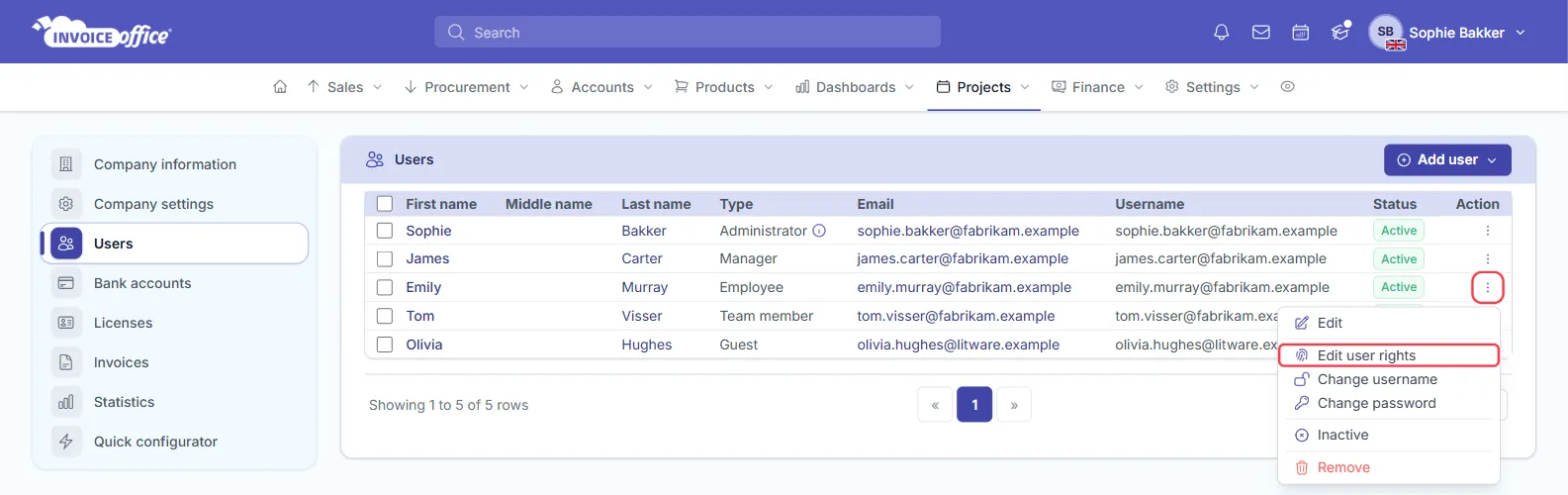
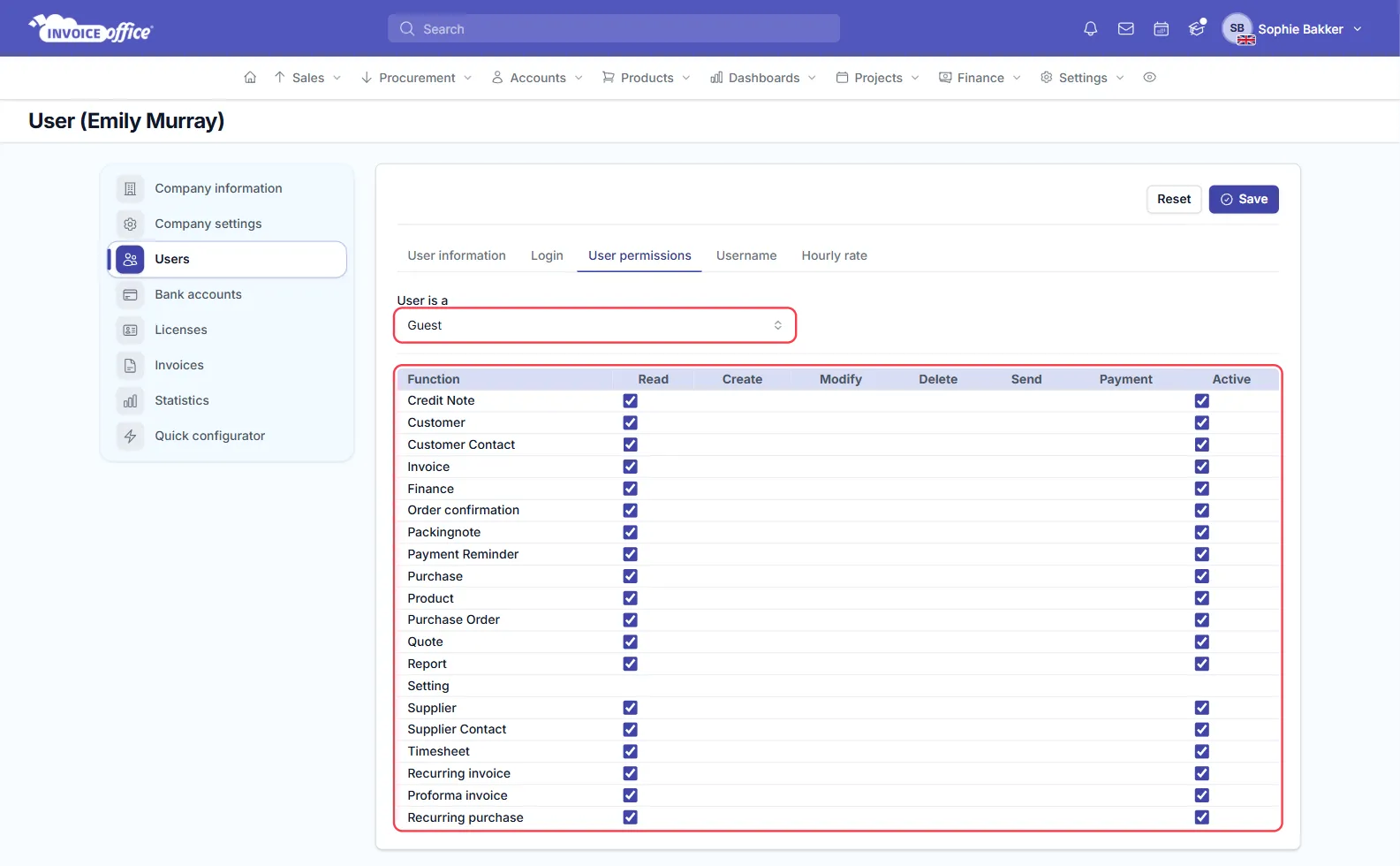
That opens the user’s User permissions tab: a User is a field for the role, and below it the rights grid.
The roles
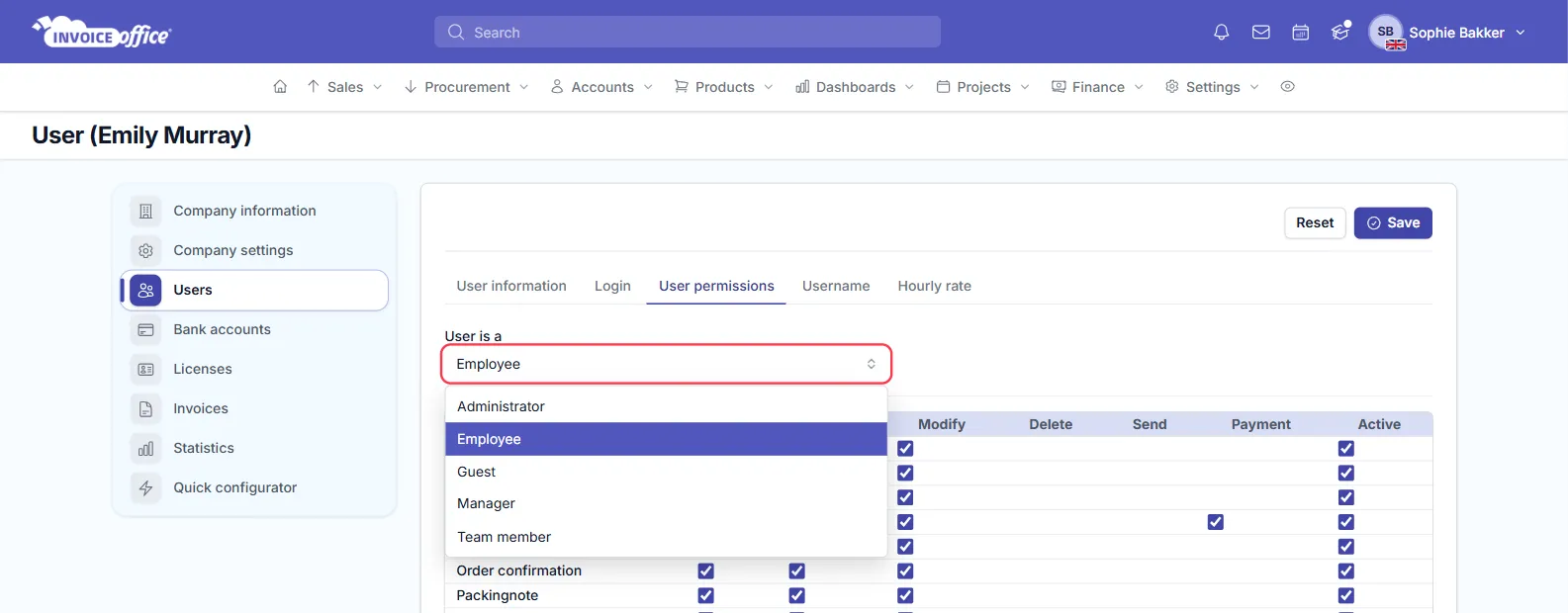
This is role-based access: choosing a role in User is a fills the grid with that role’s default rights: it ticks the rights the role allows, and clears and hides the rest.
| Role | Default rights |
|---|---|
| Administrator | Every right on every module. |
| Manager | The same rights as an administrator. |
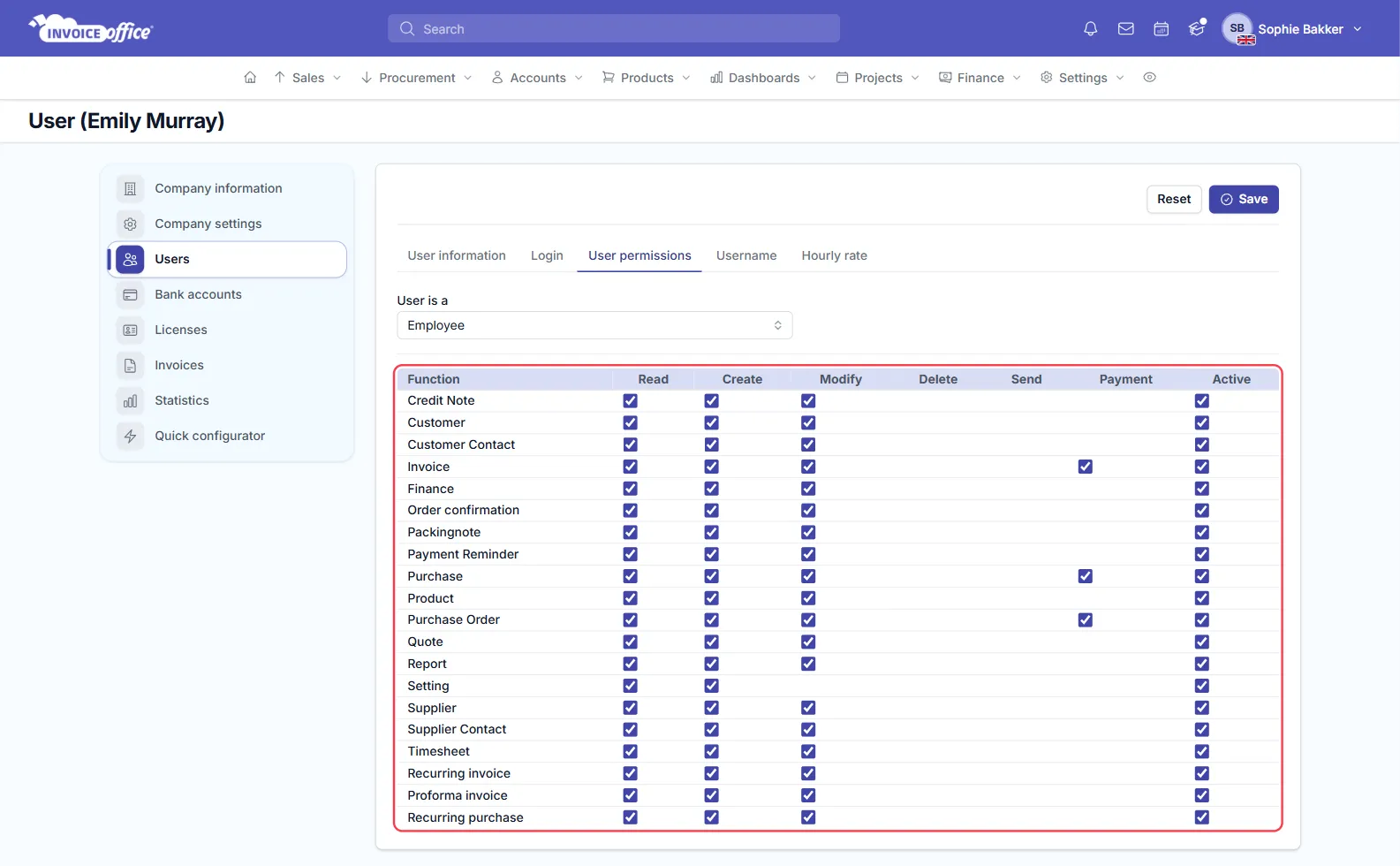
| Employee | Read, Create, Modify and Active on every module (no Modify on Setting), plus Payment where a module has it. No Delete and no Send. |
| Guest | Read only, on every module except Setting, where a guest gets no rights at all. |
| Team member | Full rights on Timesheet only — see How the Invoice Office timesheet works. |
Managers differ from administrators in one place outside the grid: in the weekly timesheet view a manager sees everyone’s hours, while an administrator — like other users — sees only their own team’s. In the monthly overview administrators and managers both see everyone’s hours.
The company owner is always an administrator with every right. Their row in the list carries the note “This user is company owner. It must have maximum rights always. Permissions for this user cannot be changed.”
What each permission means
The grid has one row per module — the Function column — and a column per right:
- Read — see the module’s records.
- Create — add new records.
- Modify — change existing records.
- Delete — remove records.
- Send — email documents from the module (on Timesheet, send hours for approval). Customer, Customer Contact, Product, Setting, Supplier and Supplier Contact do not have it.
- Payment — work with payments, such as registering them in bulk. Only Invoice, Purchase and Purchase Order have it.
- Active — whether the user can open the module. For document modules such as Invoice or Quote, unticking it blocks the module; Report, Setting and Finance pages are mostly controlled by Read instead.
The modules are Credit Note, Customer, Customer Contact, Invoice, Finance, Order confirmation, Packingnote, Payment Reminder, Purchase, Product, Purchase Order, Quote, Report, Setting, Supplier, Supplier Contact, Timesheet, Recurring invoice, Proforma invoice and Recurring purchase.
Change a user’s role
- Open Edit user rights for the user, as above.
- In User is a, choose the new role. The grid refills with that role’s defaults.
- Untick any right the person does not need.
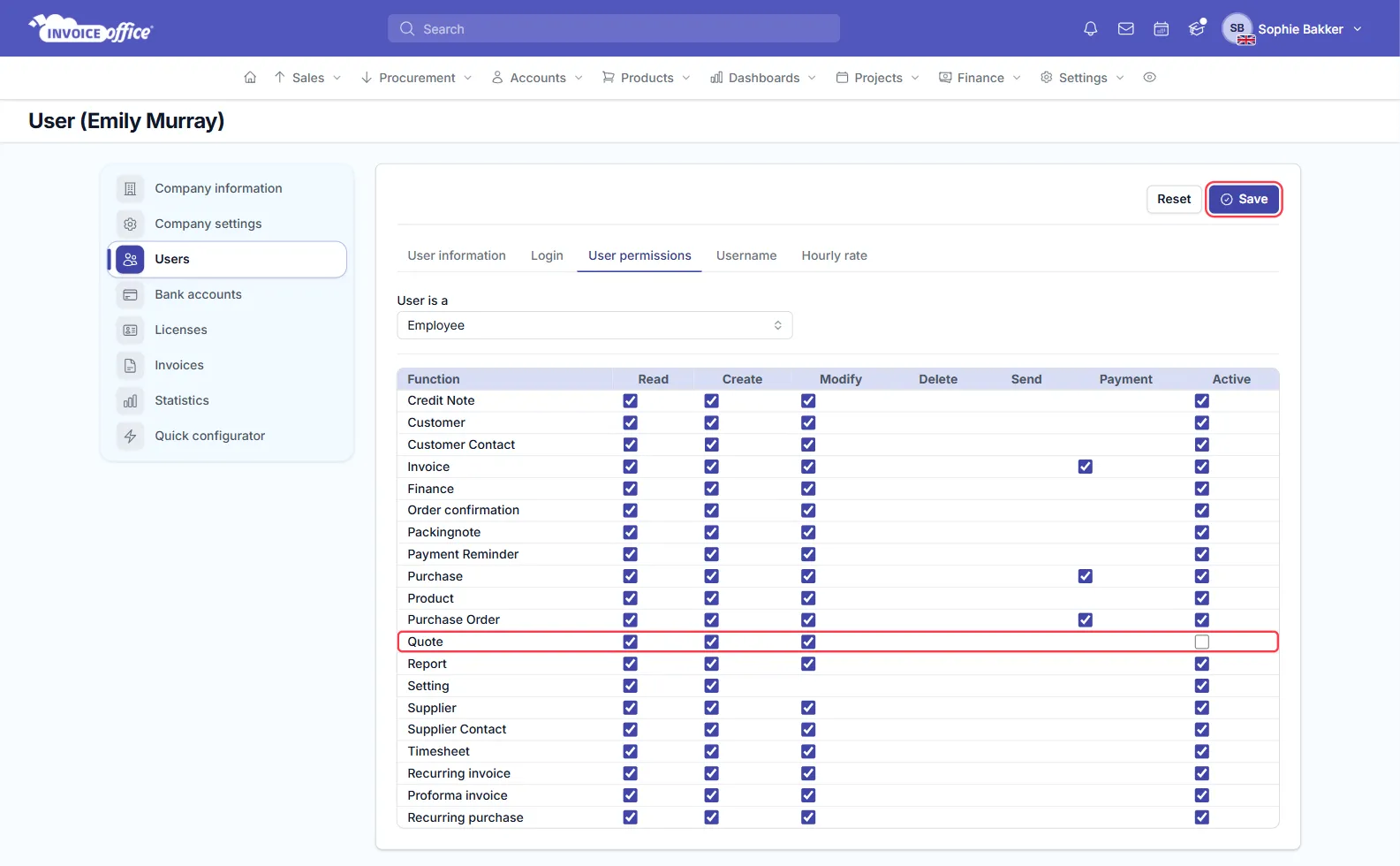
- Click Save in the top-right of the card. Reset discards your changes.
Restrict access to a module
To keep someone out of a document module entirely — Quote, say — untick Active on that row and click Save. The module stays in their menu, but opening it shows “You don’t have enough permissions”.
To allow a module but limit it, leave Active on and untick the individual rights instead — keep Read and clear Create, Modify and Delete for a read-only view of that one module.
Guest users
A guest has read-only access, which suits an outside accountant who needs to see your books but not change them. Choosing Guest in User is a leaves only Read and Active ticked, and nothing on Setting.
Once a user is saved as Guest — or added with Add guest member — their role and rights can no longer be changed. The same applies to team members: their rights are fixed.
Keep team permissions tight
Give each person the rights their work needs and no more — it keeps an accidental delete or a mistaken send out of reach. Pair that with two-factor authentication so a stolen password is not enough to get in.