Everyone who works in your administration should have their own login. Sharing one account makes it impossible to see who did what, and means a single password change locks out the whole team.
Where to add a user
- Go to Settings → Company information — or Projects → Employees.
- Click Users in the left-side menu.
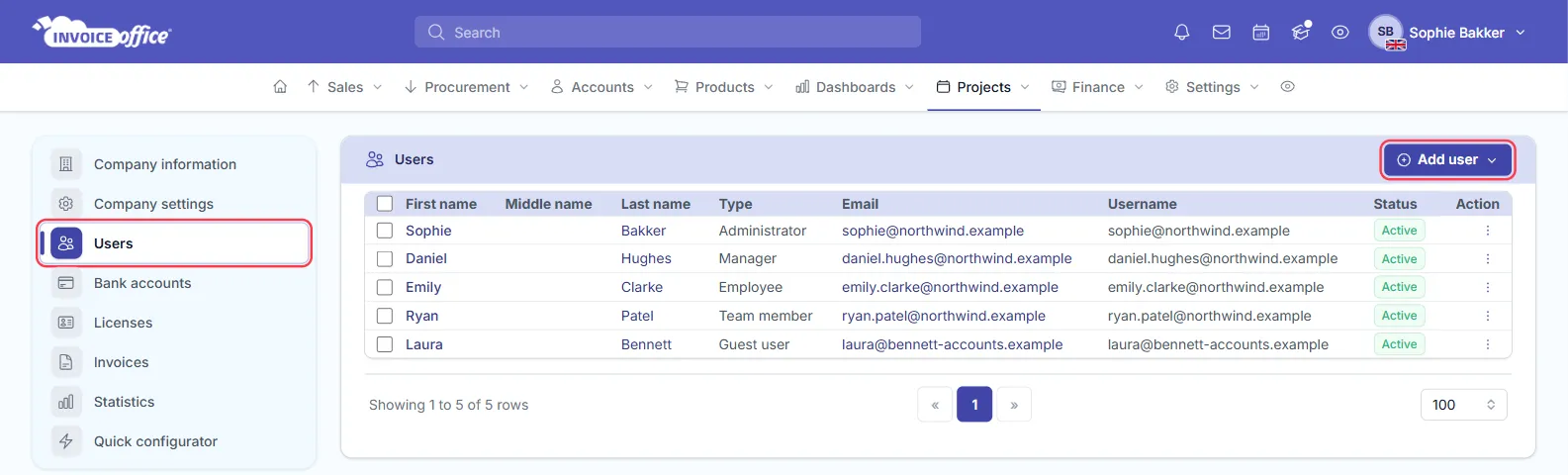
- Your admin user is listed on the user page. Use the Add user button in the top right corner.
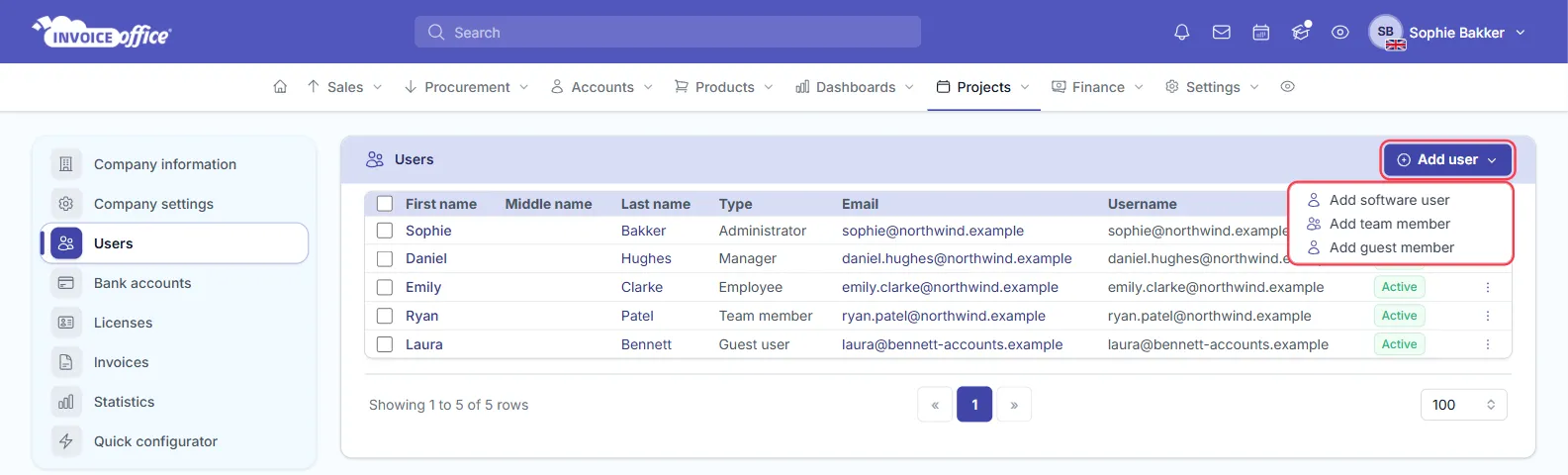
Add user opens a short menu with one entry per type of user: Add software user, Add team member and Add guest member.
The three types of user
| Type | What they can do | Licence needed |
|---|---|---|
| Software user | Administrator, Manager or Employee, permissions set per module | Yes |
| Team member | Projects and timesheets only | No — free |
| Guest user | Read-only access to your account data | No — free |
Only software users consume a licence. Team members and guest users are excluded from the count, and while you are on a trial the limit is not applied at all.
Software user
Software users are the administrator’s users, and you need a licence for each one — a licence is required because a software user can be given administrator permissions. In the Type column they show as Administrator, Manager or Employee.
Click Add software user, fill in the details, set the user’s permissions, and save. Edit user rights on the row opens a grid of privileges per module — Read, Create, Modify, Delete, Send, Payment and Active — so you grant exactly what someone needs. See Manage user roles and permissions. The company owner is the exception: they always keep maximum rights and cannot be changed.
Team member
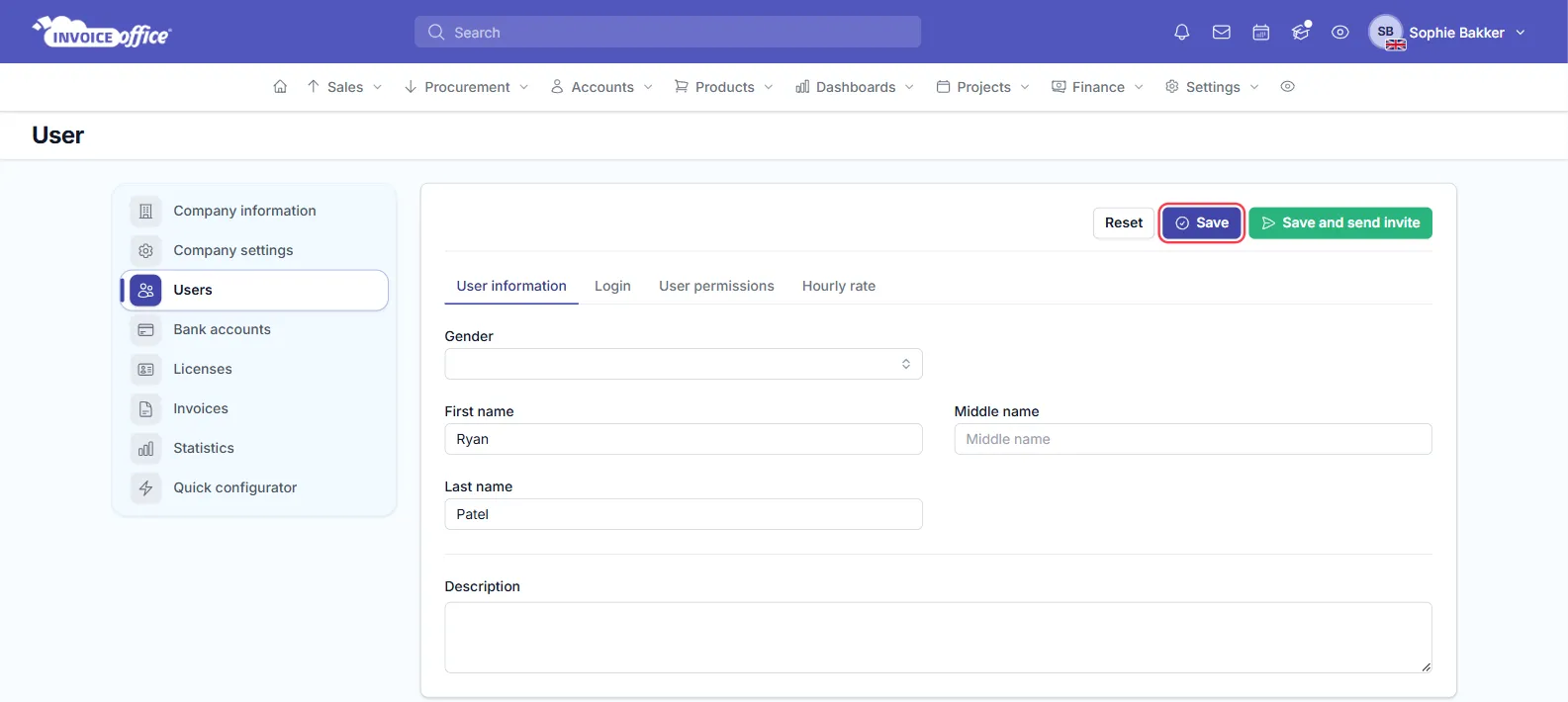
Click Add team member and fill in the details. The form has User information, Login, User permissions and Hourly rate tabs; Save stores the user, and Save and send invite also emails them an invitation to log in. The Type column then shows the role as Team member.
A team member’s permissions are not adjustable, because the account is used only in the timesheet — team members are active within projects and timesheets and nowhere else. You can review what they have via user permissions.
Guest user
Guest users have read-only access to your account data — the obvious case is your financial accountant, who needs to see the books but not change them. Click Add guest member, fill in the details, and save.
Choosing the right type
Give people the access their job needs and no more — not out of suspicion, but because it makes accidental damage far less likely, and because only software users cost you a licence. Someone who only logs hours is a team member; someone who only reads is a guest.
When someone leaves
Remove their access rather than changing the password and passing it on. Their name stays against the work they did, which is what you want for your audit trail.
If a colleague has to take over the login instead, for example because the account signs in with the departing colleague’s email address, you can change the user’s login email address rather than add a new user.
Any doubts? Contact us and we will help.