You can cancel the auto-renewal of your Invoice Office licence yourself, in a few clicks, without emailing us. A licence that renews automatically is a subscription with Mollie, our payment provider, which collects the next payment at the end of each period. To stop that, open Settings → Licenses, go to Current subscriptions and unsubscribe. Your licence stays active until its end date; only the renewal payments stop. (A licence paid with PayPal never renews automatically, so there is nothing to cancel.)
Cancel the auto-renewal
-
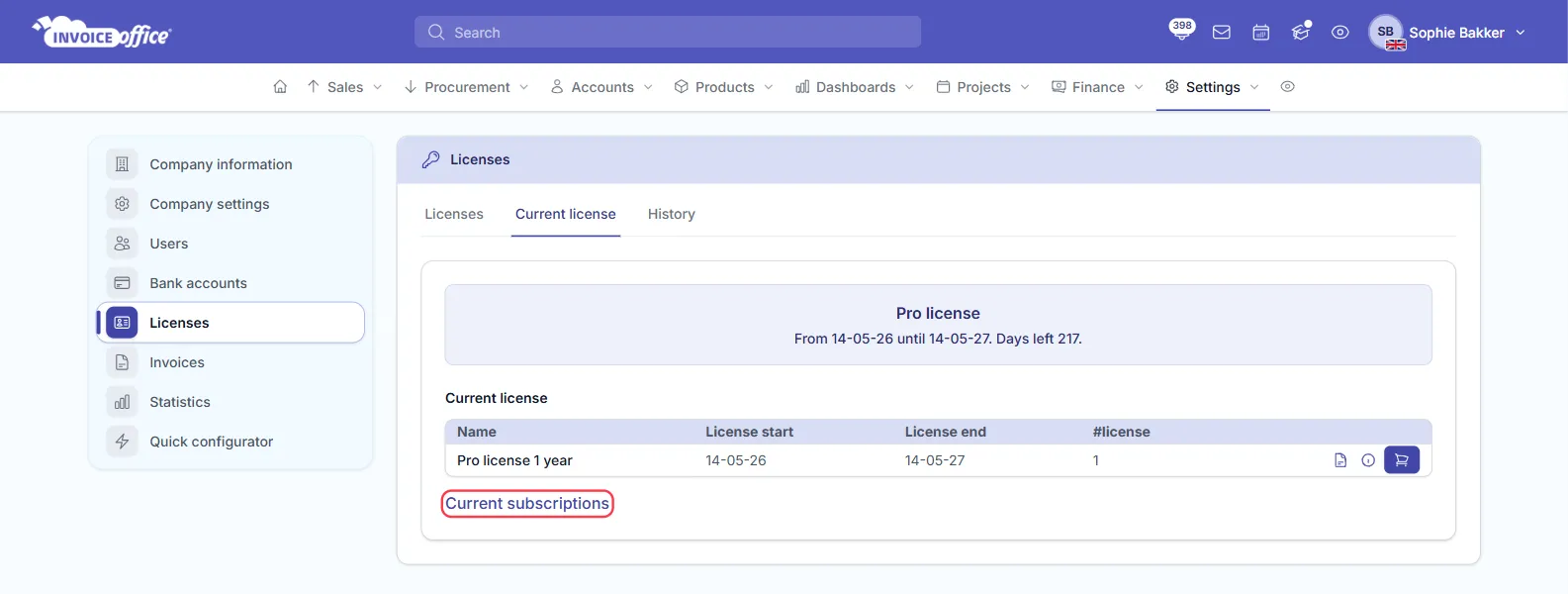
Go to Settings → Licenses and open the Current license tab. It shows your licence, its start and end date and how many days are left.
-
Click Current subscriptions below the licence table.
-
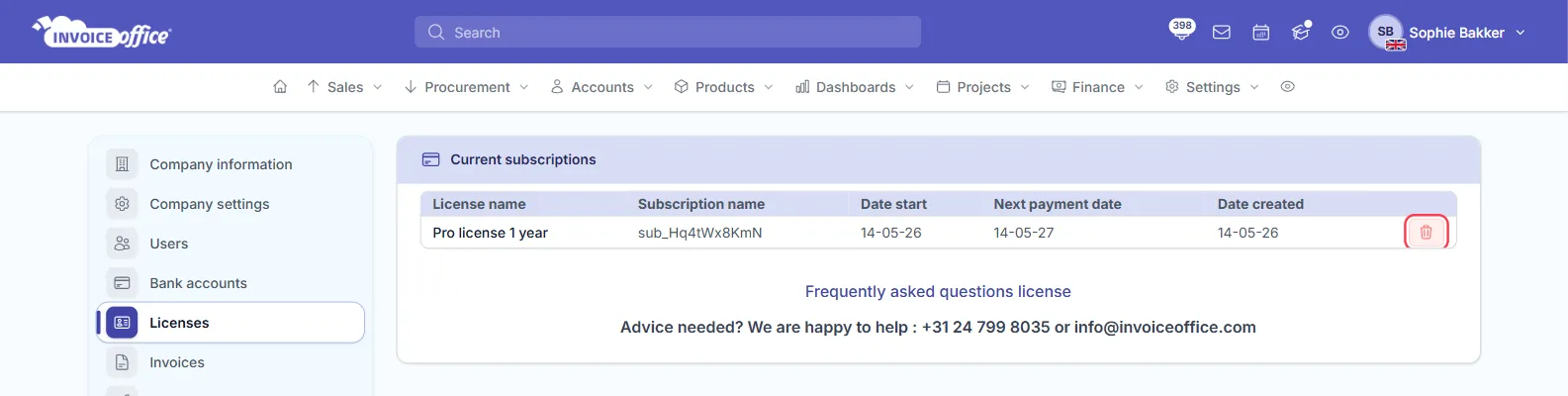
The Current subscriptions page lists every licence that renews automatically, with its License name, Subscription name, Date start, Next payment date (the date of the next automatic payment) and Date created. Click the red bin button (Unsubscribe) on the row of the licence you want to stop.
-
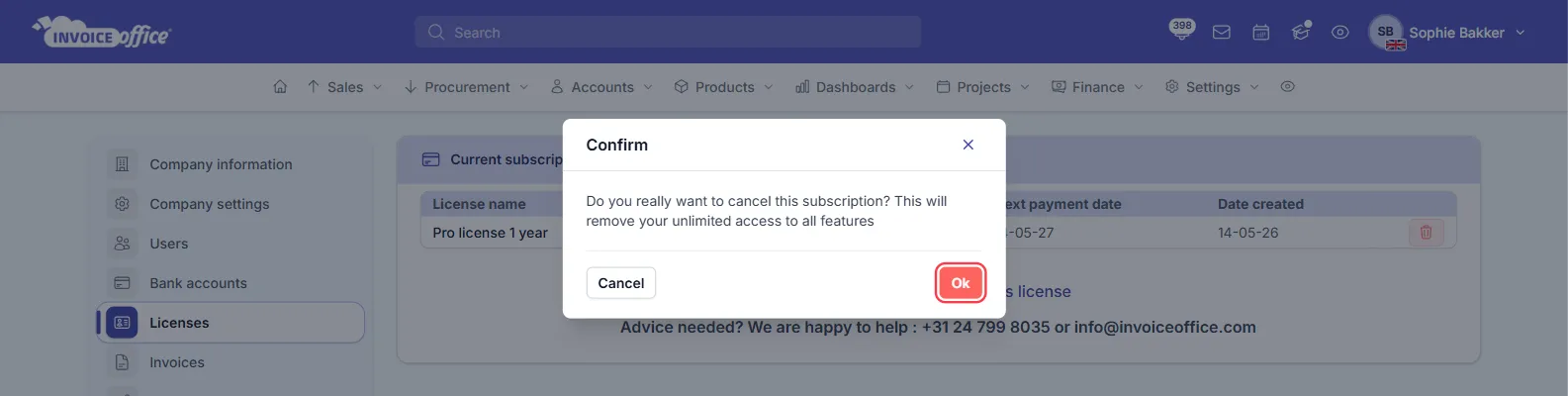
Confirm with Ok. The window asks: “Do you really want to cancel this subscription? This will remove your unlimited access to all features”. Choose Cancel if you change your mind.
The page reloads, shows Unsubscribed Successfully and the subscription is no longer in the list. If it was your only one, the page now says No subscriptions found.
Do this before the Next payment date: that’s when Mollie collects the next payment. Every licence invoice email also has a User licenses link that opens the same Current subscriptions page.
Do you get a cancellation confirmation?
No email is sent when you cancel. Your confirmation is on screen: the Unsubscribed Successfully message, and the subscription disappearing from Current subscriptions. To check later, open the page again; a cancelled subscription is not listed there. If you want a written confirmation for your records, take a screenshot of the page or contact us.
What happens after you cancel
- Your licence keeps running until its end date. Cancelling only stops the automatic renewal. You keep every feature of your licence until the end date on the Current license tab, and you’re not refunded for the remaining period.
- No further payments are taken. The subscription is cancelled at Mollie, so nothing is charged on the next payment date.
- You can renew whenever you like. To keep using your licence, buy it again under Settings → Licenses, the same way as in how to add an extra licence.
What happens to your data when the licence ends
Your data is not deleted when your licence ends. You can still sign in and see your customers, products and documents. Do keep signing in now and then, though: an account without a paid licence that nobody signs in to for about eight months is deleted, after warning emails. Your account goes back to the free plan:
- You can create 3 documents a month per user; after that, saving a new document takes you to the licence page.
- Recurring invoices are no longer created, because they need an active Pro licence.
- Automatic payment reminders stop once you’re over the free limit.
If you’re leaving Invoice Office, export what you need before the end date, while every feature is still available:
- Customers, suppliers and products: use Import / Export → Export on the list. See how to export your data.
- Documents such as invoices and packing notes: select them in the list and export them to PDF, Excel or CSV. See how to bulk send or export documents.
To remove your account and all of its data for good, see how to delete your account instead; that also cancels an active subscription for you.