To set up a recurring invoice, build the invoice once, give it a schedule and finalize it. From then on Invoice Office raises and emails each invoice on its date — a subscription, a retainer or a maintenance contract no longer means rebuilding the same invoice every month.
A recurring invoice is its own document type, not a switch on an ordinary invoice. You build it like an invoice and give it a schedule. This guide also covers the other recurring invoice settings, the recurring invoices dashboard, and how to change or stop a series.
Recurring invoices need a Pro license. Without one the schedule fields are still shown, but read-only, and the scheduled run skips the series.
Create and schedule the recurring invoice
-
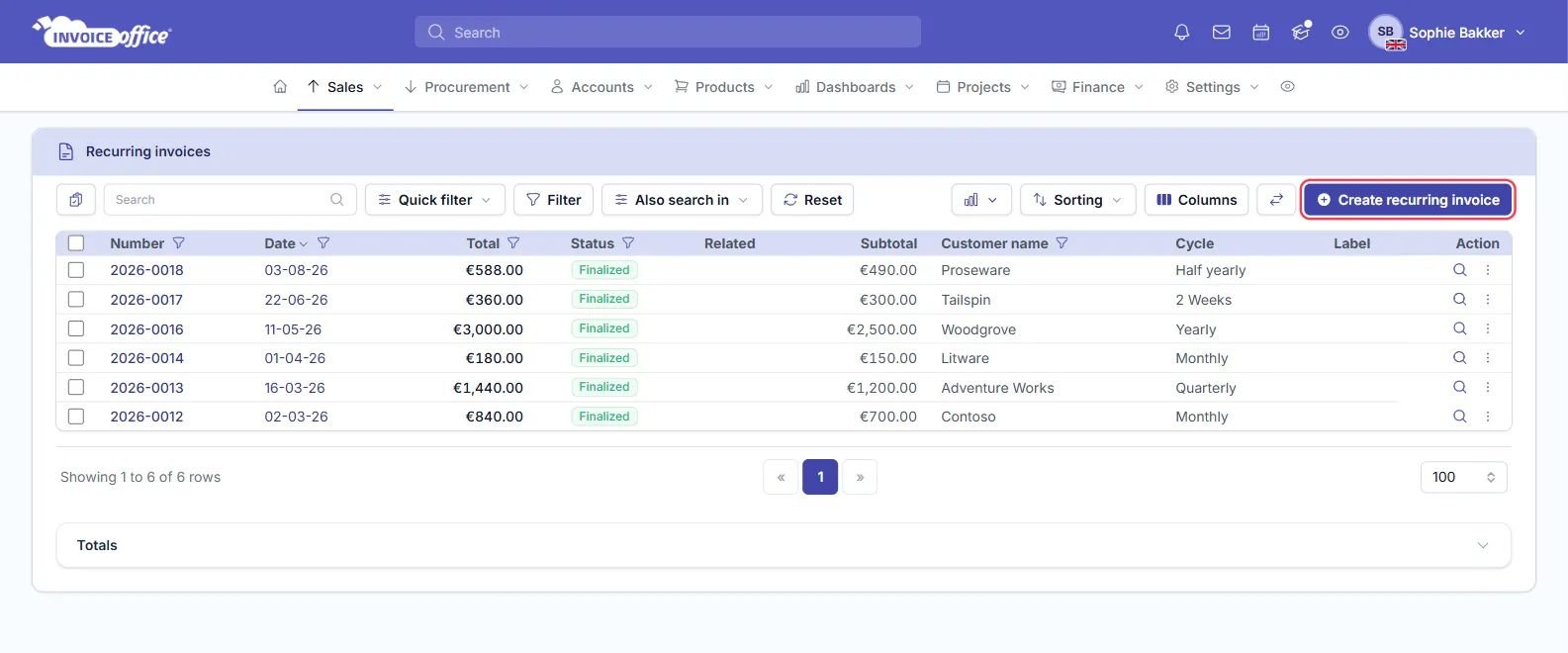
Go to Sales → Recurring invoices and choose Create recurring invoice.
-
Fill in the customer and the lines exactly as you would on a normal invoice.
-
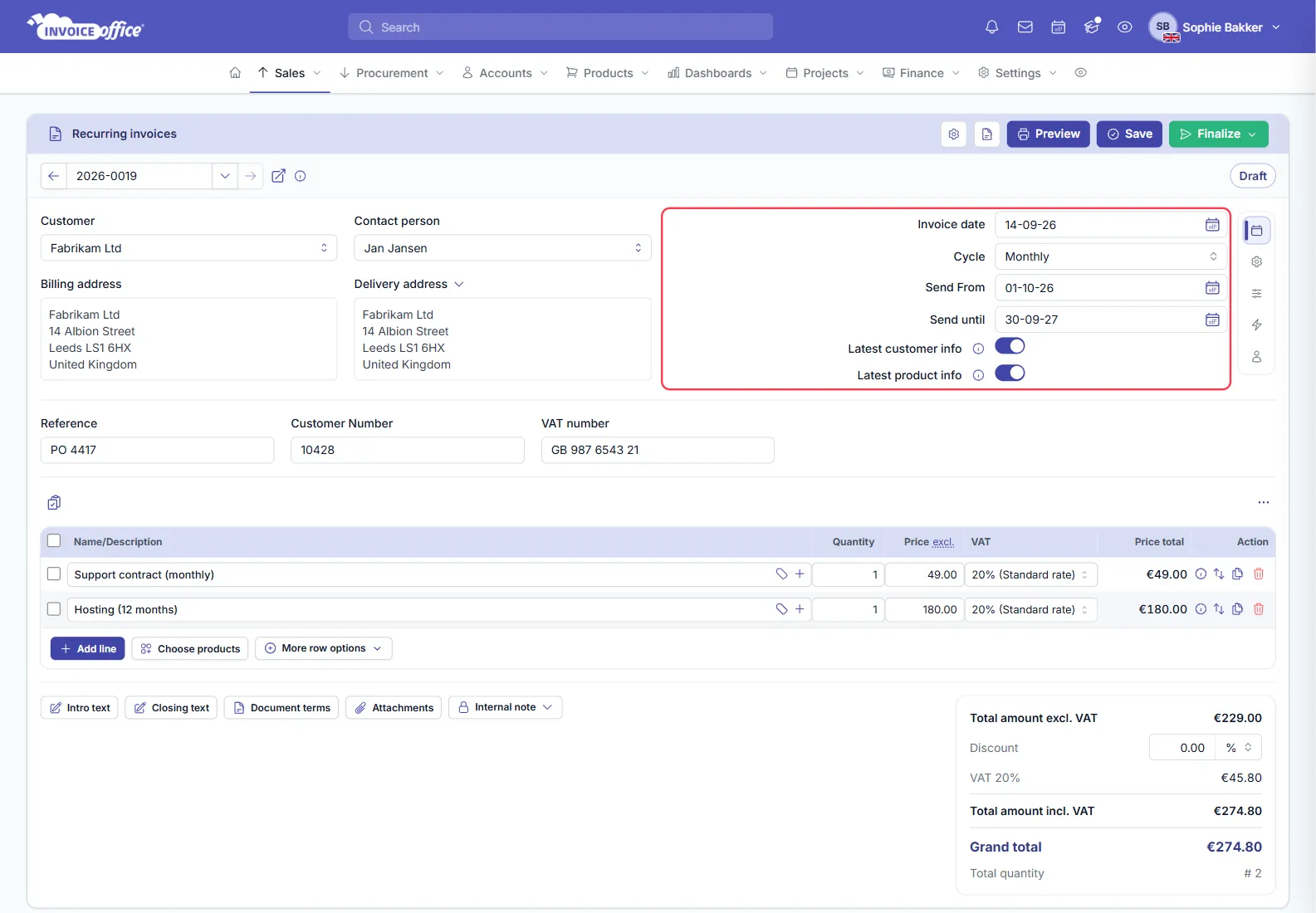
Set the schedule, in the dates panel at the top-right of the form, under the invoice date:
- Cycle — how often it repeats. A new recurring invoice starts on Once, so change it if the invoice should repeat.
- Send From — the date the first one goes out. It is prefilled with tomorrow’s date.
- Send until — the date the run stops. Leave it empty for something open-ended.
-
Click Save in the top-right of the card. The recurring invoice is now a Draft.
-
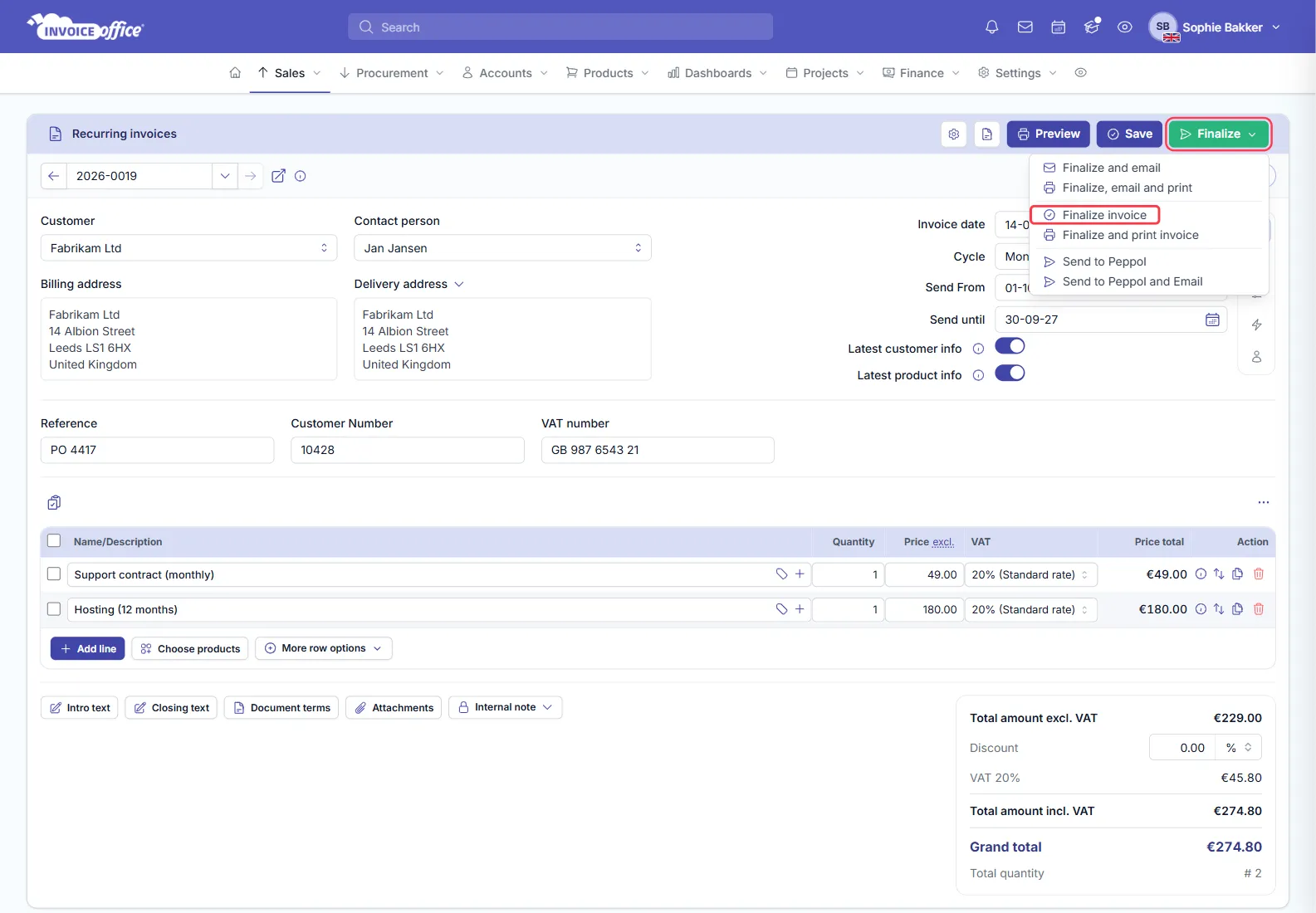
When it is right, click Finalize and choose Finalize invoice. Only a finalized recurring invoice is picked up by the schedule — a Draft is never sent.
You can also finalize later from the list: open the row’s Action menu and choose Finalize.
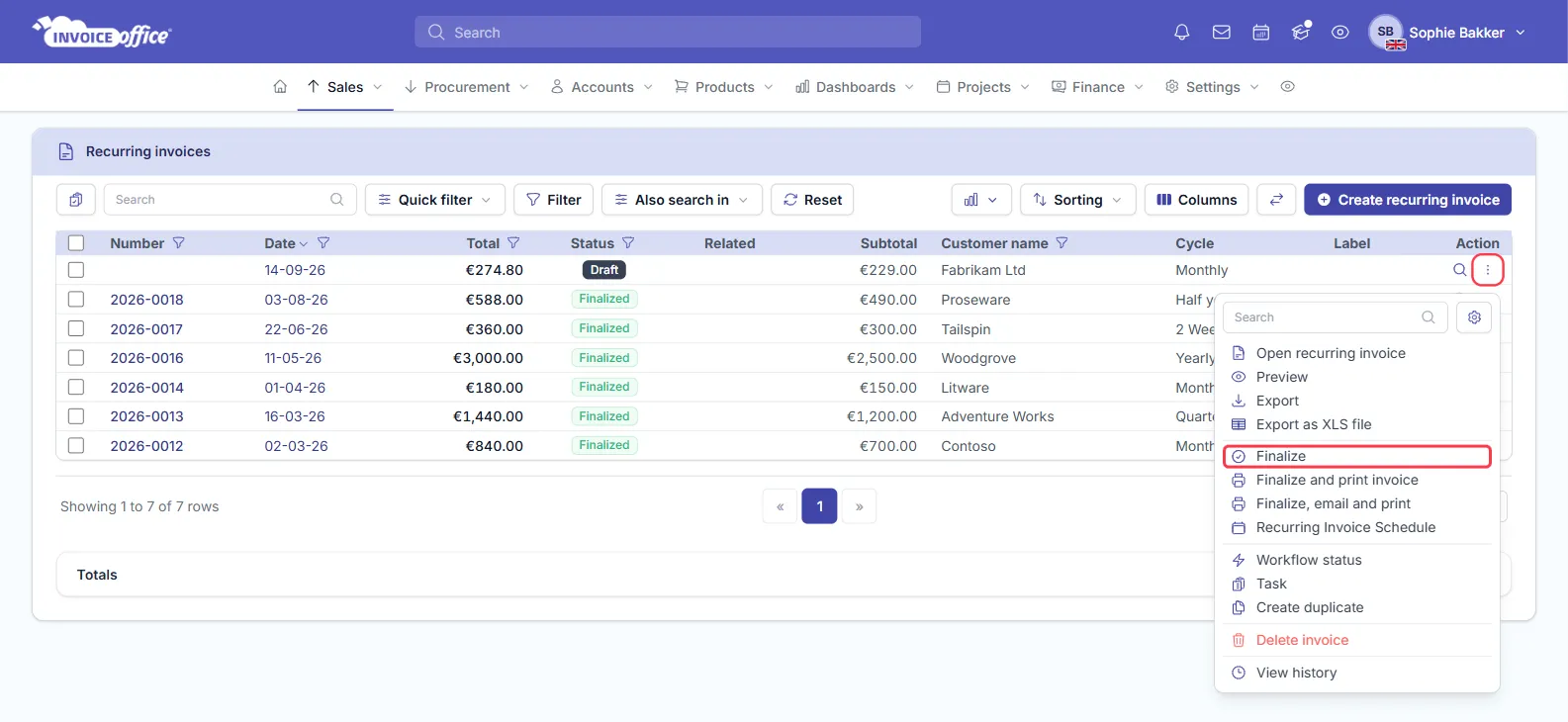
The Status column on Sales → Recurring invoices shows which series are Draft and which are Finalized, and the Cycle column shows how often each one repeats.
Choose the recurring invoice cycle
The Cycle list holds nine options, so most billing arrangements map onto one directly:
Once · Weekly · 2 Weeks · 4 Weeks · Monthly · 2 Months · Quarterly · Half yearly · Yearly
Once is the useful odd one out — it schedules a single invoice for a future date rather than repeating it, which is how you post-date an invoice you have already prepared.
Keeping the details current
Two switches at the bottom of the same panel decide what each new invoice picks up. Both are on when you create a recurring invoice:
- Latest customer info — each run takes the customer’s current name, address and email rather than the ones stored when you set it up. Leave this on and a customer who moves keeps being invoiced correctly.
- Latest product info — each run takes current product details and recalculates the prices. Turn this off if the agreed price should hold even when your list price changes.
More recurring invoice settings
The dates panel has a Settings tab — the cog icon beside Date. What you choose there belongs to this recurring invoice and is carried onto every invoice it produces:
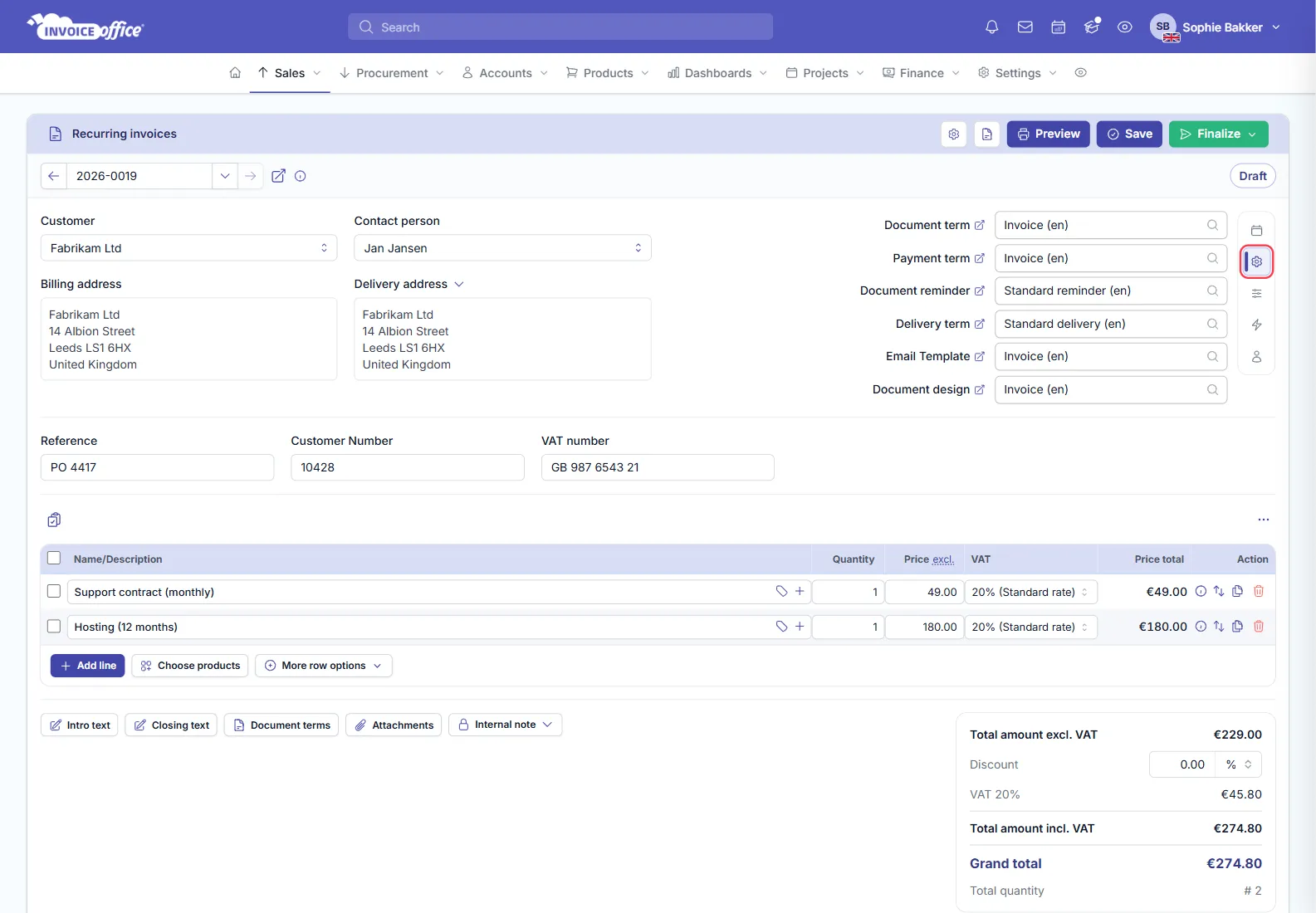
- Email Template — the email each invoice is sent with.
- Document design — the layout the invoice is printed in.
- Document term — sets each new invoice’s expiry date, counted from the day it is created.
- Payment term and Delivery term — the terms shown on the invoice.
- Document reminder — the payment reminder that follows up an invoice that stays unpaid.
What happens on each send date
On the day a run is due, Invoice Office:
- Creates a new invoice from the recurring invoice, dated that day and with its own invoice number.
- Finalizes it and emails it to the customer.
- Works out the next send date from the Cycle.
The new invoice appears under Sales → Invoices like any other, so you register its payment the usual way. The recurring invoice links to the invoices it has produced, and Action → View history records each run.
The run checks for an active Pro license first. Without one nothing is created, and you get the notification “A pro license is required to use this feature!” instead.
Follow your recurring invoices on the dashboard
Go to Dashboards → Recurring invoices, or click the Dashboard chart icon above the recurring invoice list and choose Recurring invoices. The tiles along the top include Scheduled this month, Last 30 days, Expiring soon, Active and Total value.
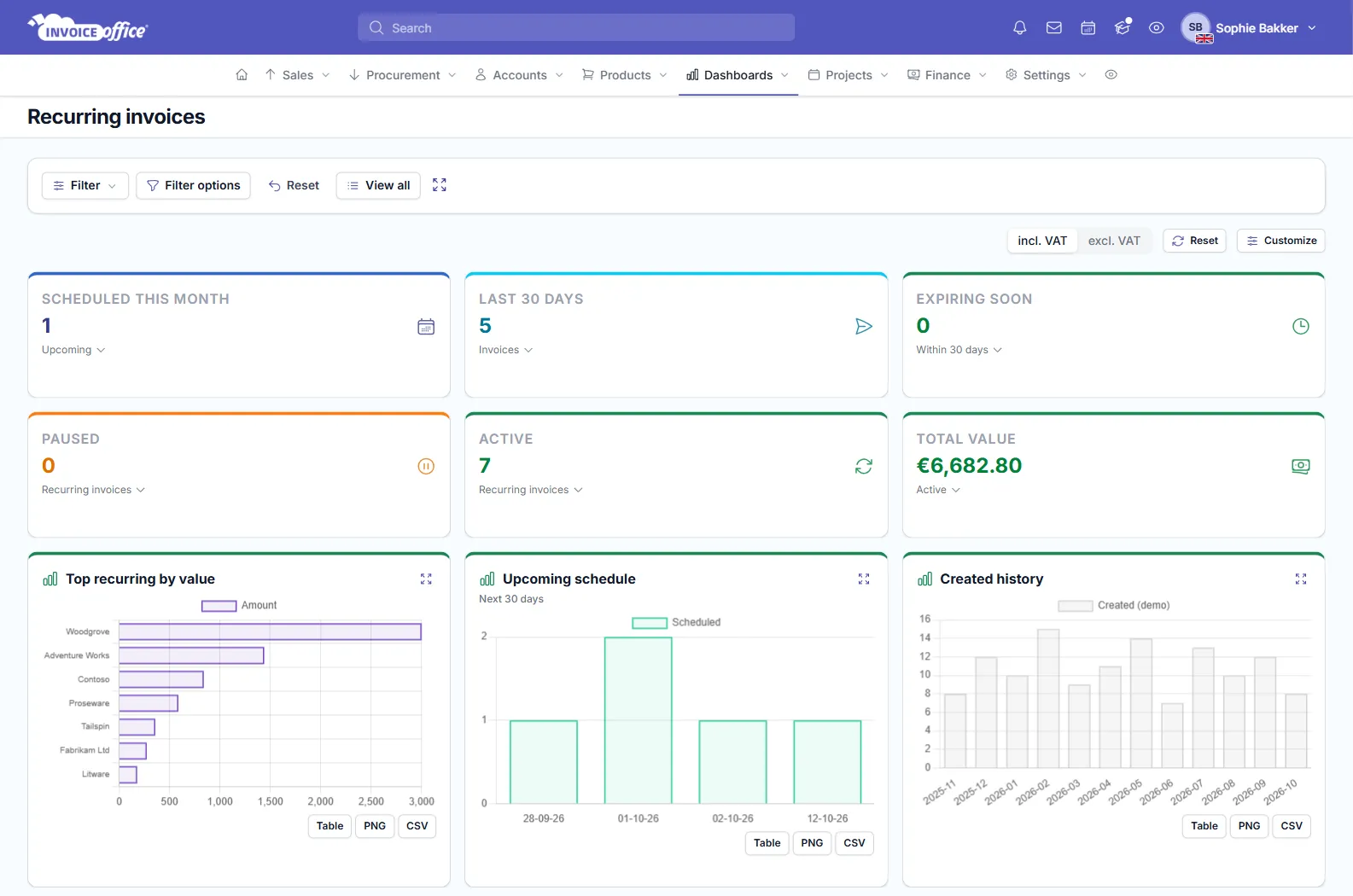
Click a tile to see what is behind the number. Most open the recurring invoices themselves, with their Next date, Document number, Customer, Cycle and Amount; Last 30 days lists invoices with their Status and Payment. Active counts Draft series as well, so use the Status column on the list to see which ones are finalized and really sending.
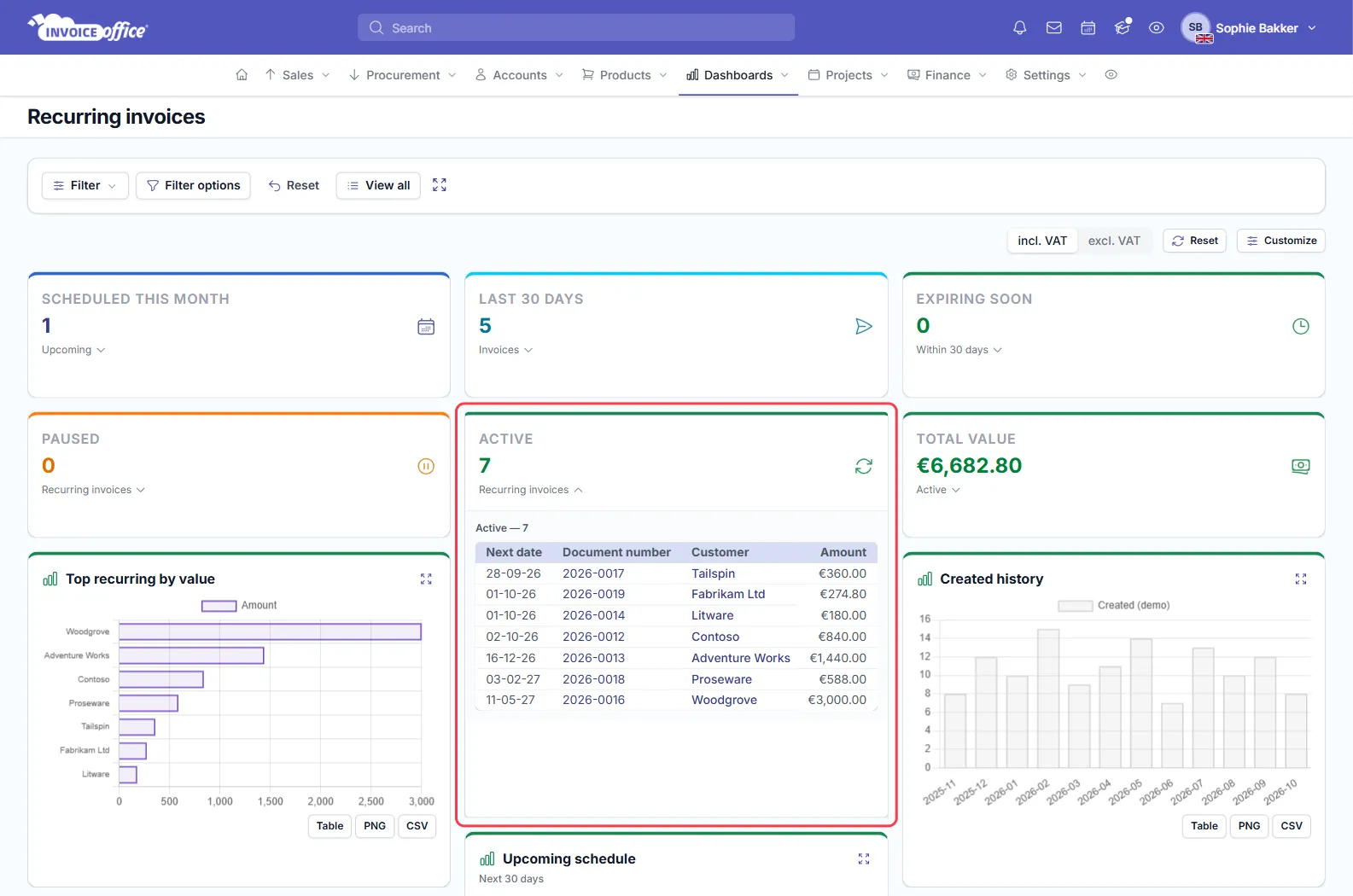
Below the tiles, Top recurring by value, Upcoming schedule and Created history — and further down Cycle distribution, Status overview, Forecast (projected revenue) and Customers (yearly run-rate per customer) — can each be shown as a table or exported as PNG or CSV, and incl. VAT / excl. VAT switches the amounts.
Change a recurring invoice schedule
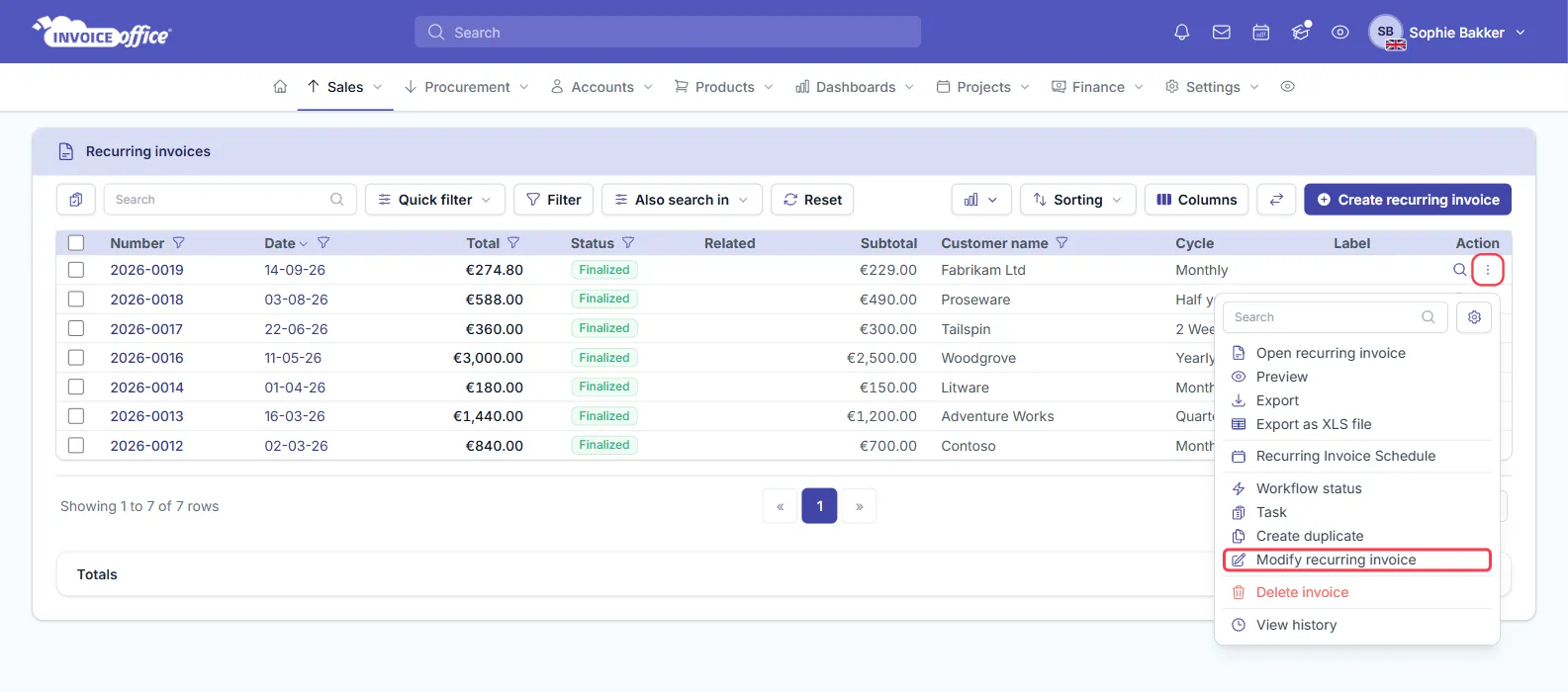
You do not have to reopen the whole invoice. On Sales → Recurring invoices, open the row’s Action menu and choose Recurring Invoice Schedule — the same cycle, dates and switches open in a small window. This works on a finalized series too.
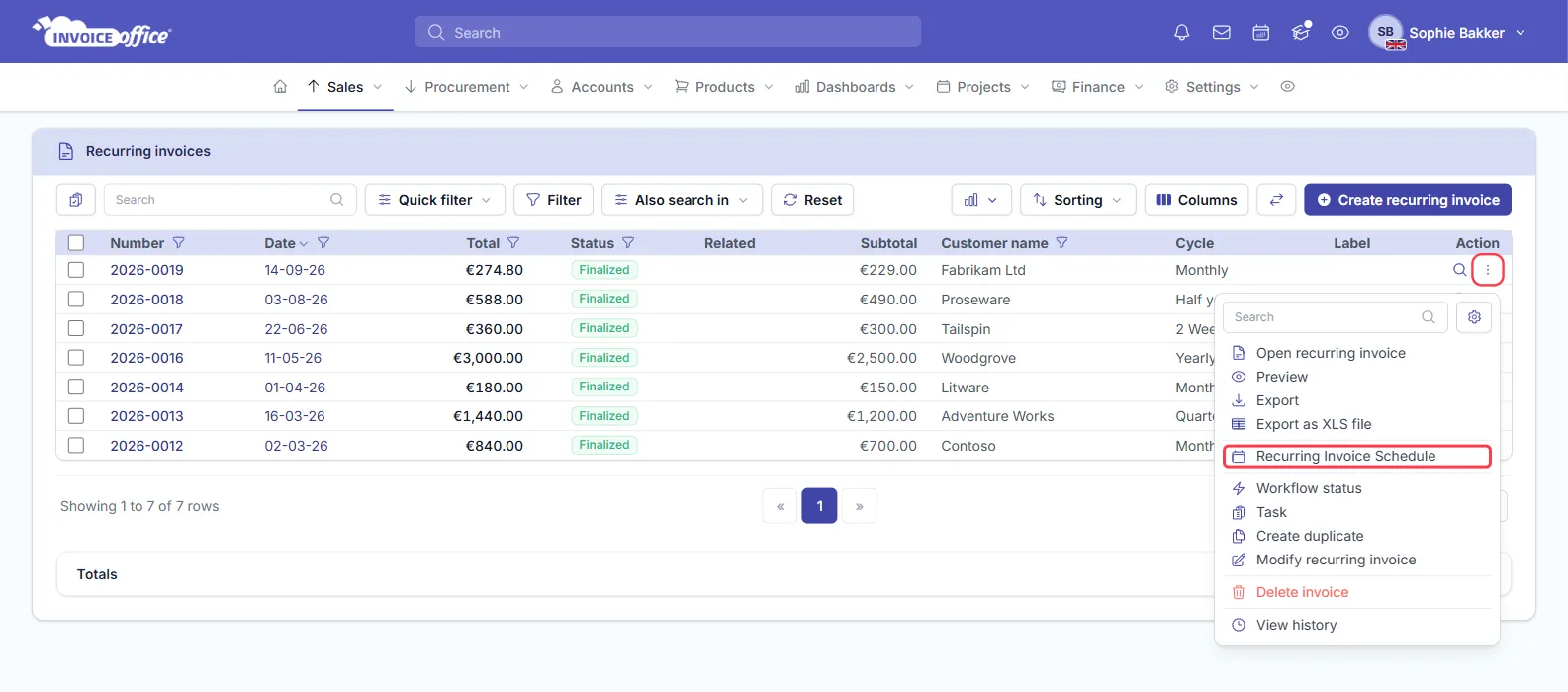
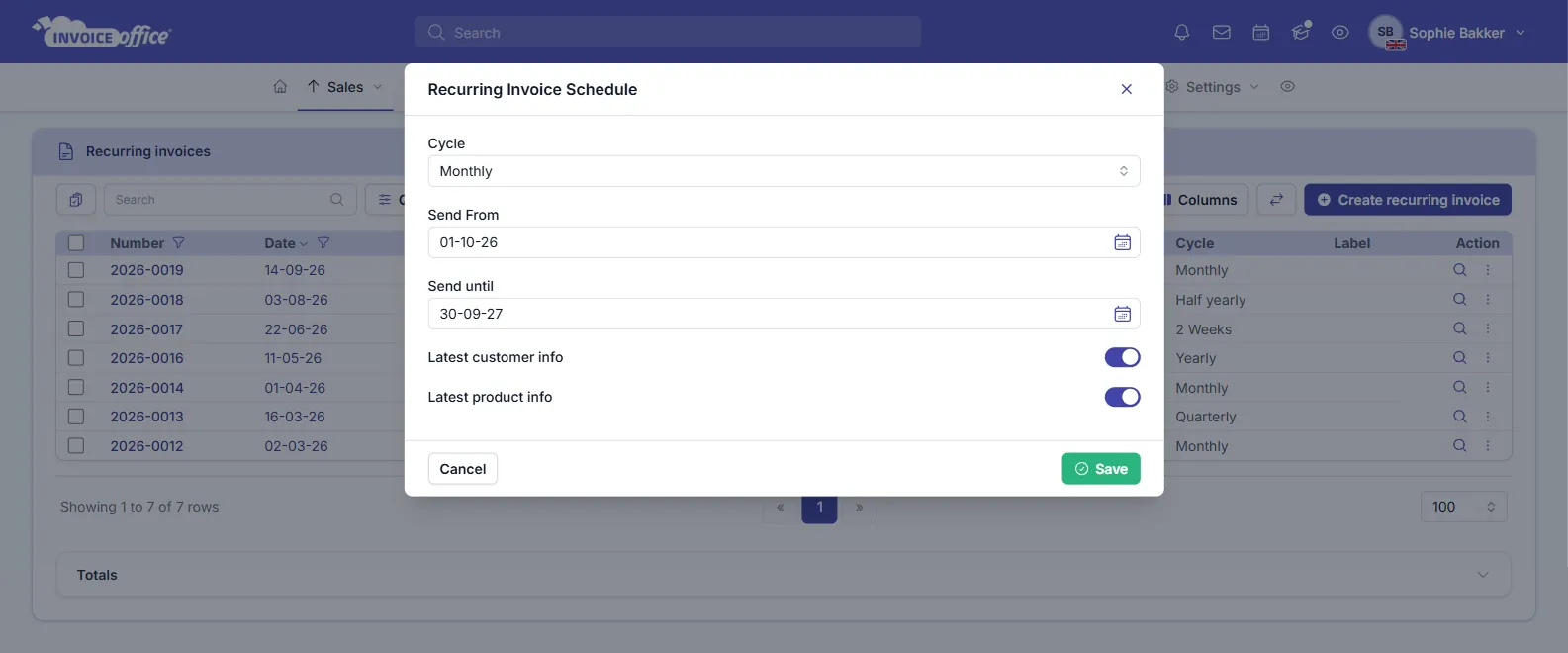
In this window, for a repeating cycle, Send until cannot be earlier than Send From; the app answers “Automatic invoices cannot end before start date”.
Change the invoice itself
A finalized recurring invoice is read-only. To change its lines, customer or settings, choose Action → Modify recurring invoice. That returns it to Draft — make the change, then Finalize it again. While it is a Draft the schedule skips it.
Stop a recurring invoice
Set Send until to the date it should stop. There is no separate pause switch: a run ends by reaching its Send until date, or by deleting the recurring invoice.
To stop a series that has already started, open Recurring Invoice Schedule from the row’s Action menu and set Send until to today. For one that has not started yet, delete it, or use Modify recurring invoice so it returns to Draft.