A document often needs to reach more than one person — the contact you deal with and the accounts inbox that pays it. When you pick a customer the address on their record is filled in for you, and you can add as many more as you need.
Put several addresses in one field
- Find the document in its list, open its Action menu — the ⋮ button in the Action column — and choose Send e-mail with PDF.
- In the To line at the top, add the extra addresses and separate each one with a semicolon
(
;).
For example:
support@example.com;contact@example.com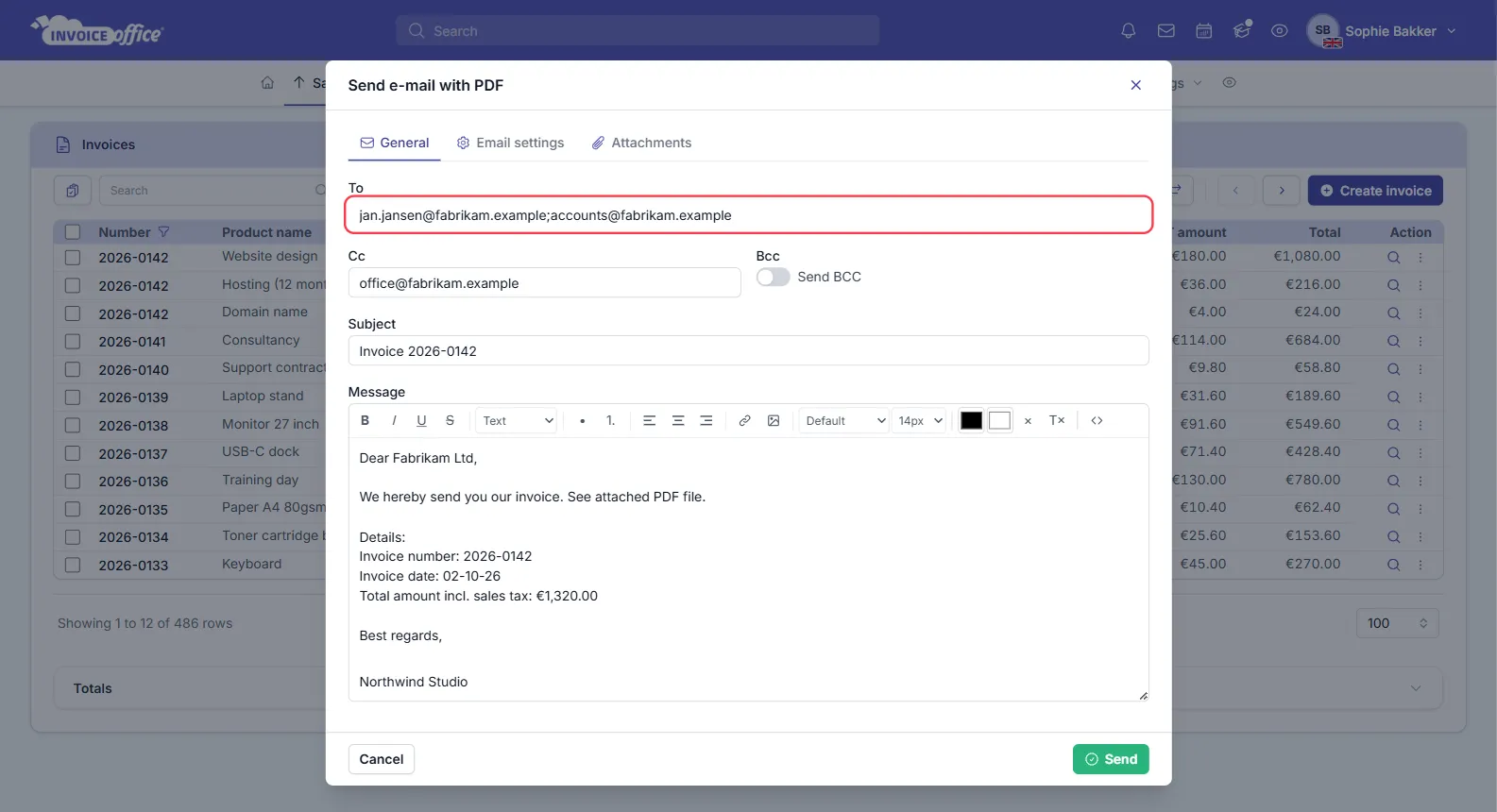
Everyone listed receives the same quote or invoice, with the PDF attached.
Use a semicolon, not a comma — a comma is not treated as a separator, so the whole string is read as one address and the send fails. The same semicolon rule works in the Cc and Bcc fields.
Add recipients when sending
The General tab of the send window holds:
- To — the main recipient, pre-filled from the customer’s email settings, or the document’s billing contact if no specific address is set.
- Cc — anyone who should see it openly.
- Bcc — switch on Send BCC to reveal the field, then add an address that other recipients cannot see. Useful for copying your own archive.
- Subject and Message, both prefilled from your email template and editable per send.
The Email settings tab beside it holds the sender, sender name, from and reply-to email, so replies land where you want them rather than with whoever pressed send.
Set it once per customer
If the same customer should always be mailed at the same addresses, set it on their record instead of retyping it. Accounts → Customers → the customer’s settings holds the default email address per document type, so invoices can go to accounts payable while quotes go to your day-to-day contact.
What goes out with the email
The Attachments tab of the same window controls what is enclosed:
- PDF — attached by default. You can change the file name it goes out under; see How to change the document PDF name.
- Attachments — anything on the document, plus files attached to the design.
- Include invoice — on a payment reminder, attaches the original invoice too.