VAT in Invoice Office comes from a VAT code, not a number you type on each line. The code carries the rate and how the sale should be treated, which is what keeps your VAT return correct.
Change the VAT on a document line
Open the document and click the VAT cell on the line you want. A picker opens with a search box and your VAT codes — choose one and the line total, the VAT total and the document total all recalculate immediately.
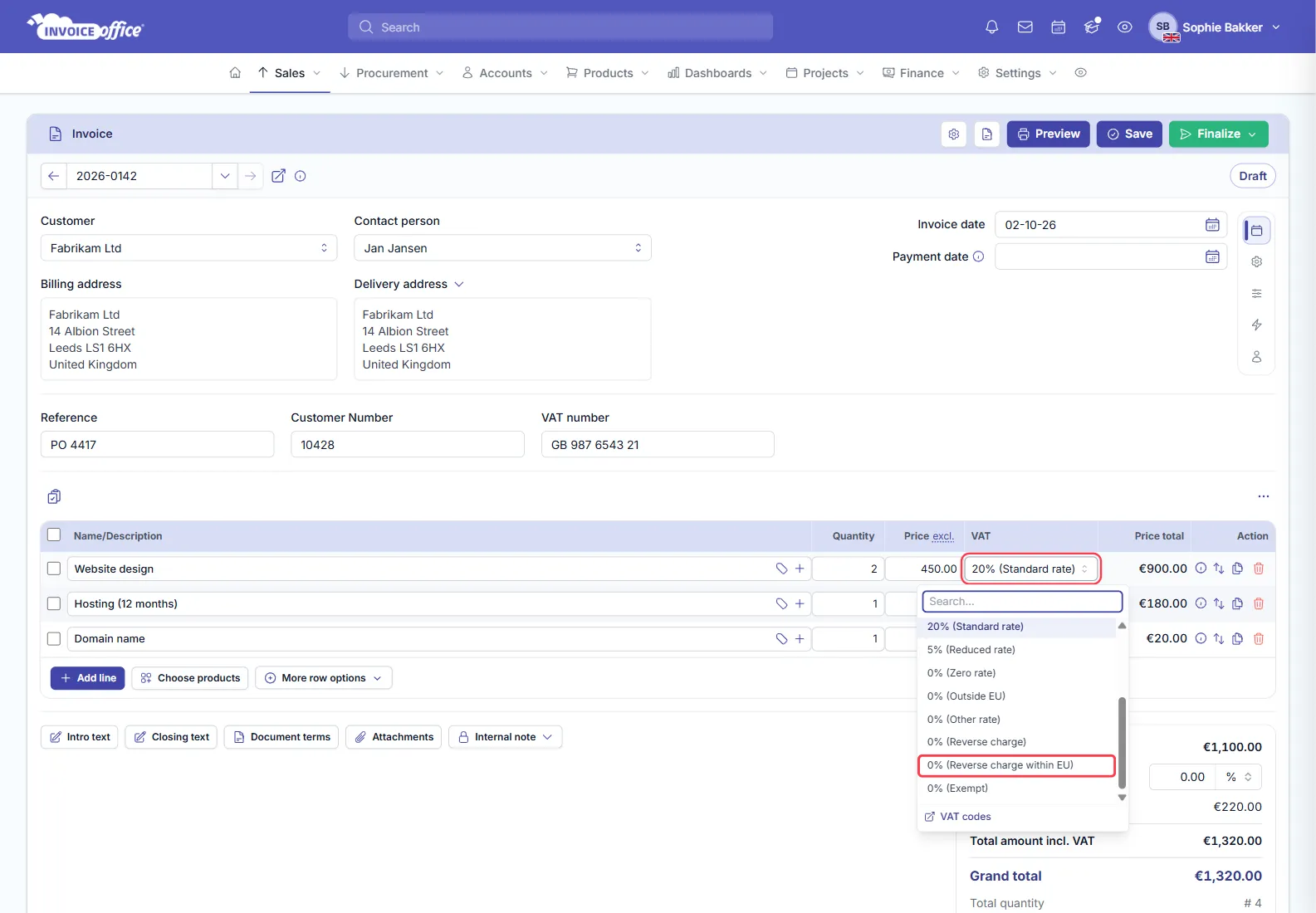
Different lines on one invoice can carry different codes, which is what you need when an invoice mixes, say, a standard-rated service with a zero-rated one.
Set the default so you do not have to change it
Changing VAT on every line means the default is wrong somewhere:
- On the product — set the VAT code the product is normally sold at. Every line created from it starts correct.
- On the customer — their settings hold a sales VAT code. This is what handles a customer who is always treated differently, such as a business in another EU country.
Between the two, the code on a new line is usually already right.
Manage your VAT codes
Settings → VAT codes is where the codes themselves live. Each row carries its VAT code, description, VAT type — Sales or Procurement, so purchases have their own set — the percentage, and whether it is the default or a preferred code, which is what decides the short list at the top of the line picker.
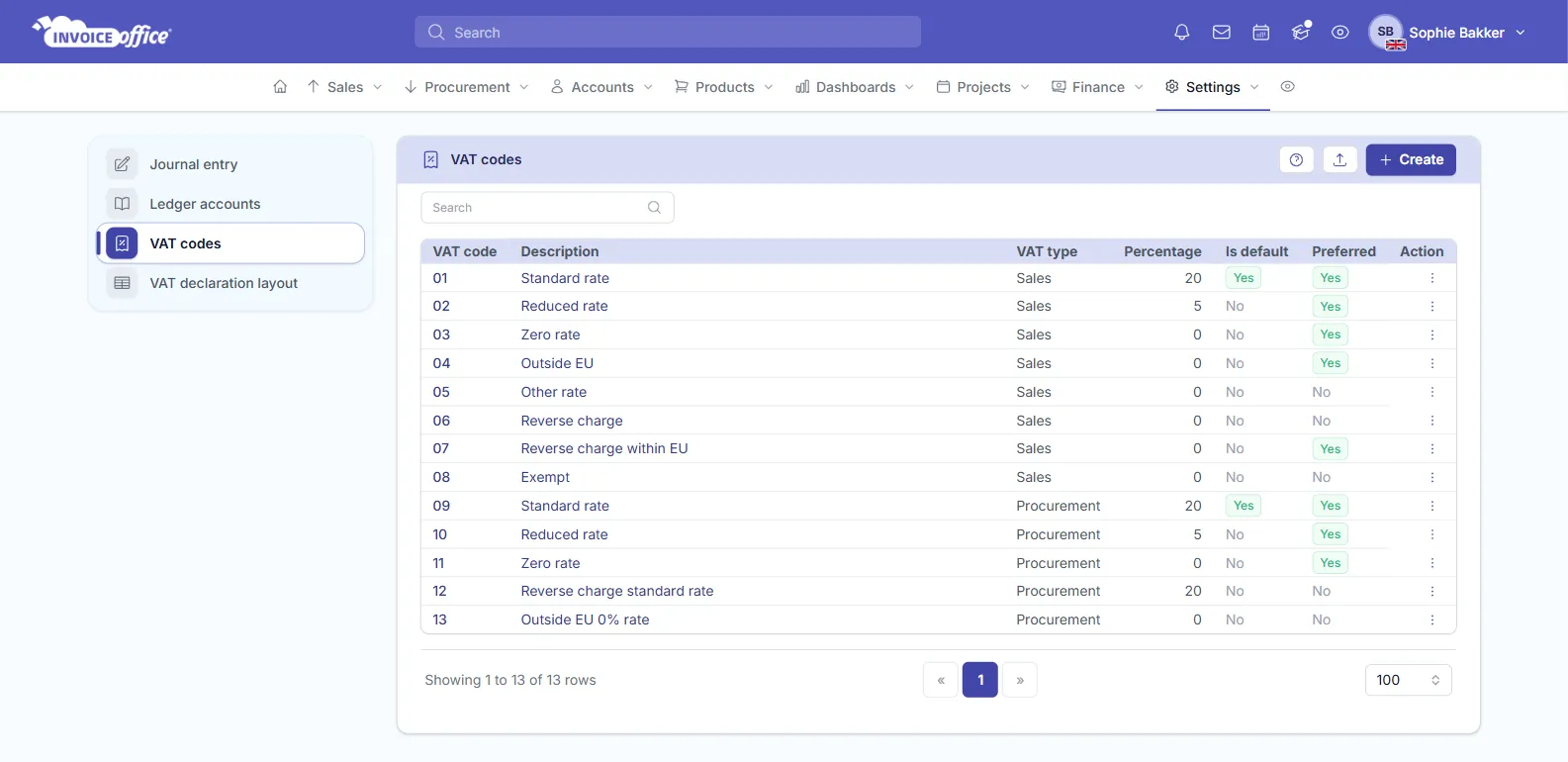
Add a code here if you need a rate or treatment you do not yet have, rather than overriding numbers on individual invoices. The VAT codes link at the bottom of the line picker jumps straight to this page.
Shift the VAT to your customer (reverse charge)
Reverse-charging VAT moves the VAT liability from you, the supplier, to your buyer, who then accounts for it locally. It is the normal treatment when you and your customer are in different countries and the tax is due where the customer is.
To shift the VAT on a document:
- Open the invoice or quote and fill in the product line as usual — name, quantity and price.
- Click the VAT cell on that line.
- Pick your reverse-charge code. They are listed at 0% —
Reverse charge,Reverse charge within EU, andOutside EUfor sales beyond the EU.
The VAT in the document totals drops to 0% straight away, and the document prints with VAT reverse against the tax total.
The reverse charge applies to the whole document, not one line. Unlike an ordinary VAT code, you cannot reverse-charge one product row and leave the others at a normal rate. Choosing it once puts every other line on the same code, and any line you add afterwards adopts it too.
Let foreign customers reverse automatically
You do not have to set this per invoice. Turn on VAT reverse default under Settings → Company settings → Finance, and new documents reverse the VAT on their own whenever the customer’s billing country differs from your own country.
Two things to keep in mind:
- It only triggers on a country difference. A customer in your own country still gets your normal VAT, which is what you want.
- A VAT code on the customer wins. If the customer’s settings hold their own sales VAT code, that code is used and the automatic reverse does not apply. Clear it if you want the country rule to decide instead.
Exempt sales and legal wording
A reverse-charge or exempt invoice has to carry the right wording as well as the right rate. Each VAT code can hold its legal text, per language, which is placed on the document automatically when that code is used — so a cross-border invoice explains itself without you pasting in a sentence each time.