To set up the VAT reverse charge in Invoice Office, give your reverse-charge VAT code its legal text and, if you sell to businesses in other EU countries, switch on VAT reverse default. A reverse-charged invoice shows 0% VAT and has to say why; the legal text is that wording.
Applying the reverse charge to one document by hand is covered in How can I change the VAT?. This page covers the settings behind it.
Add the reverse-charge text to the VAT code
- Go to Settings → VAT codes and open your reverse-charge code from its Action menu.
- Open the Vat Legal text section.
- Click Add.
- Choose the Language, e.g. English (UK), and enter the Vat Legal text, e.g. VAT reverse charged: the customer accounts for the VAT.
- Click Save.
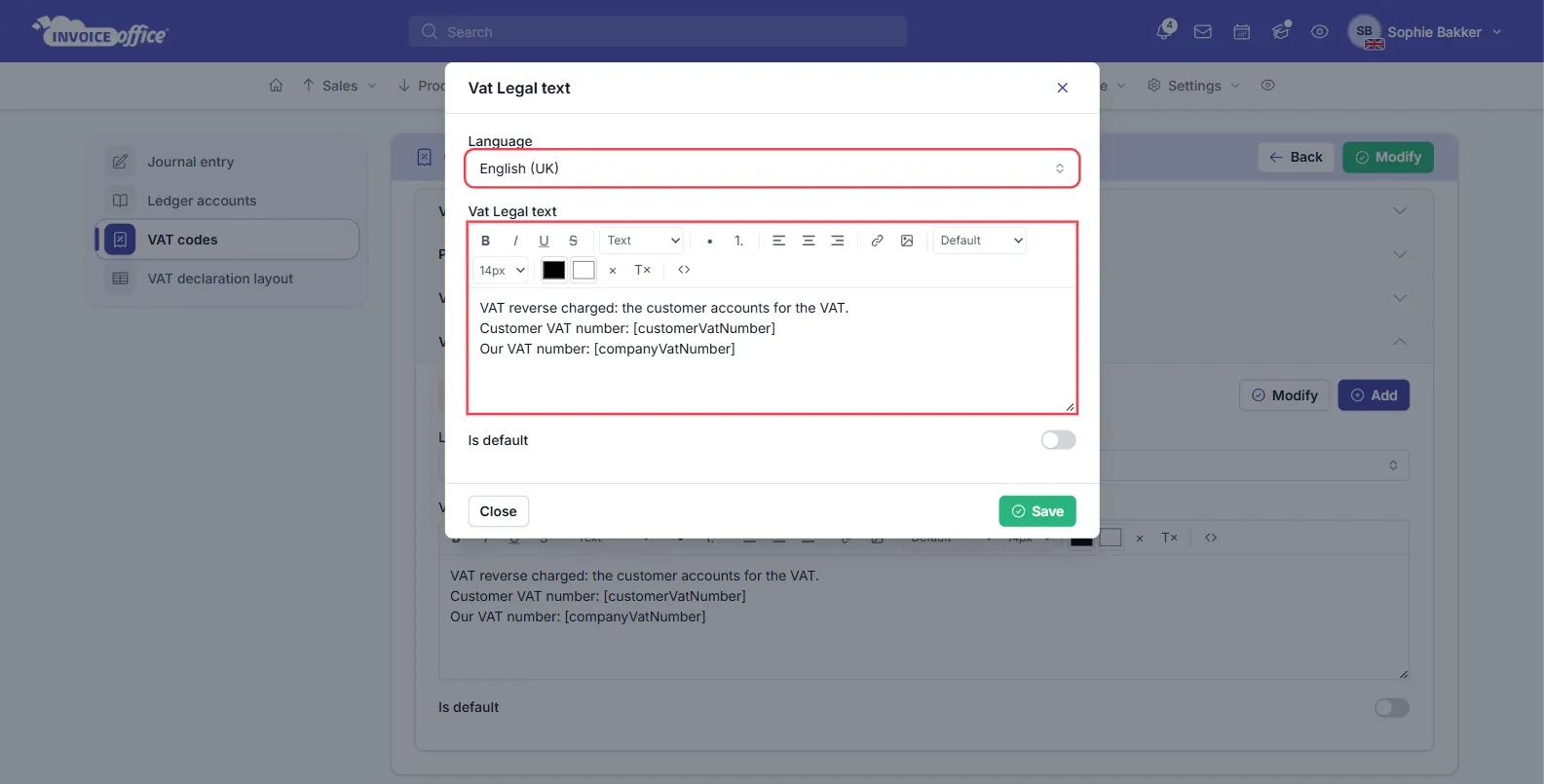
You can use placeholders in the text: [customerVatNumber] is replaced with the customer’s VAT
number and [companyVatNumber] with your own, which a reverse-charged invoice usually has to show.
When a document gets the code, the text is copied onto the document and printed below its closing text. Changing the text on the VAT code later doesn’t change documents that already have it.
Add one text for each language you send documents in. The text whose language matches the document’s language is used, so a customer who receives German invoices gets the German wording. If there is no text for that language, none is added.
Reverse-charge EU customers automatically
If your company is in an EU country, a customer whose billing address is in a different EU country gets your reverse-charge code. Customers in your own country keep your normal VAT, and customers outside the EU get your code for sales outside the EU.
To have this happen on documents Invoice Office creates for you, such as an invoice started from the customer, an import or an order from a connected webshop, switch on VAT reverse default:
- Go to Settings → Company settings.
- Open the Finance tab.
- Switch on VAT reverse default.
- Click Save.
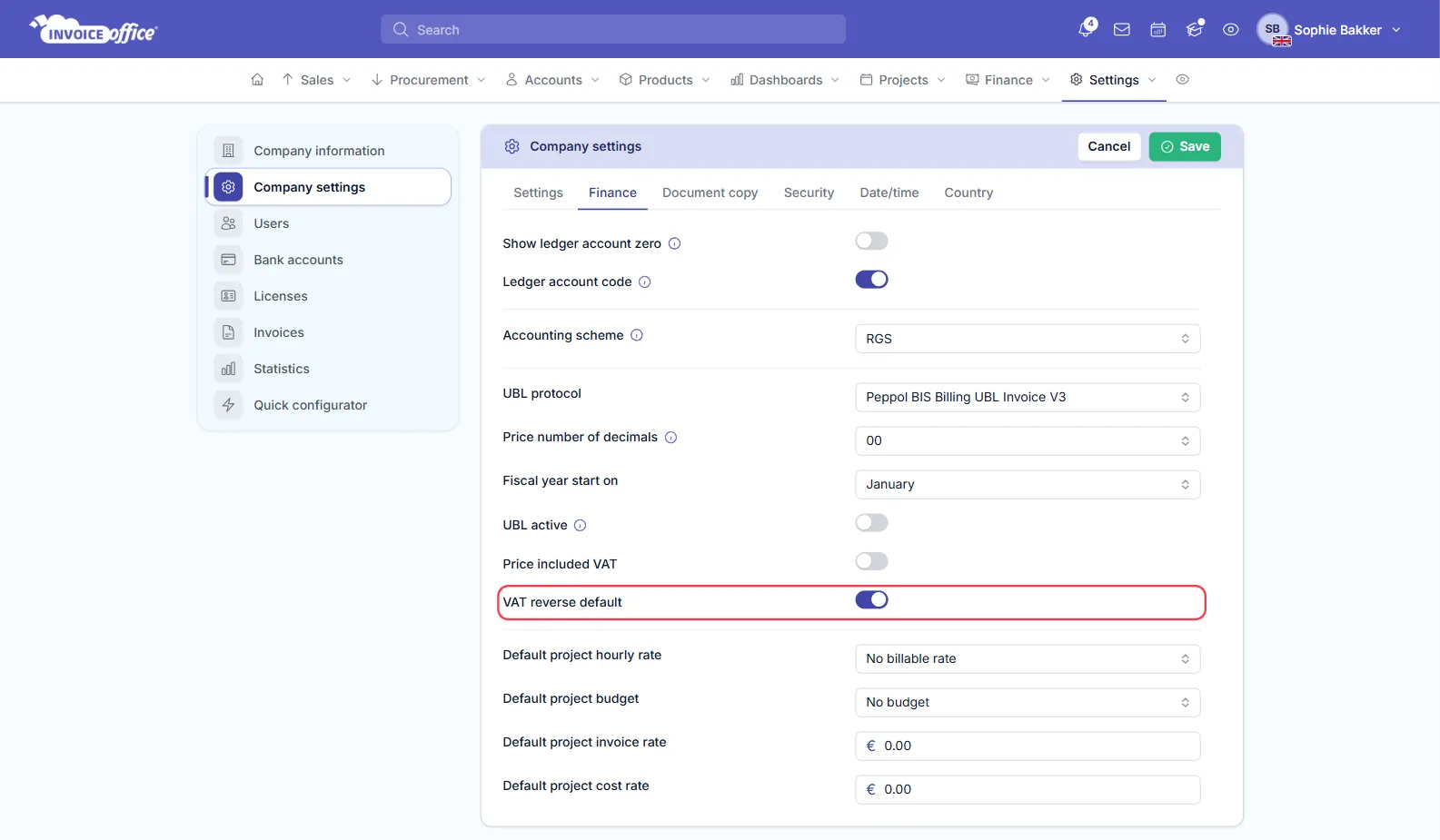
A VAT code set in the customer’s own settings always wins: that customer gets their code instead of the reverse charge.
If the reverse charge doesn’t kick in
Invoice Office finds your reverse-charge code by its settings, not by its name. Open the code and check that:
- Type is the EU reverse charge from your country’s list,
- VAT type is Sales, and
- Blocked is off.
Click Modify to save any change. Also check that the customer has no VAT code of their own in their settings. See how to create a VAT code.