To create a VAT code in Invoice Office, go to Settings → VAT codes and click Create. A VAT code (sometimes called a tax code) holds the rate and the tax treatment that invoice lines, purchases and your VAT return use, so you set it up once instead of typing a percentage on each document. In the United States the same codes hold your sales tax; see how to set up US sales tax.
Open your VAT codes
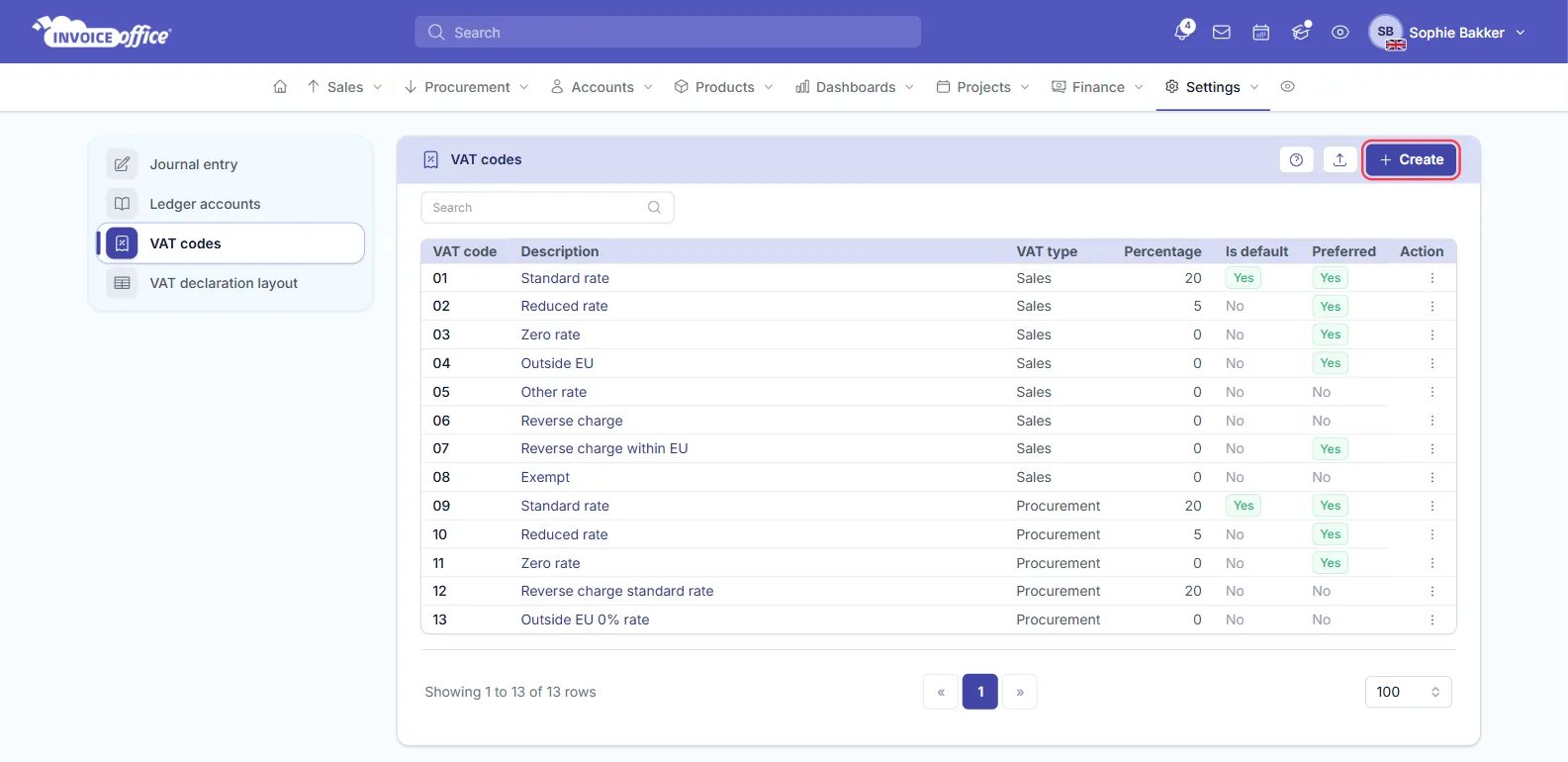
Go to Settings → VAT codes. The list shows each code with its VAT code, Description, VAT type, Percentage, and whether it Is default or Preferred. Open a code from its Action menu, or click it.
Create a VAT code
- Go to Settings → VAT codes and click Create.
- On VAT code, fill in the code’s details and click Next.
- On Percentage, enter the date the rate starts and the rate, and click Next.
- On VAT declaration, choose where the code reports on your VAT return and click Save.
The three steps in detail:
VAT code
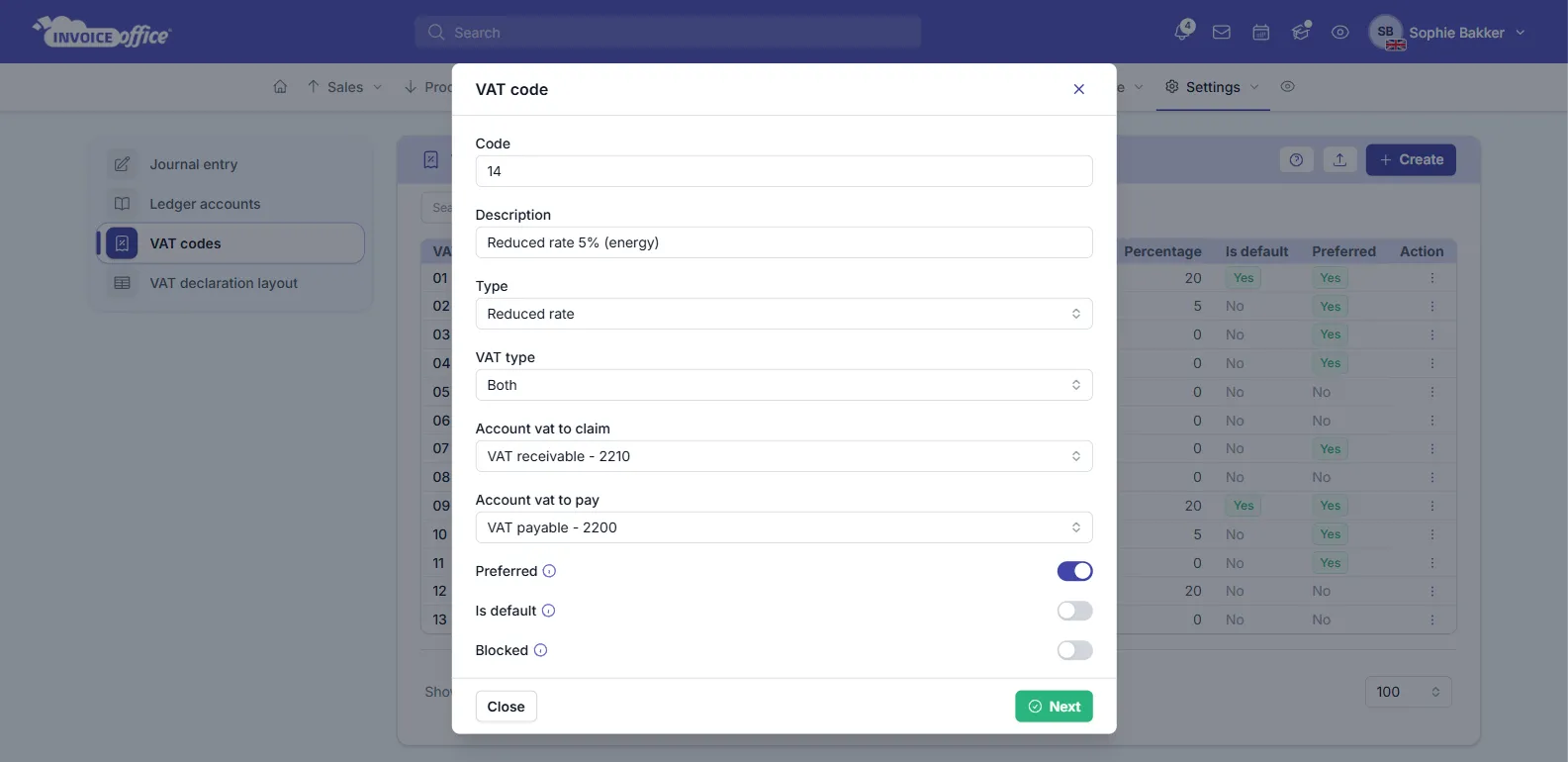
- Code (required): the short number or letters the code is listed under, e.g. 14.
- Description: the name you pick from on a document line, e.g. Reduced rate 5% (energy).
- Type: the tax treatment, chosen from the list for your company’s country. Invoice Office uses it to recognise special codes, such as the reverse-charge code for EU customers and the code for customers outside the EU.
- VAT type (required): Sales, Procurement or Both, i.e. whether the code is offered on sales documents, on purchases, or on both.
- Account vat to pay (shown for Sales and Both) and Account vat to claim (shown for Procurement and Both): the ledger accounts the VAT is booked to.
- Preferred: shows the code at the top of the VAT list on a document line.
- Is default: selects this code by default.
- Blocked: takes the code out of the list without removing it.
Percentage
Enter the Date start (today by default), an End date if you know one (leave it empty otherwise) and the rate under VAT country percentage. A code can hold more than one rate over time; see how to change a VAT rate.
VAT declaration
Choose the VAT declaration section the code’s amounts are reported under. This is what puts them in the right box of your VAT return.
Change an existing VAT code
Open the code from its Action menu, change what you need and click Modify to save. The page has the sections VAT code, Percentage and VAT declaration, plus Vat Legal text: the wording placed on a document that uses the code. See how to set up the VAT reverse charge.
The VAT codes that come with Invoice Office can’t be deleted.