A partial delivery on an order confirmation in Invoice Office is planned per order line: every line can carry its own delivery Date, and you can track Ordered, Delivered and Remaining quantities next to it. Ship each part with its own packing note, and use the Backorder overview to see which order lines are still waiting to be delivered, grouped by customer.
This article covers a single delivery date, a split delivery spread over several dates, tracking what has been delivered per line, and the overview of open orders.
Set the delivery date for a single delivery
When the whole order goes out at once, one date is enough.
- Open the order confirmation, or create one from Sales → Order confirmations.
- Fill in Delivery date below Order Confirmation Date, at the top right.
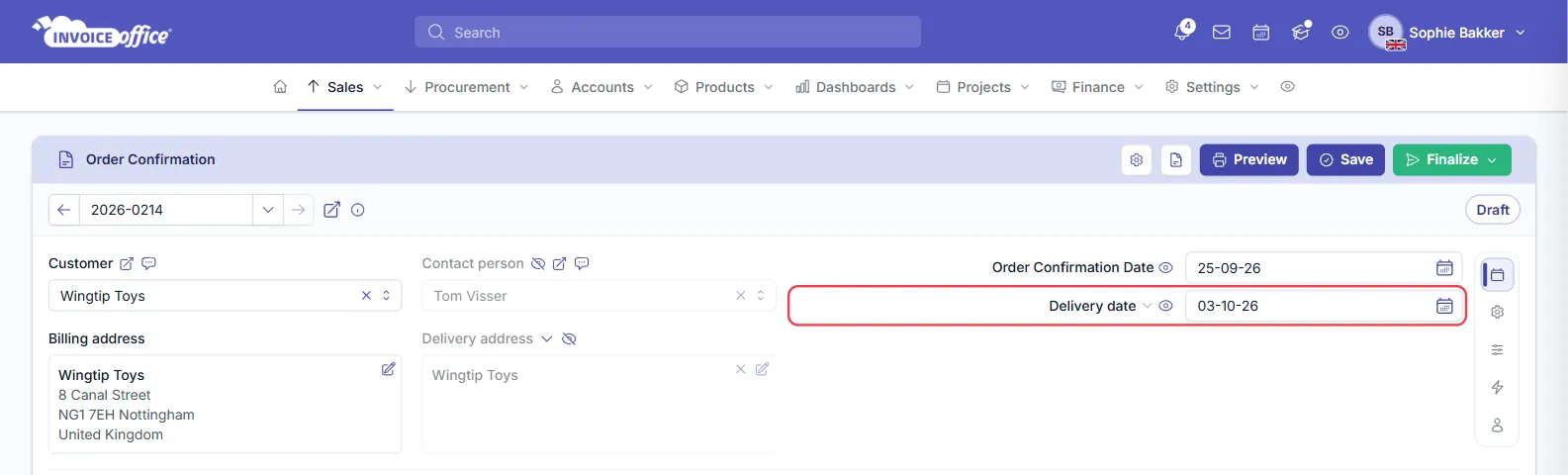
The Delivery date can also be shown as a column on the Order confirmations list, so you can see at a glance when each order is due to go out. See Show the delivery date on your documents if the field is switched off on your documents.
Turn on the delivery date and quantities per order line
For a split delivery, switch on the line columns you need. They are off unless your document design shows them.
-
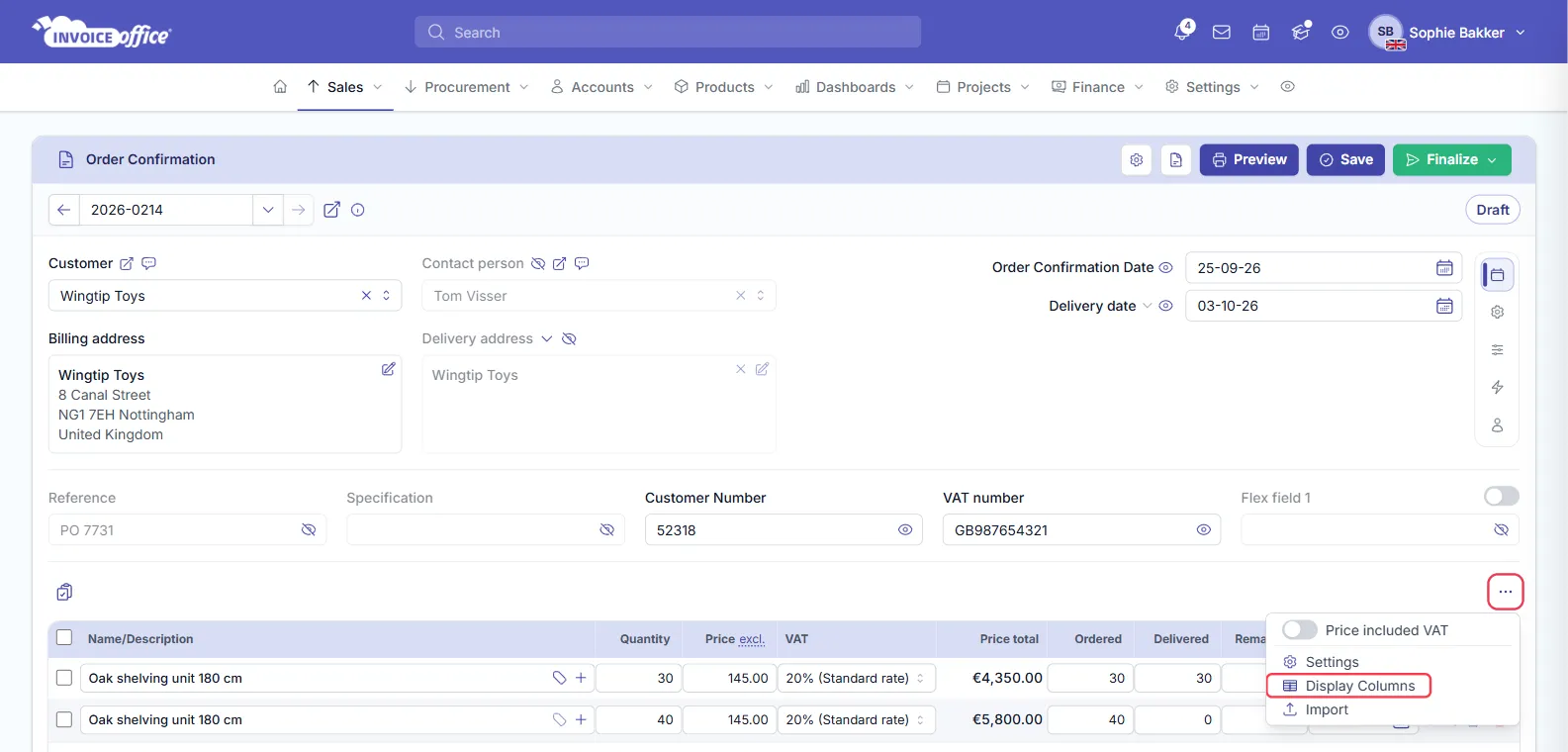
On the order confirmation, click the ⋯ button at the top right of the product lines and choose Display Columns.
-
The panel opens on Fields → Rows. Under INACTIVE, switch on Date, and Ordered, Delivered and Remaining if you want to track quantities.
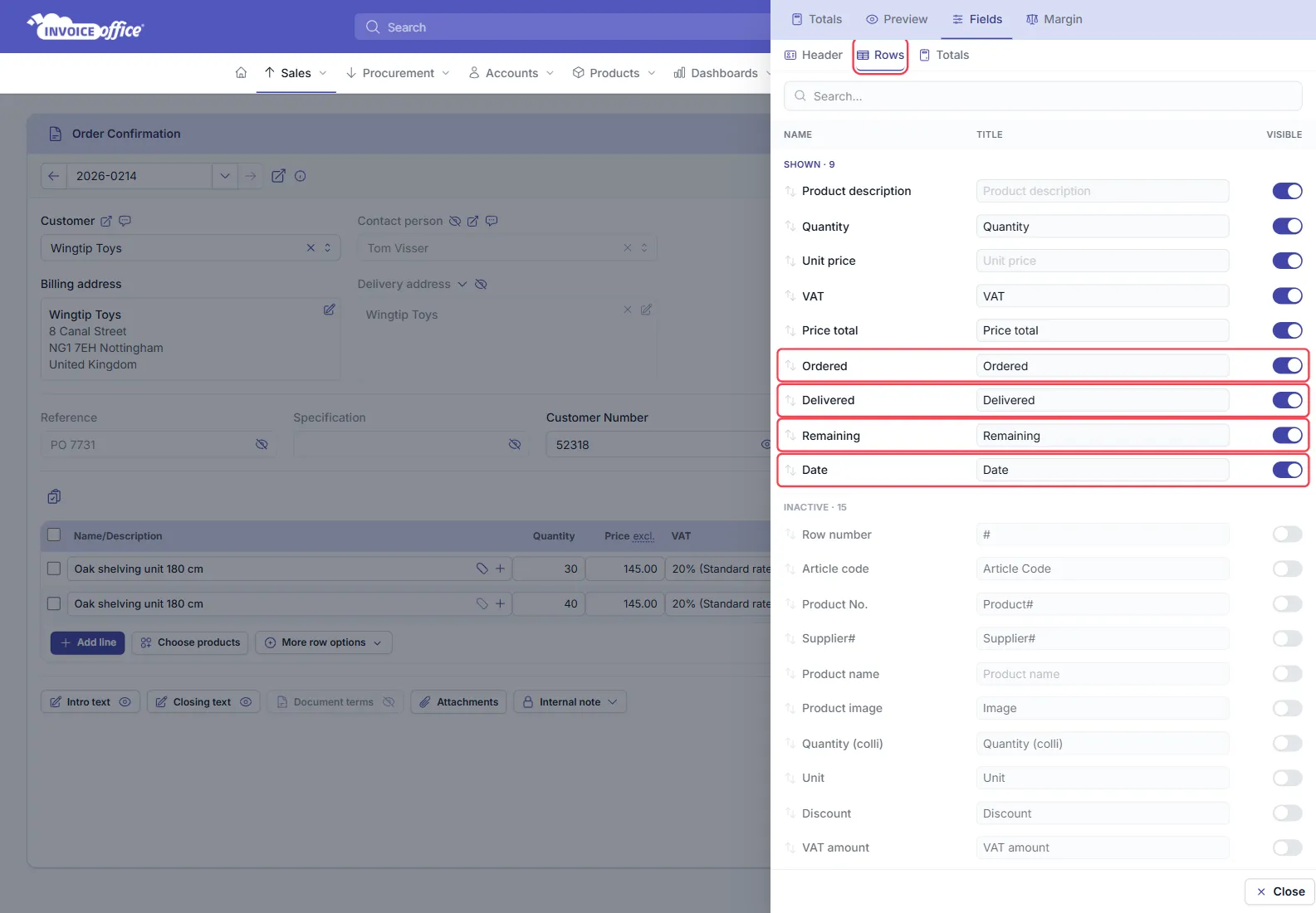
The columns now appear on every product line of this order confirmation, and show on the document when it is printed or sent.
Plan a split delivery: one line per delivery
An order line holds one quantity and one Date, so a delivery spread over several dates is modelled as one line per delivery.
Example: a customer orders 70 units, 30 to be delivered on 3 October and 40 on 20 December.
- Add the product on a line with Quantity 30 and Date 03-10.
- Add the same product on a second line with Quantity 40 and Date 20-12.
- Set the order confirmation’s Delivery date to the first delivery, 03-10.
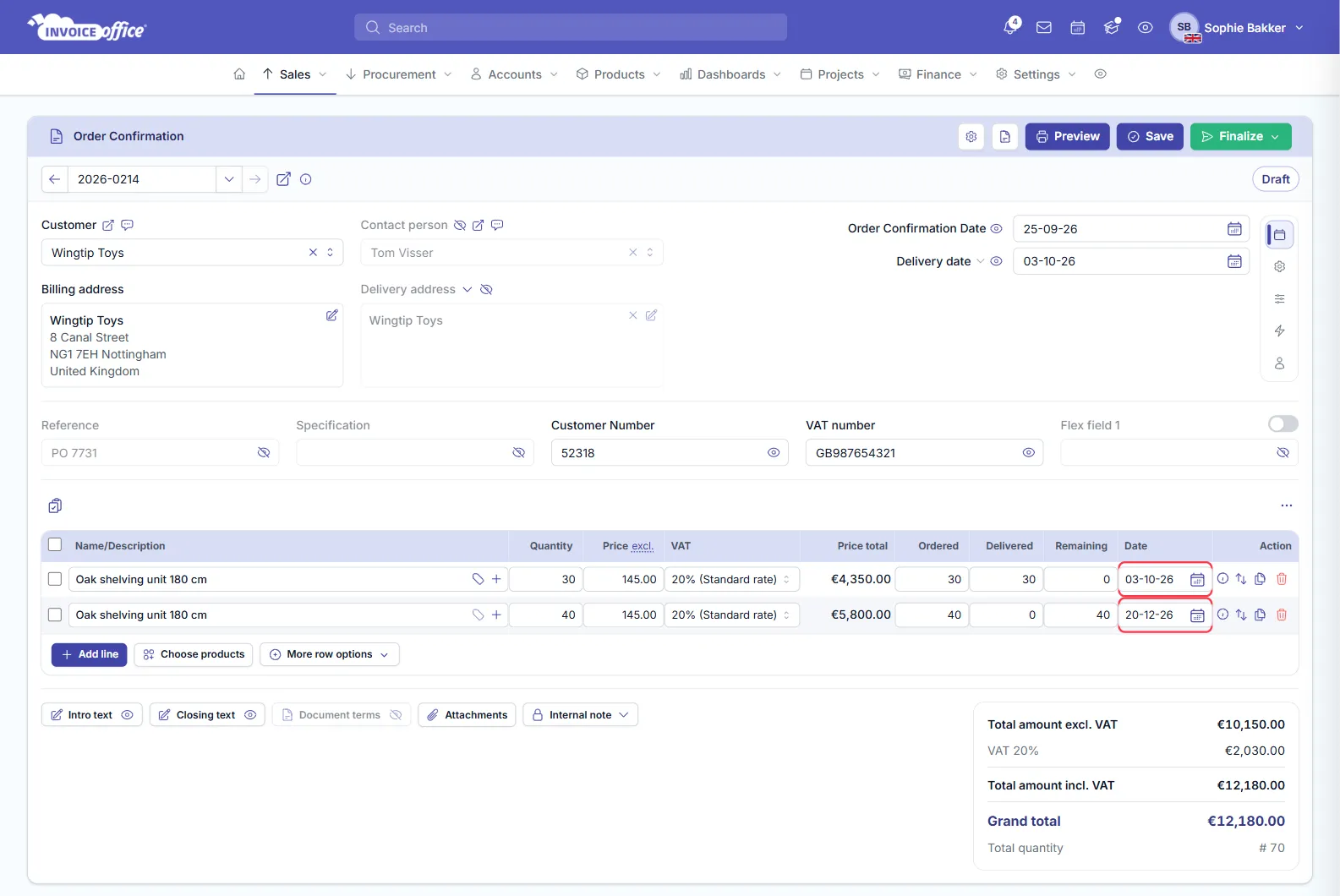
The order confirmation still totals 70 units, and the customer sees both delivery dates on the document.
Track ordered, delivered and remaining per line
With Ordered, Delivered and Remaining switched on, fill them in as deliveries go out. In the example, after the first delivery the 03-10 line reads Ordered 30, Delivered 30, Remaining 0, and the 20-12 line Ordered 40, Delivered 0, Remaining 40.
These three fields are for your own record and for the customer: you type them in, like the quantity. Invoice Office does not work out Remaining for you, and they do not change by themselves when you create a packing note.
Ship each part with its own packing note
When a delivery is ready, create a packing note from just the lines that go out. This needs a Pro licence.
- On the order confirmation, tick the checkbox in front of the lines for this delivery — the 30 units dated 03-10 in the example.
- Click the Action icon above the checkboxes and choose Create packing note.
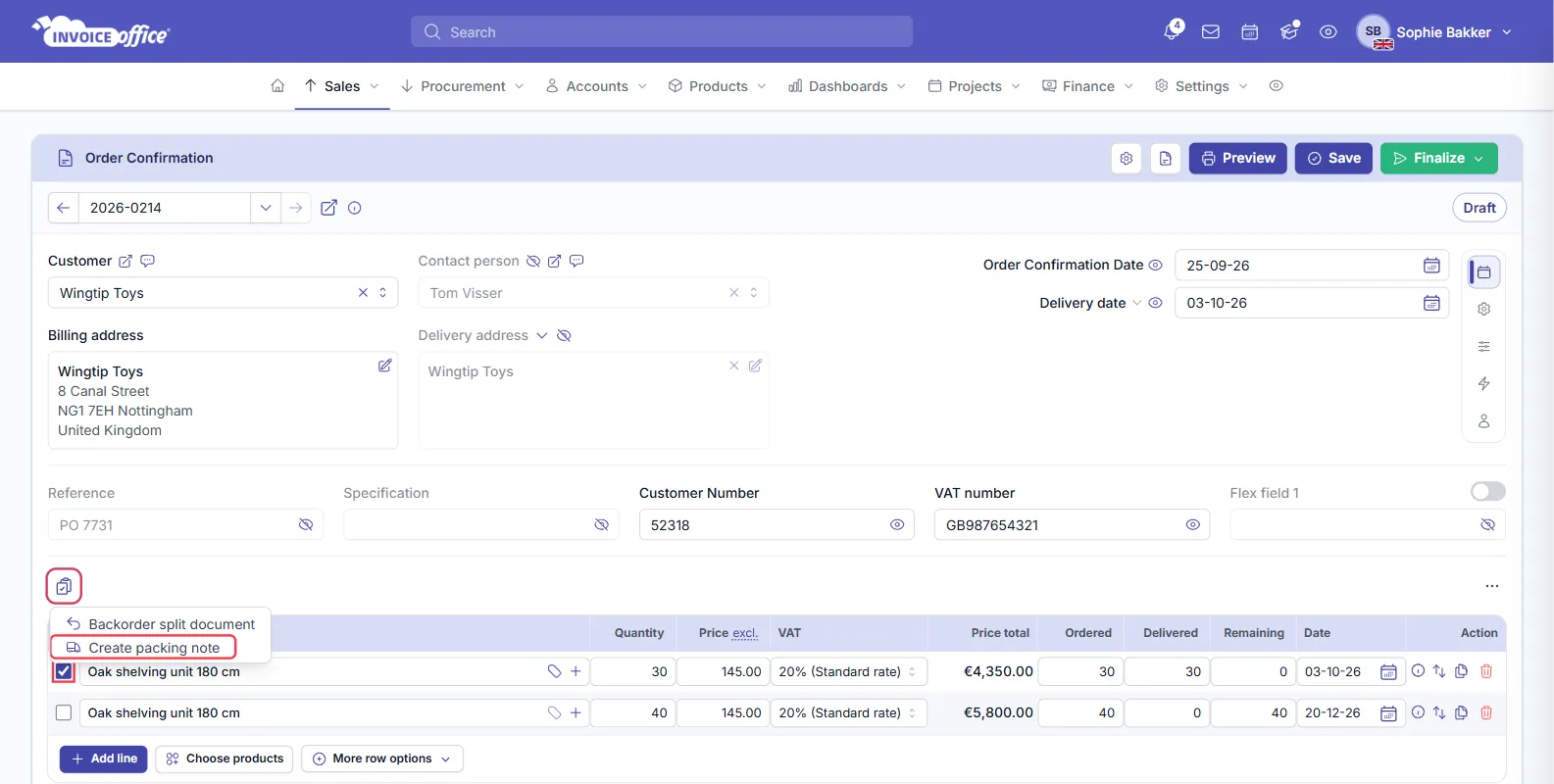
The new packing note is created as a concept and holds only the ticked lines. Its delivery date is taken from the Date of the first ticked line that has one, and it is linked to the order confirmation. When the second delivery is due, tick the 40-unit line and do the same. Create packing note stays available after the order confirmation is finalised. More on the packing note itself in Create a packing note.
See open order lines per customer
The Backorder overview lists every order confirmation line that still has something to deliver, grouped by customer. It needs a Pro licence and works from your stock.
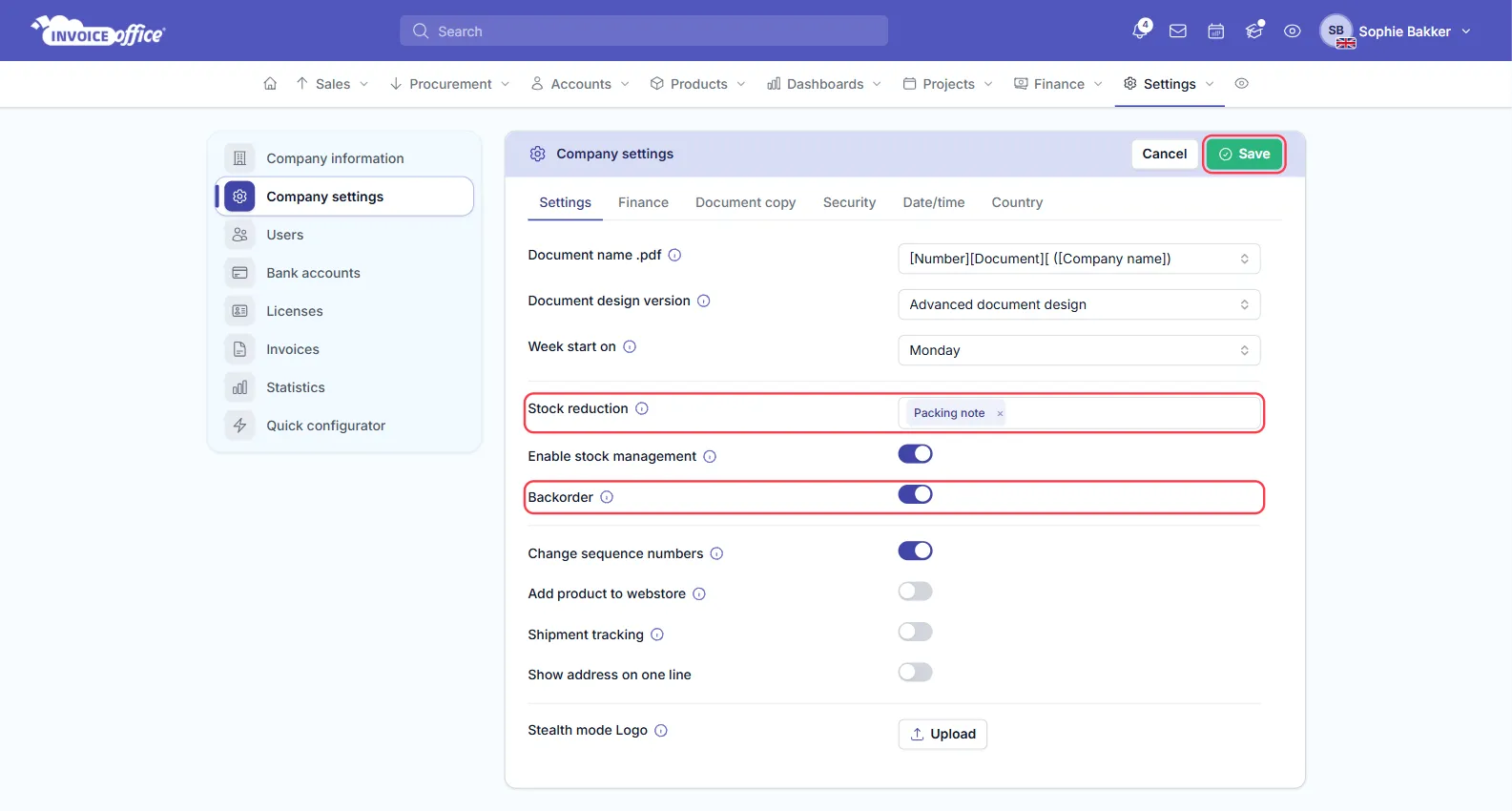
- Go to Settings → Company settings and, on the Settings tab, switch on Backorder. Check that Stock reduction includes the document you deliver with, for example Packing note, then save.
- Make sure the products you sell have Enable stock management switched on.
- Go to Dashboards → Backorder.
At the top you see the total value Still to deliver. Each customer has a table with Document number, Product, Ordered, Delivered, Backorder, Still to deliver and Value, and its own outstanding value.
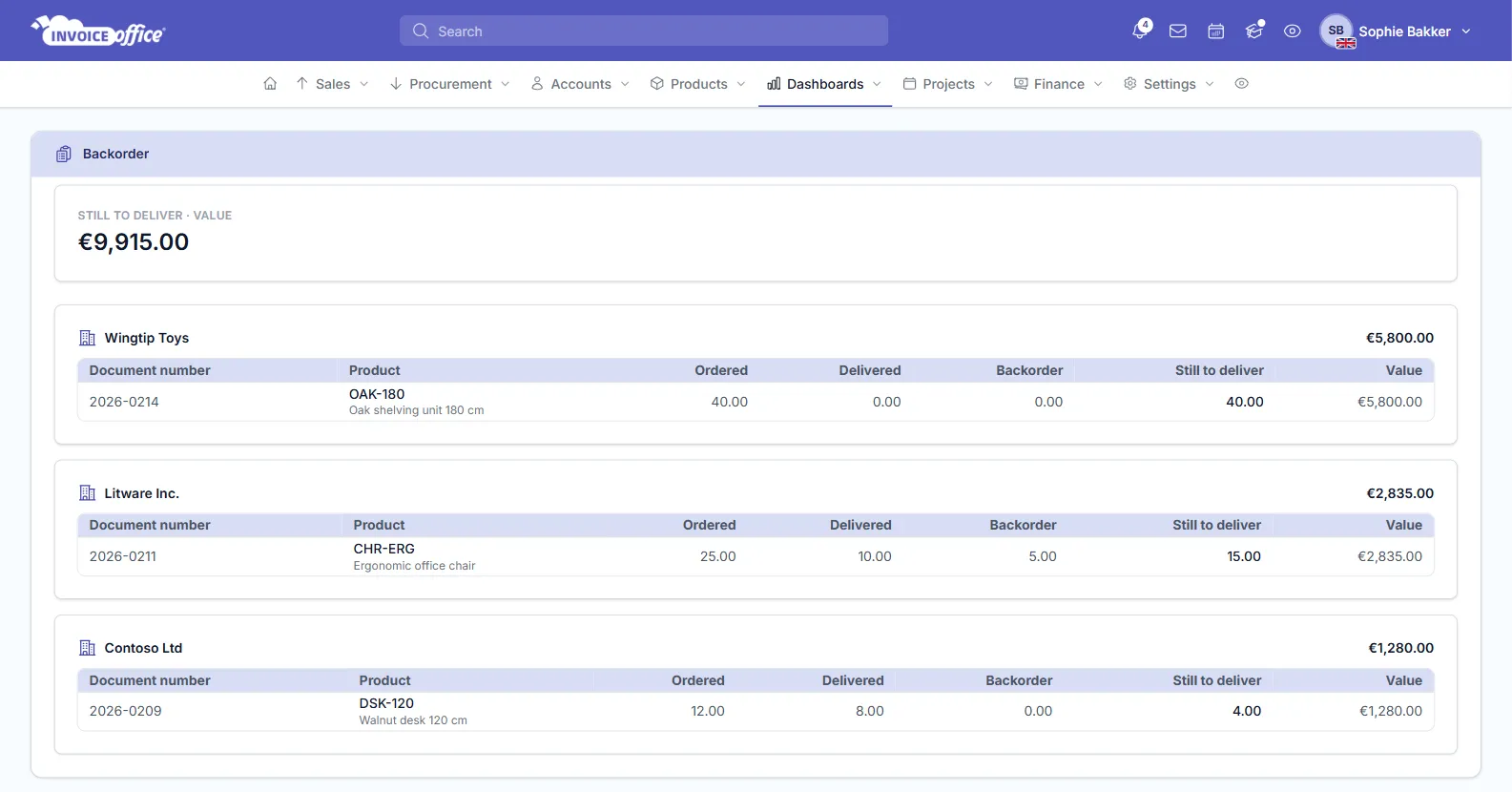
The overview does not read the line columns you type in. A finalised order confirmation reserves the stock its products need, and a quantity counts as delivered when a packing note or invoice converted from that order confirmation is finalised and reduces stock — its document type must be in Stock reduction. A packing note made from ticked lines with Create packing note does not update this overview. Only products with stock management switched on appear here; services never do.