The WooCommerce connector turns every order in your shop into a document in Invoice Office — an invoice, order confirmation, quote or packing note — so nobody types an order in a second time. The customer and the products on the order come across with it, and the VAT lands on the rate you chose for each WooCommerce tax class.
Before you start
- A licence that includes the WooCommerce connector. The card on the Integration connectors page carries a License Required badge; without the licence its switch stays off.
- Administrator access to your WordPress site, to create an API key and a webhook in WooCommerce.
1. Create an API key in WooCommerce
- In WordPress go to WooCommerce → Settings → Advanced → REST API and click Add key.
- Give it a description, such as Invoice Office, choose the user it belongs to and set Permissions to Read/Write.
- Click Generate API key. WooCommerce shows a Consumer key (
ck_…) and a Consumer secret (cs_…) — once only, so keep this page open for the next step.
Read access is enough to import orders. Read/Write is needed if Invoice Office should also send product changes back to your shop (see Let Invoice Office manage your products).
2. Connect WooCommerce in Invoice Office
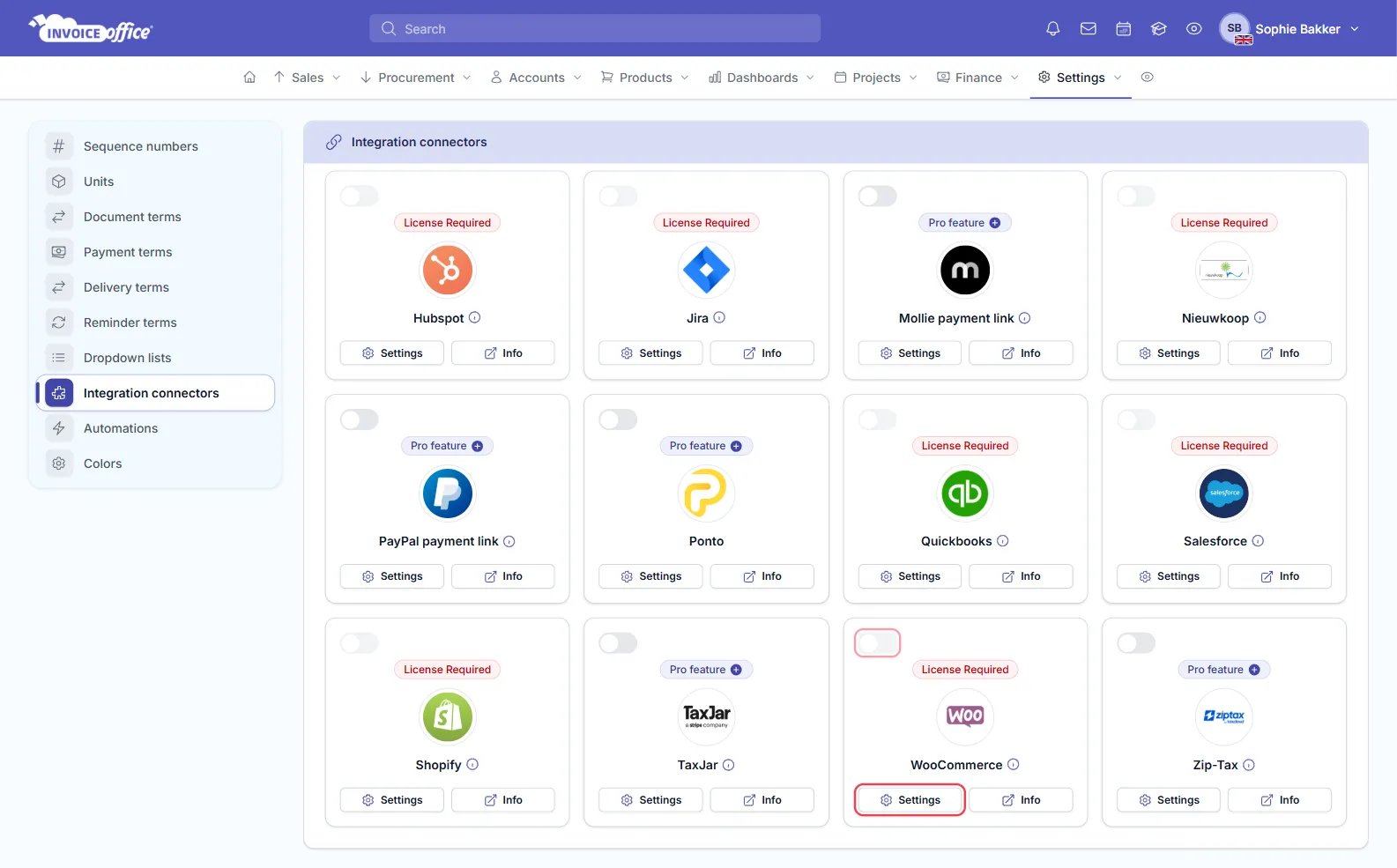
- In Invoice Office go to Settings → Integration connectors.
- Find the WooCommerce card and click Settings.
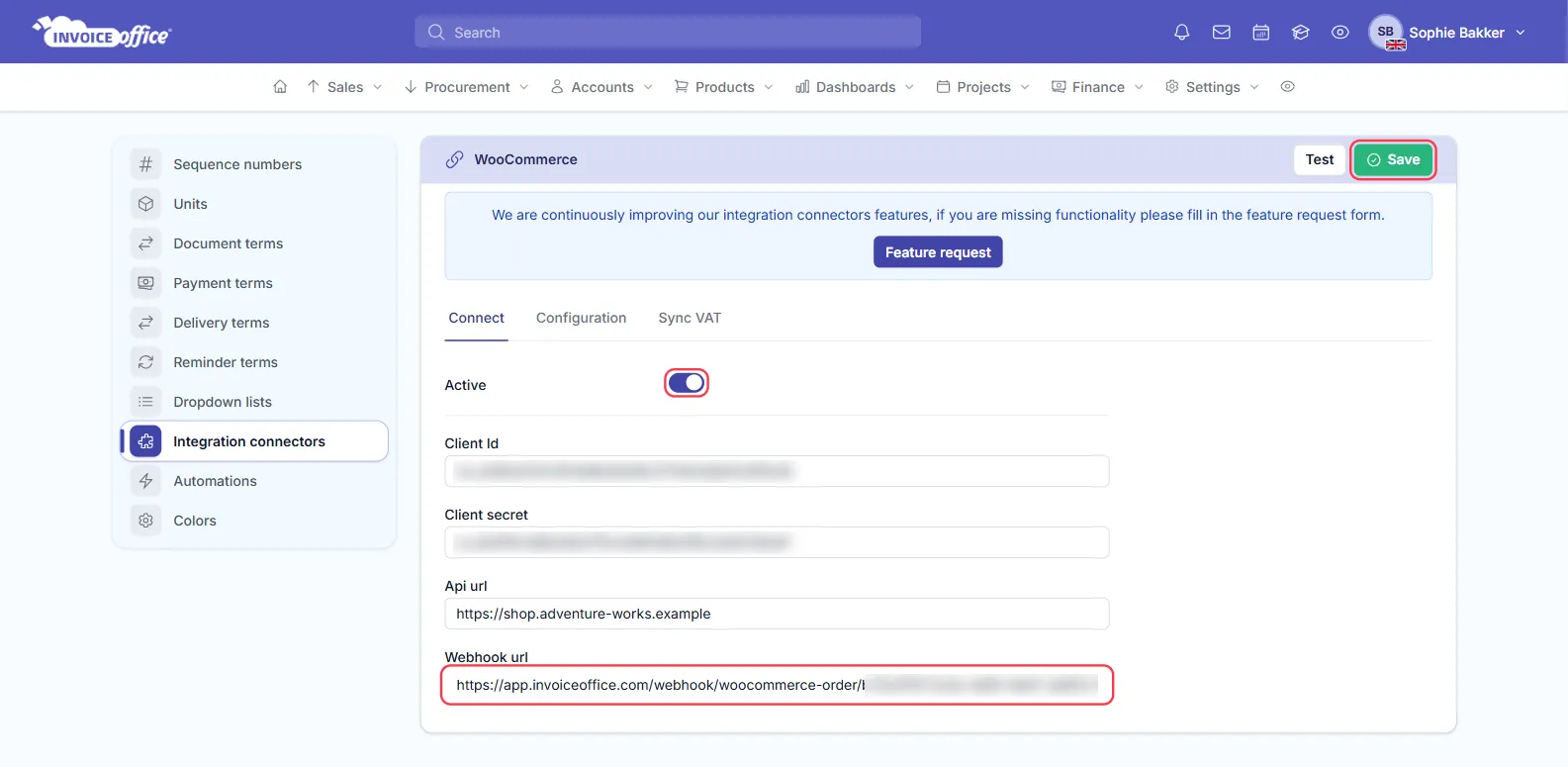
- On the Connect tab, switch Active on and fill in:
- Client Id: the WooCommerce Consumer key.
- Client secret: the WooCommerce Consumer secret.
- Api url: your shop’s address, for example
https://shop.yourcompany.com.
- Click Save, then Test to check that Invoice Office can reach your shop. Save first — the test only works once the connector is saved and active.
The same tab shows a read-only Webhook url. Copy it for step 3.
3. Add the order webhook in WooCommerce
The webhook is how your shop tells Invoice Office that an order came in. Without it, no orders arrive.
- In WordPress go to WooCommerce → Settings → Advanced → Webhooks and click Add webhook.
- Fill it in:
- Name: for example Invoice Office orders.
- Status: Active.
- Topic: Order created.
- Delivery URL: the Webhook url you copied from Invoice Office.
- Secret: paste your Consumer secret — the same one you entered as Client secret. Invoice Office uses it to check that each message really comes from your shop, and ignores messages that do not match.
- API version: WP REST API Integration v3.
- Click Save webhook.
Optionally, add webhooks with the same Delivery URL and Secret for Customer created, Customer updated, Product created and Product updated. Customers and products then stay current in Invoice Office between orders, not only when someone buys.
4. Choose what each order becomes
Open the Configuration tab.
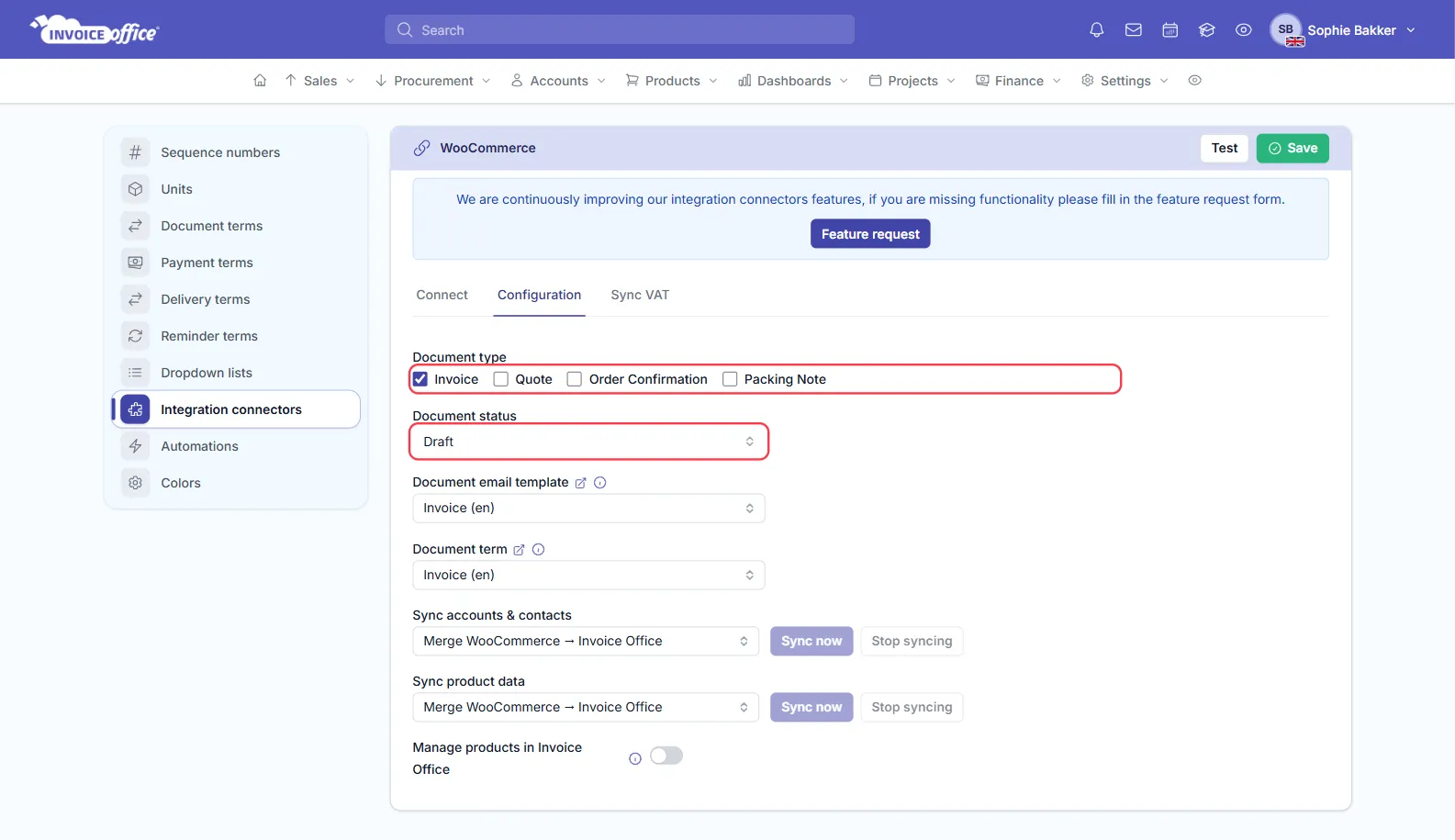
- Document type — tick the document each order should become: Invoice, Quote, Order Confirmation or Packing Note. Nothing is ticked at first, and until you tick one, orders create no documents. Tick one type.
- Document status — Draft leaves each document as a draft for you to check and finalize; Finalize numbers and finalizes it straight away, which also updates your stock and your accounting. Start with Draft and move to Finalize once the first orders look right.
- Document email template and Document term — the e-mail template and the document term used for the documents the connector creates. The lists show the invoice templates and terms you set up under Settings.
Click Save.
5. Match WooCommerce tax classes to your VAT codes
Open the Sync VAT tab and click Sync now. Invoice Office fetches your shop’s tax classes — typically standard, reduced-rate and zero-rate — and lists them with their Key and Description. Pick the VAT code each one should use; every choice is saved as you make it.
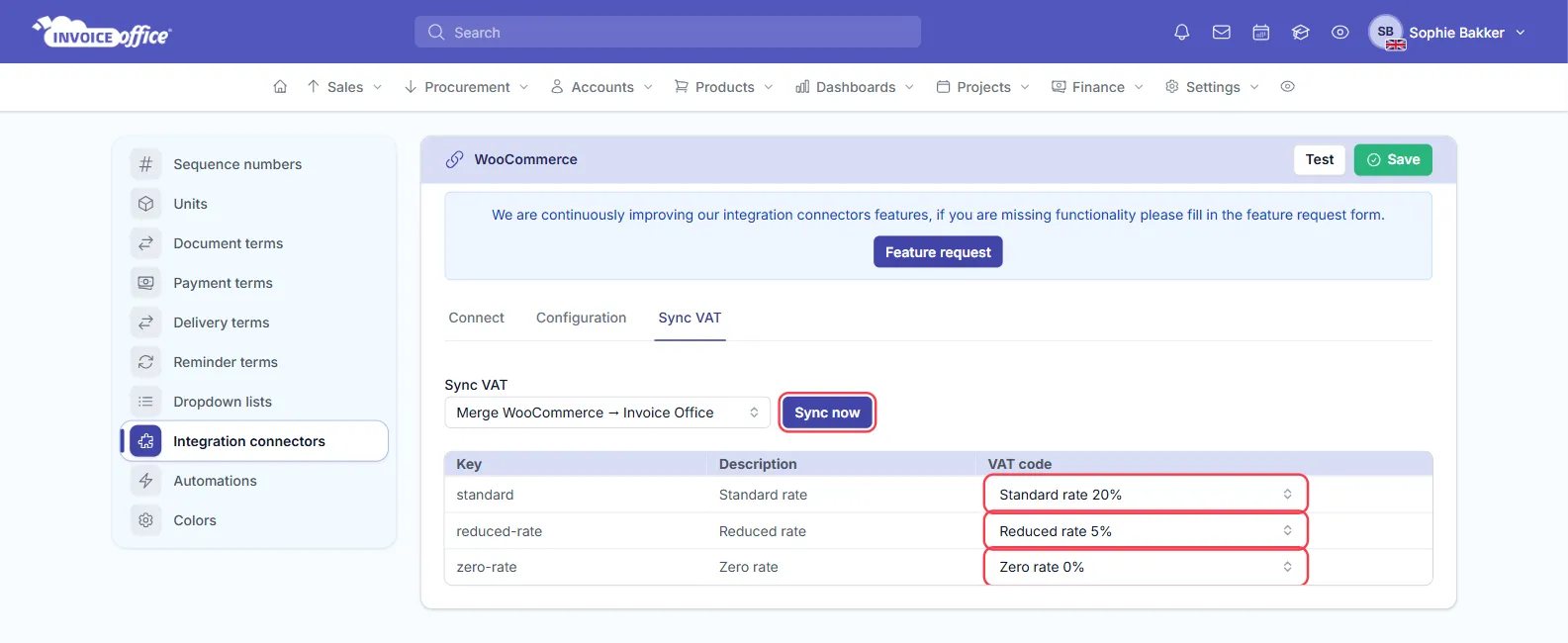
Order lines then carry the VAT code you mapped to their tax class. For a class you leave unmapped, Invoice Office picks the VAT code itself. Run Sync now again whenever you add a tax class in WooCommerce.
Bring in your existing products
Under Sync product data on the Configuration tab, click Sync now to import the products already in your shop — name, SKU, description, price, stock, dimensions, weight and categories. After that, the product webhooks (or the next order) keep them current.
Let Invoice Office manage your products
Switch on Manage products in Invoice Office to make Invoice Office the place where you maintain products. Creating, changing or deleting a product in Invoice Office then updates your shop, matched on SKU, and products get a Sync to WooCommerce action as well. This needs an API key with Read/Write permission.
Invoice Office sends the regular price; a sale price set in WooCommerce is cleared when a product is updated from Invoice Office. Leave this switch off if you run sales from the shop.
What comes across with an order
| In WooCommerce | Becomes in Invoice Office | Details |
|---|---|---|
| Order | Document of your type | Dated on the order date; the WooCommerce order number is kept as a reference |
| Billing details | Customer | Matched on email address, otherwise created, with billing and shipping address |
| Order line | Document line | SKU, name, quantity and price; the product is imported or updated too |
| Tax class | VAT code | From your mapping on the Sync VAT tab |
| Shipping | Shipping costs | One amount, including the shipping tax |
A few things to know:
- Only new orders come across. Orders placed before the webhook existed are not imported.
- Every new order is imported, whatever its status in WooCommerce — including orders that are still pending payment. Documents from the shop are marked as paid. Keeping Document status on Draft lets you catch the ones that never were.
- Refunds and cancellations are not sent across. Handle them in Invoice Office, for example with a credit note.
- Coupon discounts show in the line prices rather than as a separate discount line.
If it stops working
If orders stop appearing, check in WooCommerce → Settings → Advanced → Webhooks that the webhook is still Active — WooCommerce disables a webhook after repeated failed deliveries — and that its Secret still matches the Client secret in Invoice Office. If you generated a new API key, update the Client Id and Client secret in Invoice Office and the Secret on every webhook.
For help with your configuration, contact us.