Stock management in Invoice Office tells you how many of each product you have, without counting by hand. You switch it on per product, and from then on your own documents keep the number up to date: an invoice takes stock out, and receiving a purchase order puts stock back in. Every change is logged on the product, so you can always see why the stock is what it is.
This guide covers the whole cycle: how stock moves, setting up a product, selling, receiving goods, checking and correcting the stock, and low-stock alerts.
How stock moves
Stock only changes when a document becomes final — never while it is a concept.
| What you do | What happens to the stock |
|---|---|
| Finalise an invoice | Goes down by the quantity on the invoice |
| Finalise a credit note | Goes back up |
| Finalise a purchase order | Stays the same — a purchase order is only an order |
| Choose Add to stock on a finalised purchase order | Goes up by the quantity you receive |
| Finalise a purchase (the invoice from your supplier) | Goes up |
| Delete or reset a finalised document | Its change is undone |
| Add a stock mutation, or change the stock quantity on the product | Goes up or down by the difference |
Stock management works for products that have it switched on, and needs a Pro licence.
Step 1 — Switch on stock management for a product
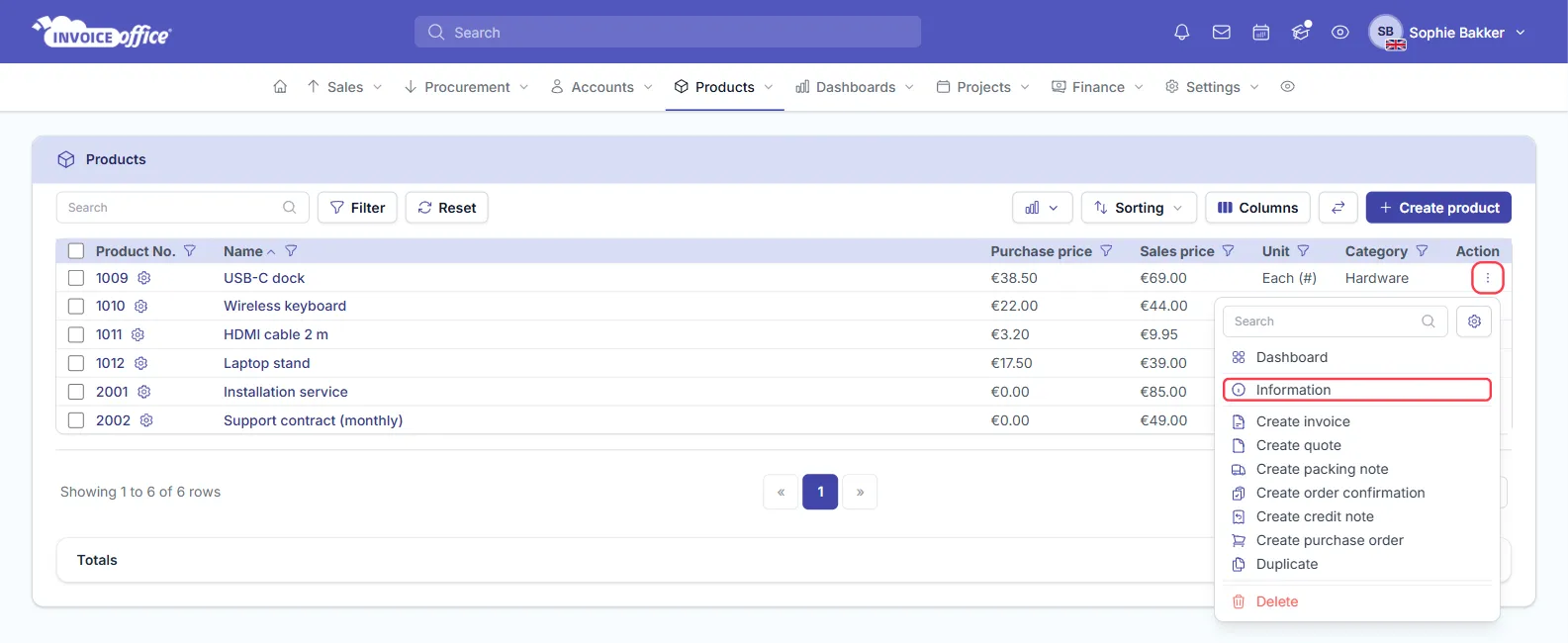
- Go to Products → Products.
- Open the product’s Action menu (the ⋮ at the end of the row) and choose Information.
- Open the Stock tab and switch on Enable stock management.
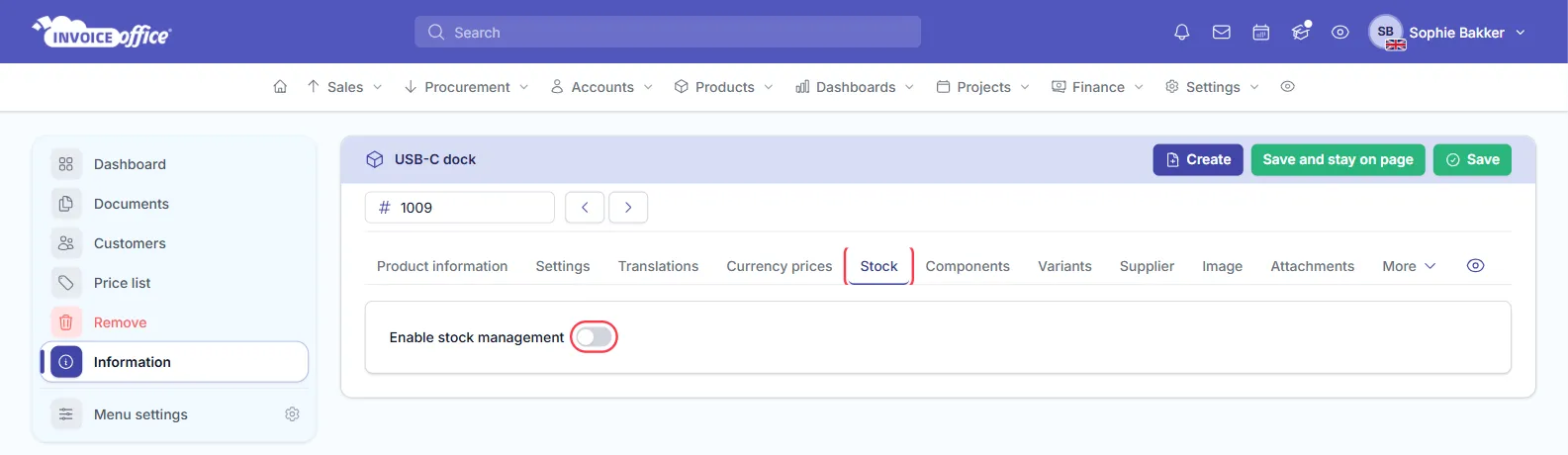
Leave stock management off for things you do not keep in stock, such as services, hours and licences. New to products? Start with creating and managing products.
Step 2 — Enter the stock details
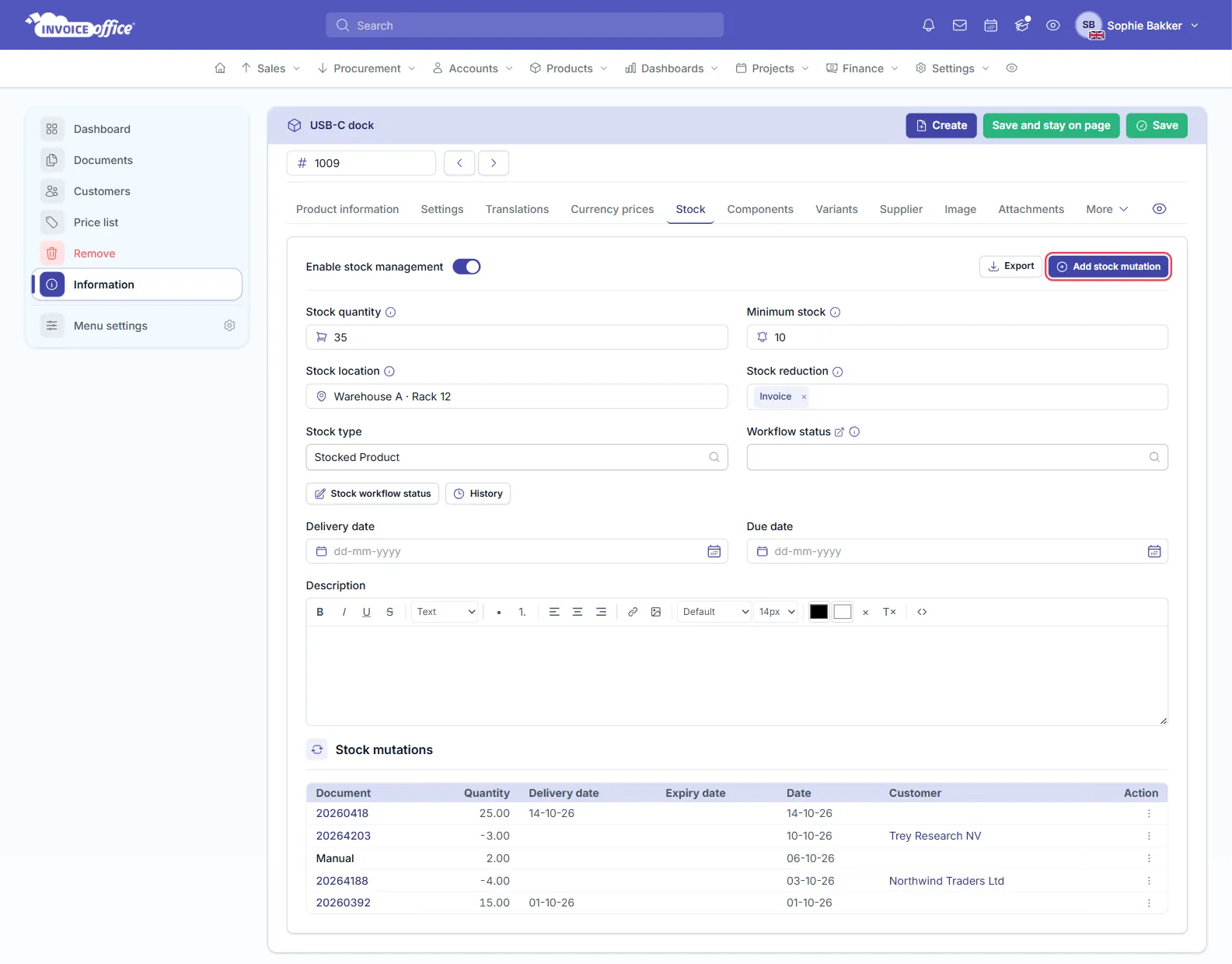
With stock management on, the Stock tab shows these fields:
- Stock quantity — how many you have now. Start from a real count.
- Minimum stock — the level at which you want to be warned, so you can reorder in time.
- Stock location — where the product is kept, such as Warehouse A · Rack 12. It can also be printed on packing notes and pick lists.
- Stock reduction — which document takes the product out of stock: Invoice, Order confirmation, Packing note, Proforma invoice or Quote. It is Invoice unless you change it.
- Stock type — Stocked Product, Non-stocked Product, Serialized Product or Service.
- Workflow status, Delivery date, Due date and Description — optional, for your own follow-up.
Click Save when the details are right.
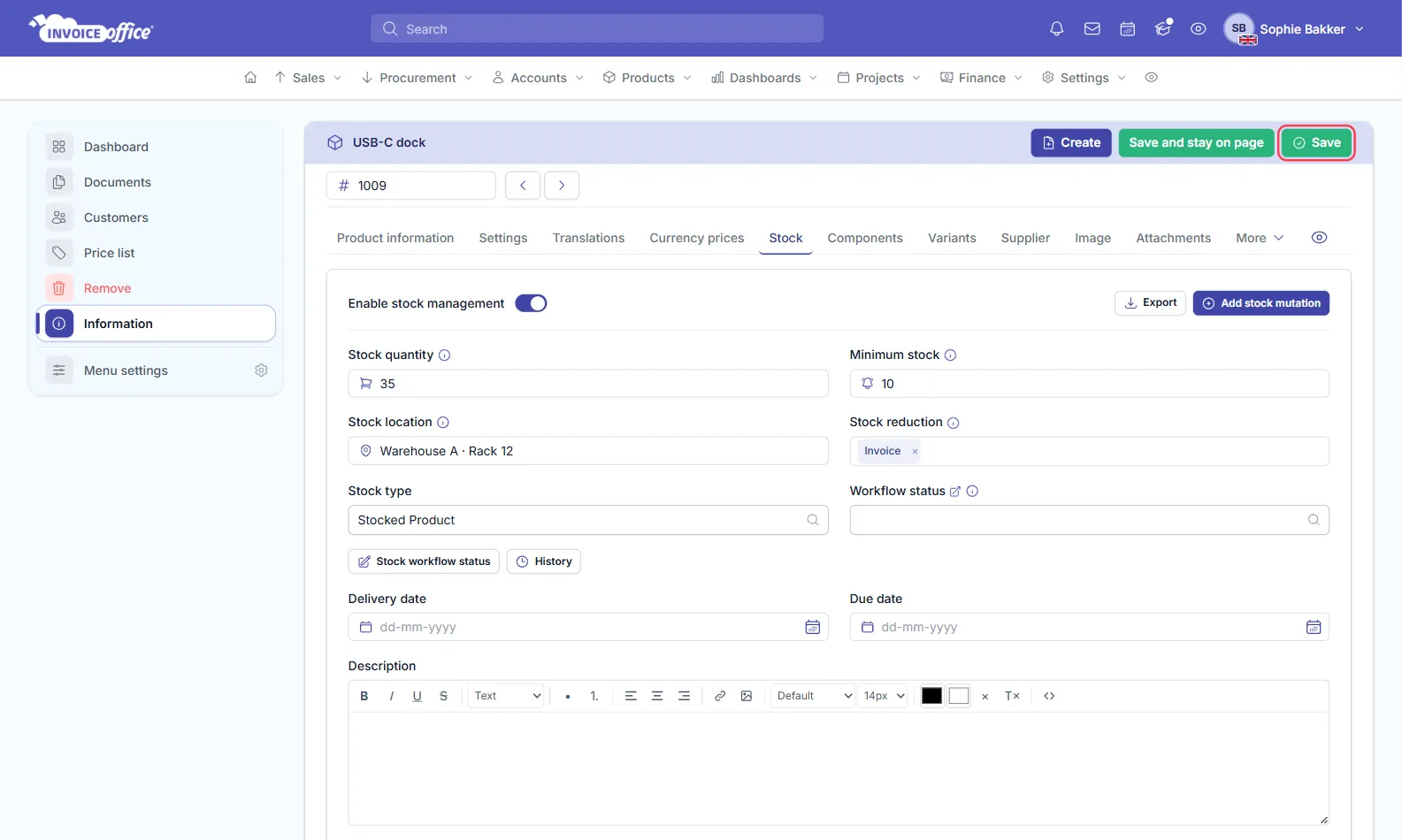
Choose one stock reduction. Pick the document that matches the moment the goods leave: Invoice if you invoice when you deliver, Packing note if you ship first and invoice later. If you select both, the stock goes down twice.
New products get their Stock reduction from the setting of the same name on the Settings tab of Settings → Company → Company settings. Changing that setting does not change existing products.
Step 3 — Sell: invoices take stock out
When you finalise an invoice, the quantity on each line comes off that product’s stock. It happens once — sending the invoice again later does not take more stock.
- Credit note — finalising a credit note puts the quantity back.
- Delete or reset — deleting a finalised invoice, or resetting it to concept, undoes its stock change, where your account allows that.
- Not enough stock? The line turns orange as a warning, but you can still finalise. The stock then goes below zero.
- Composite products — selling a product made of other products takes stock from its parts. See composite and bundled products.
The same applies to an order confirmation, packing note, proforma invoice or quote if you chose that document under Stock reduction.
Step 4 — Buy: receive goods into stock
A purchase order is an order to your supplier, so finalising it does not change your stock. Add the goods to stock when they arrive:
- Open the finalised purchase order — see create a purchase order.
- Open its Action menu and choose Add to stock.
- Check the quantities. For each line you see what was Ordered, already Received and still Remaining. Receive is filled in with the remaining quantity; change it if only part of the delivery arrived.
- Click Add to stock.
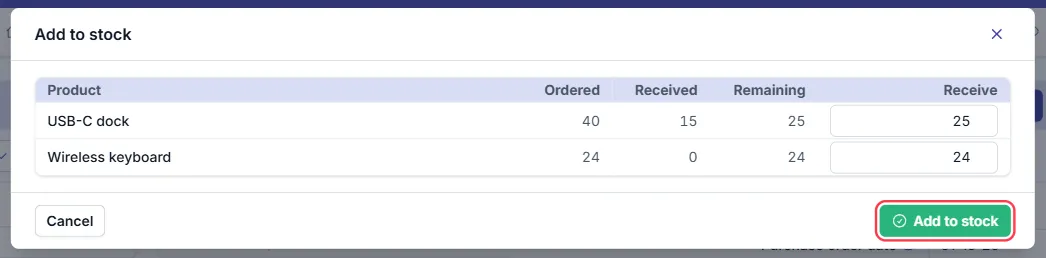
- Part deliveries — receive what came in today and come back for the rest. A line that is complete shows Fully received.
- Made a mistake? Undo add to stock, in the same Action menu, takes everything received on that purchase order back out of stock.
- Which lines? Only lines with a single product that has stock management switched on. Product groups and composite products are left out.
Purchases add stock too. When you finalise a purchase — the invoice you received from your supplier — its stock-managed products are added to stock. Use either the purchase order or the purchase for a delivery, not both: if you already received the goods on the purchase order, leave those products off the purchase, or they are counted twice.
Step 5 — Check your stock
- On the product — the Stock tab shows the current Stock quantity. Below it, Stock mutations lists every change: the document number, the quantity in or out, the dates and the customer. Export downloads the list as PDF, Excel or CSV.
- In the product list — click Columns and add the stock columns to see the stock of all your products at once. Stock below zero is shown in red.
- On the stock dashboard — Dashboards → Stock shows your products per workflow status, charts stock movements, and lists the stock of every product with recent stock mutations. See stock management for an overview.
Step 6 — Correct the stock
After a stock count, or to fix a mistake, correct the stock on the product’s Stock tab:
- Add stock mutation — enter a quantity, delivery number and description. The quantity is
added to the stock, so use a negative number to take stock off — for example
-2for two damaged items. - Change the Stock quantity and click Save — the difference is logged as a mutation called Manual, so the history still adds up.
To fix a mutation you entered by mistake, edit or delete it from its Action menu. Deleting a mutation undoes it.
Low stock alerts
Set a Minimum stock on the product to be warned in time. Whenever a document lowers the stock of a product that is then below its minimum, Invoice Office:
- shows the notification Product stock reached on minimum level;
- sends an email to your company email address;
- starts any automation with the Product stock alert trigger — for example to notify your buyer. See how to use automations.
When stock drops below zero, you also get the notification Stock too low. Alerts come from documents only — a correction you make by hand does not send one.
Troubleshooting
The stock did not go down after an invoice. Check that stock management is switched on for the product, that Invoice is selected under its Stock reduction, and that the invoice is finalised — a concept does not change stock. Stock management also needs a Pro licence.
The stock went down twice. The product probably has two documents under Stock reduction, such as Packing note and Invoice. Keep only the one that matches when the goods leave.
The stock went up twice. The goods were received on the purchase order and also on a finalised purchase. Take the extra quantity off with a negative stock mutation.
The stock did not go up after a purchase order. Finalising a purchase order does not add stock — choose Add to stock when the goods arrive.
Any doubts? Contact us and we will help.