An advance payment invoice in Invoice Office lets you bill a project in parts: collect a deposit upfront, then send a final invoice for the remainder once the work is delivered. There is no separate menu for it. The Advance Payment and Deposit fields sit in the totals section of the invoice, and you switch them on per document. This article shows where they are, what each one does to the total, and the full project workflow from quote to final invoice.
Two fields: Advance Payment and Deposit
Invoice Office has two fields for money received upfront. They change the invoice in different ways.
| Field | In Dutch | What it does |
|---|---|---|
| Advance Payment | Vooruitbetaling | Comes off the amount before VAT, so VAT is only charged on what is left. |
| Deposit | Aanbetaling | Comes off after VAT. The VAT stays the same, and a Grand total shows what the customer still has to pay. |
Both work on invoices and the other sales documents, such as quotes and order confirmations.
Show the fields in the totals section
The fields are hidden on a new invoice.
- Open the invoice.
- Click the line table’s Action menu (⋯) and choose Display Columns.
- The Fields panel opens on Rows. Switch to the Totals tab and turn on Advance Payment, Deposit or both.
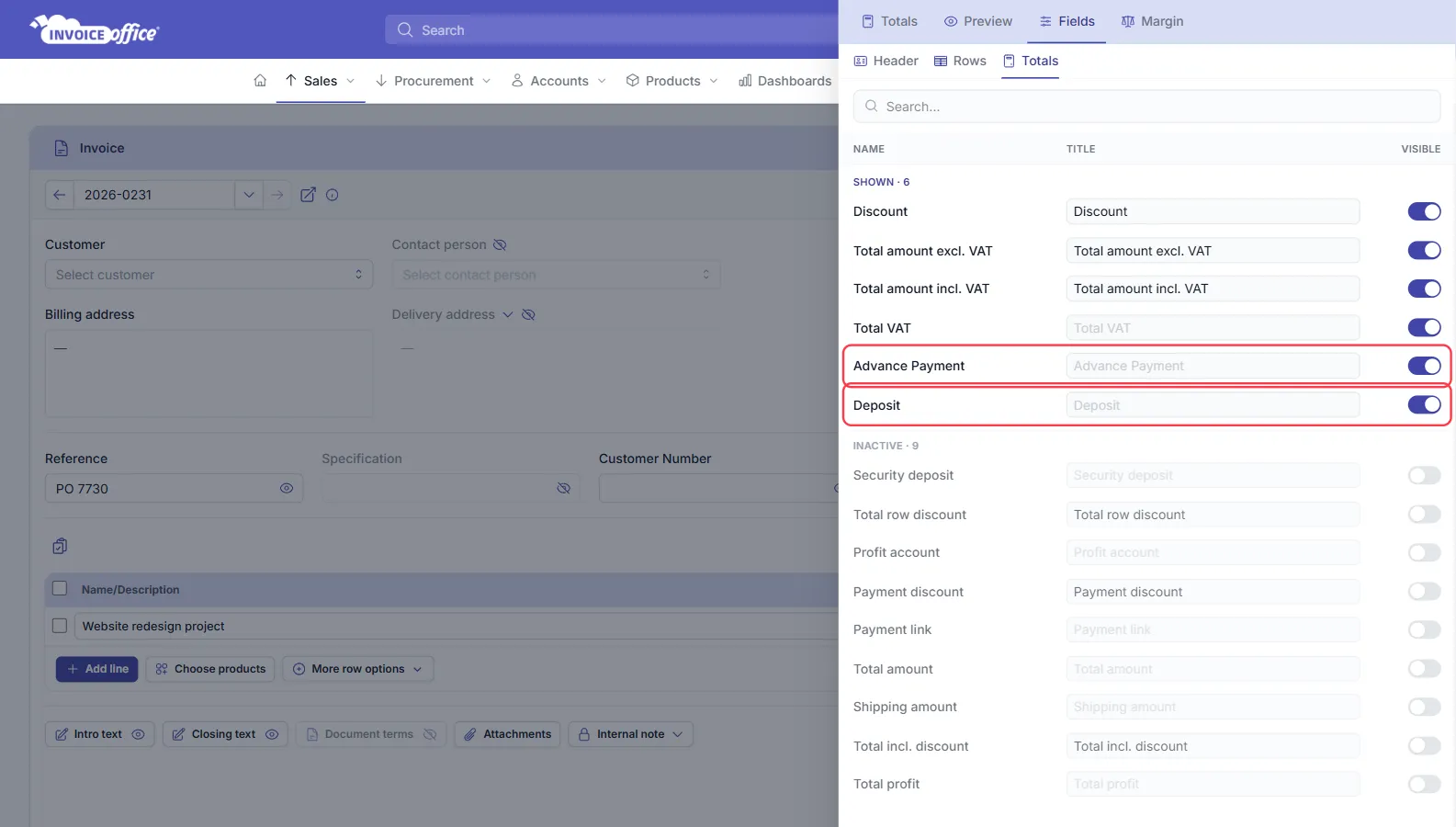
The fields now appear in the totals section at the bottom right of the invoice and are printed on the invoice too.
Deduct an advance payment from the final invoice
Use Advance Payment on the final invoice when you have already sent an invoice for the deposit, with its own VAT. Entering it here means the VAT on the deposit isn’t charged a second time.
- Create the final invoice with the full project on its lines, e.g. Website redesign project for €10,000.00 excl. VAT.
- In the totals section, enter the deposit you invoiced earlier, excl. VAT, under Advance Payment: €3,000.00.
- The VAT is now worked out on the remaining €7,000.00, and Total amount incl. VAT drops to what the customer still owes: €7,000.00 + 20% VAT = €8,400.00.
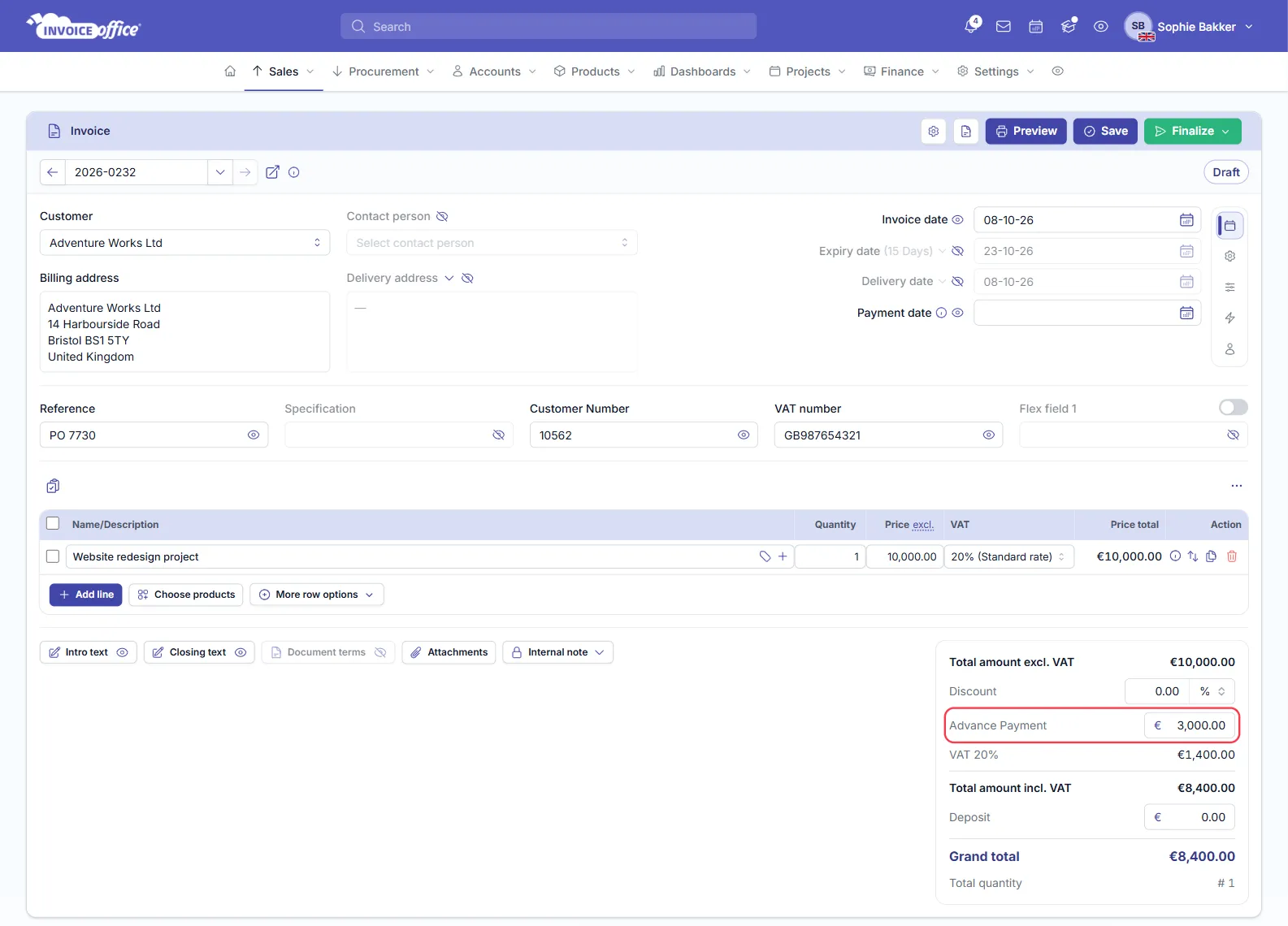
If your prices include VAT, enter the advance including VAT; Invoice Office splits it into its net part before working out the VAT.
Deduct a deposit after VAT
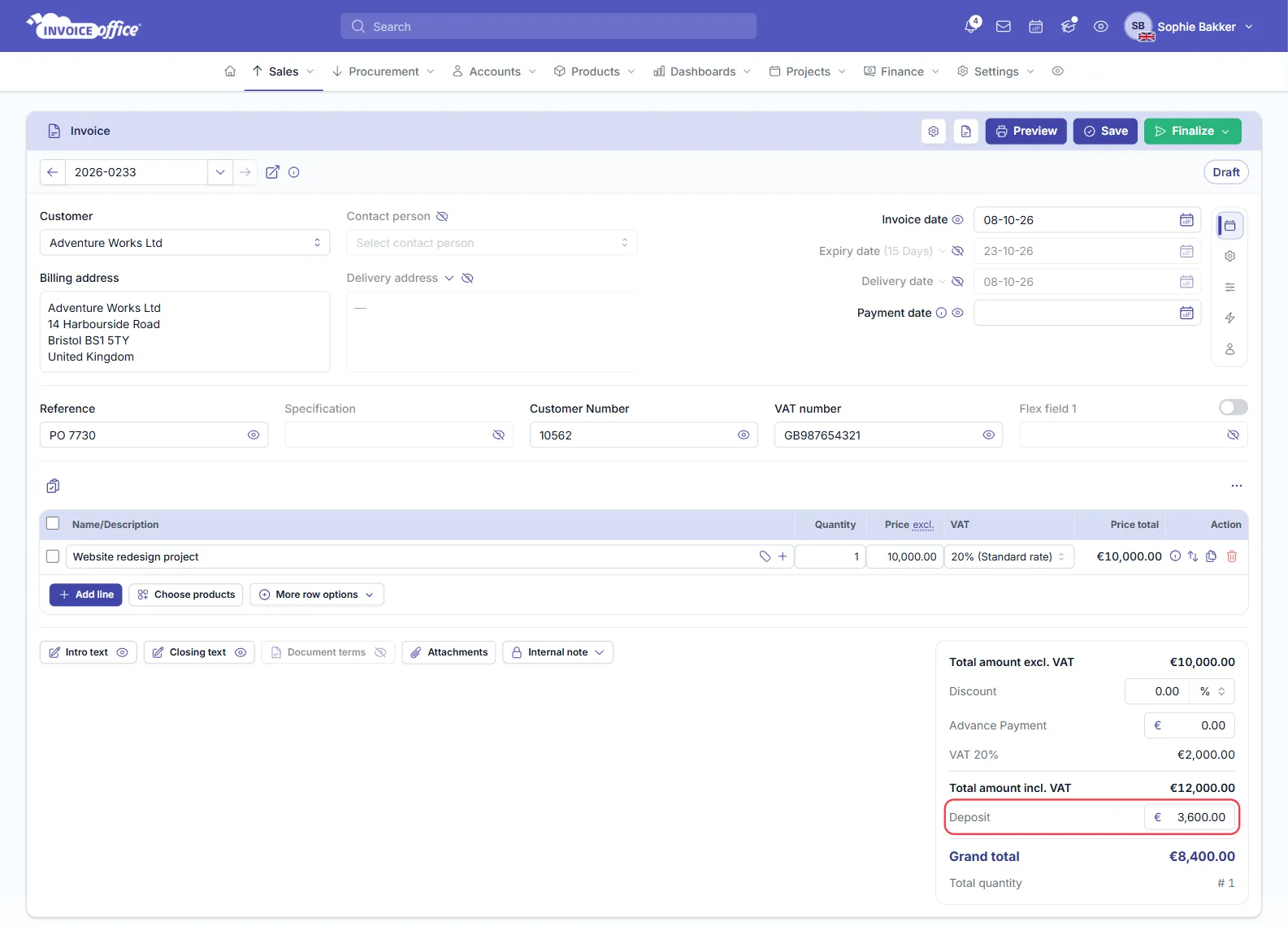
Use Deposit when the customer paid an amount upfront that you want to show on this invoice, with the VAT on the invoice staying in full.
- Enter the amount under Deposit, e.g. €3,600.00.
- Total amount incl. VAT stays at €12,000.00, and the Grand total below it shows what is still to be paid: €8,400.00. On the printed invoice, the Grand total line appears once Deposit is switched on.
Typical project workflow: quote → deposit invoice → final invoice
- Send a quote for the whole project. See create a quotation.
- Invoice the deposit when the customer agrees. Create an invoice with one line for the deposit, e.g. Deposit 30% website redesign project, €3,000.00 excl. VAT, and send it.
- Invoice the remainder after delivery. Create the final invoice with the full project and enter the deposit under Advance Payment, as above.
Prefer to let Invoice Office split the quote for you? On a finalized quote, choose Create partial invoices in the Action menu to create the instalment invoices, such as a deposit and the remainder, straight from the quote. Invoice Office keeps track of what is left to invoice. Invoices created this way already account for the earlier parts, so don’t add an Advance Payment to them. See how to use partial invoicing.