Partial invoicing in Invoice Office lets you bill a quote in parts — splitting it into several invoices — instead of all at once — for example a 30% deposit when the customer agrees, 40% on delivery and the rest when the work is done. You set up the instalments from the quote, Invoice Office creates a separate invoice for each part, and the quote keeps track of how much has already been invoiced and how much is still to go.
Before you start
- Partial invoicing works from a quote. Order confirmations don’t have it — to invoice an order confirmation, create a full invoice from it (see create an order confirmation).
- The quote must be finalized. The option is in the Action menu of an open, finalized quote.
- It is a Pro feature. Without a Pro license you can open the window, but not create the invoices.
- Rejected or expired quotes ask first. If the quote’s status is Not agreed or Expired, Invoice Office asks This quote is not marked as agreed. Create the partial invoice(s) anyway? before it goes ahead.
Step 1 — Open the partial invoicing window
- Go to Sales → Quotes and open the quote.
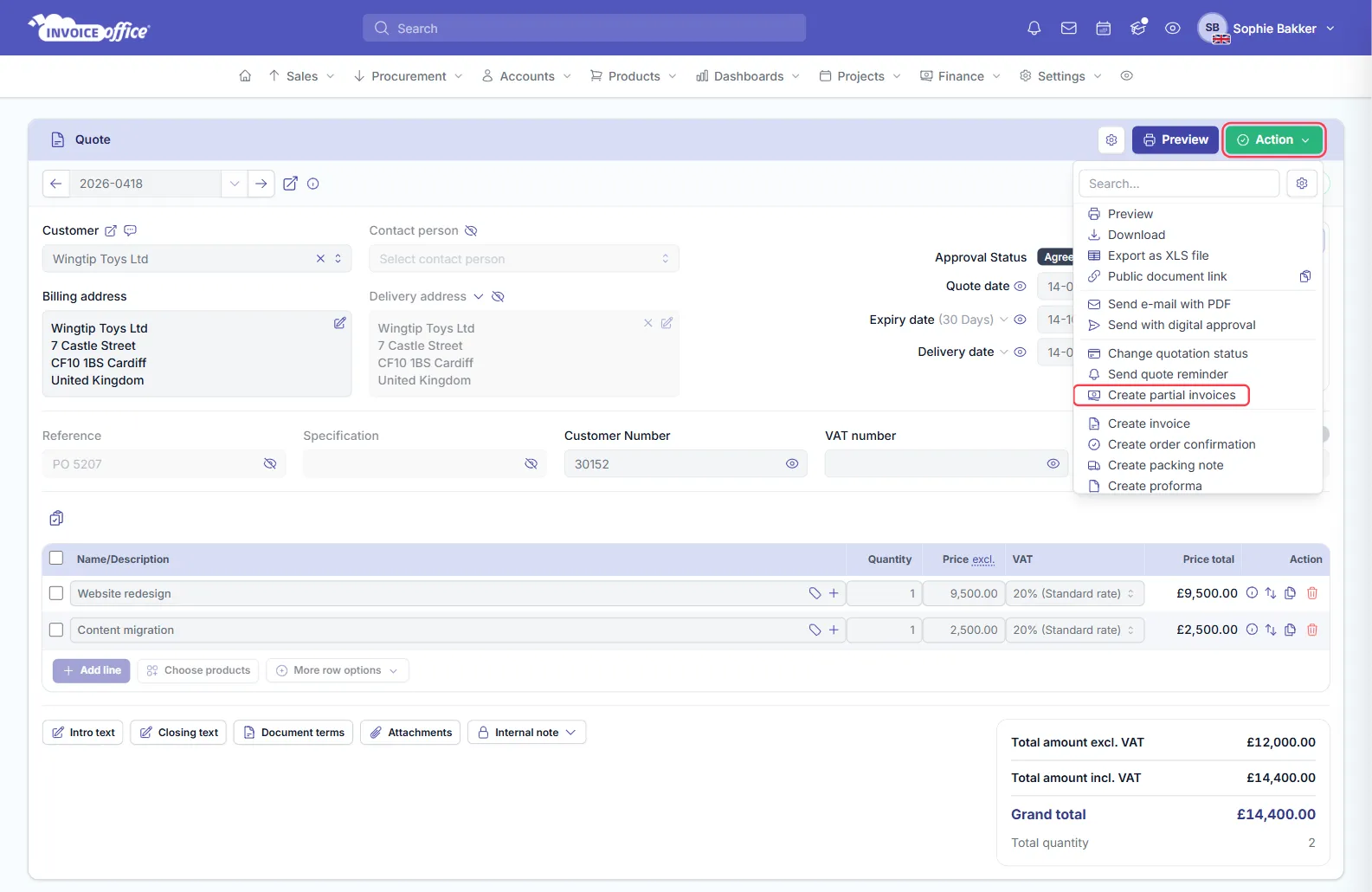
- Open the Action menu at the top of the quote and choose Create partial invoices.
The window shows the Quote total, what is Already invoiced and what is Remaining, all excluding VAT.
Step 2 — Split the quote into partial invoices
Each row in Partial invoices becomes one invoice.
- On the first row, enter the Partial invoice amount. The button next to it switches between a percentage of what is remaining and a fixed amount excluding VAT.
- Optionally set a Due date for that invoice, and a Description — the line text on the invoice. Leave it empty and the line reads Installment 1 of 2, Installment 2 of 2 and so on — counted over the invoices you create in that go.
- Click Add partial invoice for each further part. Delete a row with its bin icon (at least one row always stays).
- The last row is the Remainder: whatever the other rows leave over. Tick it to invoice the remainder in the same go, or leave it unticked to invoice it later.
Only ticked rows are created. Amount excl. VAT shows what each row comes to. Selected and Remaining at the bottom add up the ticked rows above the Remainder — the remainder itself is not included in them.
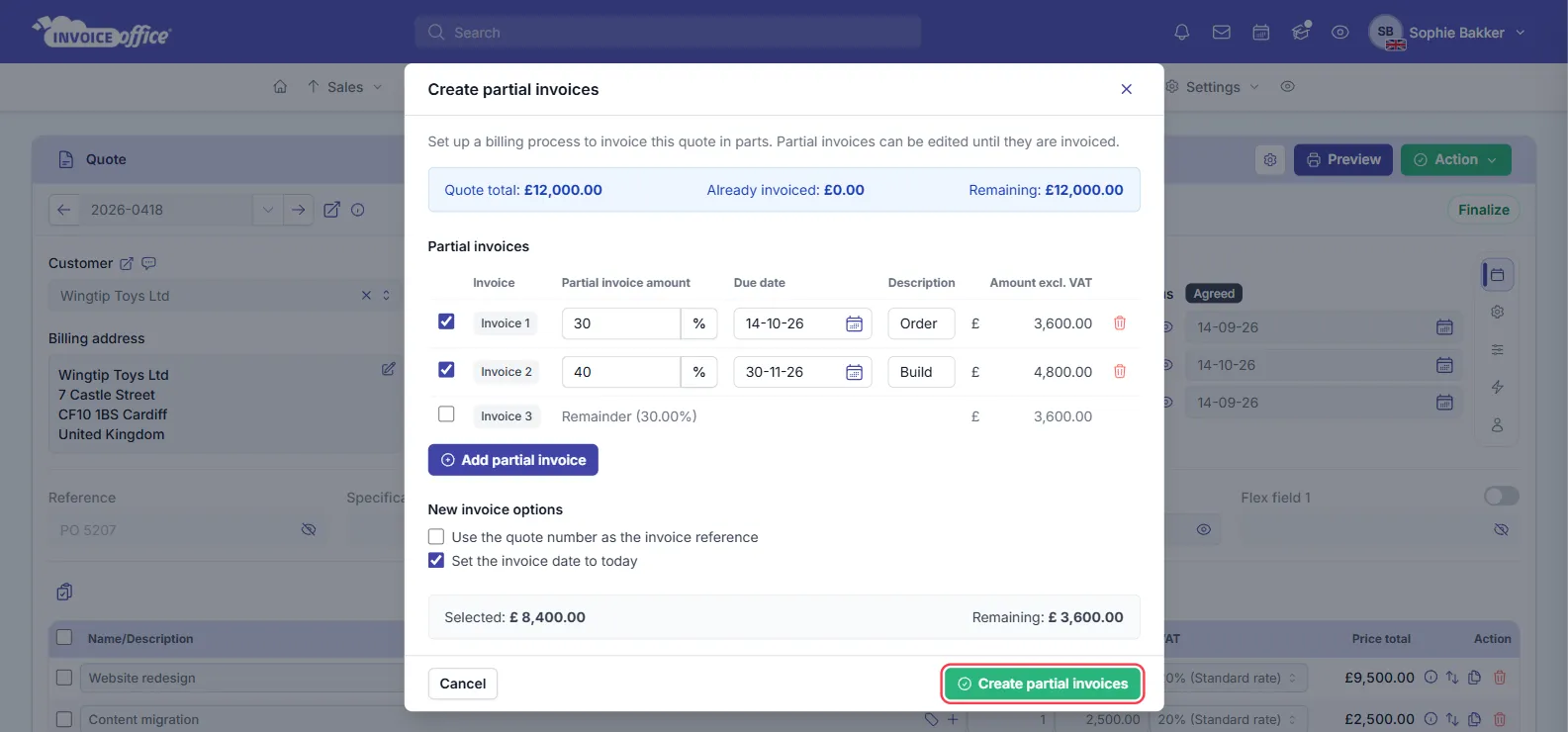
You can’t invoice more than the quote: if the rows add up to more than the remaining amount, the window flags it and won’t create the invoices.
Step 3 — Choose the invoice options
Under New invoice options:
- Use the quote number as the invoice reference — puts the quote number in the Reference of each new invoice.
- Set the invoice date to today — on by default. Untick it to keep the date from the quote.
Step 4 — Create the partial invoices
Click Create partial invoices. Invoice Office confirms how many were created, for example 2 partial invoices created.
Each one is a normal invoice in Sales → Invoices, still a Draft, for the same customer as the quote. It holds one line per VAT rate with its share of the amount, so VAT is split the same way as on the quote. Discounts and other document-level amounts from the quote are already included in those lines.
Check each invoice, then finalize and send it as usual — see create an invoice. Partial invoices can be edited until you finalize them.
Track what is left and invoice the rest
Open Create partial invoices on the quote again at any time. Already invoiced shows the total of the partial invoices made so far and Remaining what is still to be billed. Add rows for the next part — or tick Remainder to bill everything that is left — and create them the same way.
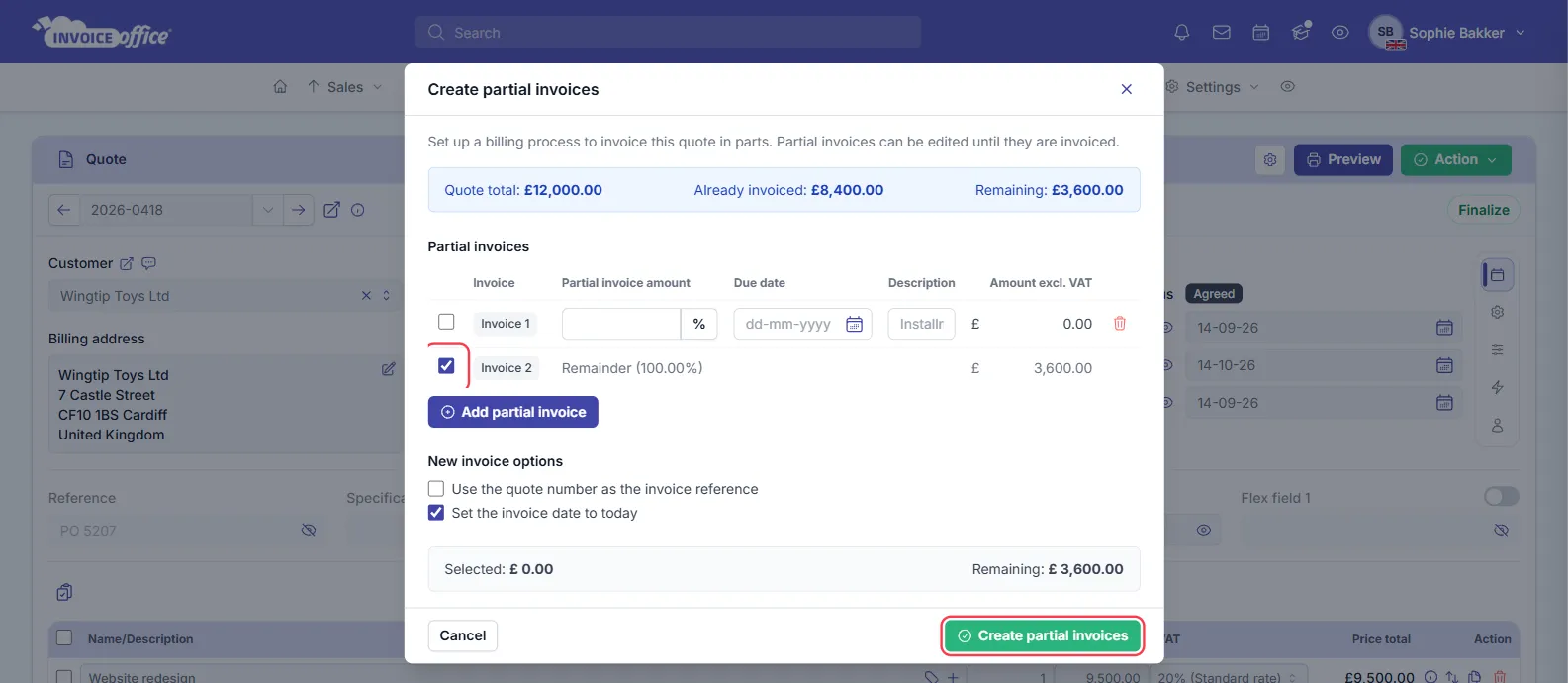
When nothing is left, Invoice Office says There is nothing left to invoice on this quote.
- Credited a partial invoice? A credited invoice no longer counts as invoiced, so its amount is added back to Remaining.
- Only partial invoices count. An invoice made with Create invoice — the whole quote at once, as in convert a quote to an invoice — is not part of this tracking.