To bulk send documents in Invoice Office, tick them in the list and pick an action from the Selected lines menu. The same menu finalizes, prints and bulk exports invoices to PDF, a ZIP file, Excel or CSV, and updates their workflow status — handy at the end of the month, when a whole billing run goes out together. It works on invoices, credit notes, recurring invoices, proforma invoices, quotes, order confirmations, packing notes and payment reminders.
Step 1 — Select the documents
Open the list, for example Sales → Invoices, and tick the box in front of each document you want. The box in the header row ticks every document on the current page.
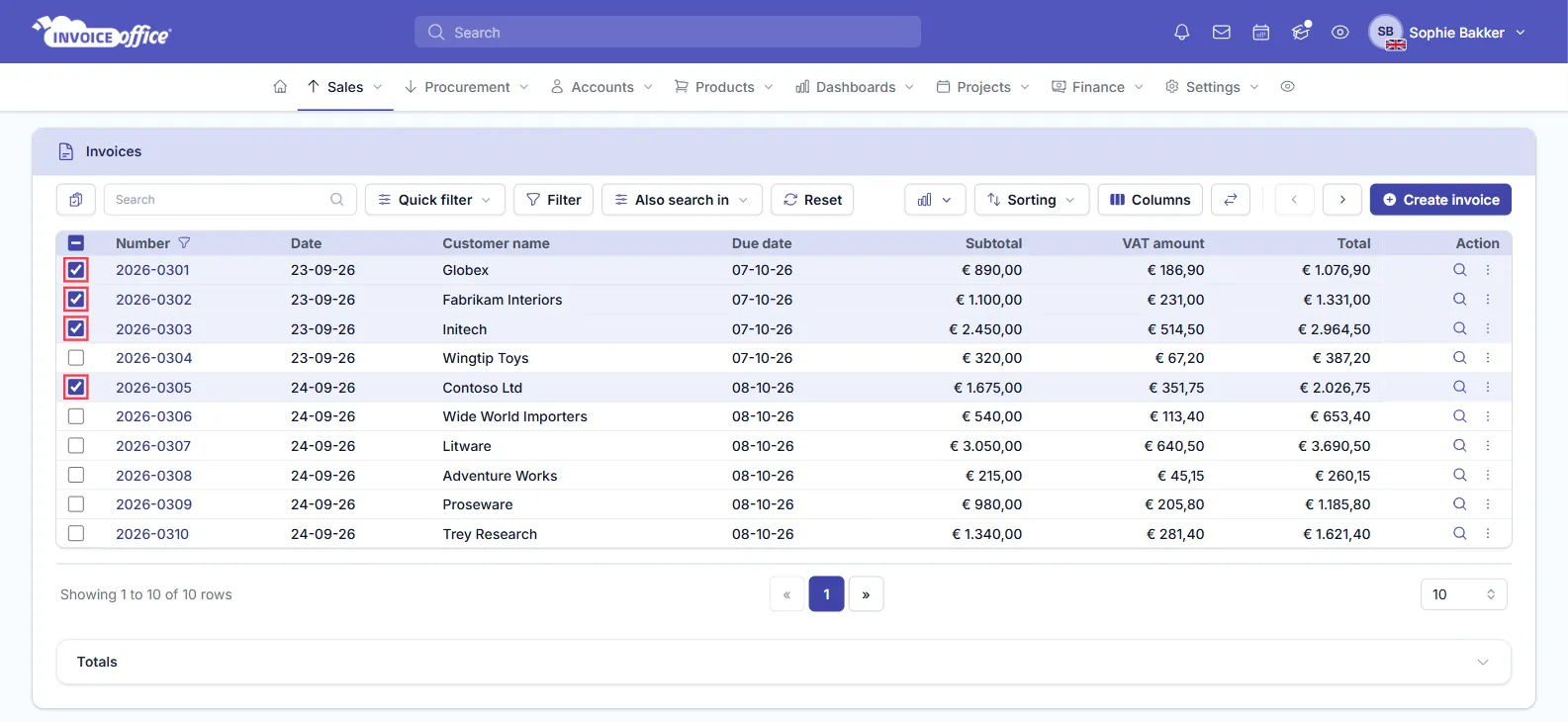
Filter the list first to make the selection quicker — Filter → Date range for this month’s invoices, or Quick filter → Concept invoices for the drafts that still need to go out — see how to filter a document list.
Step 2 — Open the Selected lines menu
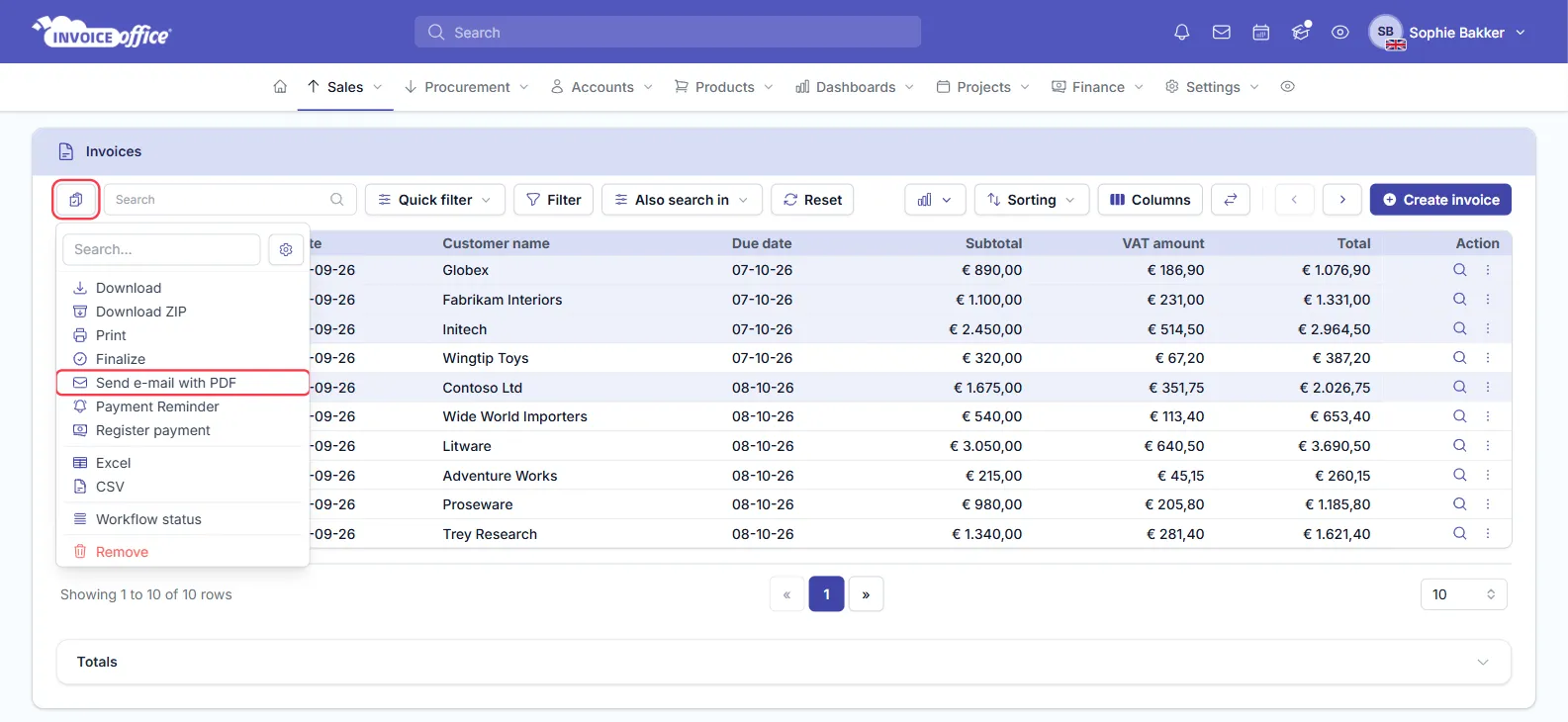
Click the Selected lines button — the clipboard icon at the far left of the toolbar — to open the menu of bulk actions.
Step 3 — Choose the action and confirm
Pick the action and confirm it in the window that opens. The sections below explain each one: finalize, send by email, export, and update status or payments.
Finalize several documents at once
Finalize finalizes up to 10 ticked documents in one go. Invoice Office asks Are you sure?; click Finalize to confirm and the list reloads with their new status. Finalizing fixes each document’s number, so do this before you send — see Why do my documents say Draft/concept?.
Bulk send by email
To send multiple invoices in one go:
- Tick the documents and choose Selected lines → Send e-mail with PDF.
- A window lists every document with its Document number, customer Name, Email address and Total, so you can check what you are about to send.
- Click Send. Invoice Office sends the documents one at a time, each with its PDF attached, and shows its progress as it goes. The list reloads when it has finished.
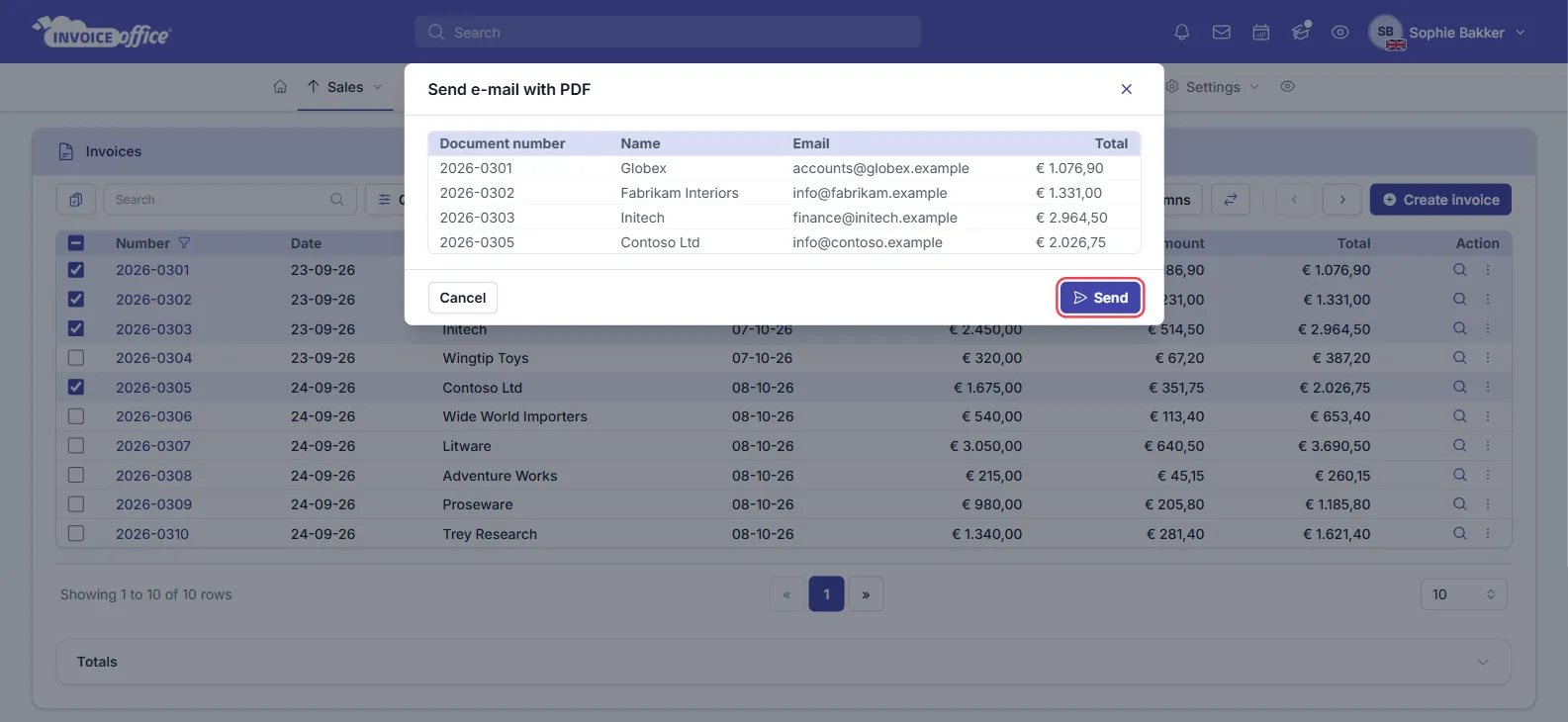
Each email uses the customer’s email template, just like sending a single document. There is no fixed limit on how many you send at once.
Sending by email in bulk is part of the Professional plan, including during a Professional trial.
Bulk export to PDF, Excel or CSV
To batch export the ticked documents:
- Download saves each ticked document as its own PDF — up to 10 at a time.
- Download ZIP bundles up to 50 documents into one ZIP file. It is prepared in the background: you see Export started, and a notification with the download link appears once the ZIP is ready.
- Print opens up to 5 documents, each in a new browser tab, ready to print. If only one opens, allow pop-ups for Invoice Office in your browser.
- Excel and CSV open the Export window with that format chosen, so you can pick the columns for a spreadsheet of the ticked documents. Export your data explains the columns, the filters and the row limit.
Update status or register payments in bulk
Workflow status gives every ticked document the same workflow status and the same Label. The label you enter replaces each document’s current label — leave it empty and their labels are cleared. It is part of the Professional plan.
On the invoice list the menu also has two payment actions, each for up to 5 invoices at a time:
- Payment Reminder previews which reminder each invoice would get, then creates them together — see Create a payment reminder.
- Register payment shows the outstanding amount per invoice and registers it as paid in full, so each invoice becomes Paid — see How do I register a payment?.
Only finalized invoices with an open balance qualify; the window shows which ones do.
Other actions in the menu
- Remove moves the ticked documents to the trash — read Delete documents first.
- On order confirmations, packing notes and proforma invoices the menu also creates follow-up documents from the selection, such as an invoice or a packing note.
- The gear icon at the top of the menu opens Dropdown menu setting, where you choose which actions the menu shows and in which order.