You can delete your Invoice Office account yourself, at any time, from the Security center. There is no form to send in: you confirm it with a verification code and the account is closed.
Beware: deleting your account deletes all your data. The page says it in red before you start — “If you delete your account; all your data will also be deleted! This can not be restored!!!” — and it means it.
Delete your account
Everything happens on one page, Delete account, which opens on its red warning:
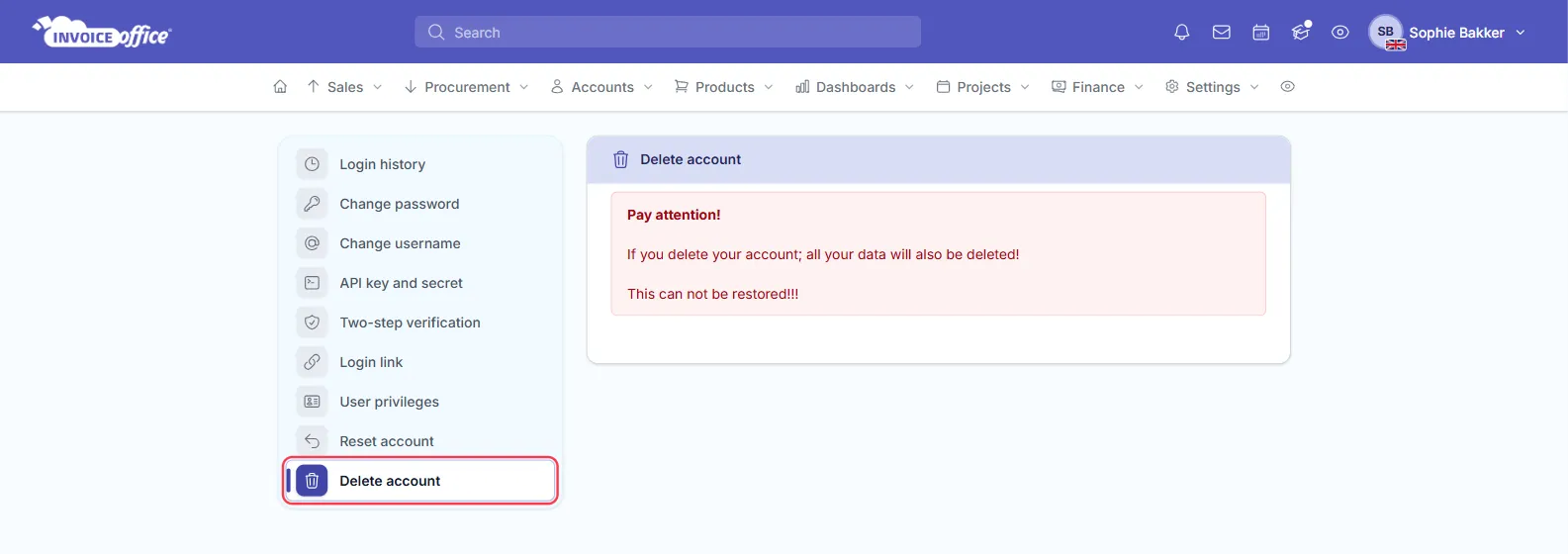
- Go to Settings → Security center → Delete account. It is the last entry in the Security center menu, directly below Reset account.
- Read the red Pay attention! warning, then switch Delete company on. Nothing happens yet — the switch is what arms the button below it. Leave it off and the app answers Delete company is required.
- Click the red Delete button. This does not delete anything: it emails you a verification code.
- Enter that code in Verification code. The code is valid for five minutes; after that Resend code becomes available. If you mistype it, the page tells you the code is incorrect and you can enter it again. If it has expired, request a new one.
- Click Approve. Only now is the account deleted.
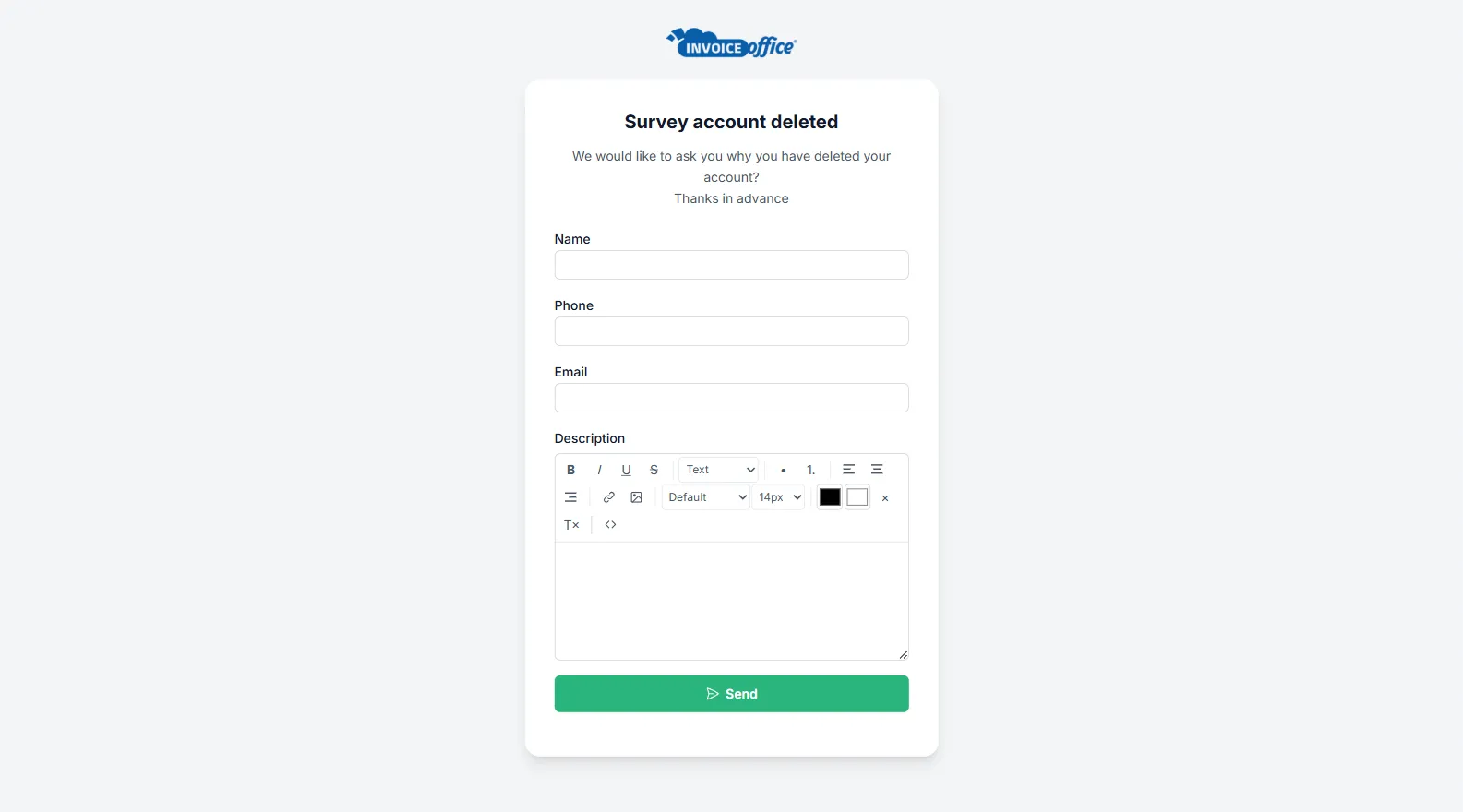
You are signed out straight away, and a short, optional form asks why you left. Your answer goes to our team; nothing depends on filling it in.
What deleting your account does
- It deletes the whole company account, not just your user. Your login stops working the moment you approve, and the company and all of its data go with it.
- An active paid subscription is cancelled for you as part of the deletion, so you do not need to cancel it separately first. See how a free or paid account works.
- The onboarding emails stop. The tips we send to new accounts are switched off for a deleted account.
- It cannot be undone. We cannot restore a deleted account, so save anything you still need before you start.
Before you delete
- Only want a clean slate? Use Reset account instead. A reset empties your account — documents and settings — but keeps your login and your company.
- Only want to remove a few records? Delete them from their overviews — see Delete documents.
- Keep your books. Deleting the account does not end your duty to keep records. Download the invoice PDFs your accountant or the tax authorities may still ask for before the account is gone.
I do not see Delete account, or the page is locked
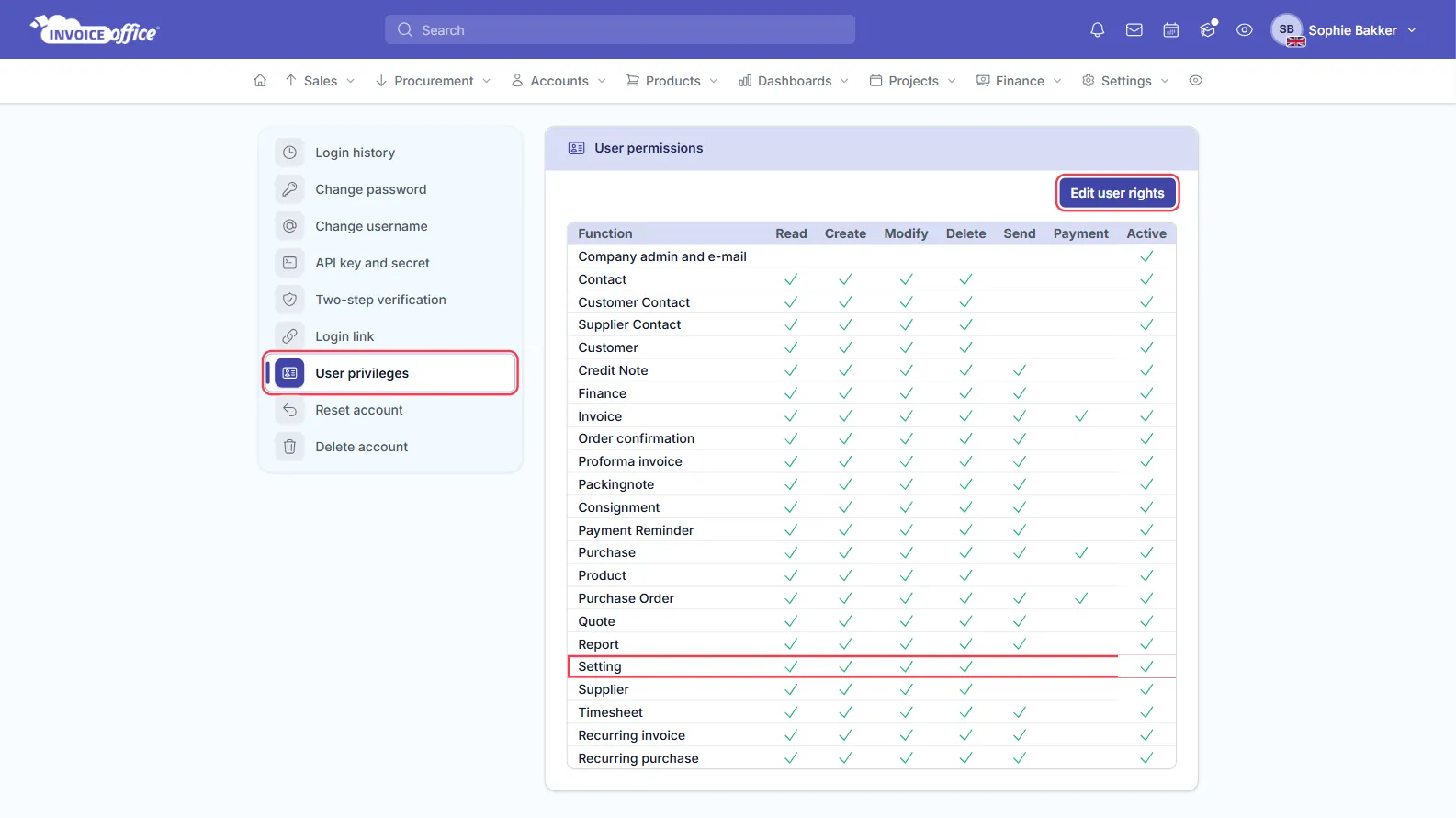
Delete account depends on two user privileges on the Setting function. Without the Active right, the entry does not appear in the Security center menu at all. Without the Delete right, the page opens but tells you that you do not have the permissions to use this option.
You can see your own rights under Settings → Security center → User privileges. That overview is read-only: a company administrator changes rights with the Edit user rights button on that page.
Otherwise ask the account owner, who always has full rights — see how to create and manage your users.
If you would rather talk it through first, contact us.