Once a document has been emailed, a small icon next to its status tells you what happened to the message, so you can see at a glance whether it arrived and whether it was read.
Where to find it
Go to your invoices — or any document list, they all work the same way. The Status column shows where the document itself stands — Draft, Finalized or Email sent — and the icon describing the sent email sits right beside that badge.
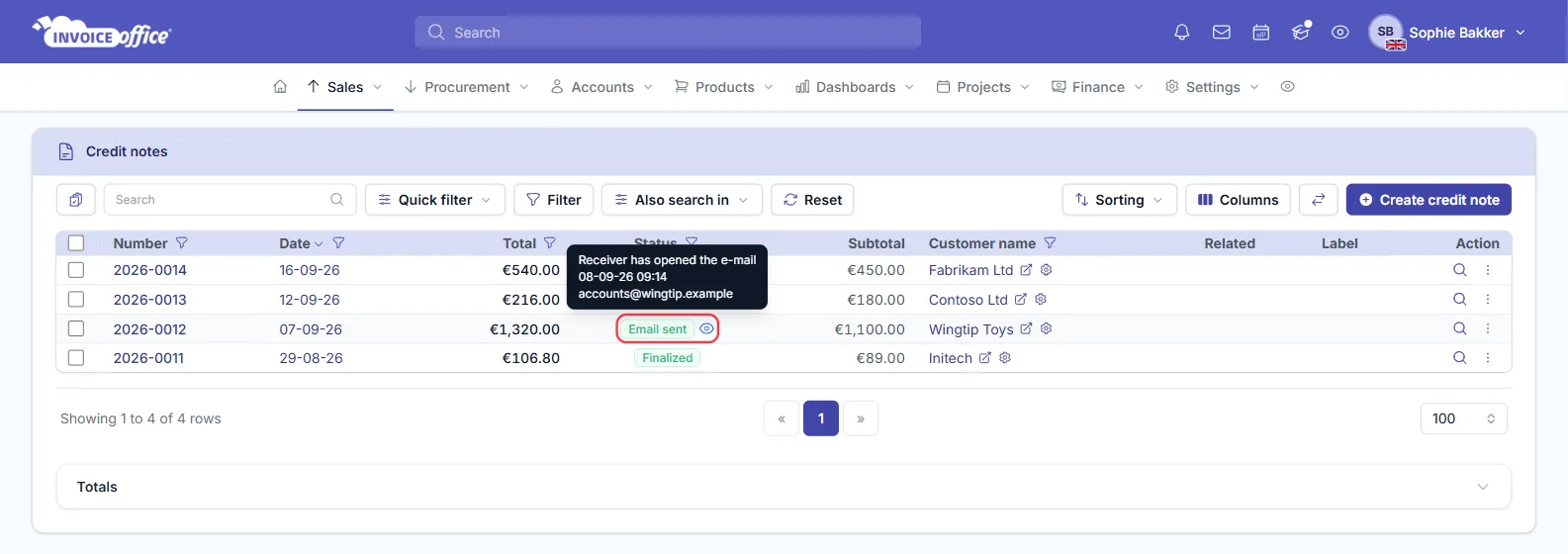
What each icon means
- Envelope — the email has been sent to the recipient.
- Eye — the recipient has opened the email.
- Hourglass — the email has been sent but not delivered to the receiver.
Hover over the icon and it spells out what happened, when, and to whom — for example “Receiver has opened the e-mail · 08-09-26 09:14 · accounts@wingtip.example”. That is the quickest way to check an invoice went to the right address before you chase it.
If the Status column is not in your list, add it from Columns in the list toolbar.
Why a document might show nothing
- Tracking was not switched on when the document was sent — see How does the read and receive confirmation work?.
- You send through your own mail server, which cannot report delivery and opens back to Invoice Office.
- The recipient’s mail client blocks images. Opens are detected through a loaded image, and most clients block them by default — so plenty of invoices are read without ever showing the eye.
Using it when chasing
Before sending a payment reminder, the icon tells you which conversation to have:
- Hourglass — it has not reached them. Check the address on the customer first; a typo or a bounce is the usual cause, and chasing payment on an invoice that never arrived wastes the call.
- Envelope, but never paid — it reached them. Chase the invoice, not the email.
- No eye — not much on its own. Blocked images make an unopened invoice a weak signal; an overdue one is still overdue.
Any doubts? Contact us and we will help.