Customer addresses in Invoice Office are kept on the customer, so every invoice, quote and packing note picks them up without retyping. Each customer has one billing address — where the invoice goes — and as many shipping addresses as they have delivery locations: a warehouse, a second office, a site. On each document you choose which delivery address to use.
Step 1 — Open a customer’s addresses
- Go to Accounts → Customers.
- Open the customer’s Action menu and choose Addresses.
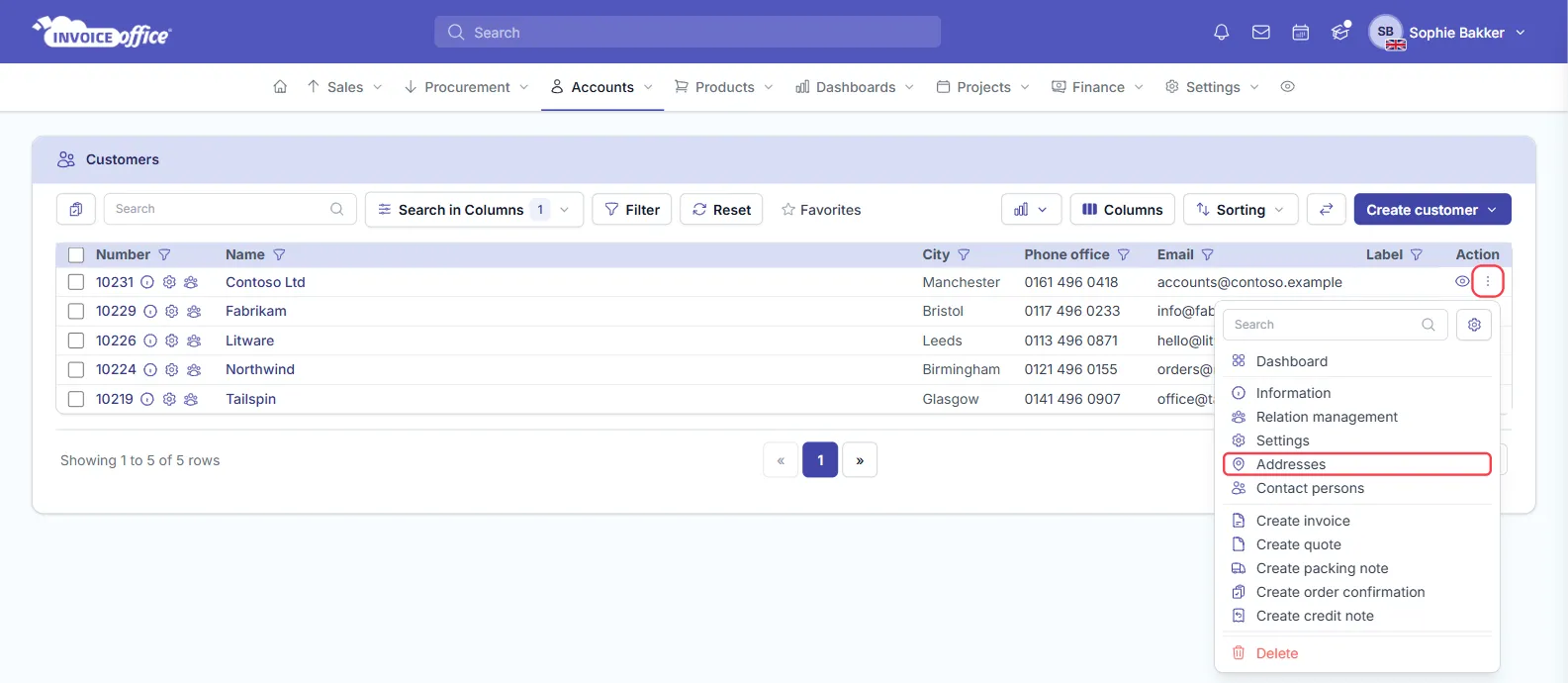
The Addresses page has three tabs: Billing address, Shipping Address and Other. You can also reach it from Addresses in the menu on the left of any of the customer’s pages.
Step 2 — Add the billing address
The billing address is the one printed as the invoice address. A customer has exactly one — if you filled it in when you created the customer, it is already here.
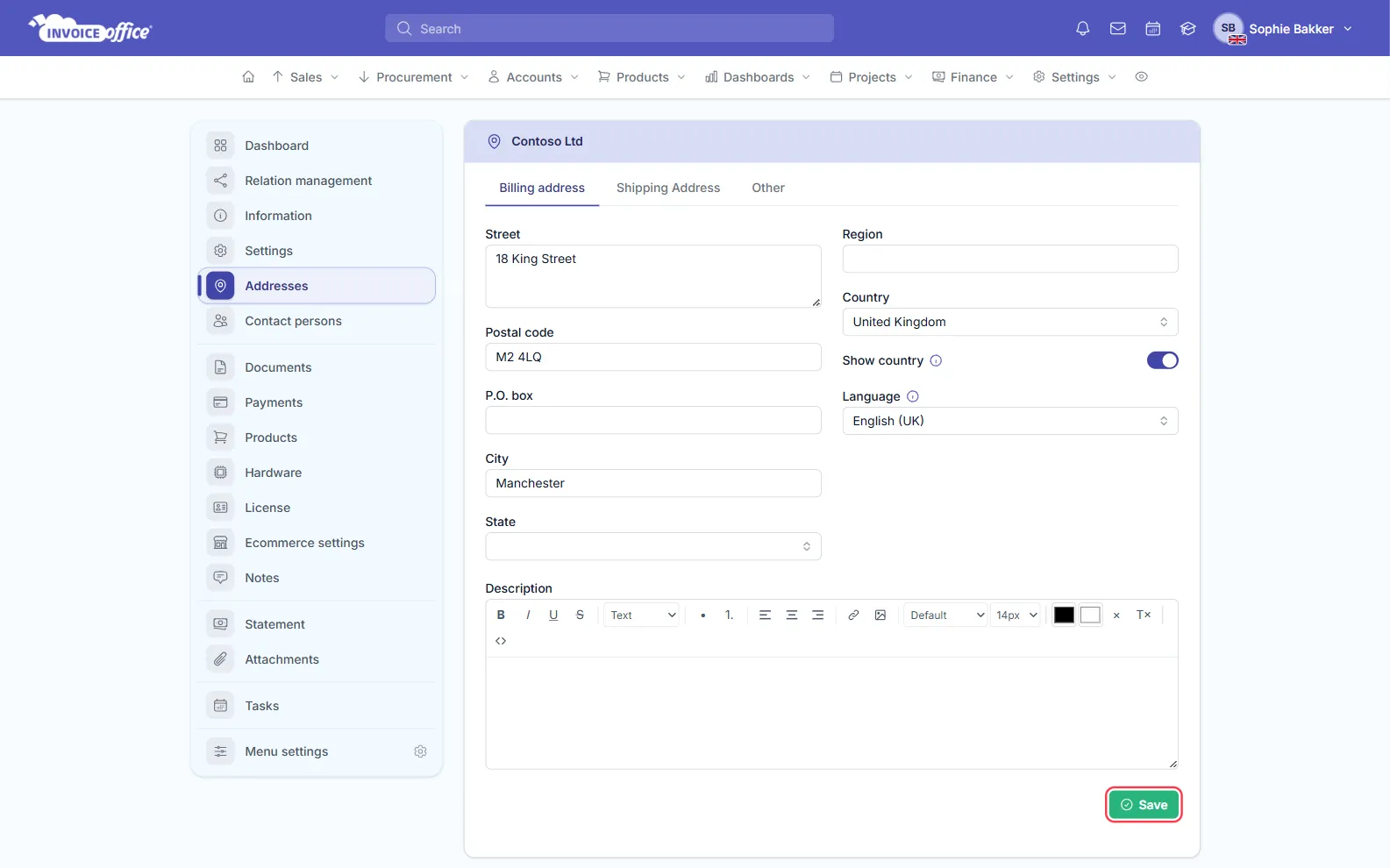
- On the Billing address tab, fill in Street, Postal code and City, and P.O. box, State or Region if you need them.
- Choose the Country. Switch on Show country to print the country in the address block on your documents — leave it off for customers in your own country.
- Language sets the language the country name is printed in. Leave it empty to use the document’s language.
- Click Save.
Step 3 — Add shipping addresses
Add a shipping address for every place the customer takes deliveries.
-
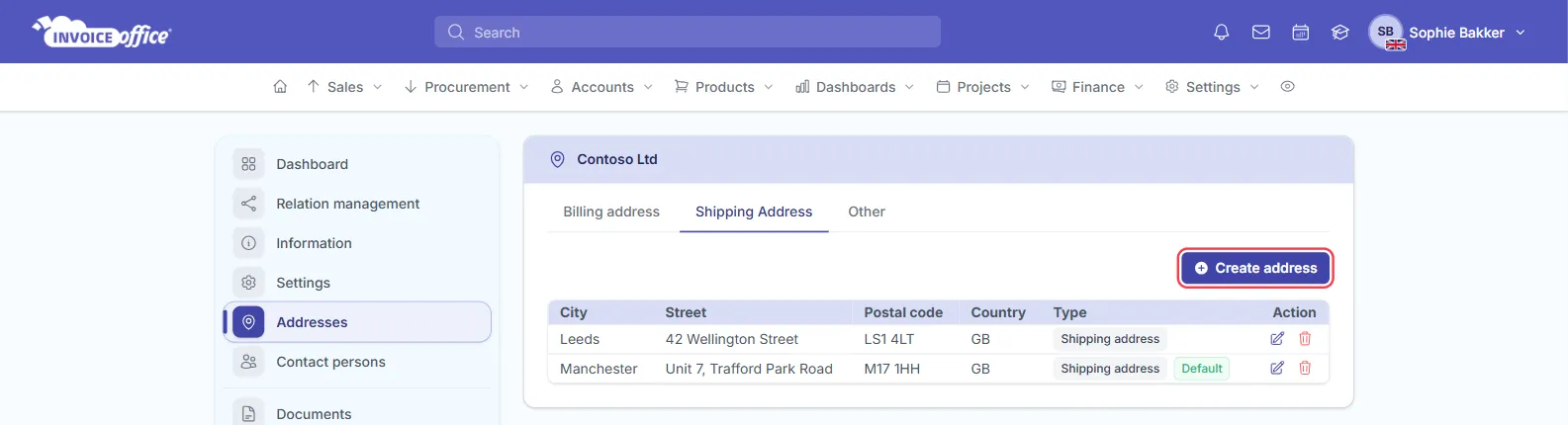
Open the Shipping Address tab and click Create address.
-
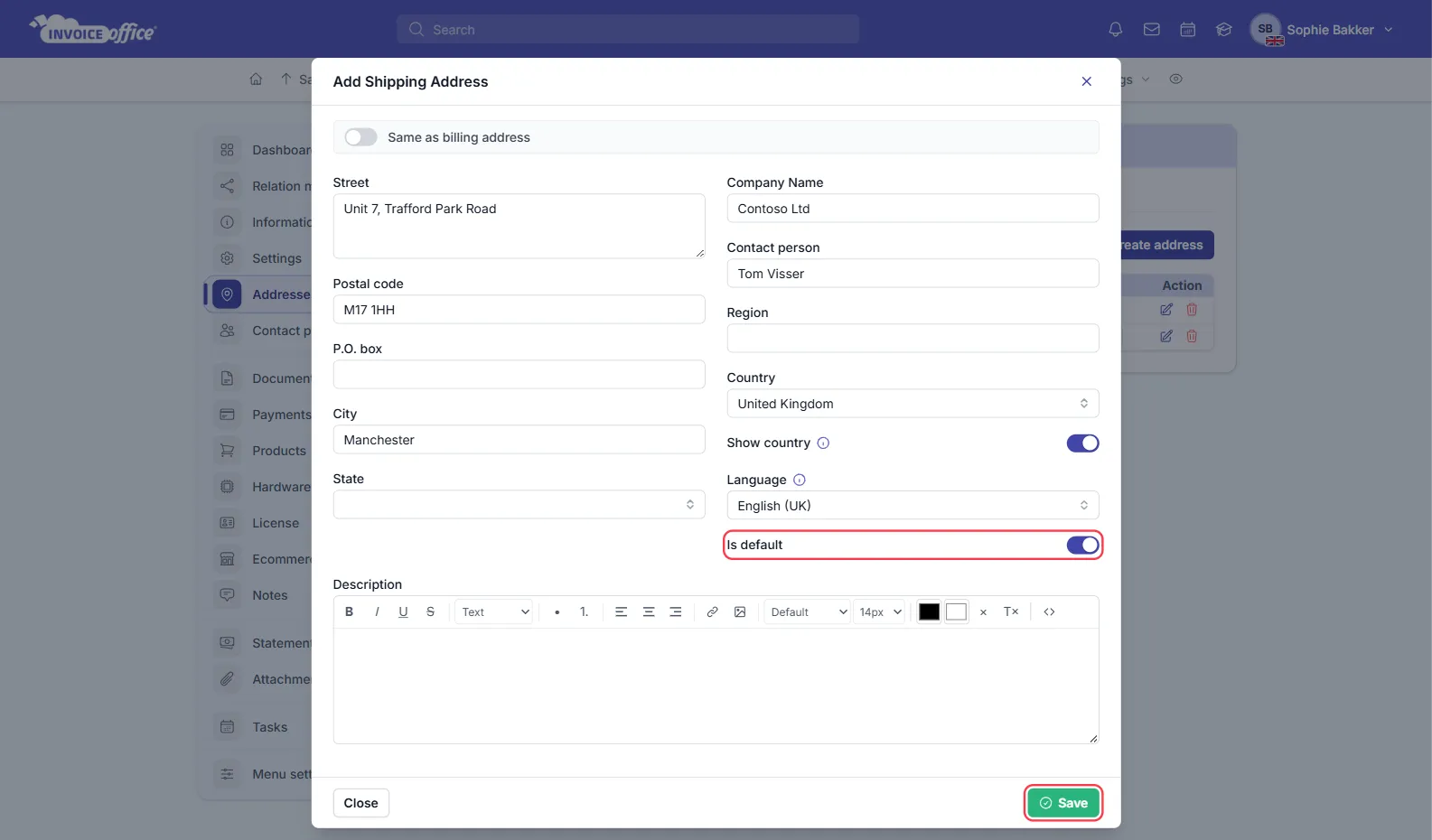
In Add Shipping Address, fill in Street, Postal code, City and Country.
-
Add a Company Name and Contact person if deliveries go to someone other than your main contact — for example the warehouse manager.
-
Switch on Is default to give the address a Default badge in the list. Only one shipping address can be the default at a time.
-
Click Save.
The Other tab works the same way for addresses that do not go on documents: a Contact address, Mailing address, Marketing address or Other address.
Step 4 — Choose the delivery address on an invoice or packing note
When you select the customer on a new invoice or packing note, the Billing address is filled in automatically, and so is a Delivery address if the customer has one. When a customer has several shipping addresses, check it is the right one — Invoice Office does not use the Default mark to choose it. To send the goods somewhere else:
- Click the arrow beside Delivery address.
- Pick one of the customer’s shipping addresses from the list — type in Search to find it when there are many.
- Or click Add delivery address to open a new shipping address form without leaving the document.
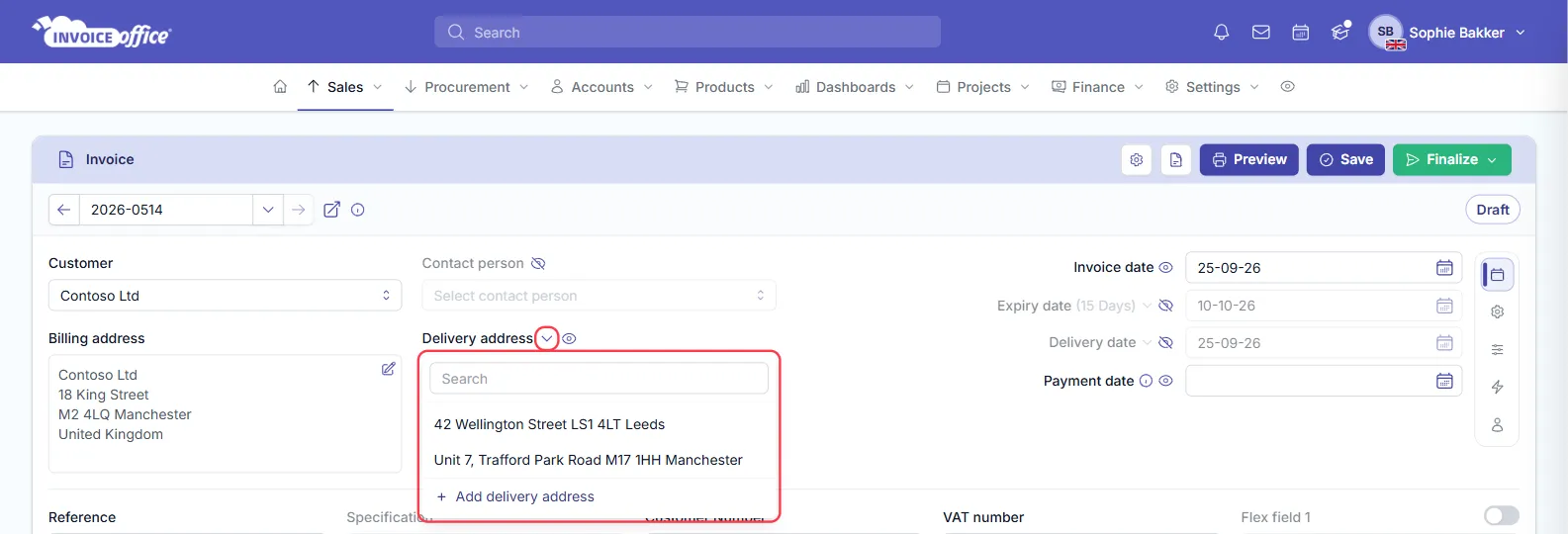
The eye icon beside Delivery address decides whether the delivery address is printed on the document.
Edit or delete an address
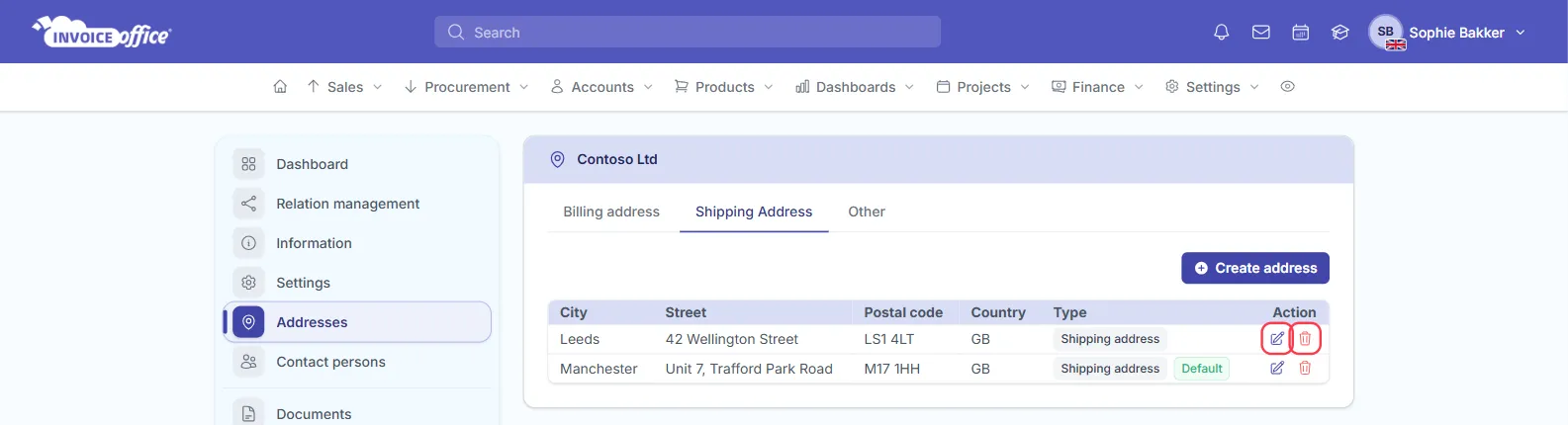
On the Shipping Address or Other tab, each address has two icons in the Action column:
- The pencil opens the address so you can change it — click Save when you are done.
- The bin deletes it, after you confirm.
To change the billing address, edit the fields on the Billing address tab and click Save.