A customer is an organisation; a contact is a person inside it. You can add as many contacts as you need, either while you are creating a document or from the customer’s own record.
Option A — from an invoice
- Open a new invoice and pick the customer in the Customer box.
- Click the Contact person field. A panel opens with a search box and the contacts that customer already has — choose one, or click Create Contact to add a new one.
- Enter the contact details and save.
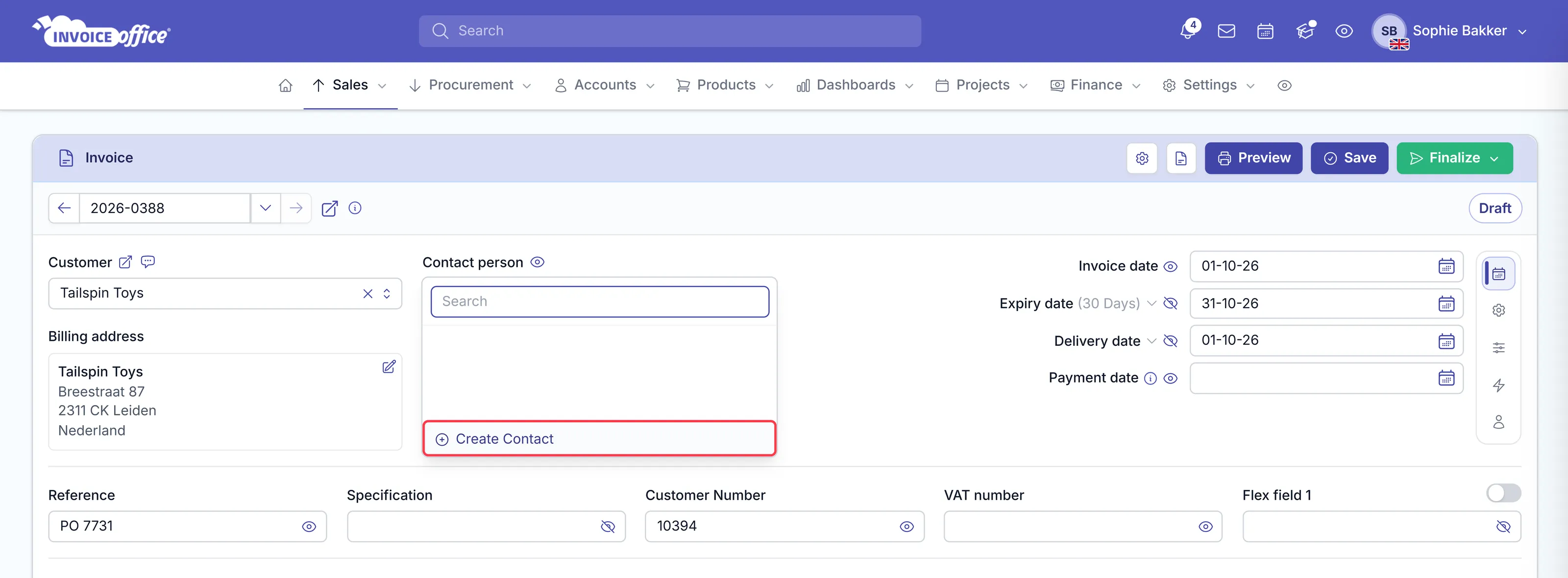
The contact is added to your contacts and is immediately selected as the contact for that customer on the document.
Option B — from the customer record
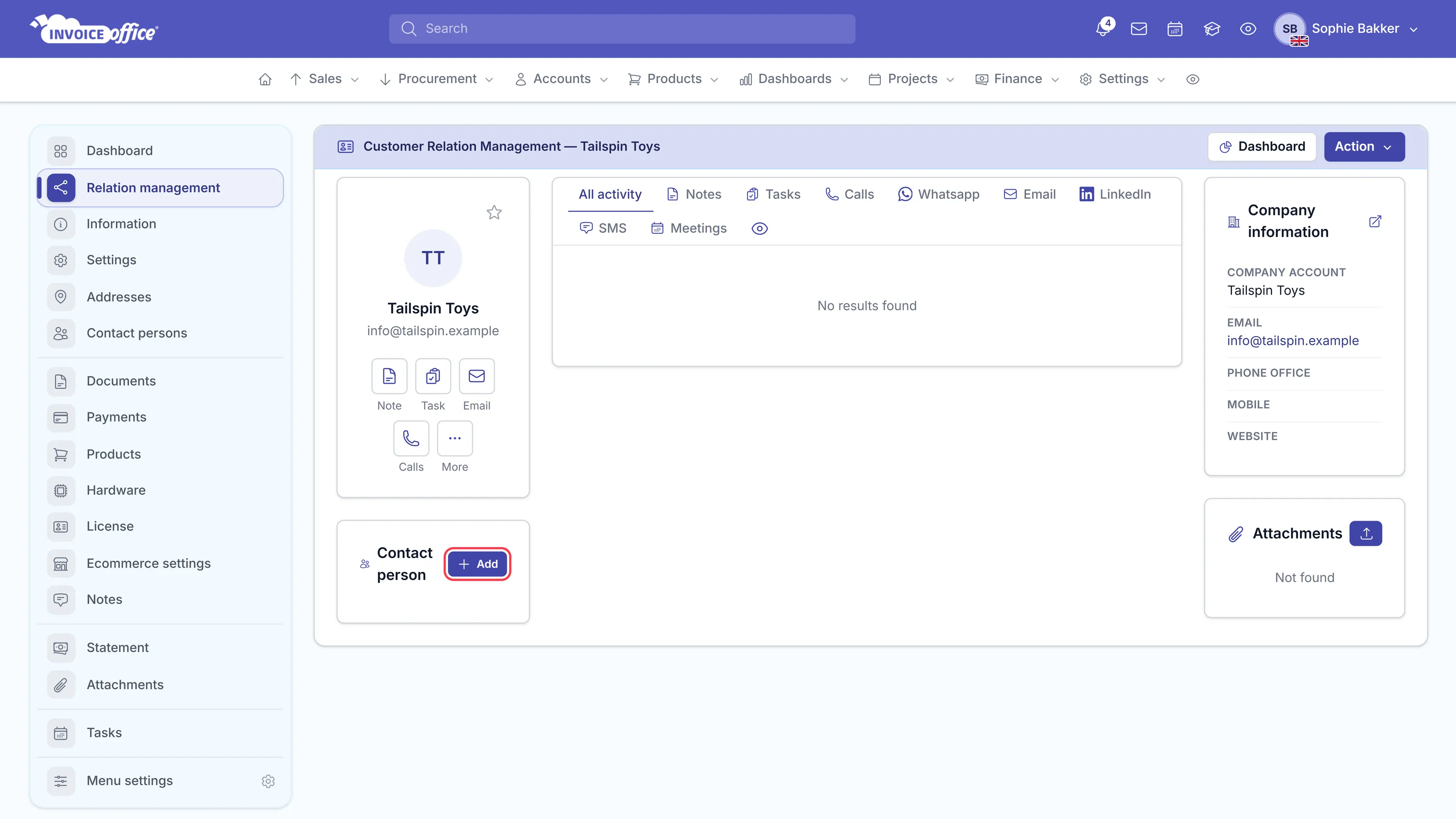
Open Accounts → Customers, click the customer, then Relation management. The Contact person panel on that page has an Add button — this is the way to add several people at once, without a document open.
Seeing every contact you have
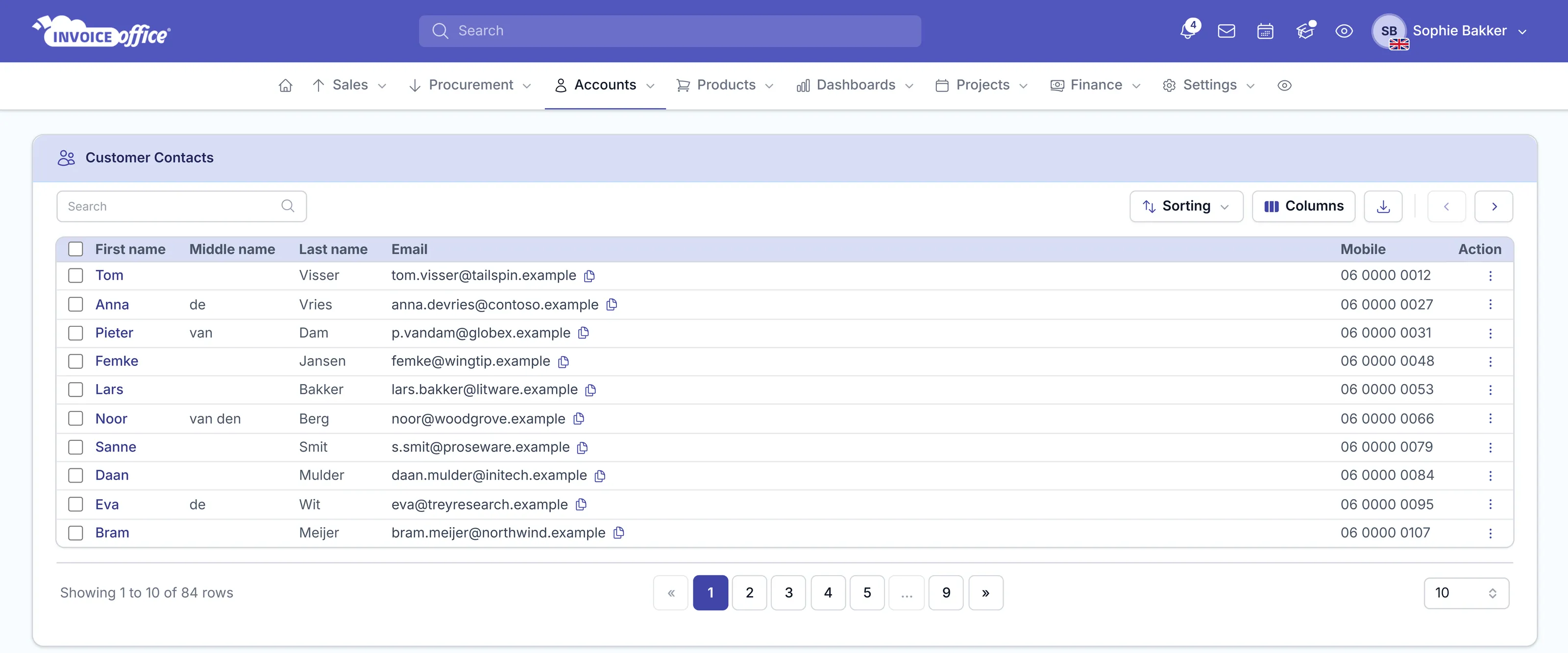
Accounts → Customer Contacts lists every customer contact in one table — first, middle and last name, email and mobile — so you can search across all of them at once. Contacts are created from a customer record or from a document, not from this list.
Why it is worth doing
- Documents are addressed to a person. Selecting the customer on an invoice fills in the contact person, so the document is not addressed to a company in the abstract.
- Emails go to the right inbox. Send to the person you deal with and copy the accounts address — see How can I mail multiple e-mail addresses on a document?.
- Handovers survive. When your contact leaves, you update one record instead of hunting through old documents.
Importing contacts
Customer contacts and supplier contacts can both be imported in bulk — useful when moving from other software. See Import customers, suppliers and products.
Any doubts? Contact us and we will help.