When you start working with a new client it is worth adding their data properly. There are two ways to do it: from a document you are already creating, or from your customer list.
Option A — from an invoice
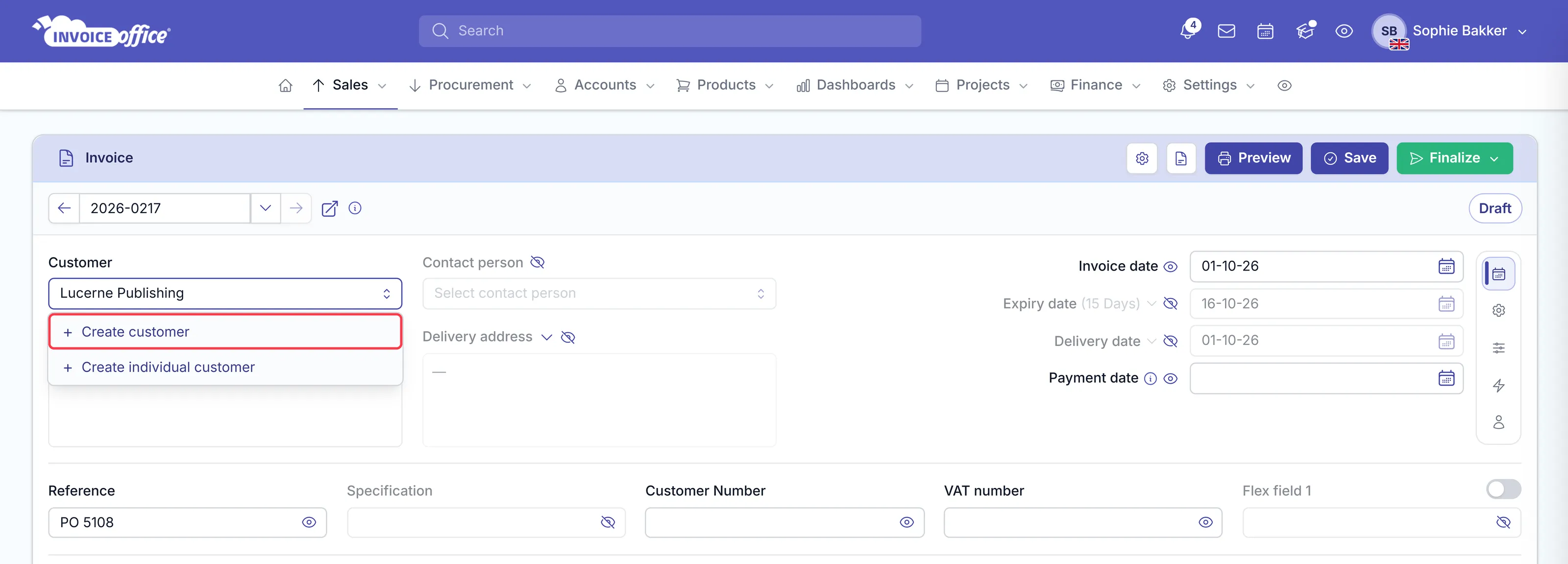
If you are already creating the invoice, you do not have to leave it.
- Start typing the new customer’s name in the Customer box. When nothing matches, the dropdown offers Create customer and Create individual customer — pick the one that fits.
- Enter the details and save. Back on the invoice, the customer is selected with everything filled in.
Option B — from Accounts
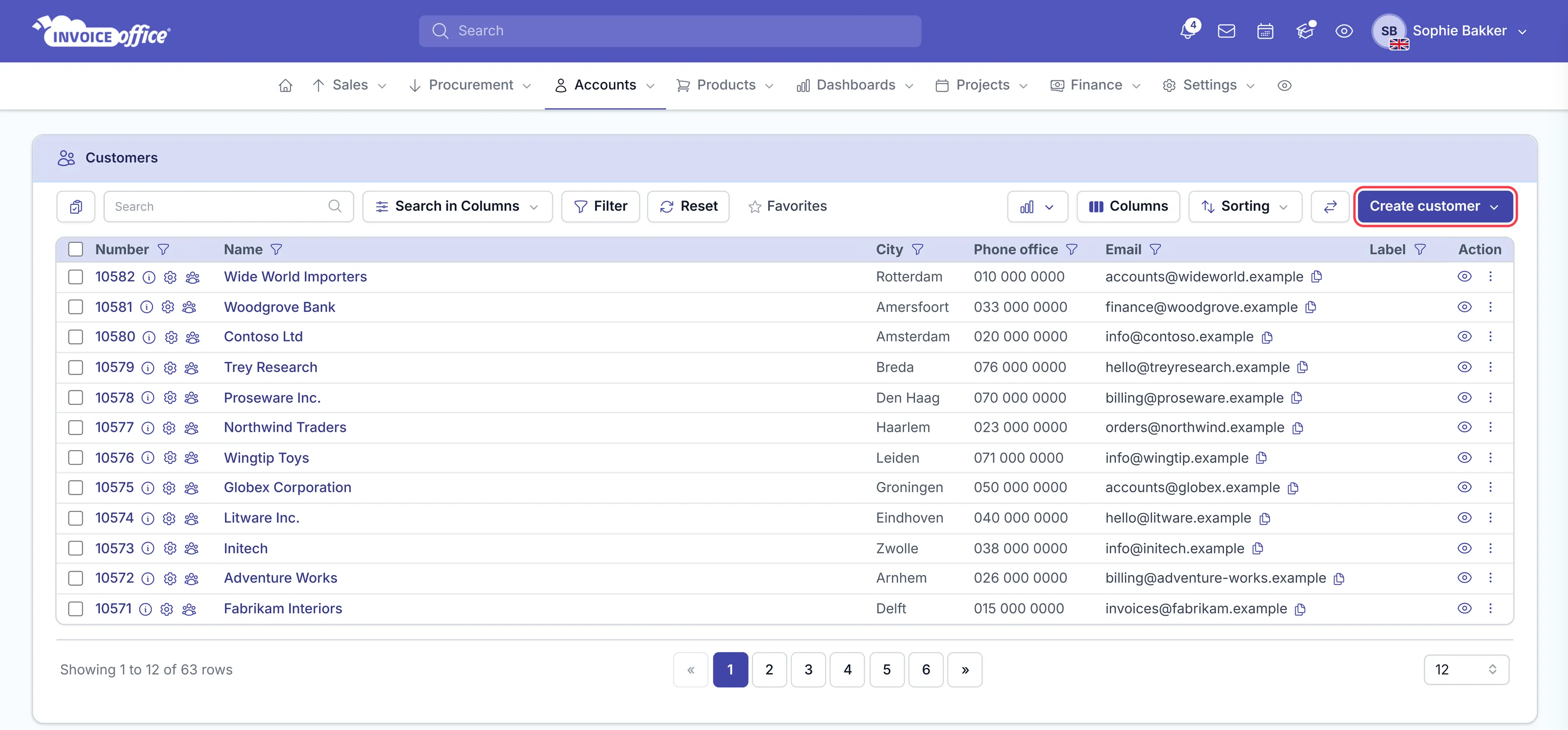
- Open Accounts → Customers. This is the list of customers you already have.
- Click Create customer in the top right corner.
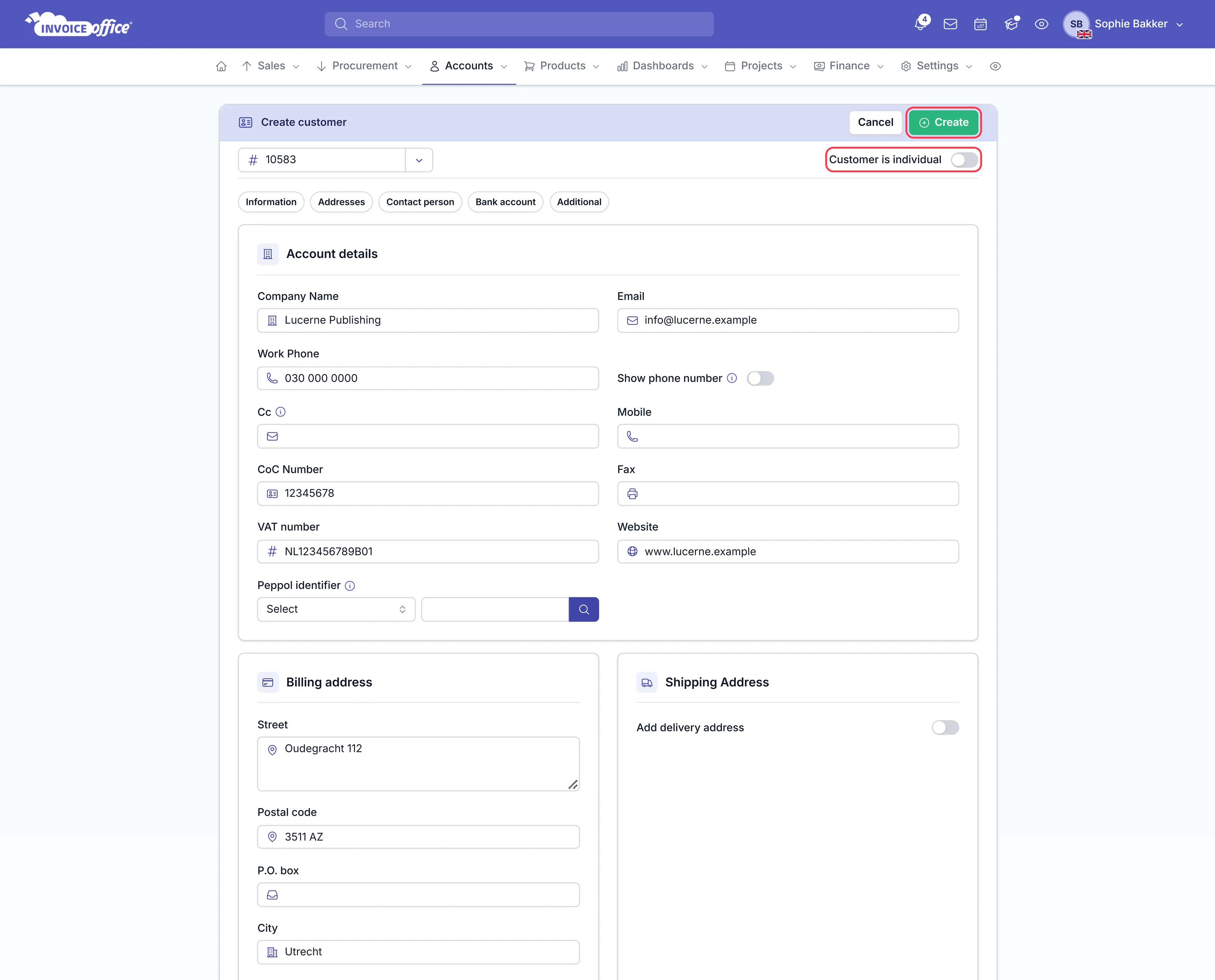
- Is your customer a private person rather than a company? Switch on Customer is individual at the top of the form and fill in the data for an individual.
- Fill in the rest of the form — company name, email, work phone, CoC number, VAT number and the billing address — then click Create in the top right.
The customer is then available on your documents.
The form is grouped into Information, Addresses, Contact person, Bank account and Additional — the jump buttons under the header take you straight to each one, and you can leave anything you do not have yet.
What a customer record gives you
Selecting the customer on a document fills in their contact person, shipping address and billing address automatically, where those are available.
Two things worth setting on the customer once you have created them:
- Document design — give them their own layout, per document type; see Choose a design template per customer.
- Price list — their agreed discount, applied to any document you create for them; see How to create a price list.
Add the people you deal with
A customer can have as many contact persons as you need — see Add a new contact.
Bringing customers in from elsewhere
If you are moving from other software, import them rather than typing them in — see Import customers, suppliers and products.