Every quote in Invoice Office has an expiry date: the last day your prices are valid. This guide shows how to set that expiry date, how to get a pre-expiry reminder notification a few days before the deadline, and how to send your customer a quote reminder while there is still time to accept. It ends with what happens to the quote’s status once the expiry date passes.
Step 1 — Set the expiry date on a quote
-
Open a new quote — see how to create a quotation — or open a draft quote you want to change.
-
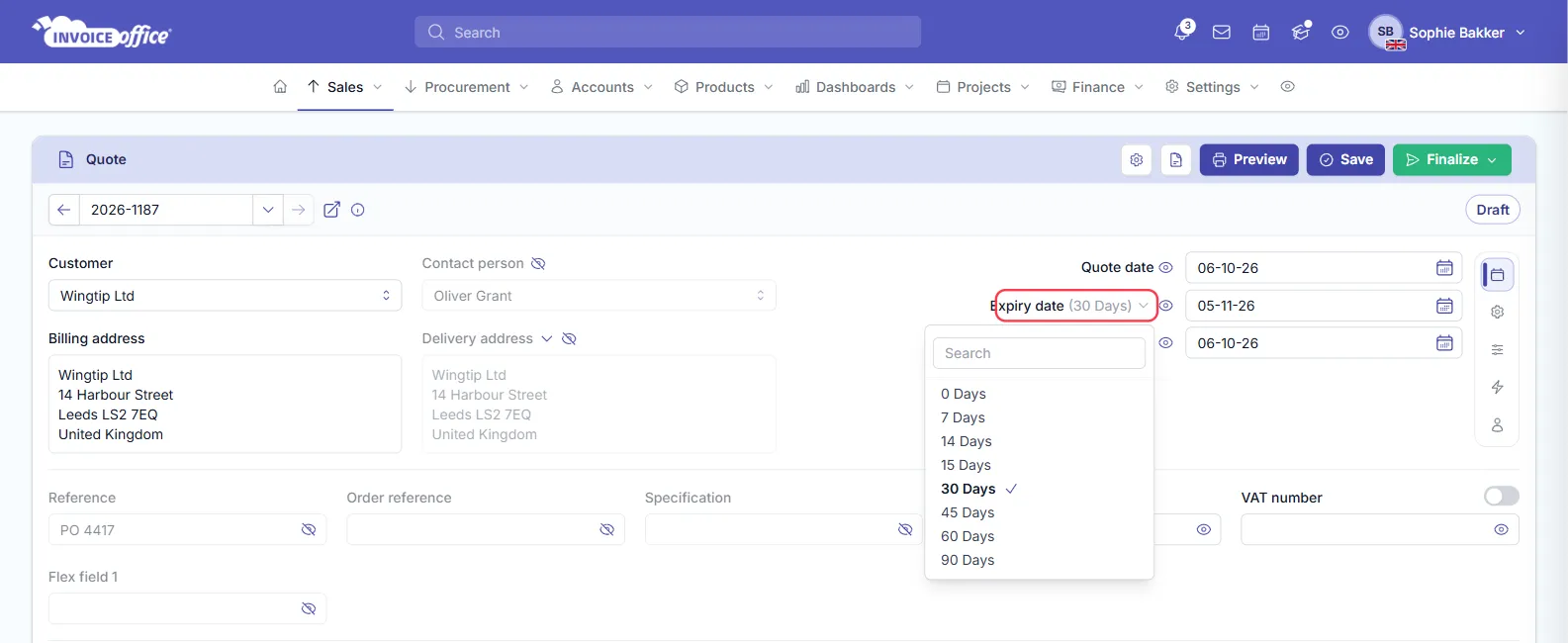
In the dates panel at the top right, find Expiry date. Its label shows the validity period, for example Expiry date (30 Days).
-
Click the Expiry date label to choose a period: 0, 7, 14, 15, 30, 45, 60 or 90 Days. The expiry date is counted from the Quote date, and moves with it if you change the quote date later.
-
To use a specific day instead, type the date in the Expiry date field or pick it from the calendar. The label then shows the number of days between the quote date and the expiry date.
-
Click Save, or Finalize when the quote is ready to send.
A new quote starts with the validity period of your quote document term — 30 days unless you have changed it.
To change the expiry date of a quote you have already finalized, open its Action menu and choose Modify quote first.
Step 2 — Turn on the pre-expiry reminder notification
The pre-expiry reminder is a notification for you, not an email to your customer. Each user sets it up for themselves.
- Click your name at the top right and choose Account settings.
- In the menu on the left, click Notification settings.
- Open Pre expire quotes and switch on Notification.
- Enter the Days in advance — how many days before the expiry date you want the reminder, from 0 to 31. For example, enter 7 to be reminded a week before.
- If you have a Pro license, switch on Add to calendar to also see the expiry dates in your calendar.
- Click Save.
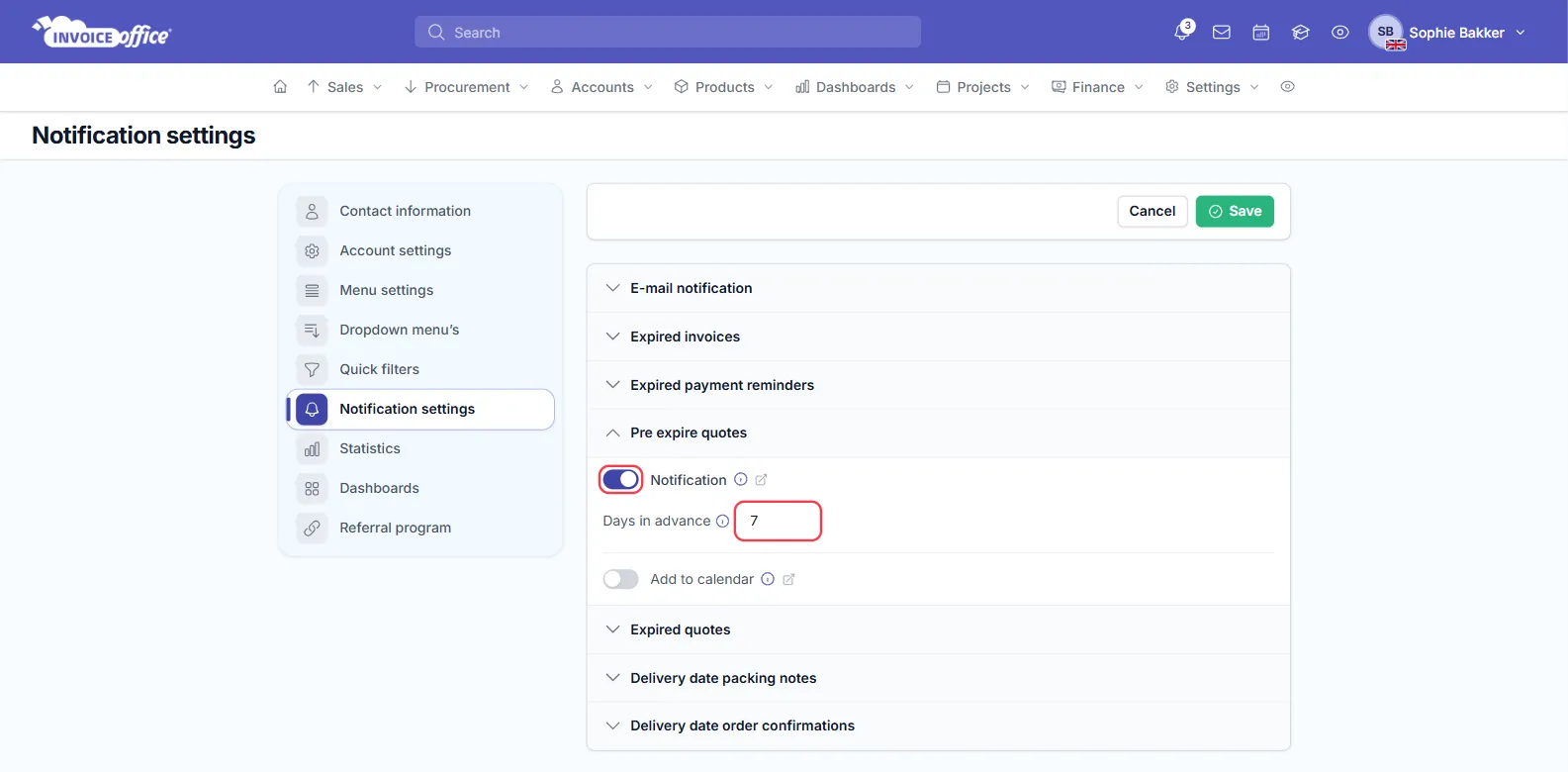
You can also reach this page from the bell icon: open Notifications and click Settings.
Invoice Office checks your quotes every night. When a finalized quote you created reaches the number of days you set, and the customer hasn’t answered yet, a Quote expires notification appears under the bell icon with the customer name and the quote number. Quotes whose status you have already changed — for example to Agreed — don’t trigger the reminder.
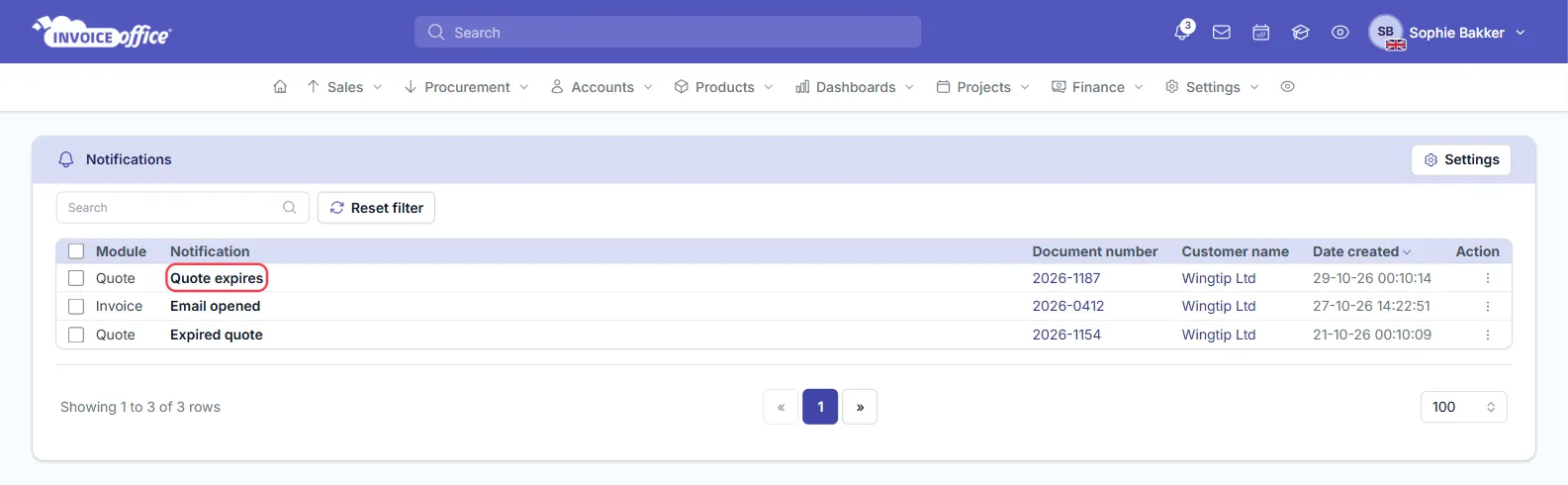
To be told on the day a quote runs out as well, switch on Notification under Expired quotes on the same page.
Step 3 — Send your customer a quote reminder
The notification tells you a deadline is near; the customer isn’t emailed automatically before the expiry date. To remind them yourself:
-
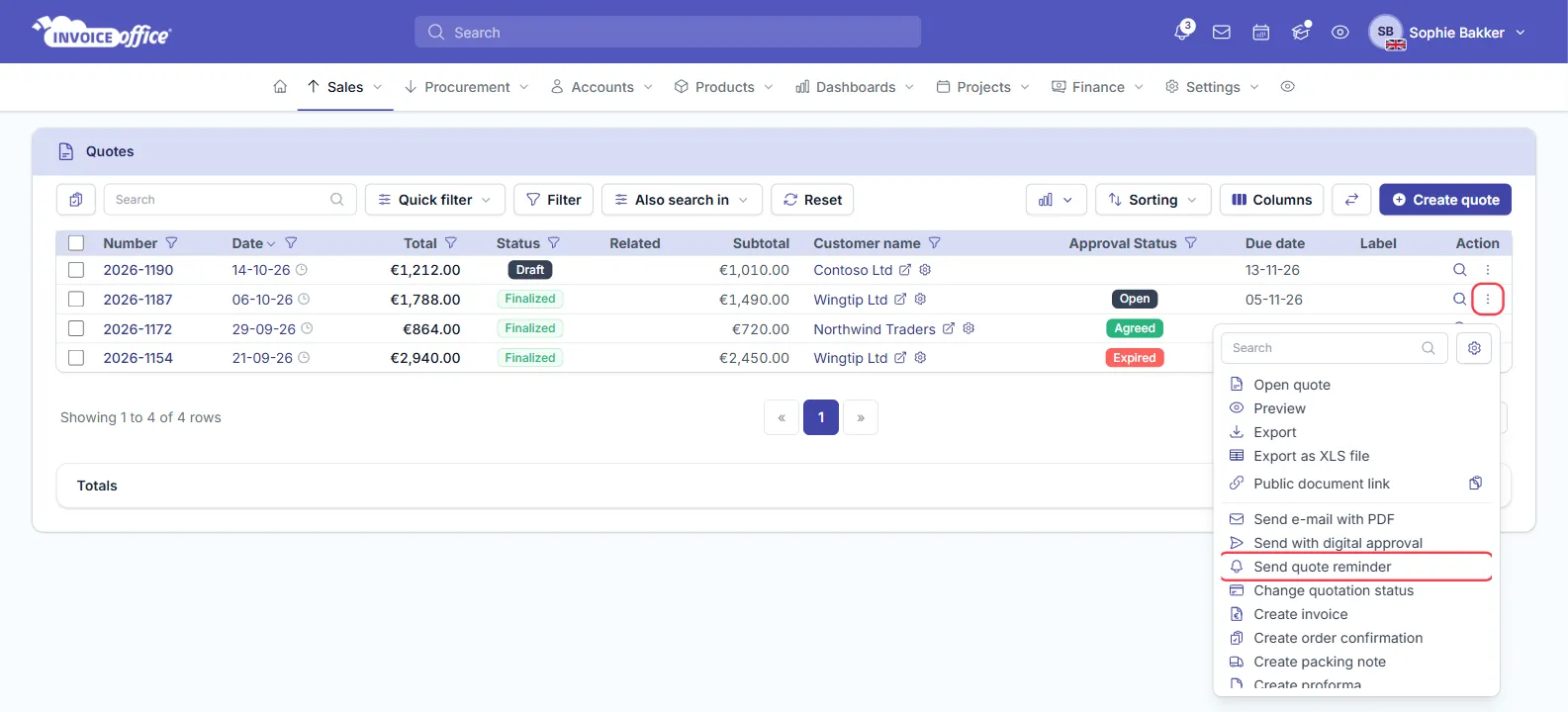
Go to Sales → Quotes.
-
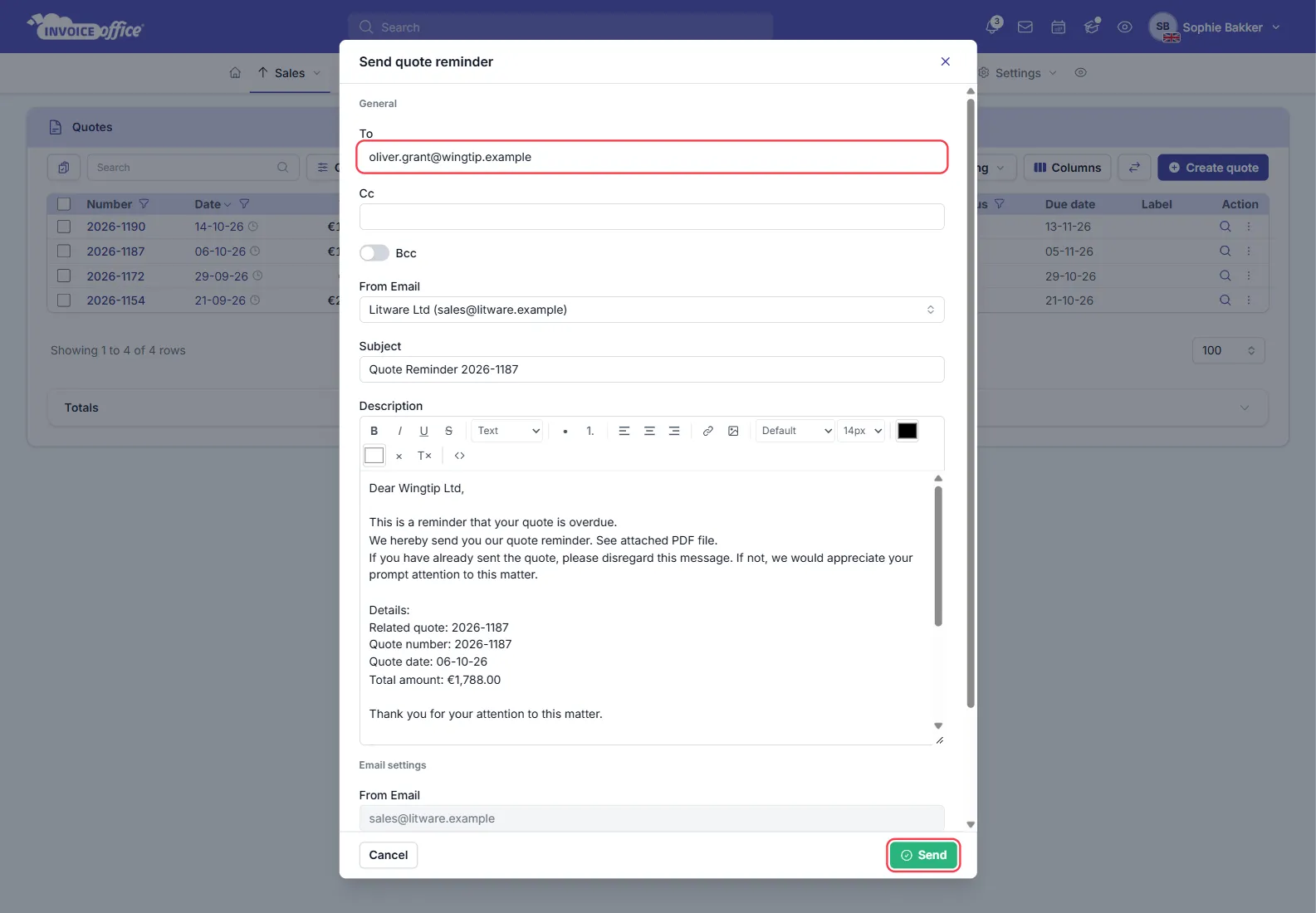
Open the Action menu of the quote and choose Send quote reminder.
-
Check the To address, add a Cc or Bcc if you need one, and check the Subject and the Description — the message your customer receives. The standard message is written for a quote that has passed its expiry date (“your quote is overdue”), so adjust the wording when you send it before the deadline.
-
Click Send.
What happens when the expiry date passes
On the expiry date, a quote that is still open changes to the status Expired automatically. You’ll see it under Approval Status in the quotes list, and the Expired quote quick filter shows all of them.
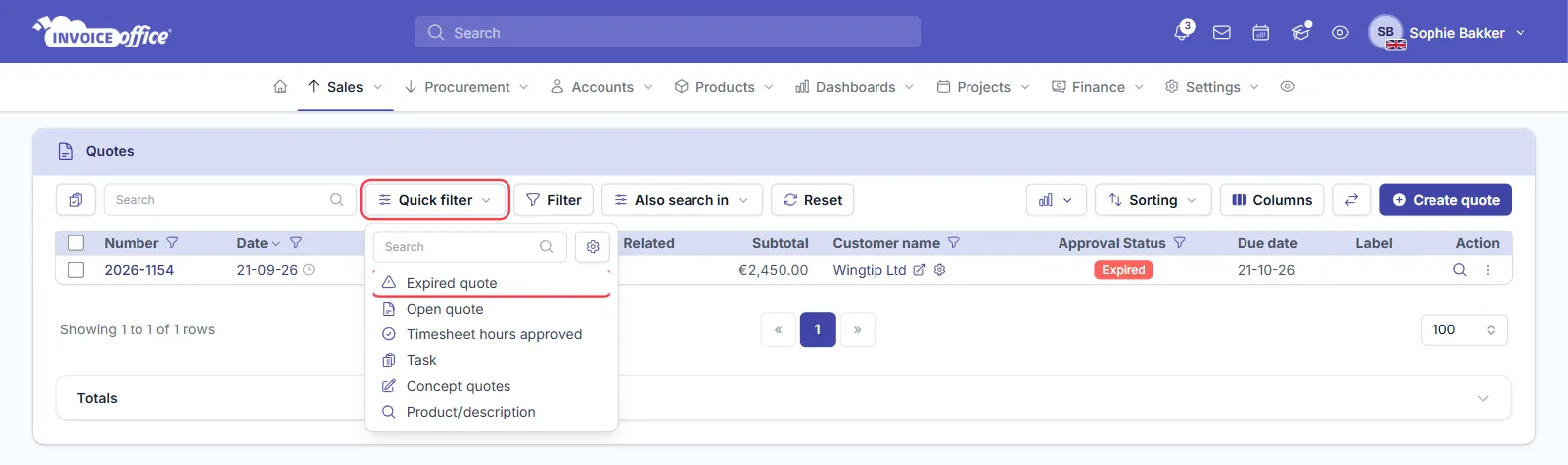
An expired quote isn’t locked: if the customer still accepts, you can record their answer with Change quotation status or turn it into an invoice — see how to convert a quote to an invoice. You can’t set an expired quote back to open, though. To offer more time, use Create duplicate and give the copy a new expiry date. The FAQ what happens to a quote when it expires? explains this in more detail.