To collect a customer approval on a quote in Invoice Office, send the quote with Send with digital approval. Your customer gets an email with a link to the online quote, fills in their name, signs and clicks Save and approve. The quote’s status changes to Agreed straight away, you get a notification, and you can turn the quote into an invoice. Your customer doesn’t need an account or a login.
This article covers sending a quote for approval, what your customer sees, what happens after they approve, and what to do when the approval link doesn’t work.
Step 1 — Send the quote with digital approval
Digital approval is switched on when you send the quote, not with a separate setting on the quote. You can do it from the quote list or from the quote itself.
From the quote list:
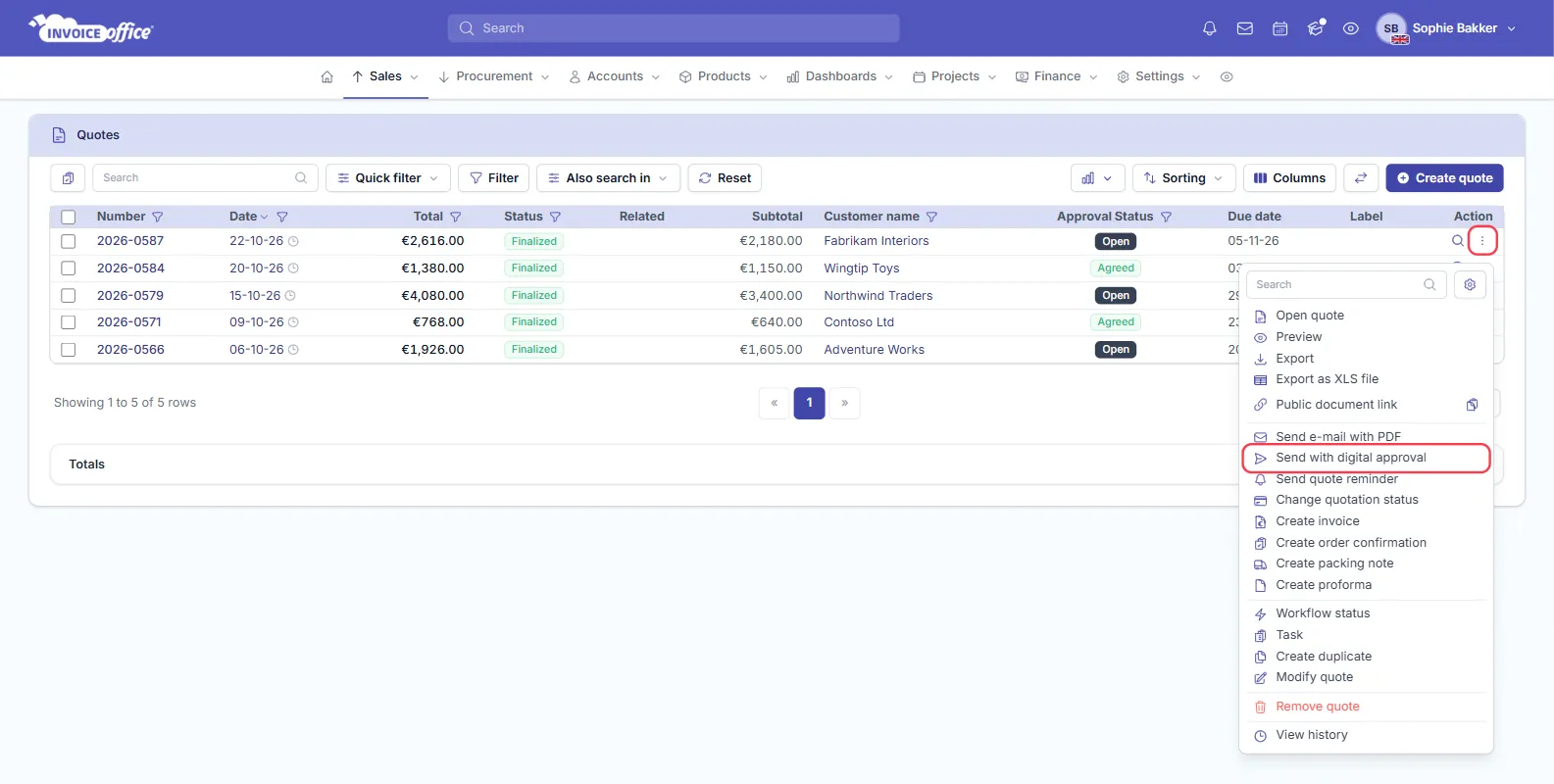
- Go to Sales → Quotes.
- Click the ⋮ (Action) button at the end of the quote’s row.
- Choose Send with digital approval.
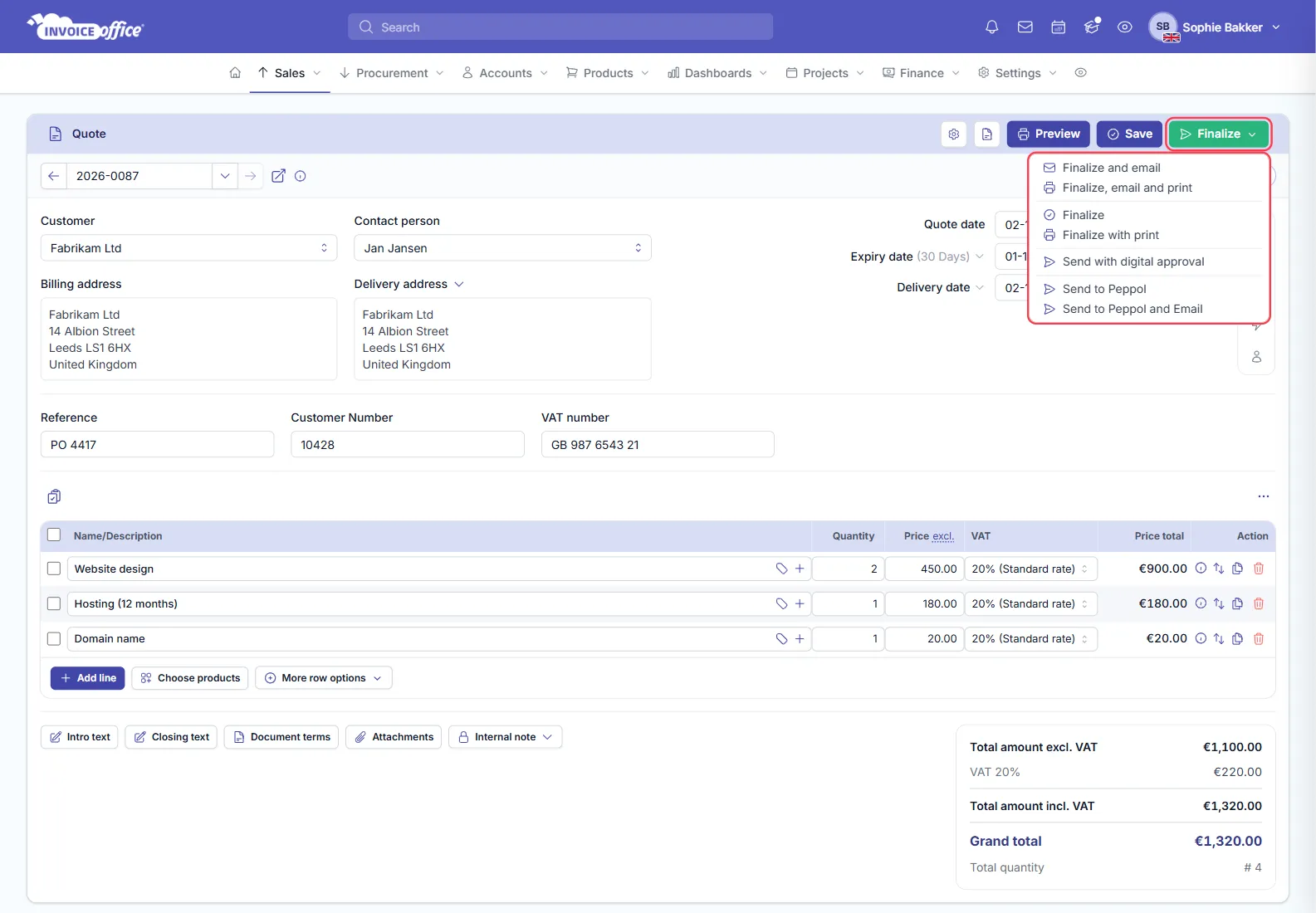
From an open quote: click Finalize and choose Send with digital approval. This finalizes the quote and opens the same email window in one go. A quote has to be finalized to be approved online; a concept quote has no approval page.
Step 2 — Check the email and the approval notification
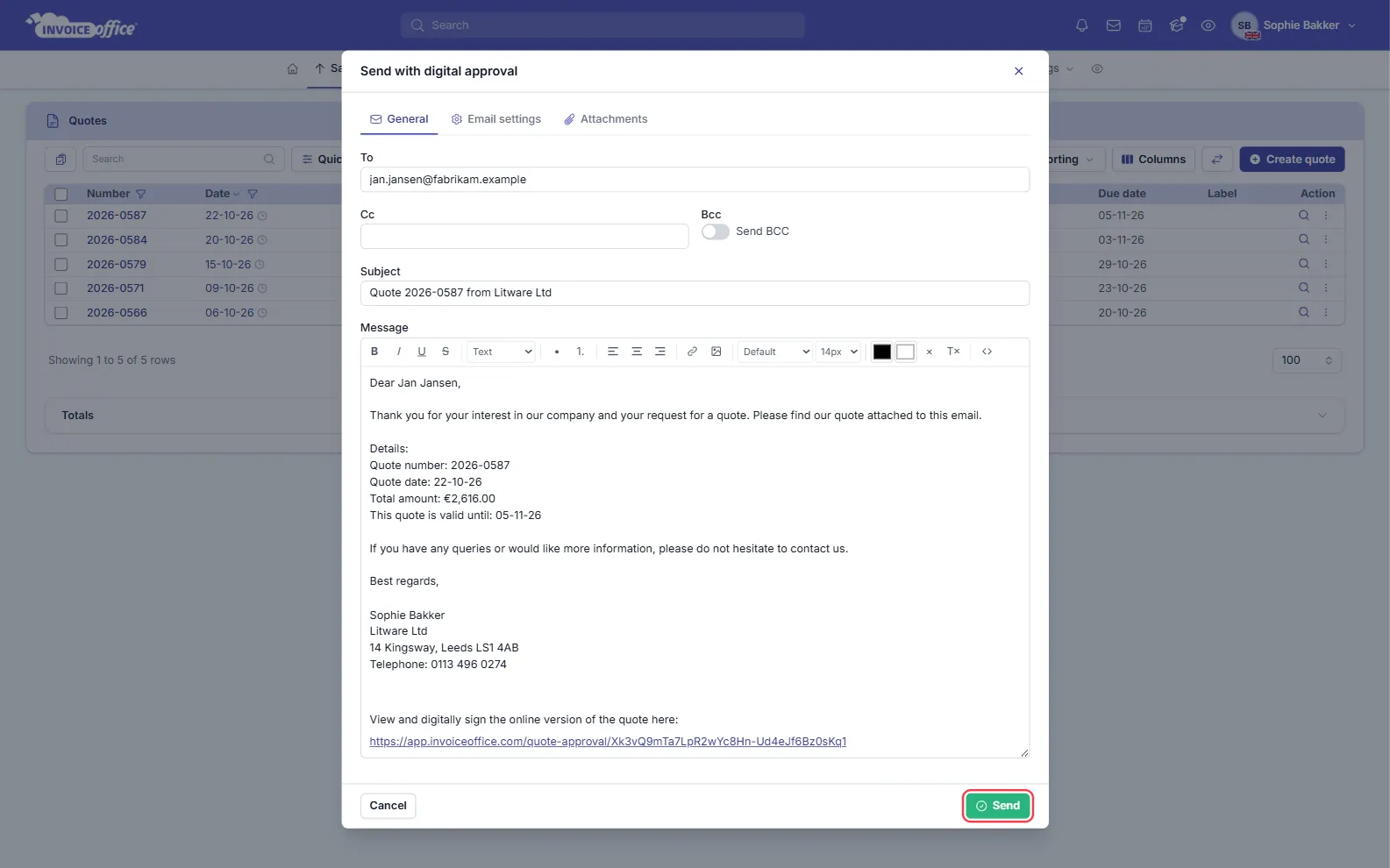
The Send with digital approval window is the normal email window for a quote. On the General tab, check the recipient under To, the Subject and the Message.
At the end of the message, Invoice Office has already added a paragraph: View and digitally sign the online version of the quote here, followed by the approval link. You don’t need to type the link yourself. A quote reminder you send later for the same quote includes the link again.
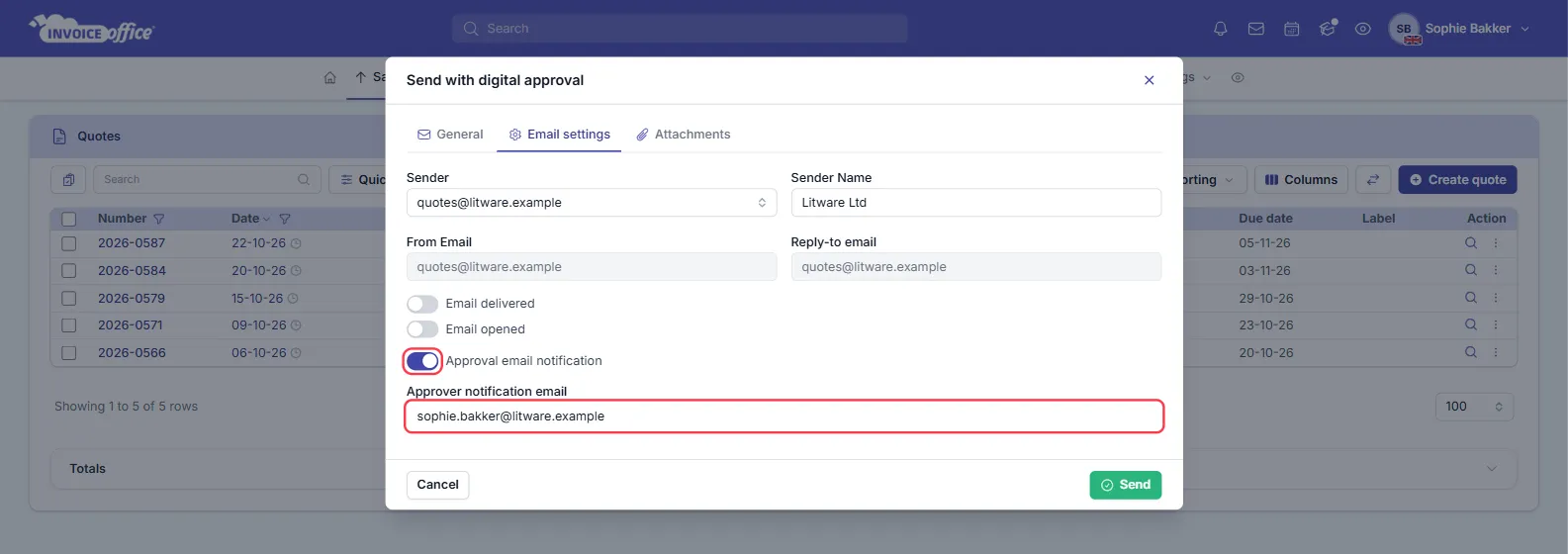
Then open the Email settings tab. It has two settings that only appear when you send with digital approval:
- Approval email notification — switched on by default, so you get an email the moment your customer approves.
- Approver notification email — the address that email goes to. It is filled in with your own email address; change it if someone else should be told. If you leave it empty, the email goes to the company’s email address.
Click Send.
The quote’s public document link works too: on a quote sent with digital approval, that page shows the same approval form, so you can also share the link in a chat message or WhatsApp.
Step 3 — Your customer approves the quote
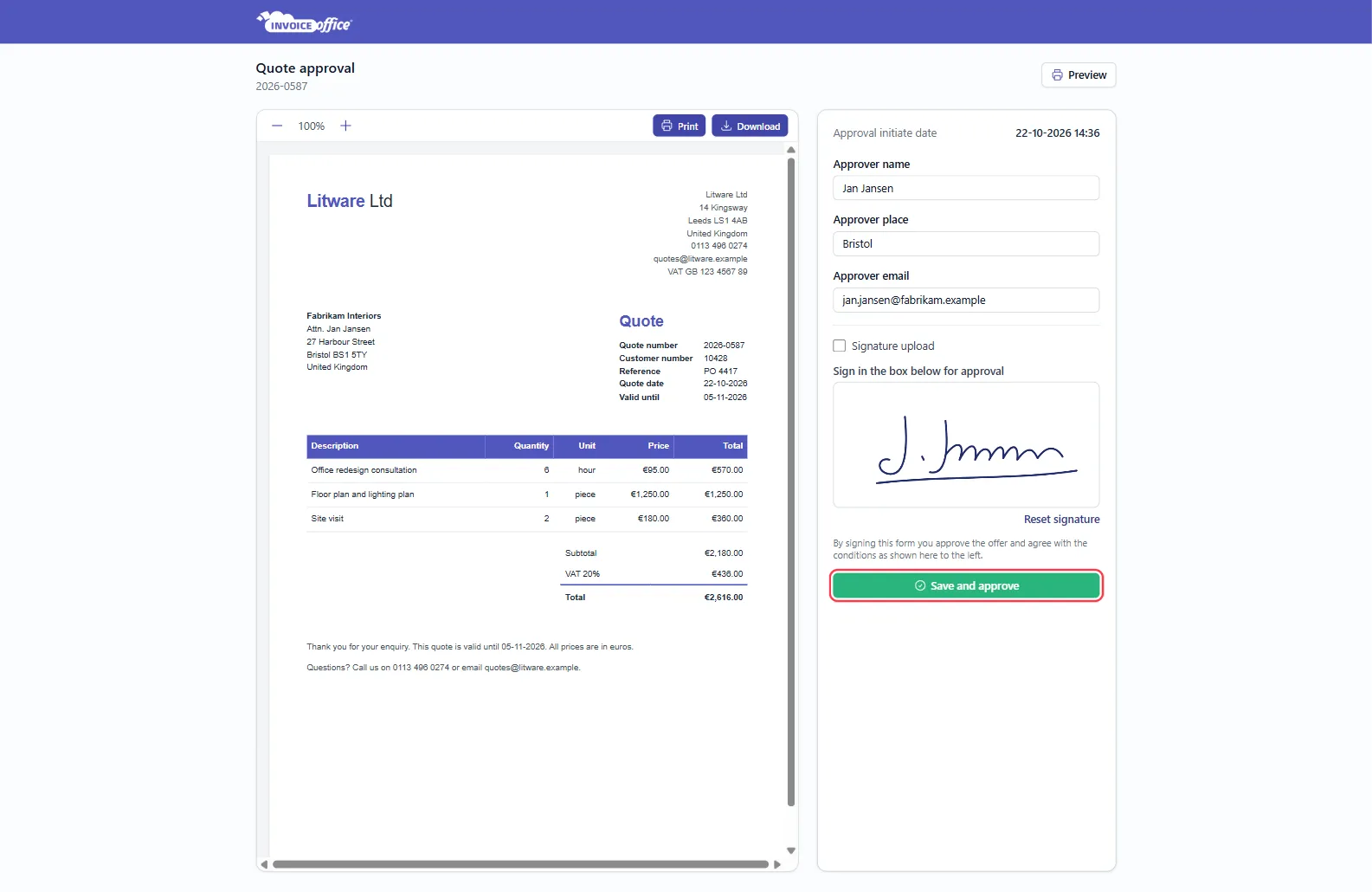
The link opens the quote online, next to an approval form. Your customer:
- Fills in Approver name, Approver place and Approver email.
- Signs in the box under Sign in the box below for approval, or ticks Signature upload to upload a picture of their signature (PNG or JPG). Reset signature clears the box.
- Clicks Save and approve.
Above the button, the form says: By signing this form you approve the offer and agree with the conditions as shown here to the left. Next to the form, your customer can read the quote, zoom in and out, and use Print or Download.
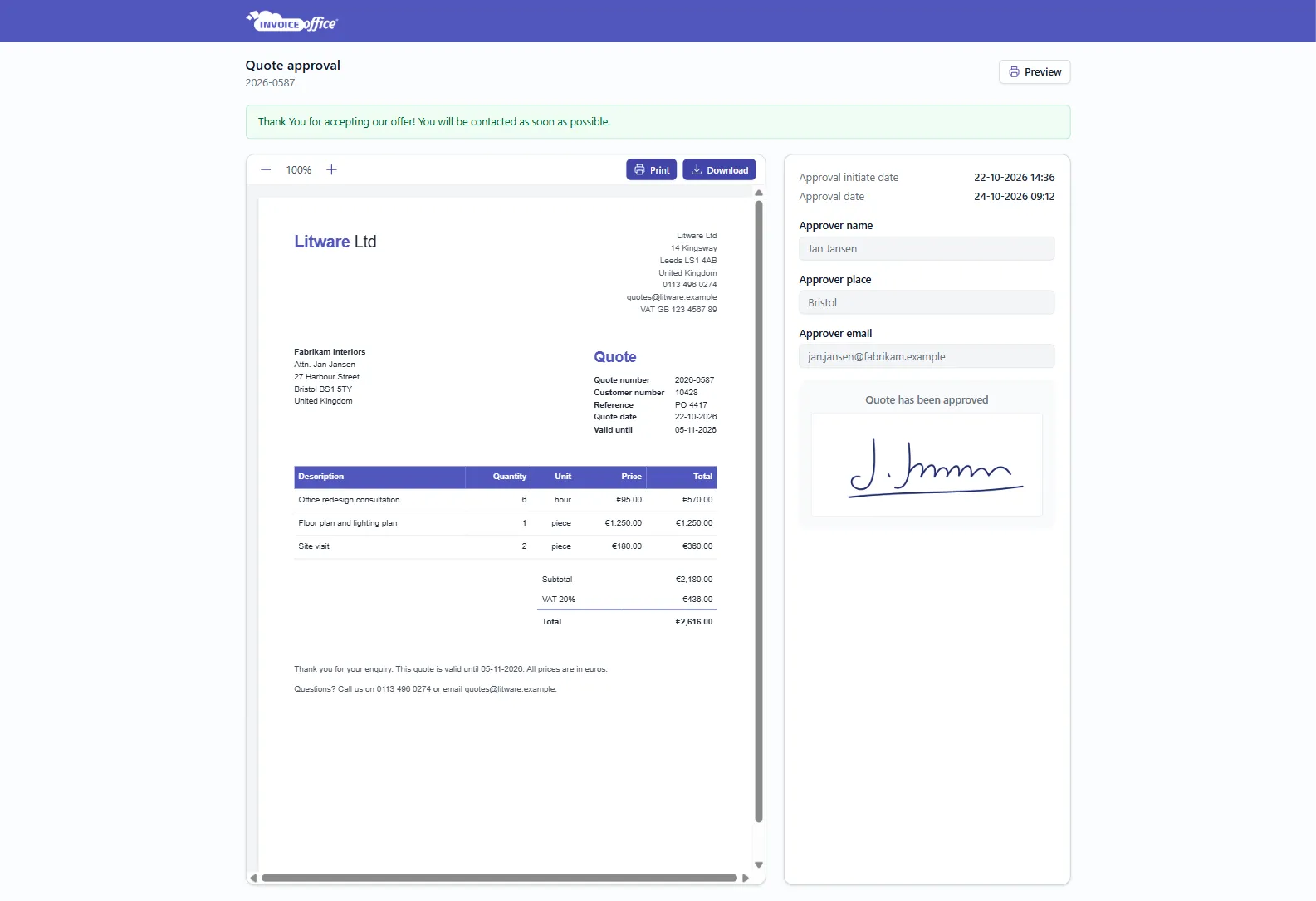
Once approved, the page says Thank You for accepting our offer! You will be contacted as soon as possible. It keeps showing that whenever the link is opened again, together with Quote has been approved, the signature, the Approval initiate date (when you sent it) and the Approval date. The fields can’t be changed any more.
Step 4 — See that the quote is approved
As soon as your customer clicks Save and approve, Invoice Office:
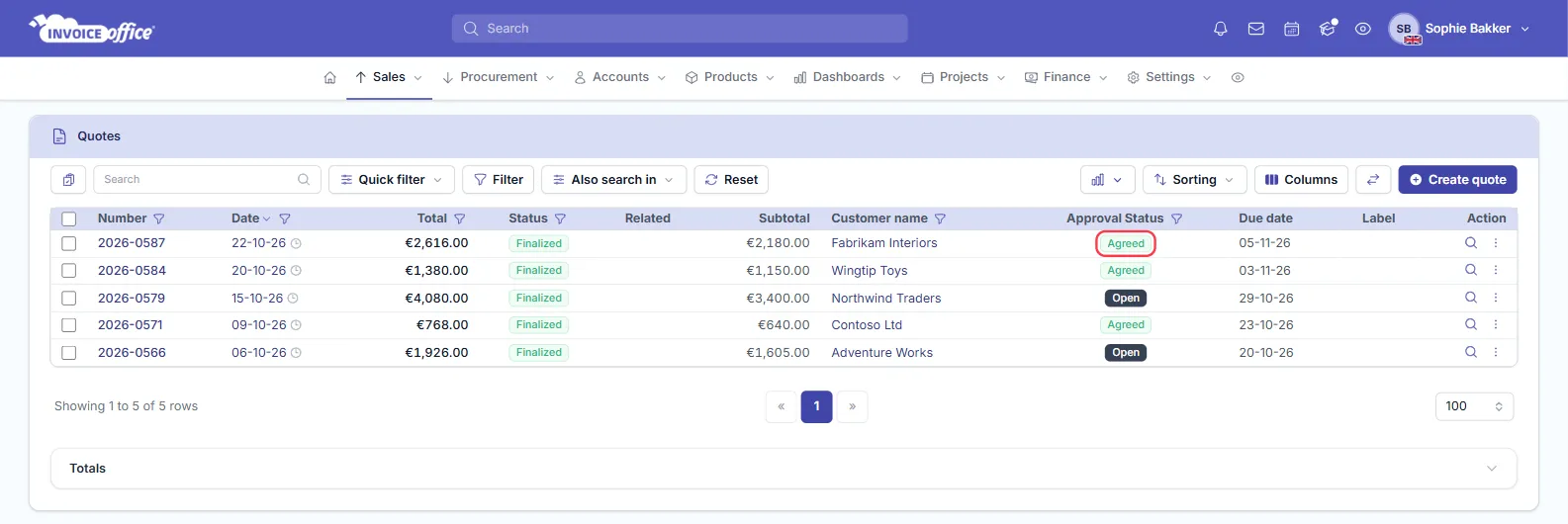
- sets the quote’s Approval Status to Agreed in Sales → Quotes;
- shows a notification, Quote has been approved, to the person who created the quote;
- emails the Approver notification email, if Approval email notification was switched on;
- adds Quote has been approved to the quote’s history (⋮ → View history).
The approver’s name, place, email and signature are saved with the quote.
Step 5 — Turn the approved quote into an invoice
An approved quote is ready to bill. Open the quote’s ⋮ (Action) menu and choose Create invoice: the customer, lines and prices are copied over. See convert a quote to an invoice. The same menu also creates an order confirmation or a proforma invoice from the quote.
Customer said yes by phone or email instead? Record it yourself with Change quotation status in the same menu.
Troubleshooting
The approval link shows “not found”. The link only works while the quote is finalized and set up for approval:
- If you chose Modify quote, the quote went back to concept. Finalize it again.
- If you later sent the quote again with an ordinary email (Finalize and email or Send e-mail with PDF), approval was switched off. Send it once more with Send with digital approval.
- If the quote was deleted, restore it from the Trash.
The customer doesn’t see the approve button on the public page. The quote was not sent with Send with digital approval. Send it that way and the form appears.
A duplicated quote doesn’t keep the approval. When you duplicate a quote, the copy starts without approval data, so send the copy with digital approval as well.
Any doubts? Contact us and we will help.