Document data is everything around the product table: the addresses, the customer number, the VAT number, the delivery date, your references. It varies per customer and per invoice, so you decide which of it your documents show — add what you need, remove what you never fill in.
Switch a block on or off
- Go to Settings → Documents → Document designs, pick the language and open the design.
- In the Blocks tab on the left, use each block’s switch to show or hide it.
- Click Save.
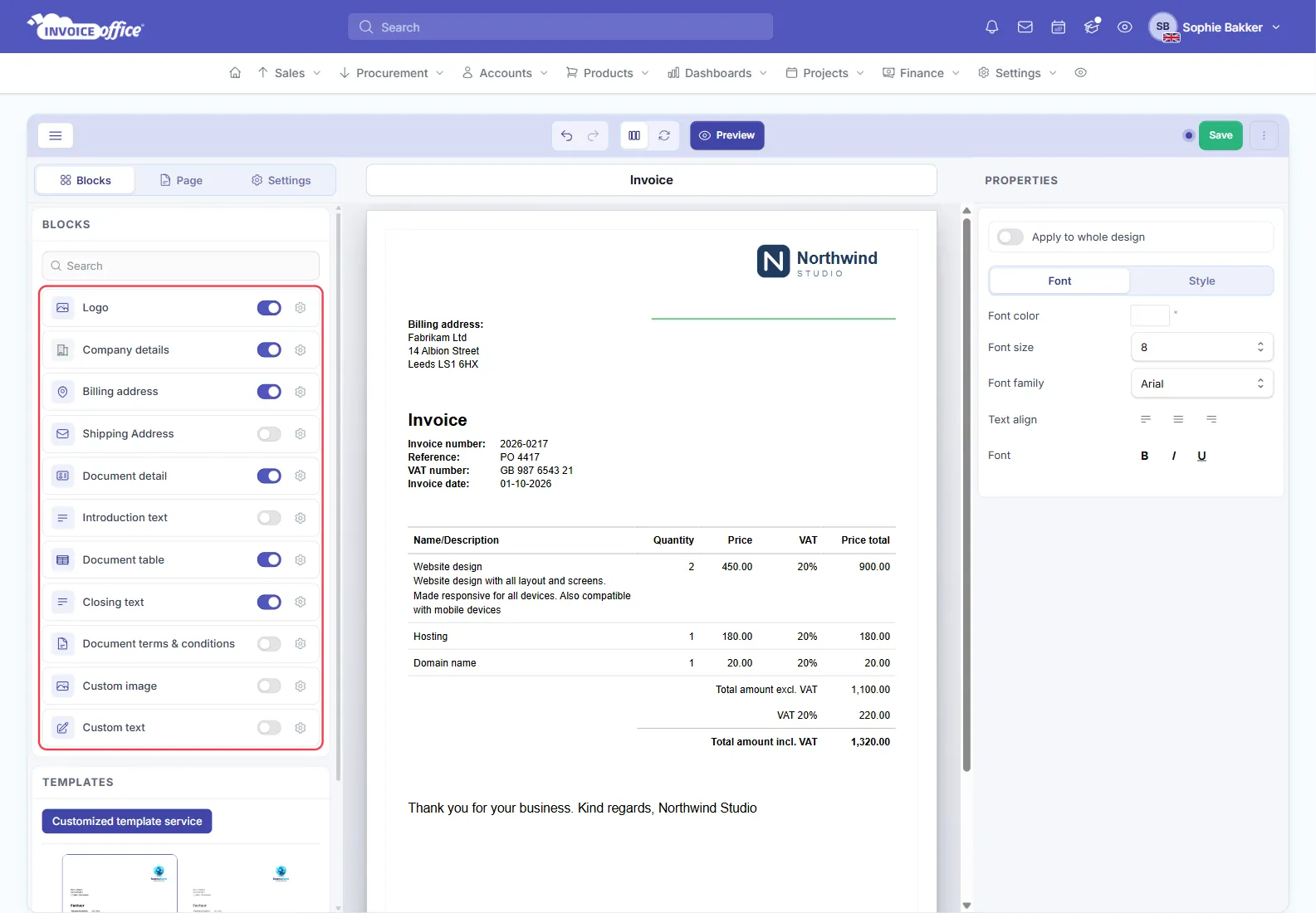
The blocks are the whole document: Logo, Company details (your header and footer texts), Billing address, Shipping Address, Document detail (the document number, dates, references and customer number), Introduction text, the Document table, Closing text, Document terms & conditions, and a Custom image and Custom text for anything of your own.
The gear icon next to a block opens its settings on the right.
Choose the fields in the document details
Click the Document detail block on the page (or its gear icon) and open Content. The list shows every field the block can print — the document number, document date, expiry date, VAT number, customer number, delivery date, reference and more. Each field has:
- a switch to show or hide it,
- a pencil to rename it,
- a grip to drag it into another order, and
- a Text align button to align that one field differently.
Choose the table’s columns
Click the document table and open Content:
- Specification columns has a width slider for each column that is shown. Auto shares the width out for you; drag a slider to give a column a fixed share.
- The Columns list switches columns on and off — #, Product#, Supplier#, Quantity, Unit, Date, Price, Discount, VAT, VAT amount, Price total and more. Name/Description is always shown, and the Product description switch right under it decides whether the description prints below the product name. Drag a column by its grip to change the order, or click the pencil to rename it.
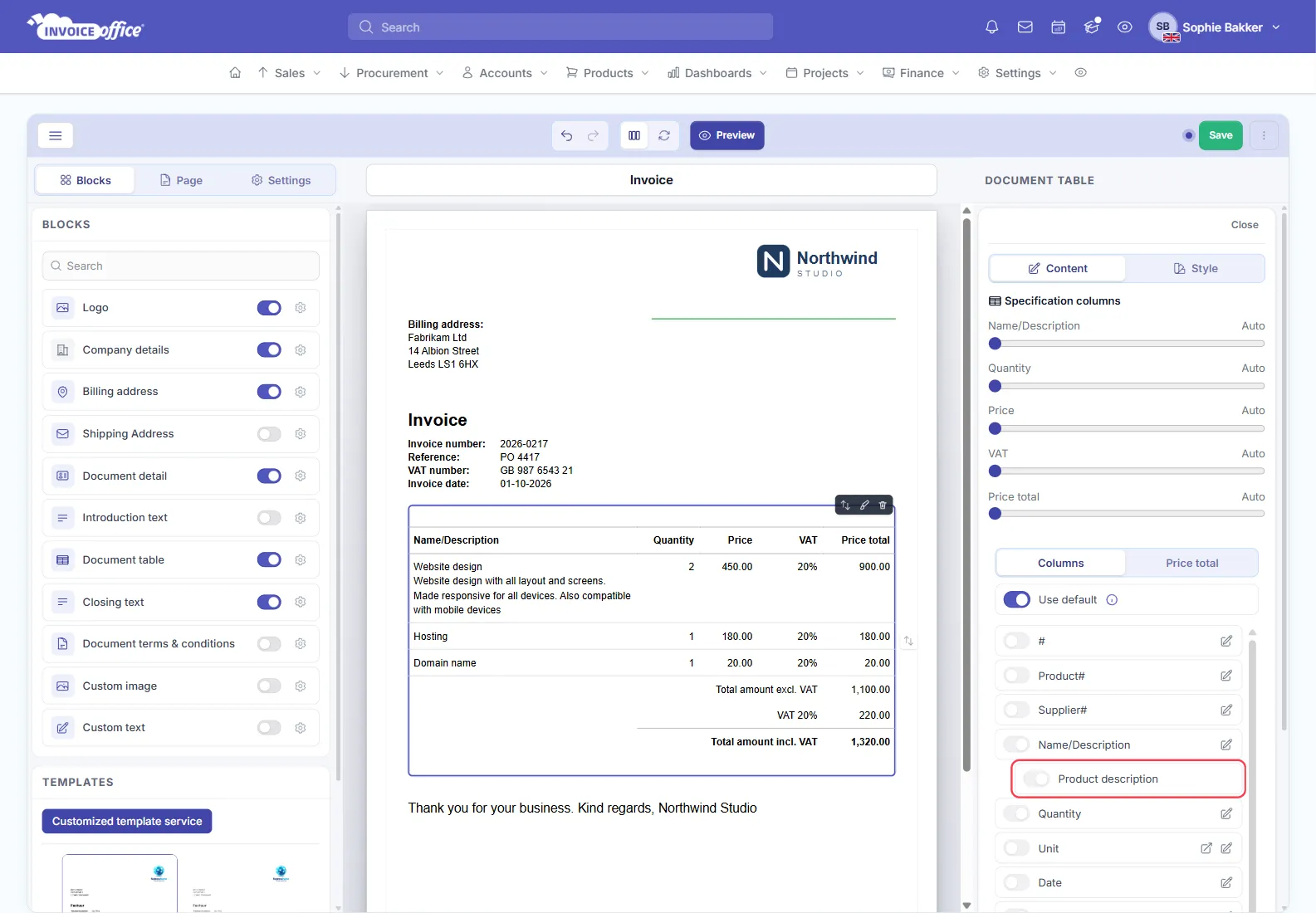
Bar Code and Stock location are Pro feature columns. Leave the widths on Auto unless a column is squeezing another.
On an invoice or quote design: Use default
On a design other than the base Document design, the document details and the columns each have a Use default switch. While it is on, they follow the base design and the switches are locked. Switch it off to choose the data for this design only, or make the change in the base design so every document type gets it.
In the basic editor an invoice, quote or other design can also have Use default design at the top of the Settings tab. While it is on, the whole design — layout, blocks and styles — follows your base design and the Blocks and Page tabs are locked; switch it off first.
Getting it right
- Only keep what you use. An empty “Your reference” or “Delivery date” line on every invoice adds clutter and makes the document harder to scan.
- Keep what your customer’s accounts department asks for. A customer number, order reference or VAT number is often what gets an invoice approved quickly, so leave those on if they are requested.
- Check a real document, not just the editor. Use Preview after saving to see how the data actually sits on the page.
A field is empty on the document
If a field is switched on but stays blank, the data is missing on the record it comes from — a VAT number that was never filled in on the customer, or a delivery date left empty on the invoice. Fill it in there and it appears on the document.
To change what a field is called rather than whether it shows, see How to change the label name.
Any doubts? Contact us and we will help.