A well-designed document helps your customers take in the information quickly. In Invoice Office every document type — invoice, quote, credit note, order confirmation and the rest — has its own document design in each language, and one base design that the others can follow. This guide shows where the designs live, how they relate and how to create a new one.
Where the designs live
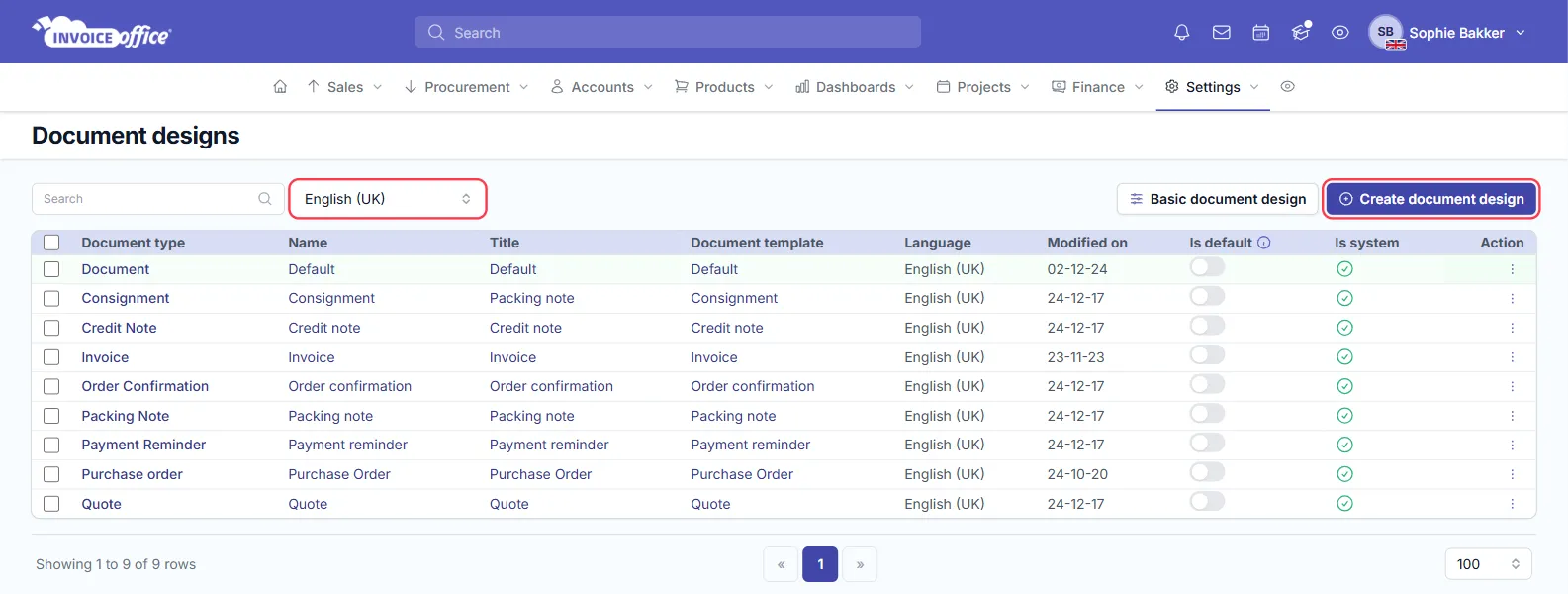
Go to Settings → Documents → Document designs.
Designs are held per language
The language selector at the top of the list decides which set you are looking at. Designs are held per language, so a French invoice can carry its own wording and layout without touching the English one — and a language you have never set up simply shows No document design found.
One design per document type
The list shows each design’s Document type, Name, Title (the heading printed on the document), Language and when it was last modified. Two more columns matter:
- Is default — the design used for that document type and language. Switch it on for one design and it switches off for the others of the same type and language.
- Is system — a design that ships with Invoice Office. Duplicate it rather than fighting it.
The row’s ⋮ menu holds Open, Modify (rename the design, or change its document type and language) and Create duplicate, plus Delete for designs that are not system designs.
The Document design is the base
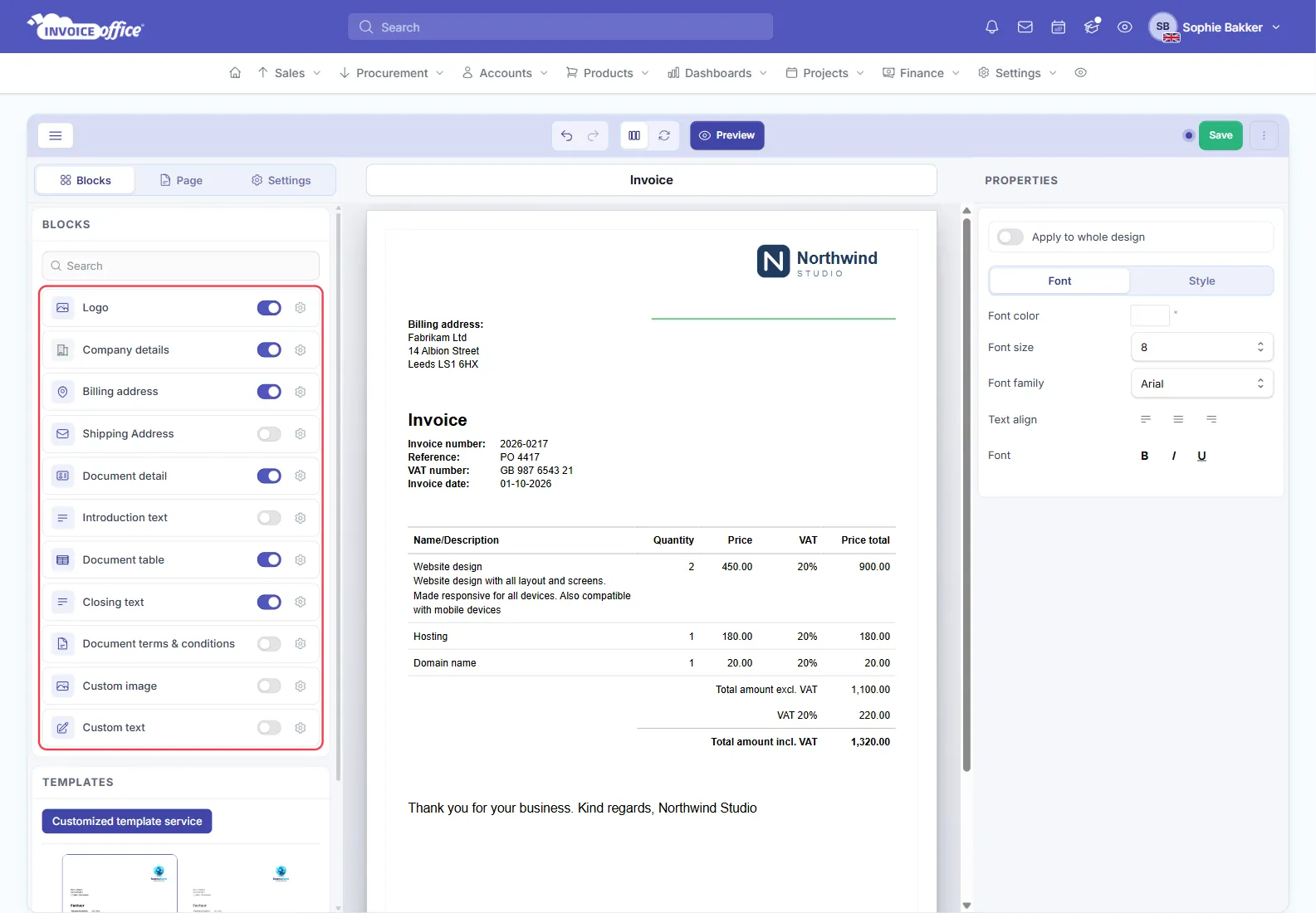
The design whose document type is Document — usually called Default — is the base of the set. The designs for your other document types can follow it: wherever a block or section has Use default switched on, it takes its settings from the base design, so you style the base once and every document type picks it up. Switch Use default off on one block when only that document type needs something different. In the basic editor an invoice, quote or other design can also have Use default design at the top of the Settings tab. While it is on, the whole design — layout, blocks and styles — follows your base design and the Blocks and Page tabs are locked; switch it off first. See the Document design FAQ for how to set this up.
Create a new design
If none of the designs in your account suits you, click Create document design in the top right and give it a Document type, Language and Name, and optionally pick a Template for its layout. A new design starts from Invoice Office’s standard design for that document type and language.
Starting from an existing design is usually faster: open its ⋮ menu and choose Create duplicate, then edit the copy.
The basic and the advanced editor
Open a design from its row to edit it. There are two editors, and the button next to Create document design switches your whole company between them — it reads Basic document design while you are in the advanced editor, and Advanced document design while you are in the basic one.
- The basic editor puts everything on one screen: Blocks, Page and Settings tabs on the left, your document in the middle, and the settings of the block you click on the right.
- The advanced editor adds a Document design / Document template switch in the toolbar. The document template holds the layout and styling and can be shared by several designs, so a change there reaches every design that follows it; the document design side holds what belongs to this one design. The advanced editor needs an active Pro license — without one you work in the basic editor, and nothing in your designs is lost.
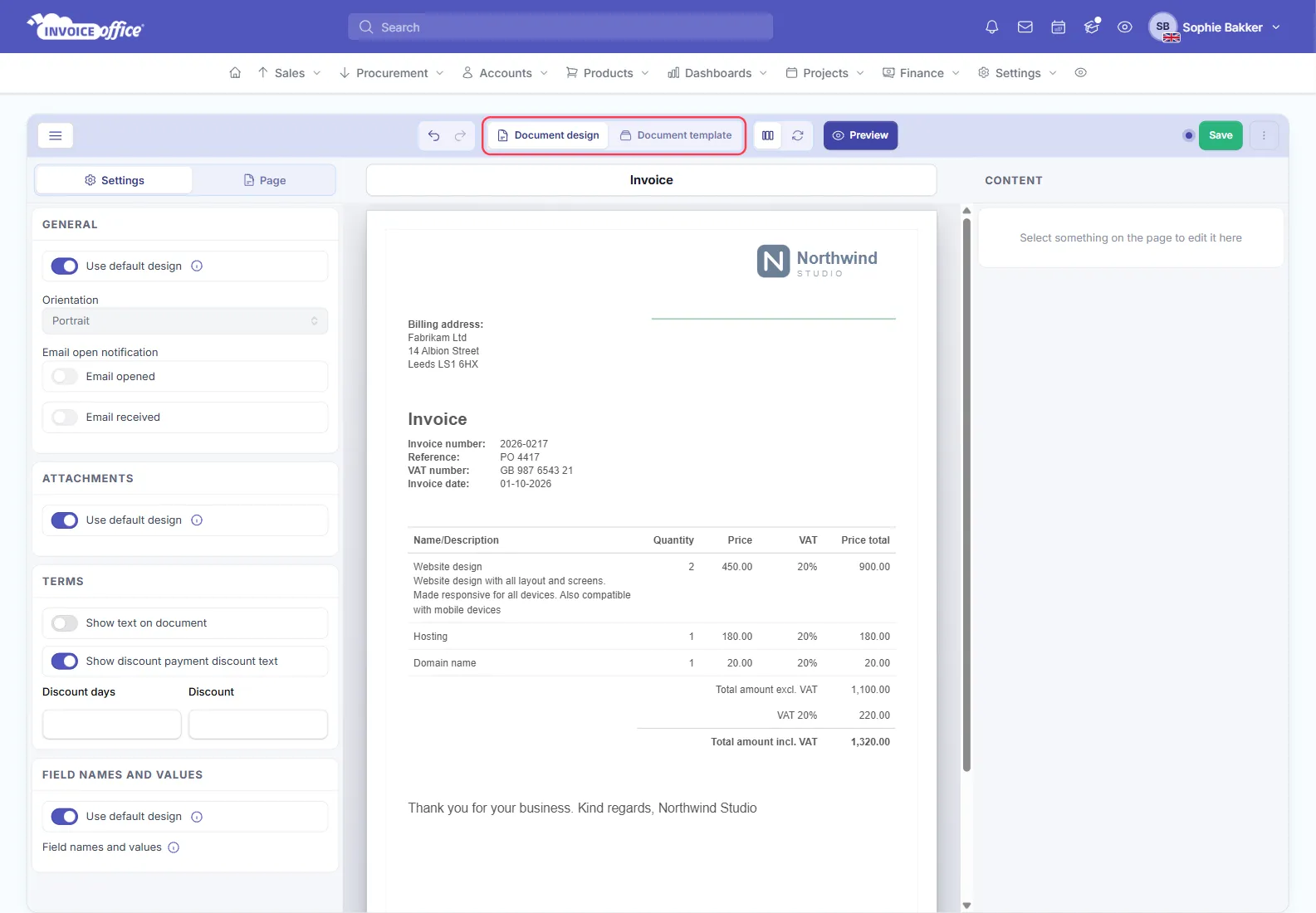
In both editors undo, redo and Preview sit in the middle of the toolbar; the unsaved-changes dot, Save and the ⋮ menu are on the right. The ⋮ menu holds Create duplicate and Delete (not shown for system designs). From there, set the logo, texts, columns, labels, colours and fonts — see How to customize the document layout.
Using a design once you have it
- Pick a design while creating a document — see Use a document design in your invoice.
- Always use the same design for one customer by setting it on their record — see Choose a design template per customer.
- Removing one you no longer need — see How to delete a document design template.