Labels are the words printed on the document itself: Invoice number, Due date, Name/Description, Quantity, and the rest. Changing them to the wording your industry or your customers expect is simple.
Change labels in the document design
- Go to Settings → Documents → Document designs, pick the language and open the design.
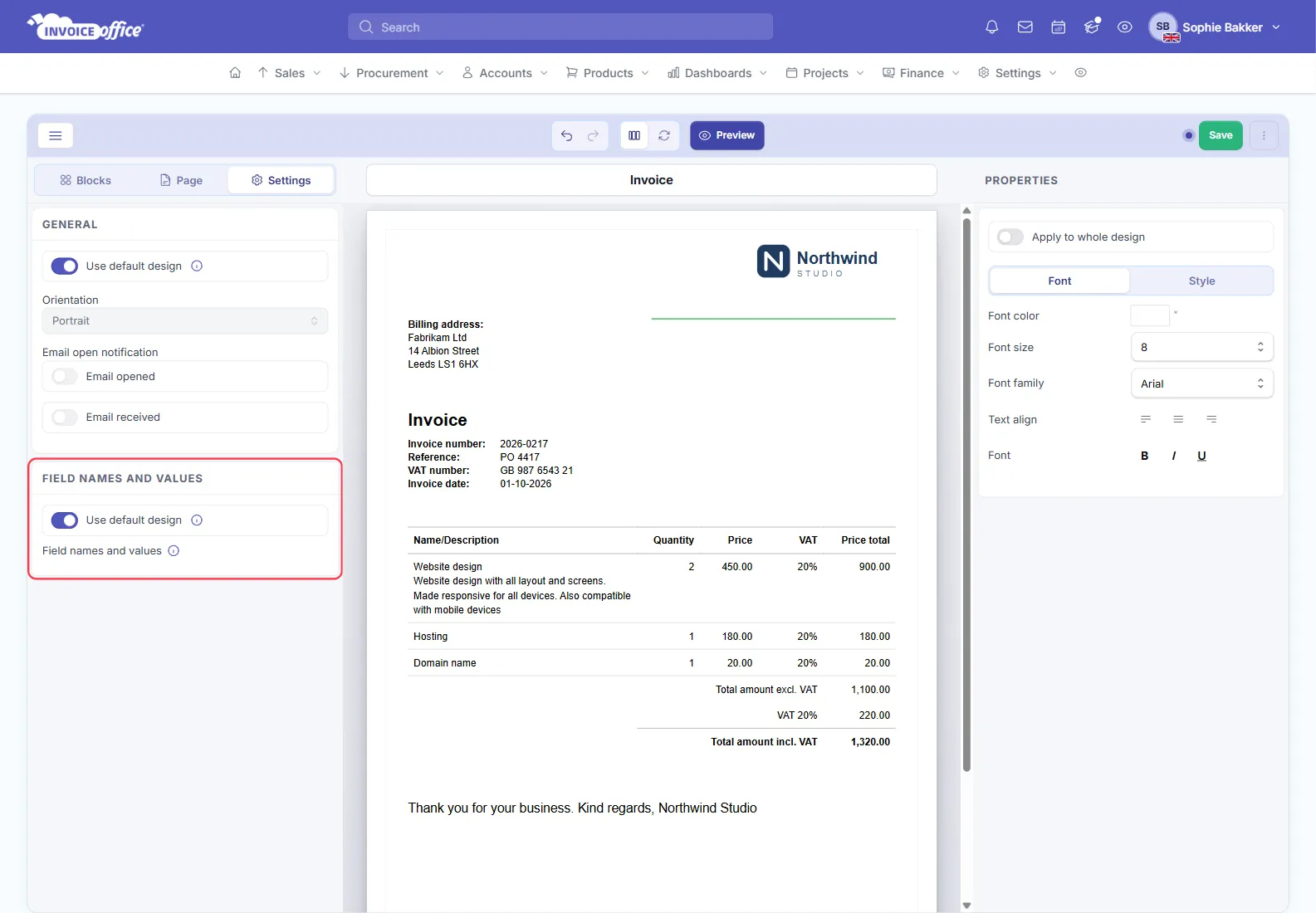
- Open the Settings tab on the left and find Field names and values.
- On an invoice, quote or other design, switch off the Use default design switch inside Field names and values — while it is on, the design uses the labels of your base design and there is nothing to edit. The base Document design has no such switch.
- Click Modify Field names and values.
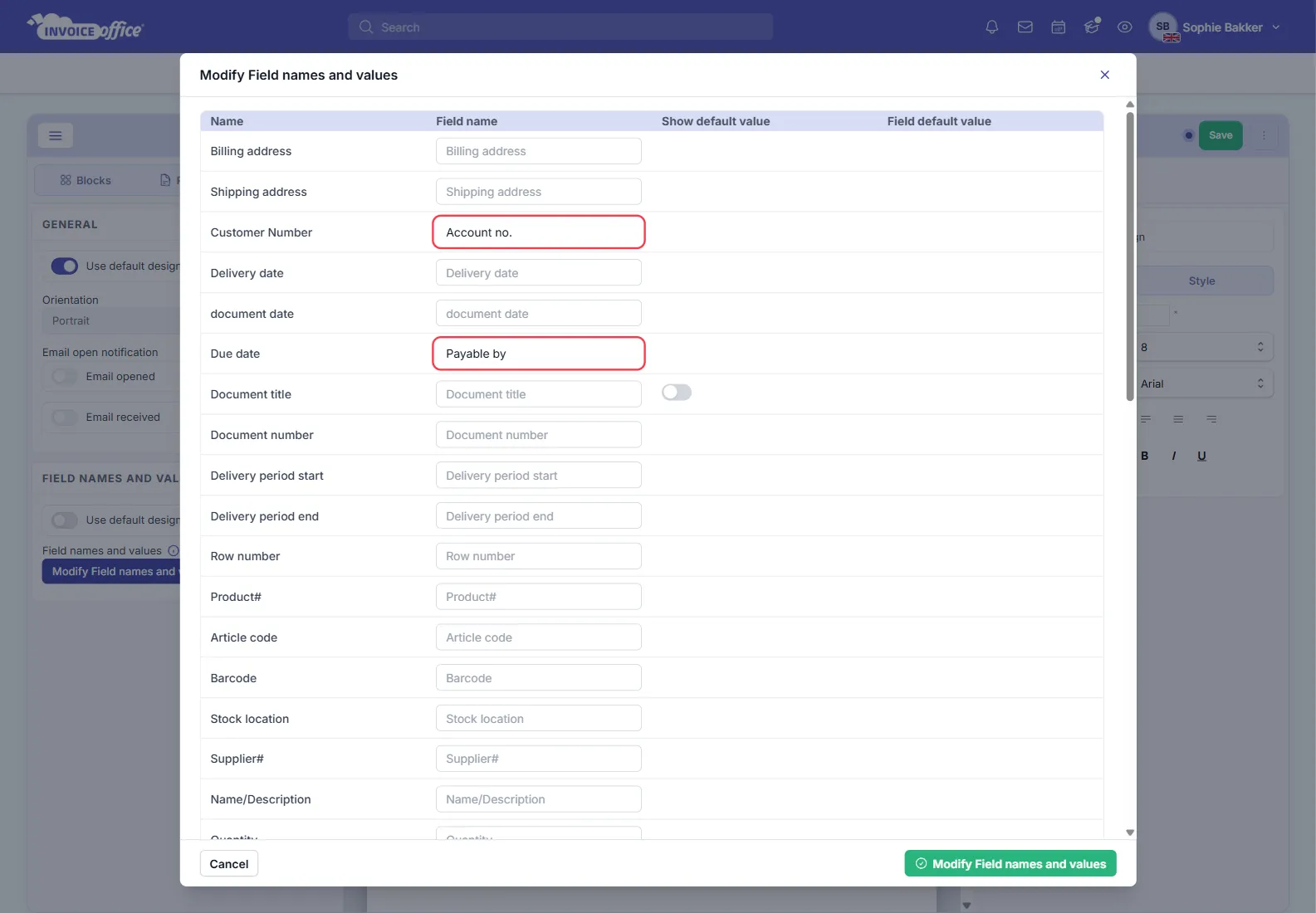
- In the pop-up, type your wording into the Field name column beside the field you want to rename. Leaving it empty keeps the standard label — the grey text you see is the current one.
- Click Modify Field names and values. The labels are saved straight away and the editor reloads, so save any other changes to the design first.
Every document created with that design uses your wording from then on. To give every document type the same labels, rename them in the base Document design and leave Use default design on in the others.
In the advanced editor, Field names and values is on the Document design side of the switch in the toolbar.
Default values, in the same place
A few rows — Document title, Reference, Specification and the flex fields — also have Show default value and Field default value. Together they let the field print a fixed value when the document does not carry one of its own — useful for something that is always the same on your documents and never worth typing.
Rename a column or field on the page
You can also rename a single table column or document detail field straight from its block: click the document table or the Document detail block, open Content, and use the pencil next to the column or field.
Labels and language
Labels belong to the document design, and designs are held per language, so edit them in the design for the language you send that document in. Renaming Due date on your English invoice leaves the Dutch one untouched.
Labels vs the document title
The title printed at the top of the document is set in the Document detail block, under Document title, and shown in the Title column of the designs list. See Document title vs document name.