Invoice Office numbers documents automatically from a sequence, so you never get a gap or a duplicate. You can still adjust a single number by hand on an invoice, quote or product, or change the sequence itself.
Change the number on one document
- Go to the screen where you create the document.
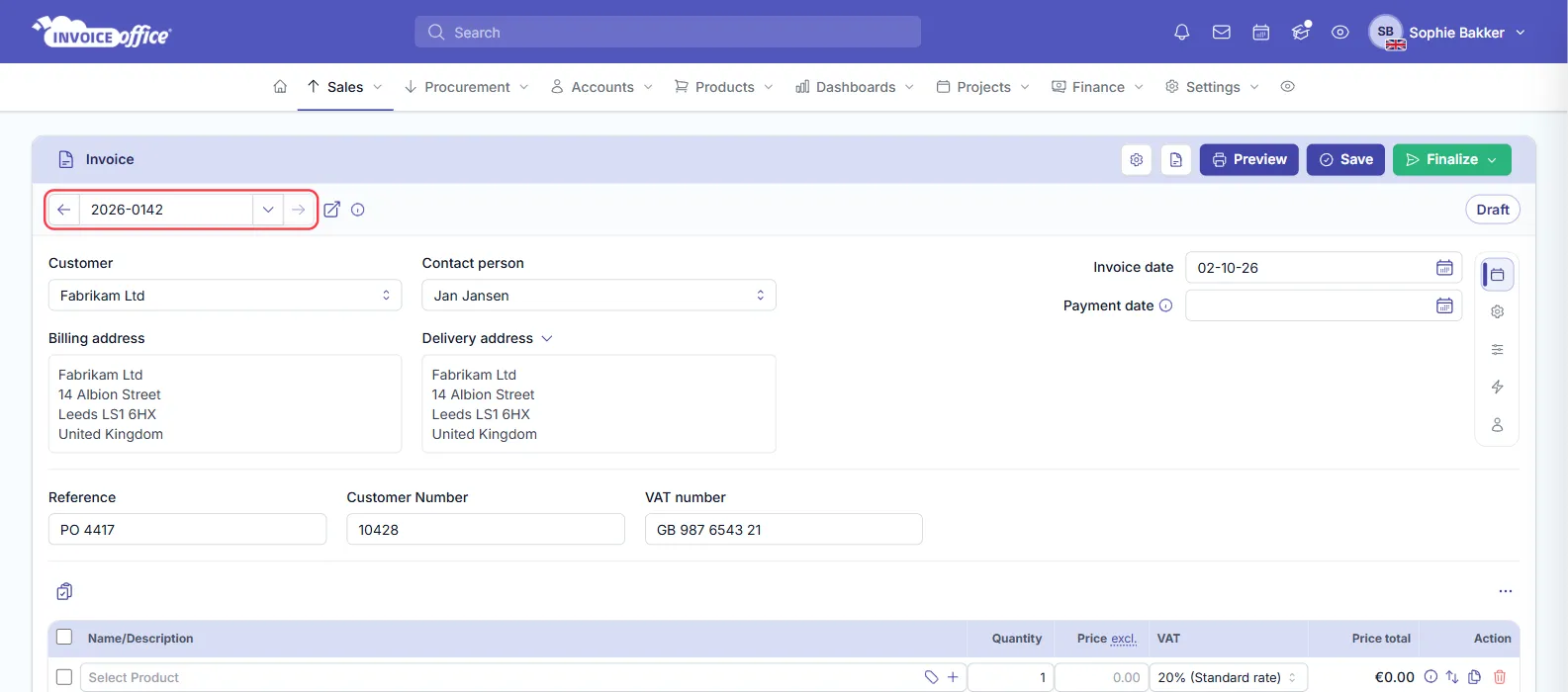
- Click the document number — the field at the top-left of the card, just under the document title.
- Type the number you want to use.
- Save the document and finalize it.
Once the document is finalised the number is fixed. If the number you typed differs from your normal document numbering, your normal numbering carries on as usual afterwards — your one-off does not drag the rest of the run with it.
This works the same way on your contacts and products.
Change the numbering itself
To change how a whole type of document, your products or your customers are numbered rather than one record:
- Go to Settings → Setting → Sequence number.
- Click Sequence number → Sequence.
- Select the preference you want.
Sequences are per document type, so invoices, quotes and credit notes each have their own run. A sequence can also be set to use the same number as the related document — handy when you want a payment reminder to carry the number of the invoice it chases.
Numbering usually has to be gapless and sequential for tax purposes. Change a sequence when you start a new year or migrate from other software — not to tidy up numbers you have already issued.