The two sound alike and are easy to mix up. In short: the document title is printed at the top of the PDF; the document name is the name of the design, and only you see it.
Both belong to a document design, so both are set in Settings → Documents → Document designs — but in different places.
Document name
The document name is the name of the design itself. It exists so you can keep your designs organised when you have more than a few, and it is what the Name column shows in the designs list.
To change it, open the row’s ⋮ menu in the designs list and choose Modify. It takes the name along with the design’s document type and language.
So an invoice design can be called Invoice (test customer) while the title printed on the PDF still reads Invoice. Your customer never sees the document name.
Document title
The document title is the heading printed on the document — create an invoice and the title on the PDF reads Invoice. The designs list shows it in its Title column.
To change it:
- Open the design.
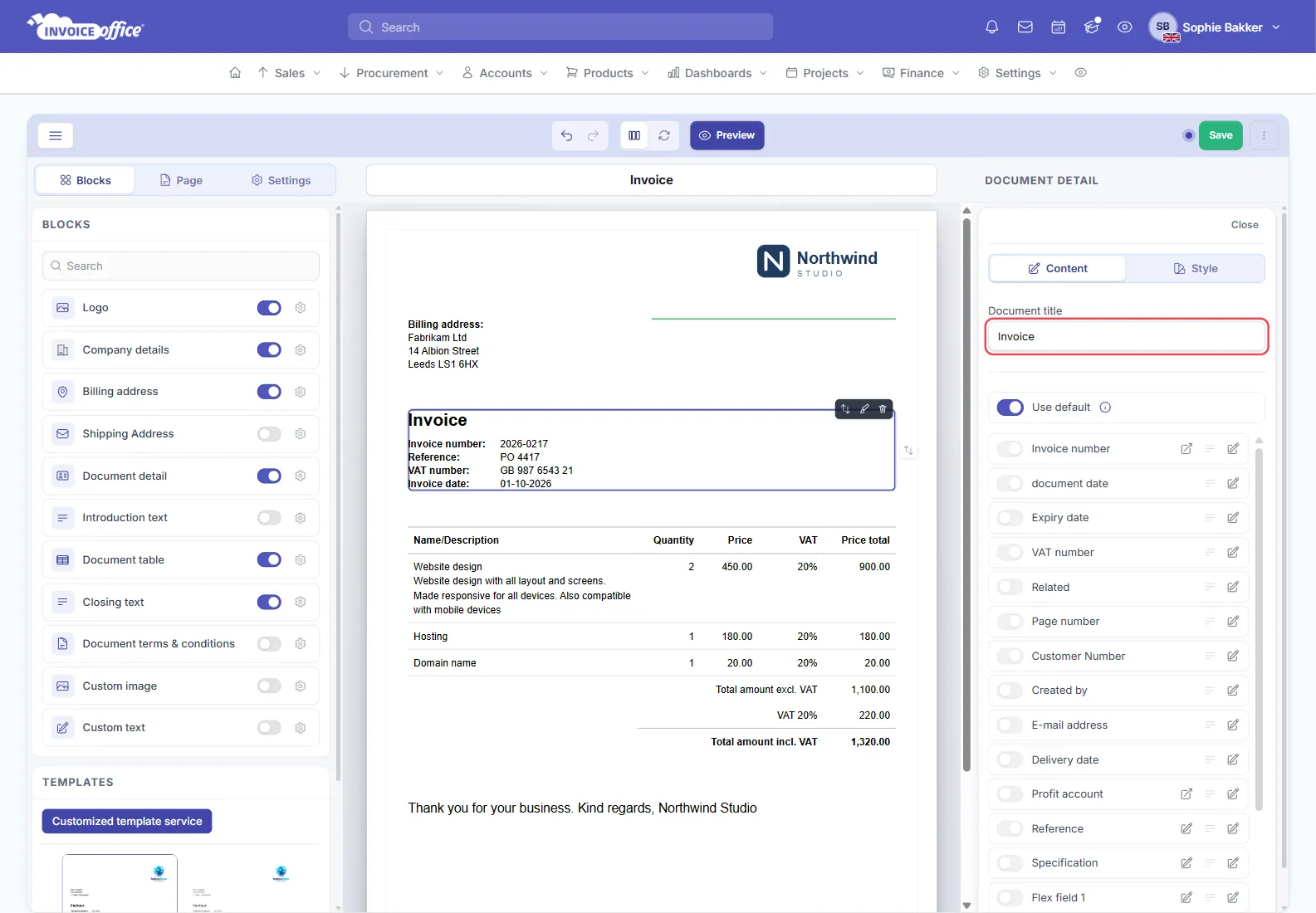
- Click the Document detail block on the page — the block with the heading and the document number — or its gear icon in the Blocks list.
- On the Content tab, type the heading you want under Document title — Fee note instead of Invoice, for example.
- Click Save.
The Document title row in Field names and values
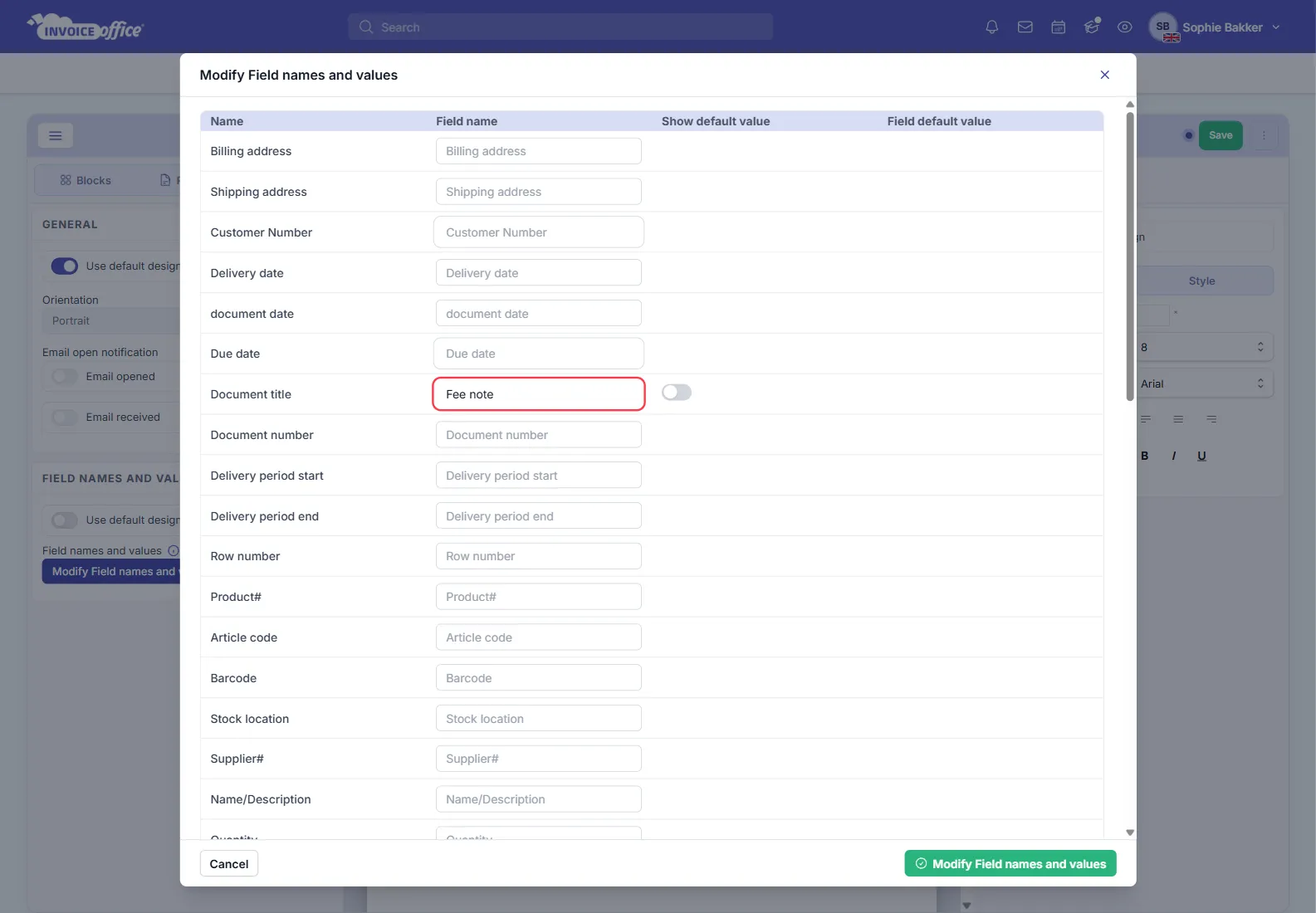
The design’s Field names and values table also has a Document title row. A Field name typed there takes precedence over the title in the Document detail block. Like Reference, Specification and the flex fields, it also has a Show default value switch — see How to change the label name.
Because designs are held per language, set the title on the design for each language you send documents in.
Which one do I want?
| You want to change | Use |
|---|---|
| The heading printed on the PDF | Document title (Document detail block, or Field names and values) |
| What a design is called in your account | Name (⋮ → Modify in the designs list) |
| The file name of the PDF sent by email | Document name .pdf (Settings → Company settings) |
The PDF file name is a third, separate setting — see How to change the document PDF name.
Still not sure? Contact us and we will point you at the right field.