Designs accumulate — a duplicate you made to experiment with, a layout from before a rebrand. Here is how to delete the ones you no longer need.
Delete a document design
- Go to Settings → Documents → Document designs.
- Choose the language you want to delete a design for in the selector at the top left. Designs are held per language, so you only ever see one language’s set at a time.
- Tick the checkbox on the design’s row. A bar appears above the table reading 1 Selected lines.
- Click Remove in that bar.
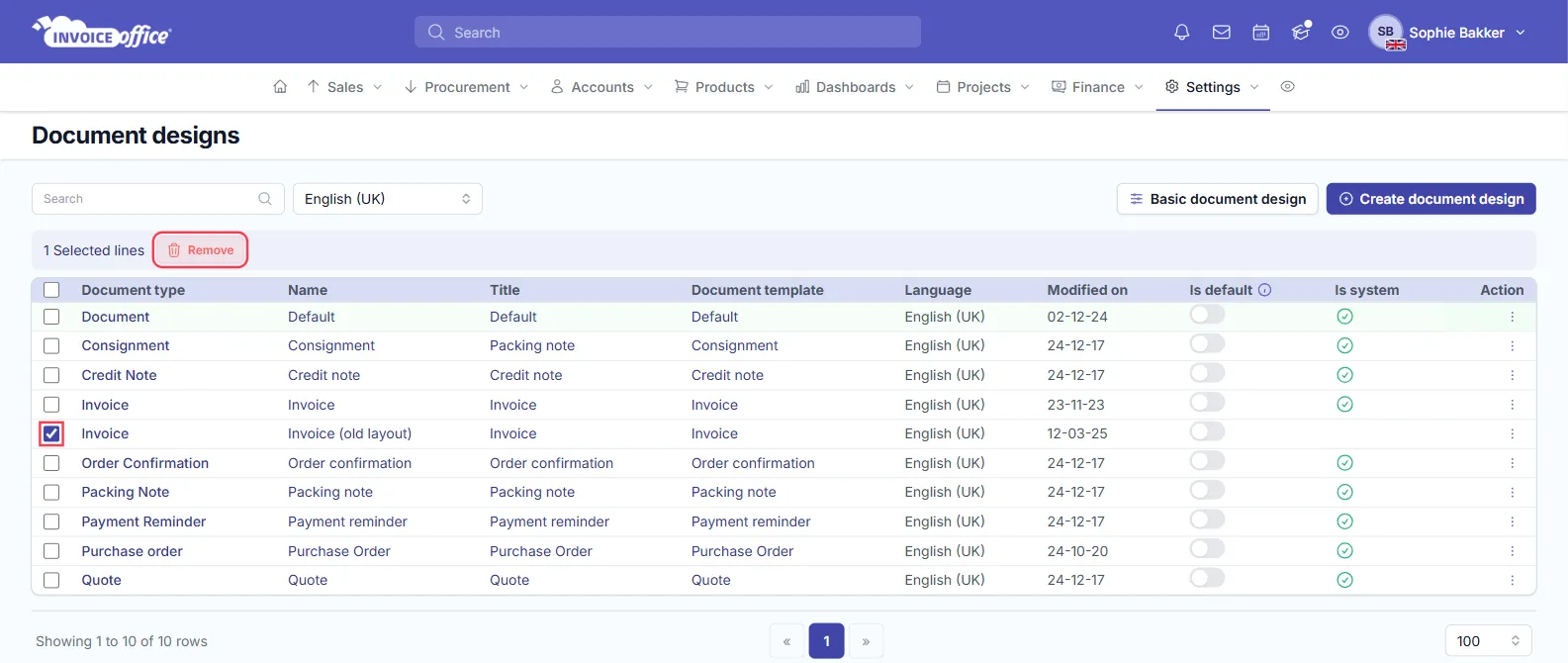
You can tick several rows and remove them together, or use the header checkbox to select the whole page.
To delete a single design you can also open its row’s ⋮ menu and choose Delete, or use the ⋮ menu next to Save inside the design editor. Neither shows Delete for a system design.
Some designs cannot be deleted
The list has an Is system column. A design flagged there ships with Invoice Office and is protected — you cannot remove it. You can only delete designs created by you; duplicate a system design and edit the copy rather than trying to delete the original. If you delete every design you made for a document type, documents of that type use another design in the same language.
Check these first
- Is it just the wrong language version? The language selector decides which set you are looking at, so the design you are about to delete may be the only one you have for that language. Confirm the selector is set to the language you mean before removing anything.
- Is it the default? The Is default column marks the design used when nothing more specific is chosen. Point that flag at another design first.
- Is a customer using it? A customer can have a specific design assigned to their record — see Choose a design template per customer.
Need anything else? Contact us and we will help.