You can connect Gmail or Outlook to Invoice Office in a few clicks, so your invoices, quotes and other emails go out from your own address. What the connection doesn’t do is copy your mailbox into the CRM: emails you send and receive in Gmail or Outlook don’t appear in a customer’s activity feed by themselves. This guide explains how to connect Gmail (Google Workspace) or Outlook (Office 365), what is and isn’t tracked, how to copy emails into your Invoice Office Mailbox, and how to get them into the CRM activity feed.
What connecting Gmail or Outlook does
Connecting your Google or Microsoft account under Settings → Email server lets Invoice Office send email through it. Customers see your own address, and their replies land in your own inbox.
Invoice Office only asks Google and Microsoft for permission to send email. It can’t read your mailbox, so:
- Received emails are not synced into Invoice Office automatically.
- Emails you send from Gmail or Outlook itself are not synced automatically either.
- Emails you send from Invoice Office, such as an invoice or a quote, go out through your account, and show in the document’s history.
To bring a Gmail or Outlook email into Invoice Office yourself, forward it to your Invoice Office mailbox address, or put that address in CC when you write to a customer. See Copy emails to your Invoice Office Mailbox below.
Connect Gmail (Google Workspace)
- Go to Settings → Email server.
- Switch Enabled on and set Mail server provider to Gmail / Google Workspace.
- Click Connect, sign in with your Google account and allow the access Google asks for.
- Click Save, then log out and log back in.
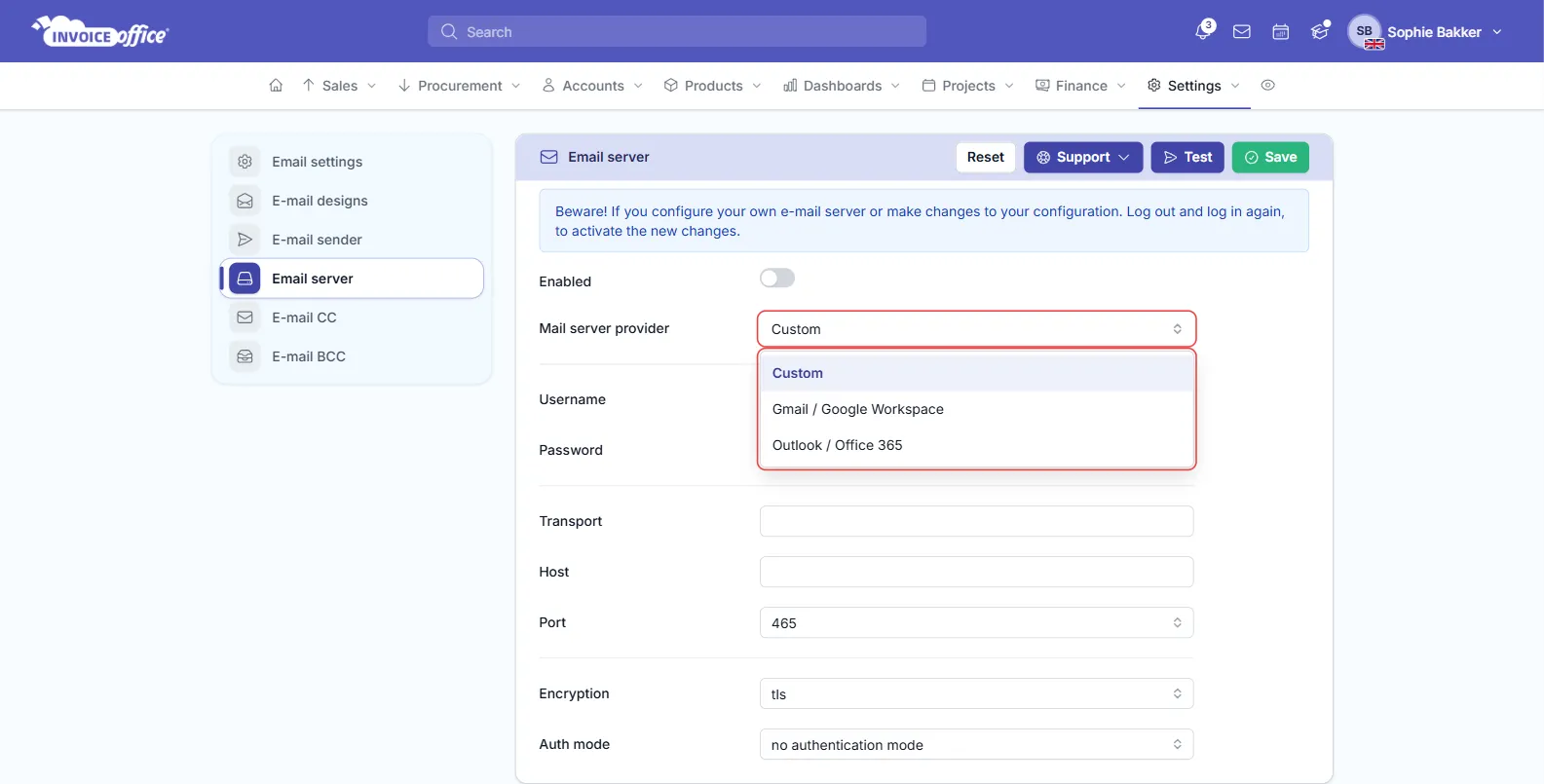
The full steps and troubleshooting are in how to configure Gmail / Google Workspace.
Connect Outlook (Office 365)
- Go to Settings → Email server.
- Switch Enabled on and set Mail server provider to Outlook / Office 365.
- Click Connect, sign in with your Microsoft account and accept the permissions.
- Click Save, then log out and log back in.
See how to configure Outlook / Office 365 for the details and troubleshooting.
Connecting a mail server needs a paid licence (Basic or higher).
What’s tracked for emails you send
Invoice Office records every document email it sends in the document’s history. Whether you also see delivered, opened, clicked or bounced depends on how the email went out:
- Through Invoice Office’s own mail service (no email server connected): you get the full status, including opens, clicks and bounces.
- Through your own email server, which includes a connected Gmail or Outlook account: Invoice Office only knows the email was sent. The status shows a blue envelope, without opens, clicks or bounces.
So connecting Gmail or Outlook gives you your own sender address, but no open and click tracking. See how to track email opens, clicks and bounces.
Copy emails to your Invoice Office Mailbox
Every user has their own Mailbox in Invoice Office, with its own email address. Open it with the envelope icon at the top of the screen. The address is shown at the top of the Mailbox.
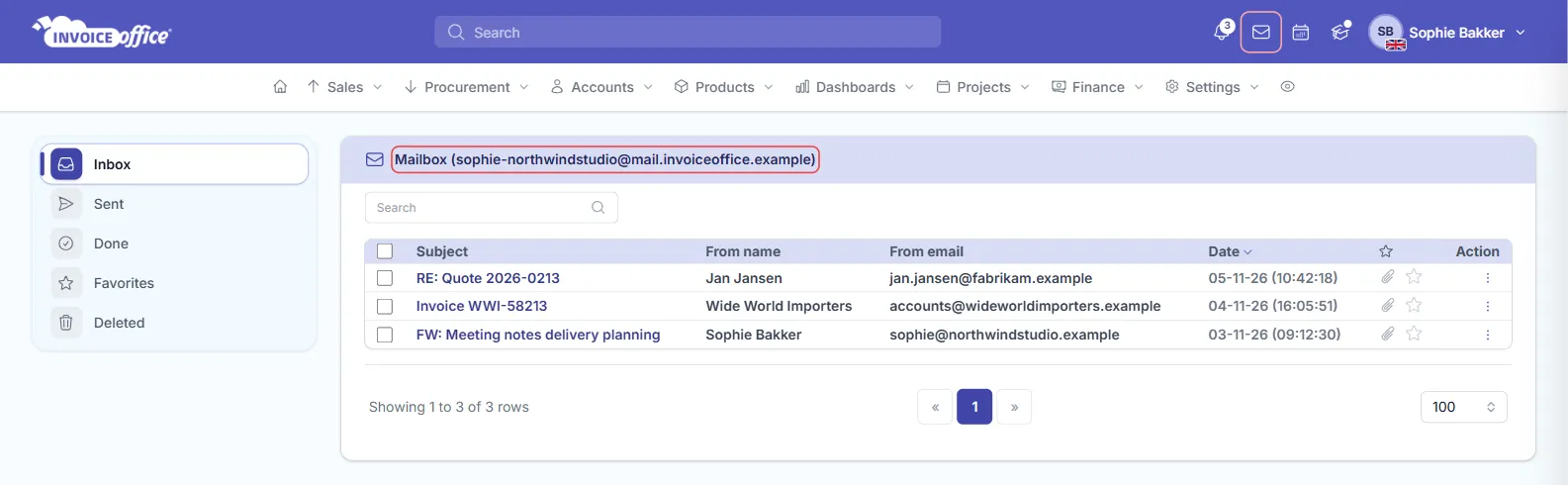
- Forward an email from Gmail or Outlook to that address, or add the address in CC when you email a customer. The email, with its attachments, lands in the Mailbox Inbox. A BCC copy doesn’t arrive.
- Sent lists the emails sent from Invoice Office, such as invoices and quotes, with the subject, recipient and date.
- From the Action menu of an email you can mark it Done, add it to Favorites, Delete it, or Create purchase from a supplier invoice.
Emails in the Mailbox aren’t linked to a customer automatically. To have one in a customer’s activity feed, log it on the customer as described below.
Get emails into the customer’s activity feed
A customer’s activity feed is on their Relation management page. Emails appear there when you log them:
- Open the customer and go to Relation management.
- On the customer card, click More (the three dots) and choose Log an email.
- Choose the Contact, check the Date, enter the Subject and paste or summarise the email in Message.
- Click Log an email.
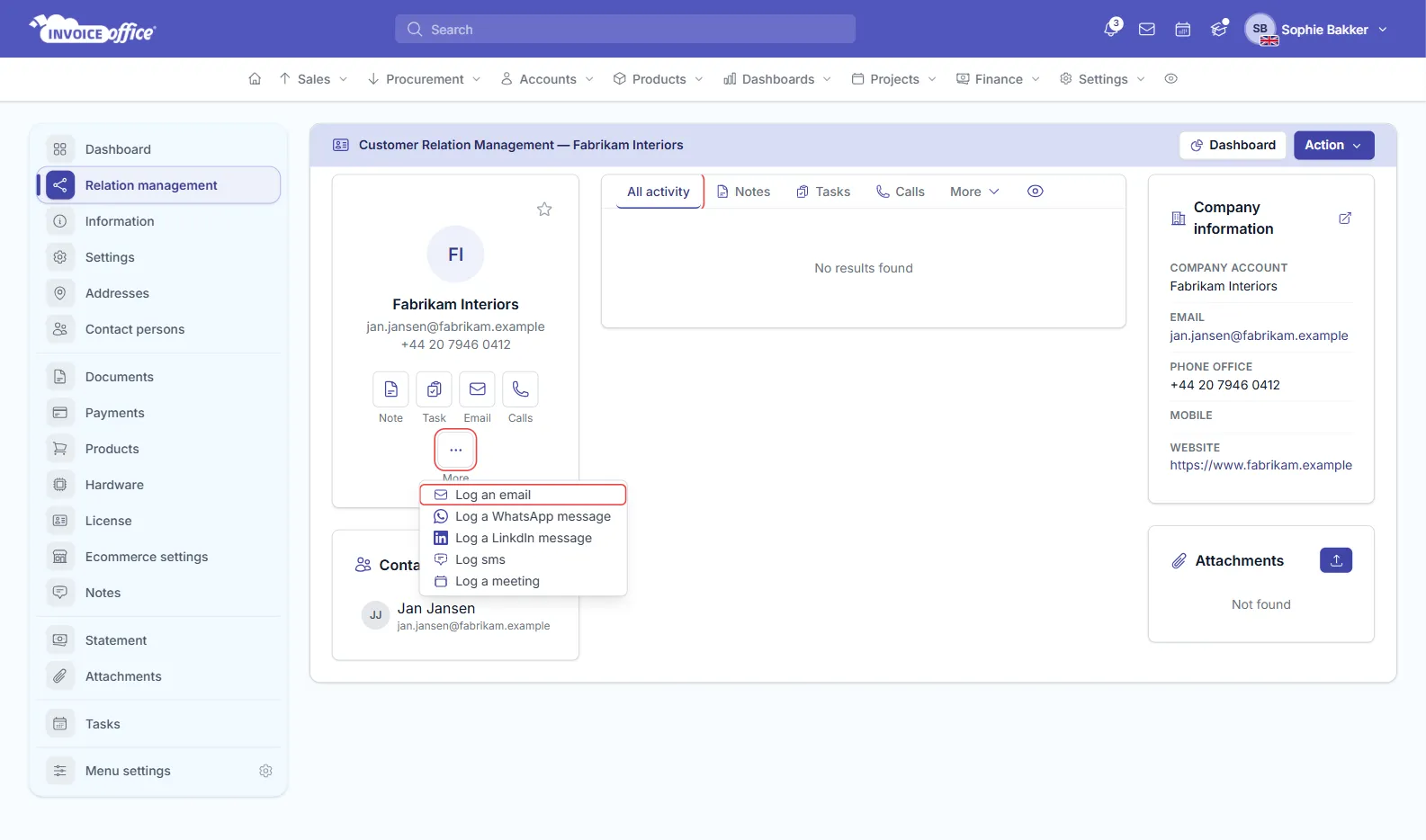
The email then shows on the All activity tab, together with the customer’s notes, tasks, calls and meetings, with the newest at the top. For the other activity types, see how to log a call, meeting or email activity.
The Email button on the customer card opens a new message to the customer in your own email program. It doesn’t log anything, so log the email afterwards if you want it in the feed.