You can log a call, meeting or email activity in Invoice Office on the customer it belongs to. Every customer has a Relation management page. It keeps a CRM activity log of each contact moment: phone calls, meetings, emails, LinkedIn messages, WhatsApp messages and text messages (SMS). Each entry records the contact you spoke to (if you pick one), when it happened, what came of it, your notes and which user logged it. Anyone who opens the customer next can read the same history before they pick up the phone. This guide shows how to log each type of activity and where to find the full history.
Logging an activity only records it. Invoice Office does not make the call or send the email, WhatsApp or SMS for you. Use your phone or mailbox as usual, then log what happened.
Step 1 — Open the customer’s Relation management page
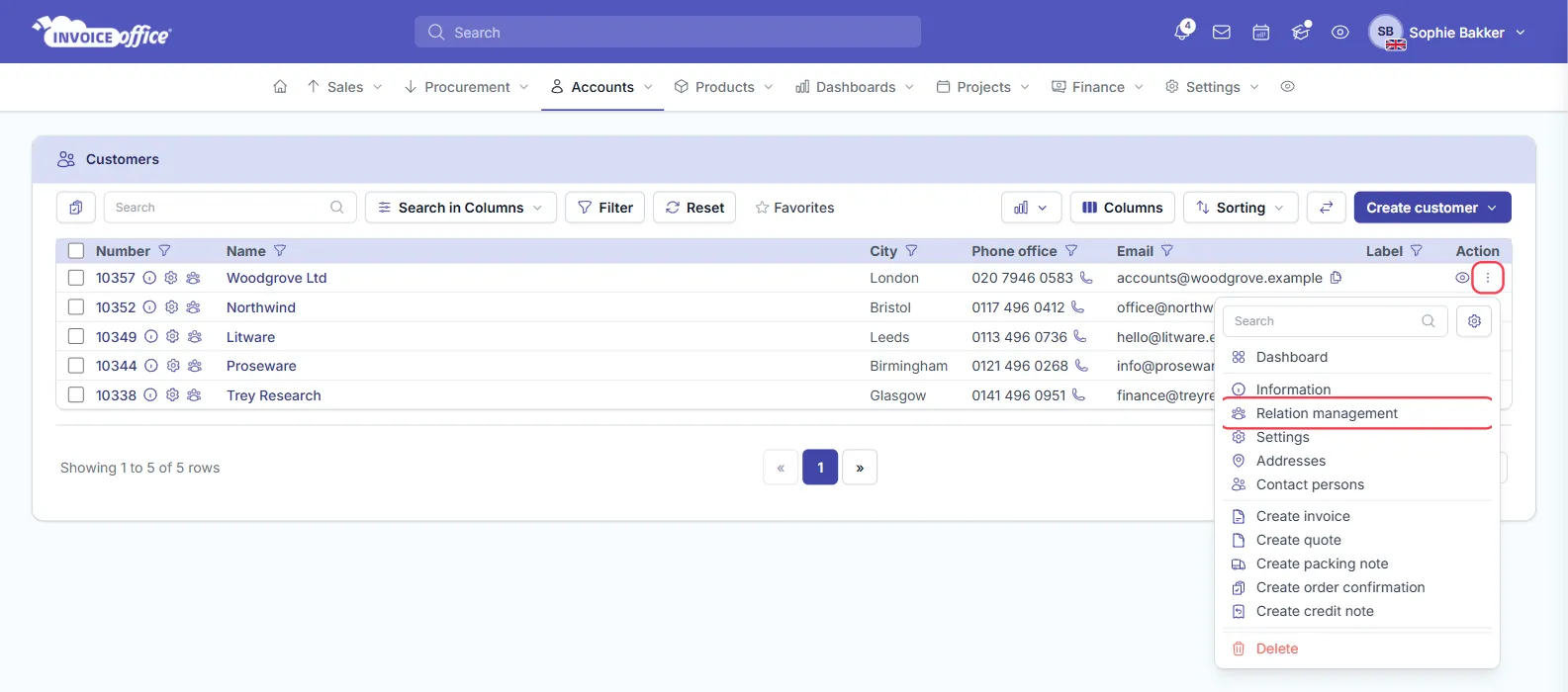
- Go to Accounts → Customers.
- Open the customer’s Action menu and choose Relation management. You can also click the people icon beside the customer number.
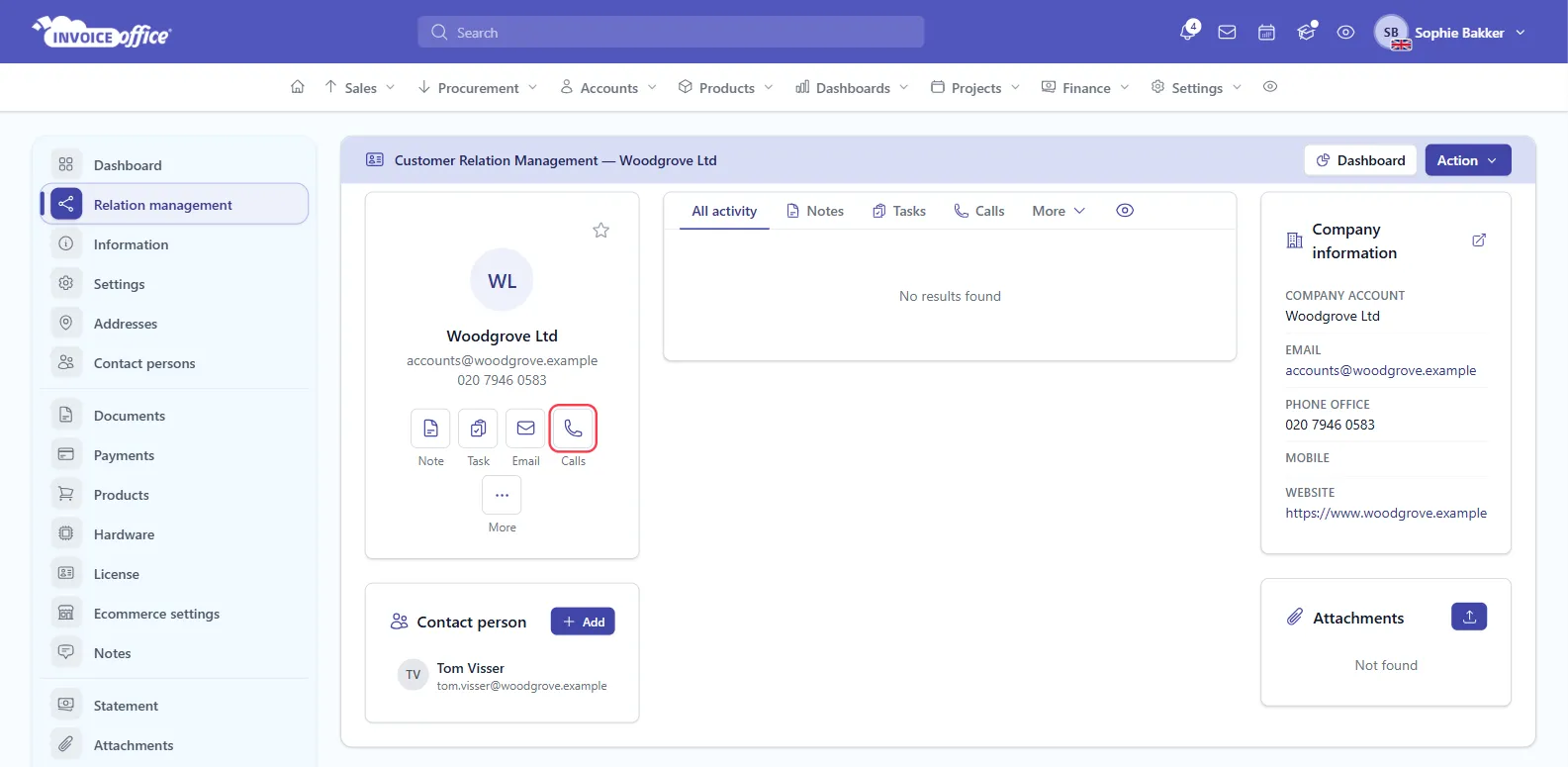
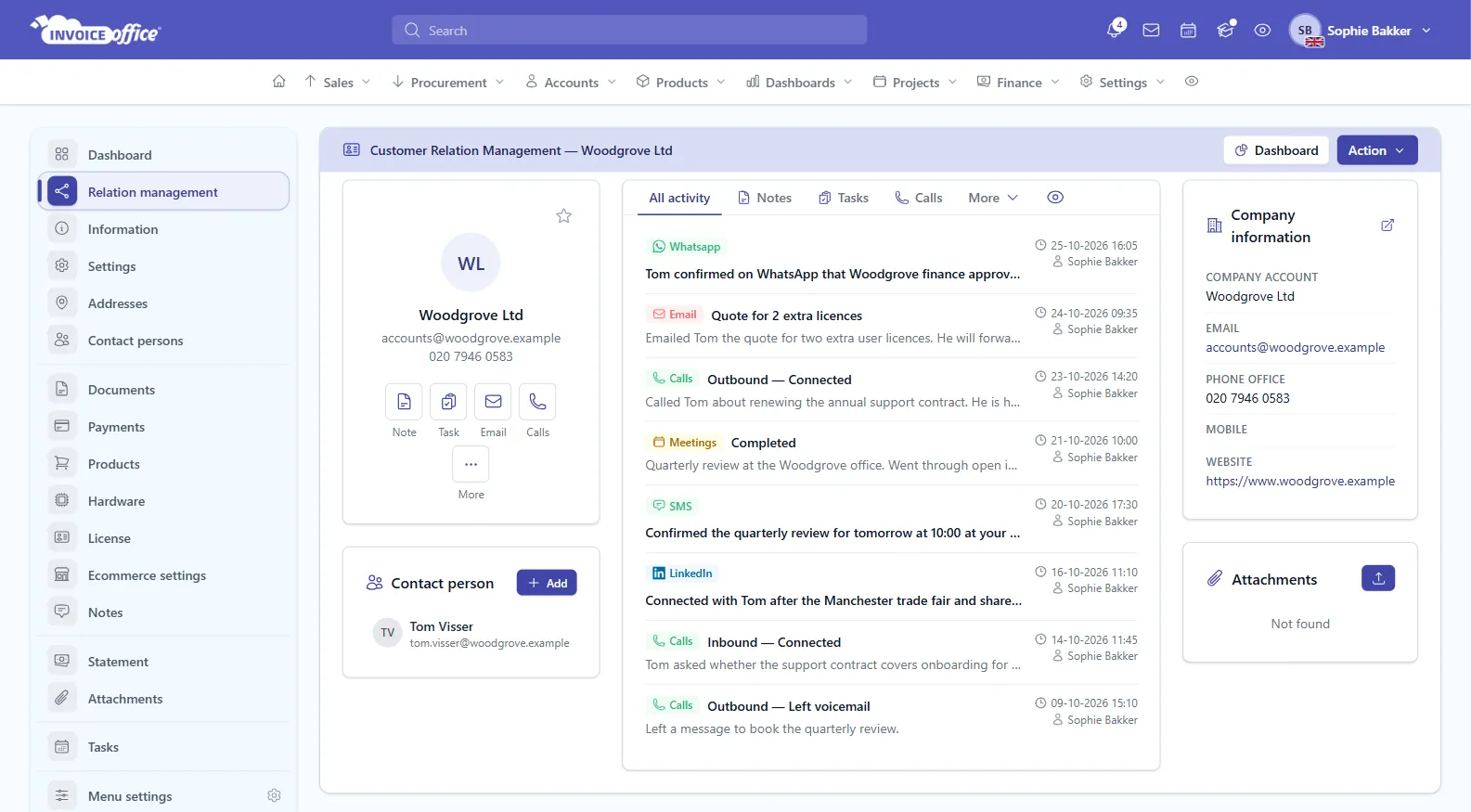
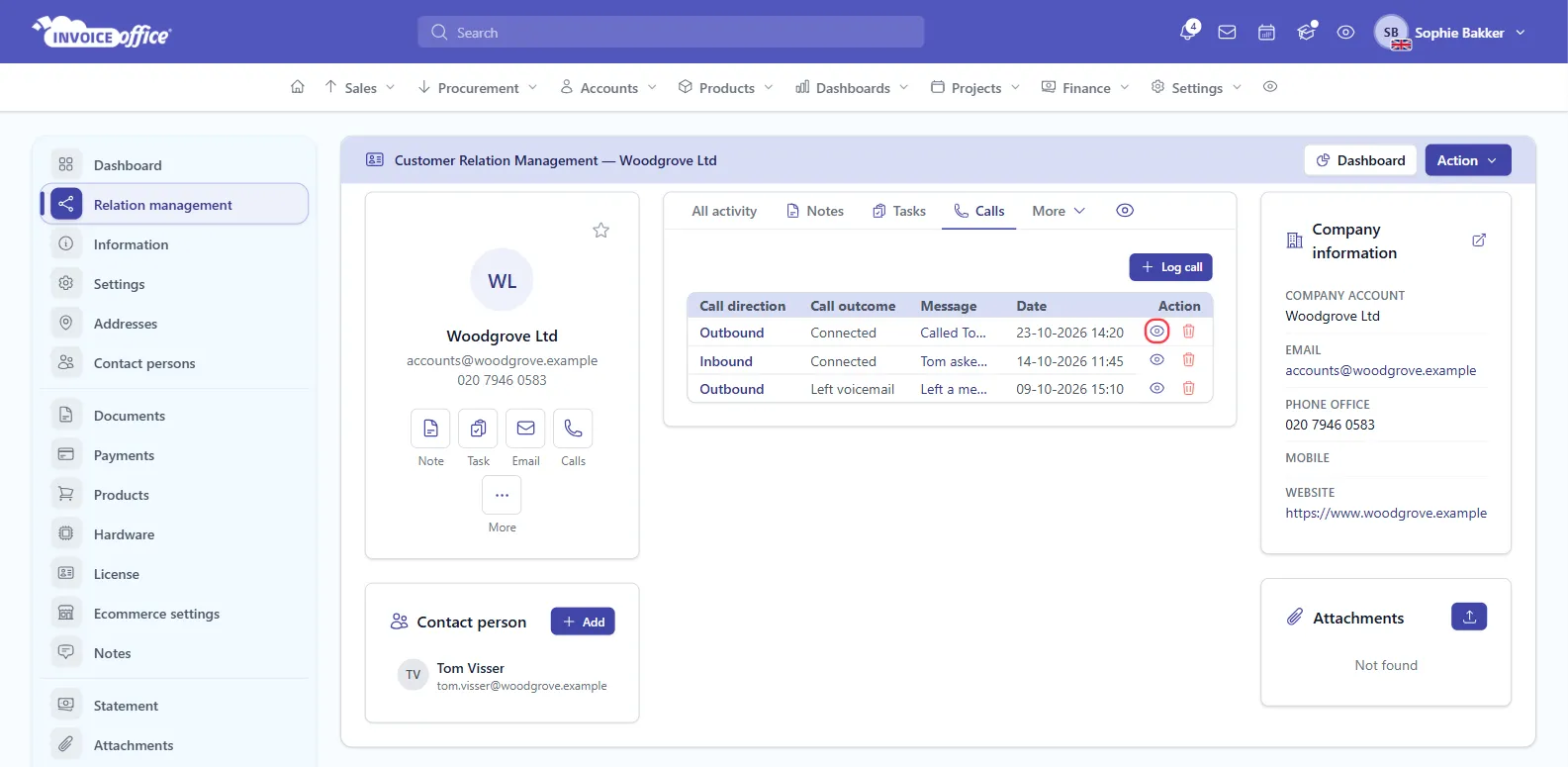
The Customer Relation Management page has three columns:
- On the left, the customer card. Its quick buttons are Note, Task, Email, Calls and More. The Contact person card sits below it.
- In the middle, the activity history, starting on the All activity tab.
- On the right, the customer’s Company information and Attachments.
Once you are in a customer’s record, Relation management is also in the menu on the left of every customer page.
Step 2 — Log a call
- On the customer card, click Calls. The Log call window opens.
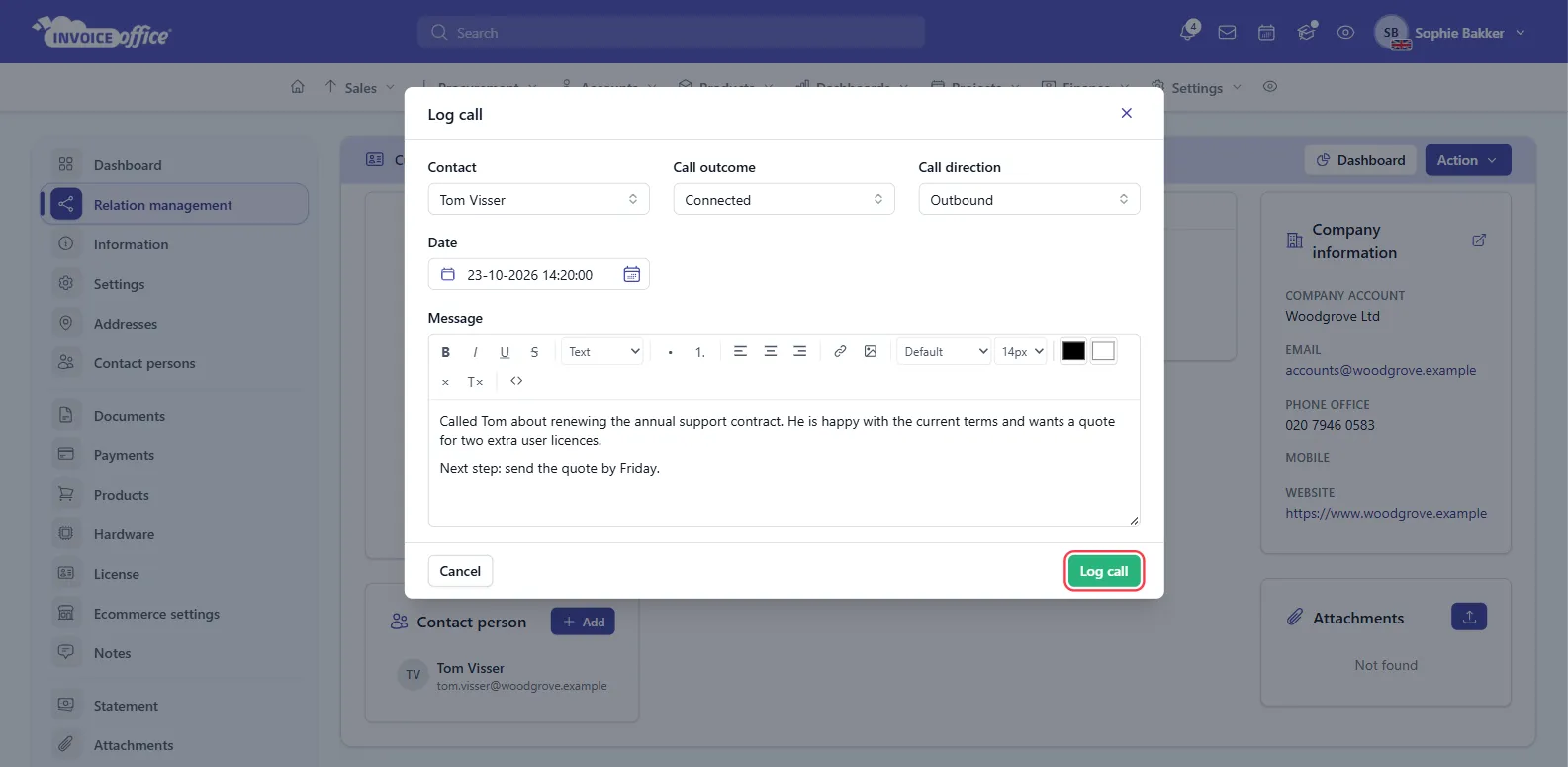
- Choose the Contact you spoke to. This is optional. The list shows the customer’s contact persons.
- Pick the Call outcome: Busy, Connected, Left live message, Left voicemail, No answer or Wrong number. This field is required.
- Set the Call direction: Outbound for a call you made (the default) or Inbound for a call you took.
- Date is filled in with the current date and time. Change it if you are logging the call later.
- Write your notes in Message: what was discussed and what happens next. The editor supports bold, lists and links.
- Click Log call.
Step 3 — Log a meeting
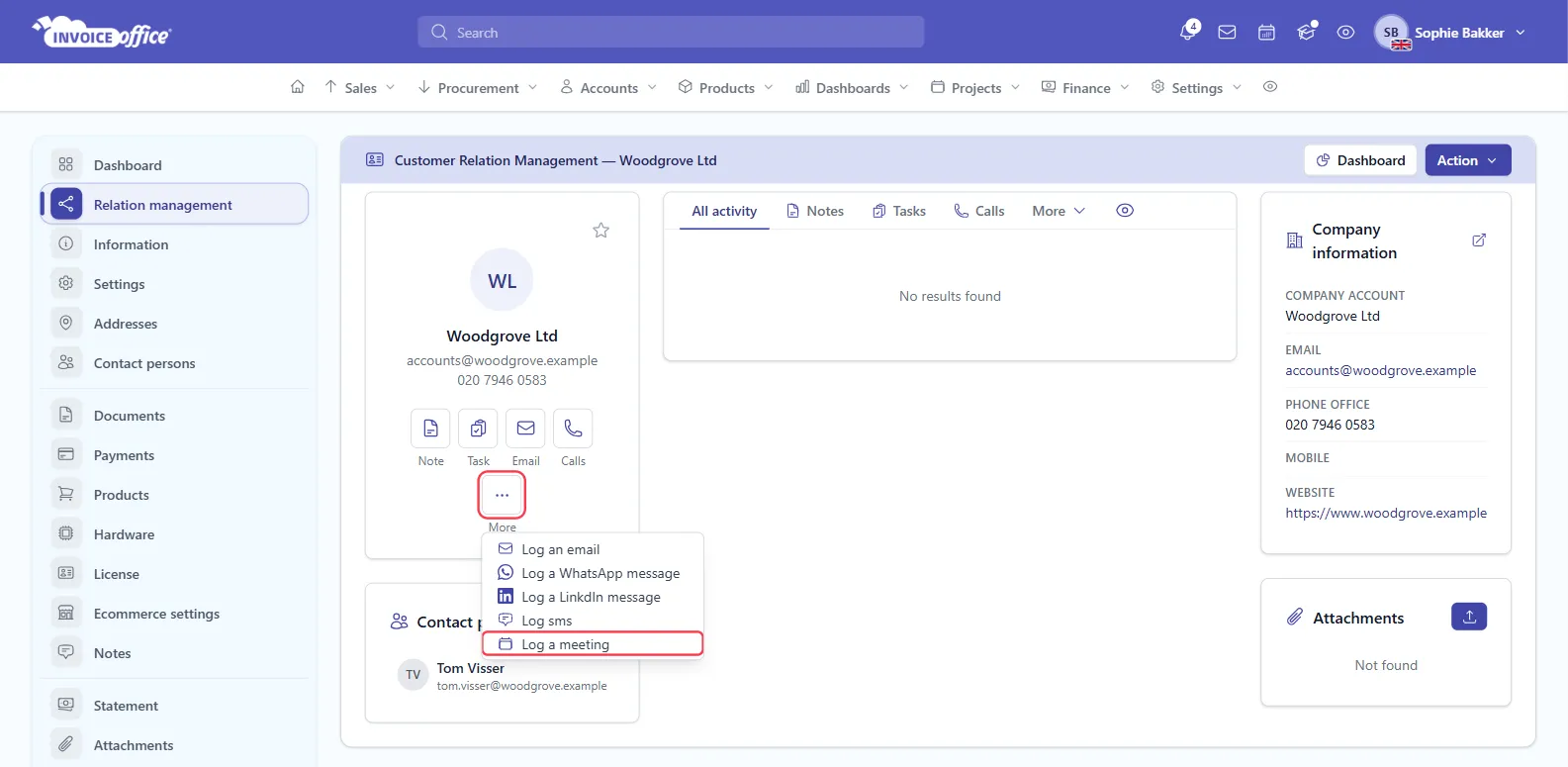
Meetings, emails, WhatsApp, LinkedIn and SMS activities are logged from the More button on the customer card.
-
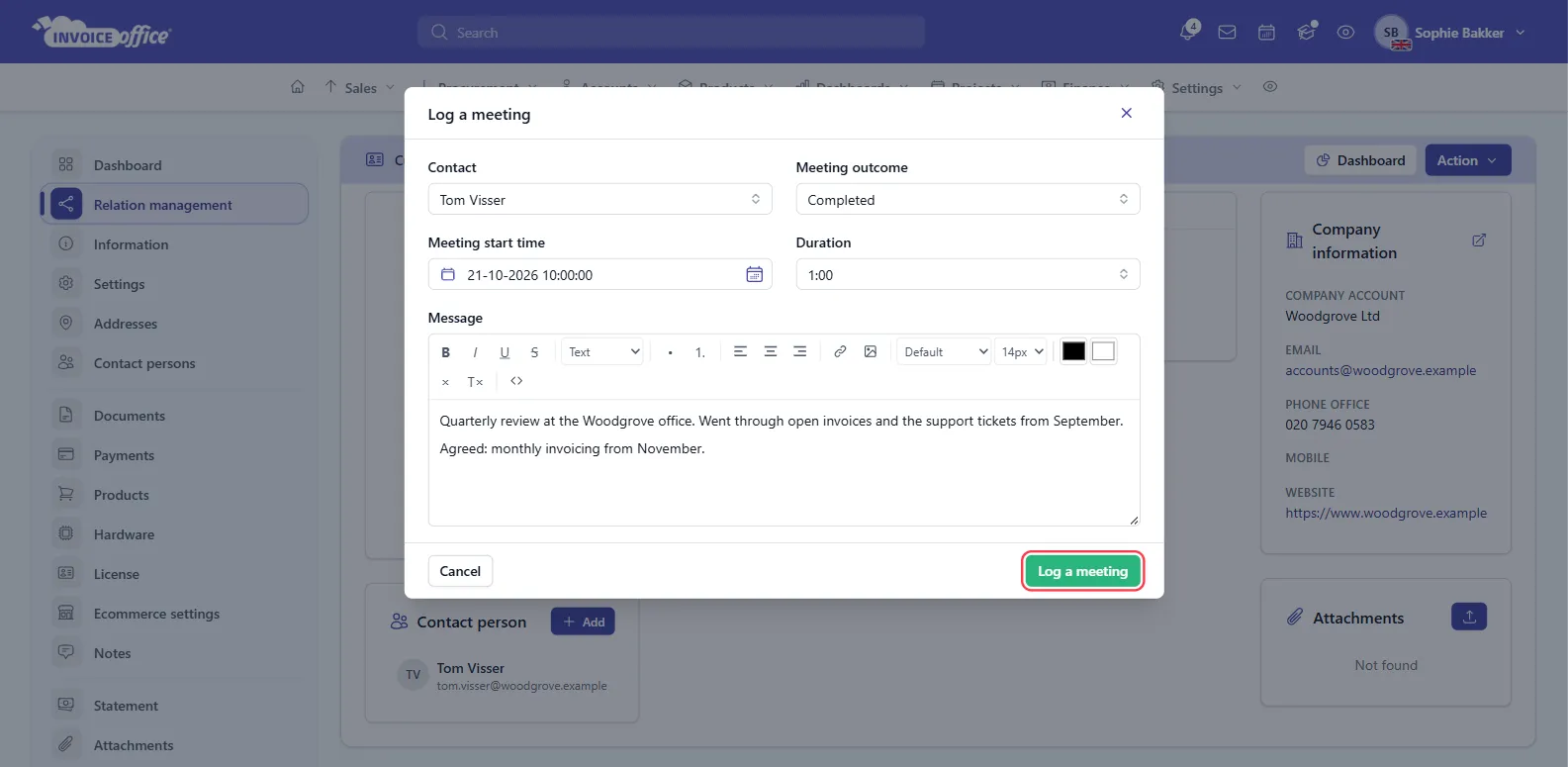
Click More and choose Log a meeting.
-
Choose the Contact you met.
-
Pick the Meeting outcome: Scheduled, Completed, Rescheduled, No shown or Canceled. This field is required. Use Scheduled to record a meeting you have planned, then change it once the meeting has taken place.
-
Set the Meeting start time and the Duration. Durations go up in steps of 15 minutes.
-
Add the agenda, decisions or action points in Message.
-
Click Log a meeting.
Step 4 — Log an email
If the customer has an email address, the Email button on the customer card opens a new message to it in your own email program. It does not log anything. To add an email to the customer’s history:
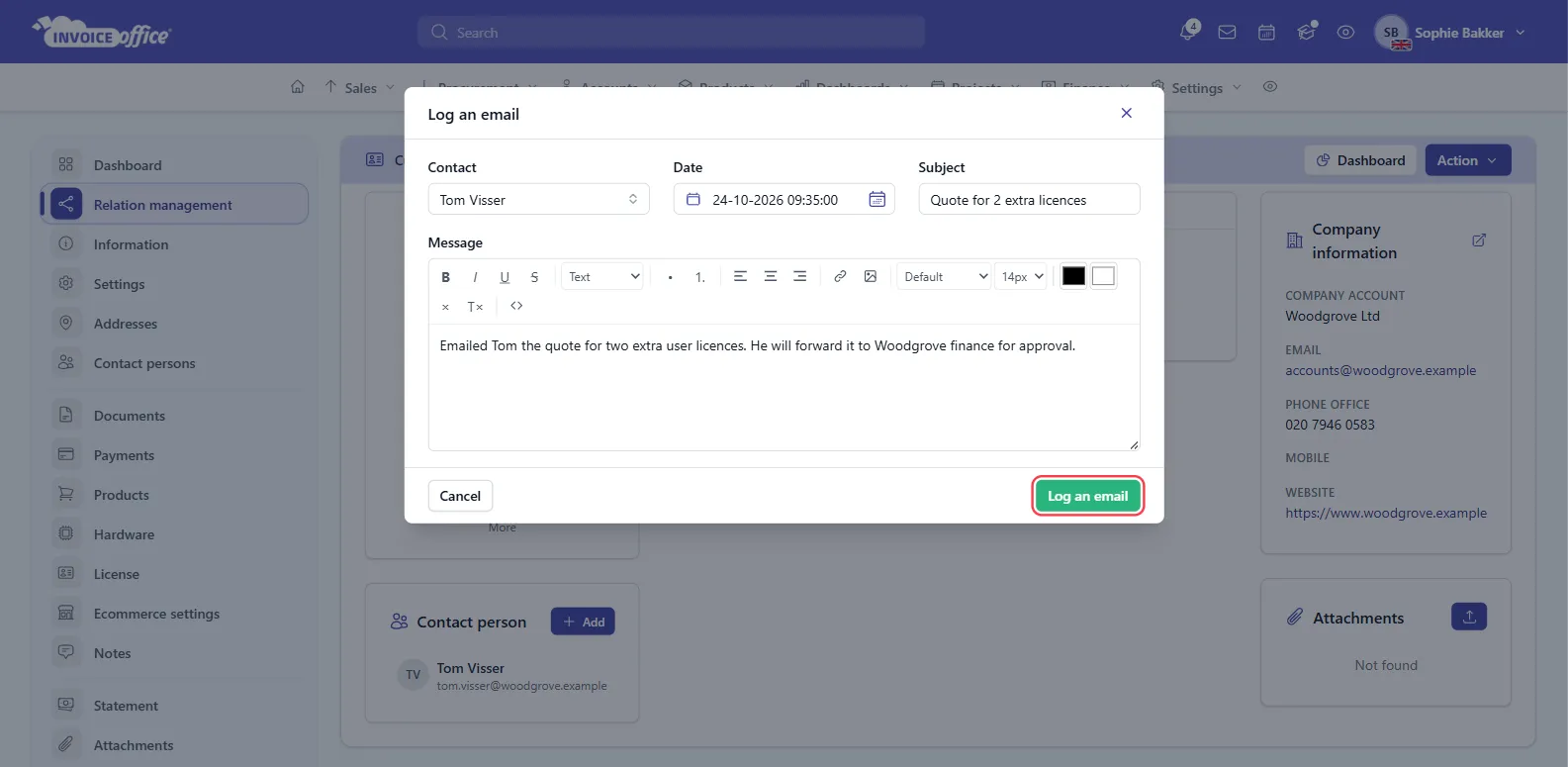
- Click More and choose Log an email.
- Choose the Contact the email was to or from.
- Check the Date. It defaults to the current date and time.
- Enter the email’s Subject. The subject becomes the entry’s title in the activity history.
- Summarise the email or paste the important part in Message.
- Click Log an email.
To change how the emails Invoice Office sends with your invoices and quotes are worded, see use the email template editor.
Step 5 — Log a LinkedIn, WhatsApp or SMS message
LinkedIn, WhatsApp and SMS activities share one short form.
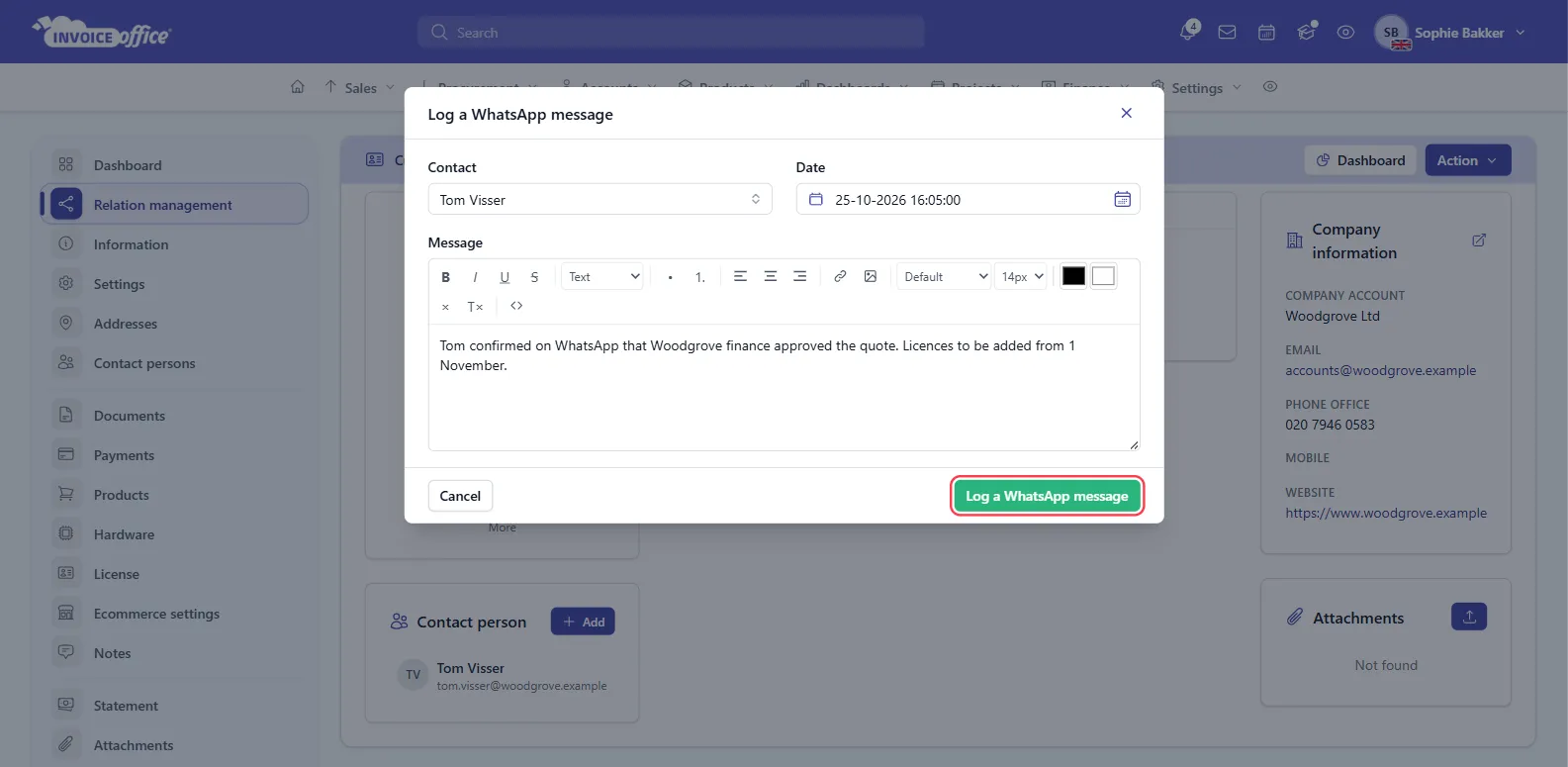
- Click More and choose Log a WhatsApp message, the LinkedIn message option or Log sms.
- Choose the Contact.
- Check the Date.
- Paste or summarise the conversation in Message.
- Click the button at the bottom of the window. Its label matches the menu option you chose, for example Log a WhatsApp message.
Step 6 — View the full activity history
The All activity tab is the customer’s timeline. It brings together the most recent calls, meetings, emails, LinkedIn, WhatsApp and SMS activities, plus the customer’s notes and tasks, newest first. It shows up to the 10 most recently logged entries of each type. Each entry shows:
- A coloured badge with the activity type: Note, Task, Calls, Meetings, Email, LinkedIn, Whatsapp or SMS.
- A title:
- for a call, the direction and outcome (for example Outbound — Connected);
- for a meeting, the outcome;
- for an email, the subject;
- for LinkedIn, WhatsApp and SMS, the start of the message.
- For calls, meetings, emails and notes, the start of your Message below the title.
- On the right, the date and time of the activity and the user who logged it.
Click an entry’s title to open it in its window. There you can correct the details and save them again.
See one type of activity at a time
Next to All activity, the tabs list each type on its own: Notes, Tasks, Calls, Email, Whatsapp, LinkedIn, SMS and Meetings. Tabs that don’t fit on the screen are under More.
Each tab shows a table of the 10 most recently logged activities of that type, with its own Log button, such as Log call on the Calls tab. Every row has two buttons:
- The eye opens the activity so you can edit it.
- The bin deletes it after you confirm.
Use the eye icon at the end of the tab row (Tab visibility) to hide tabs you don’t use or drag them into a different order. The order is saved for you, so your tabs may not match the list above.
Related articles
- Create a new customer. Every activity is logged on a customer.
- Add a new contact. Contact persons fill the Contact list in every log window.
- Use the email template editor. Change the emails Invoice Office sends for you.
- Use the activity log and audit trail. The history of changes to your documents, not your customer contact moments.
- Customer management in Invoice Office. Everything you can keep on a customer record.
- Still stuck? Browse the frequently asked questions.