Send your invoices, quotes, packing notes and payment reminders from your own Outlook or Office 365 address — Microsoft 365, as it is now called. Customers see your own domain, and replies land in your own Outlook inbox.
There is no SMTP host, port or app password to look up. You sign in to your Microsoft account once from Invoice Office, and Invoice Office then sends through it on your behalf.
Before you start
- You need the Modify right on Setting to open the Email server page.
- Connecting a mail server needs a paid licence (Basic or higher). Without one, the page is locked and the Connect button is greyed out.
- Have the login of the Microsoft 365 or Outlook mailbox you want to send from ready.
Step 1 — Choose Outlook / Office 365 as your provider
- Go to Settings → Email server. It sits in the Email group, under E-mail sender.
- Switch Enabled on.
- Set Mail server provider to Outlook / Office 365. The choice is saved straight away and the page reloads with an Authorize row in place of the SMTP fields.
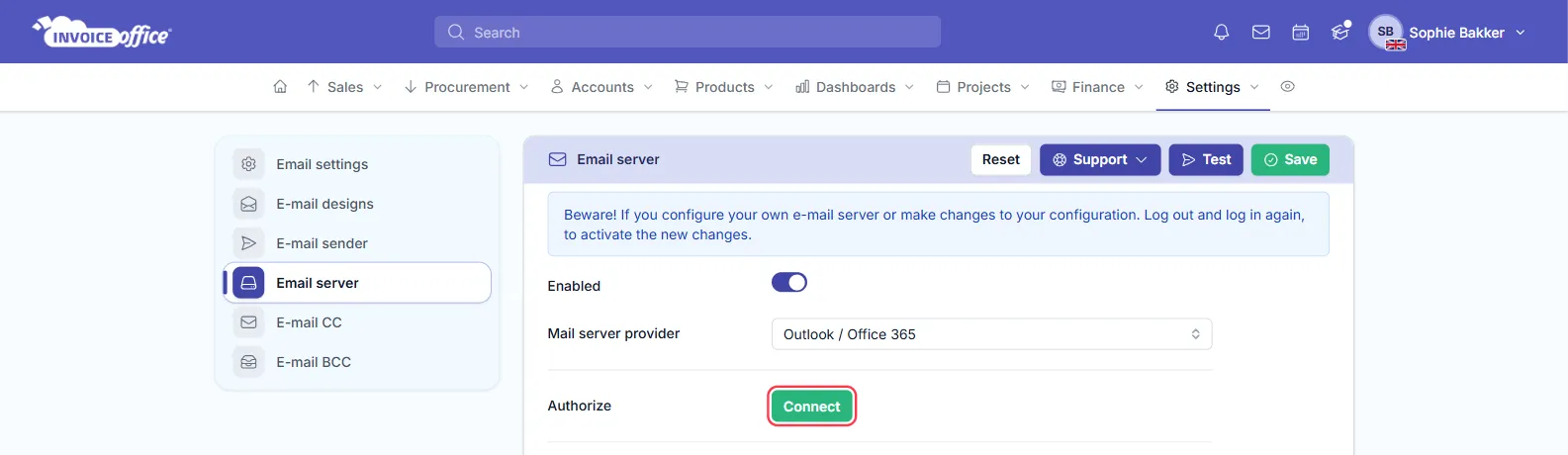
Step 2 — Connect your Microsoft account
- Click Connect on the Authorize row.
- Microsoft’s sign-in page opens. Sign in with the Microsoft 365 or Outlook account you want to send from.
- Accept the permissions Microsoft asks for. They let Invoice Office send email from your account.
- You are taken back to the Email server page. The button now reads Disconnect, and the connected account shows under it as Email address.
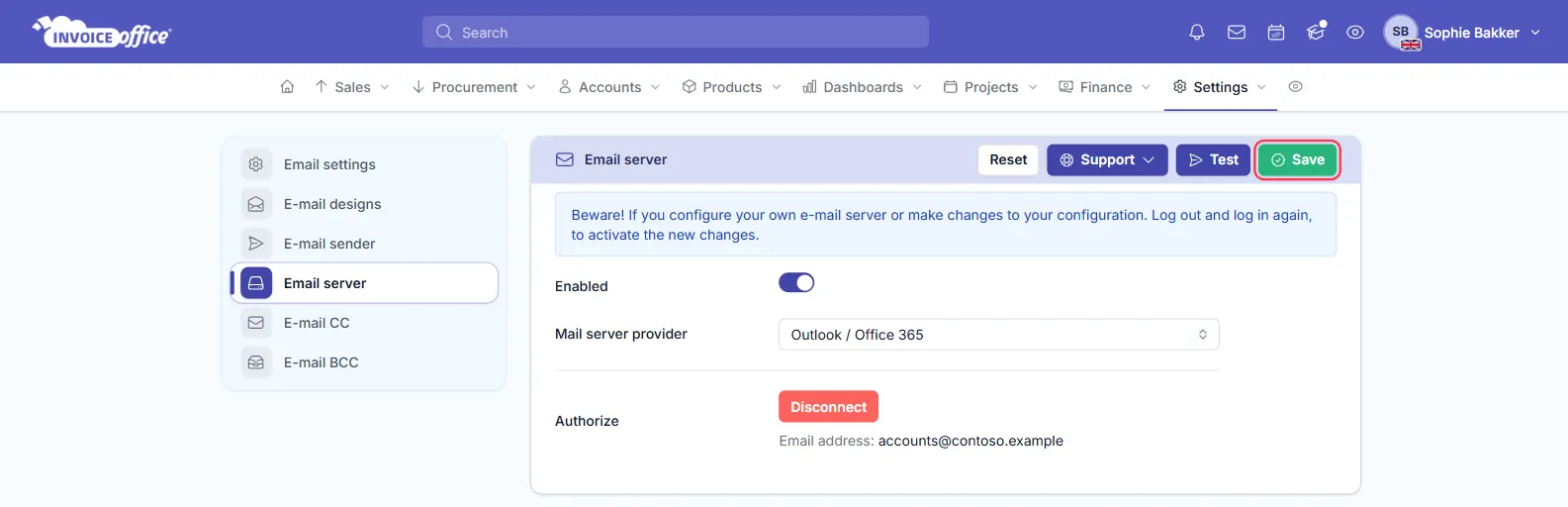
That connected address is the one your documents are sent from.
Step 3 — Save, then log out and back in
- Click Save.
- Log out and log back in. The page says so itself: a new mail server configuration only takes effect on your next session.
From then on, the documents you email from Invoice Office go out through your own Office 365 or Outlook account.
Disconnect or switch accounts
To stop sending through Microsoft, or to use a different Microsoft account, go back to Settings → Email server and click Disconnect. The connection and the stored address are removed. Click Connect again to sign in with another account.
Troubleshooting
- “Microsoft / Outlook account is not connected” when you send a document. Outlook / Office 365 is selected as the provider, but no account is connected. Open Settings → Email server and click Connect.
- Microsoft says you need admin approval. Some organisations only let administrators approve new apps. Ask your Microsoft 365 administrator to allow it. Microsoft explains the setting in Configure how users consent to applications.
- Nothing changed after connecting. Log out and back in. The new configuration only applies to your next session.
Not on Microsoft 365?
The same Mail server provider list has two other options:
- Gmail / Google Workspace: see Configure Gmail / Google Workspace for email.
- Custom: any other SMTP server, see Configure a custom SMTP email server.
Need a hand?
The Email server page has a Support button of its own. Or just contact us.