With your own SMTP email server connected to Invoice Office, the invoices, quotes and reminders you
send go out through your own mail server and from your own address — accounts@yourcompany.com
rather than an Invoice Office address. Customers see your domain, and replies land in your own inbox.
You set it up in your email settings under Settings → Email server, in the Email group. You need the Modify right on Setting to open it. Saving, testing and switching provider need a paid licence (Basic or higher); without one the page is locked.
Without your own server: the built-in mailer
Until you connect a server, Invoice Office’s own mail servers send your email:
- Without a paid licence it goes out from an address on Invoice Office’s mail domain, shown with your sender name, and replies go to your reply address.
- With a paid licence you can put your own address in the From field under E-mail sender — but the mail still leaves from Invoice Office’s servers, not your domain’s. The E-mail sender page warns that delivery then cannot be guaranteed and the email may be marked as spam.
Connecting your own server fixes that: the email leaves from your domain’s server, from your own address. That is what the rest of this article sets up.
Step 1 — Choose Custom as your provider
- Go to Settings → Email server.
- Switch Enabled on.
- Set Mail server provider to Custom. Use it for any SMTP server: your web host, your own mail server or a sending service. You enter the server details yourself in Step 2.
On Gmail / Google Workspace or Outlook / Office 365? Pick that provider instead. There are no server details to type in, you just connect your account. See Configure Gmail / Google Workspace for email or Configure Outlook / Office 365 for email.
Step 2 — Enter your SMTP server settings
With Custom selected, fill in the details your email provider gives you for sending mail (often listed as “SMTP” or “outgoing mail” settings):
- Username and Password — the login for the mailbox you are sending from. Some providers want an app password here rather than your normal one.
- Transport —
smtp. It is fixed; you do not change it. - Host — your provider’s SMTP server, for example
smtp.yourprovider.com. - Port — 2525, 465, 4655, 587 or 5877. Port 587 with tls is the most common choice; port 25 cannot be used.
- Encryption — tls, ssl or no encryption, as your provider specifies.
- Auth mode — plain, login, cram-md5 or no authentication mode.
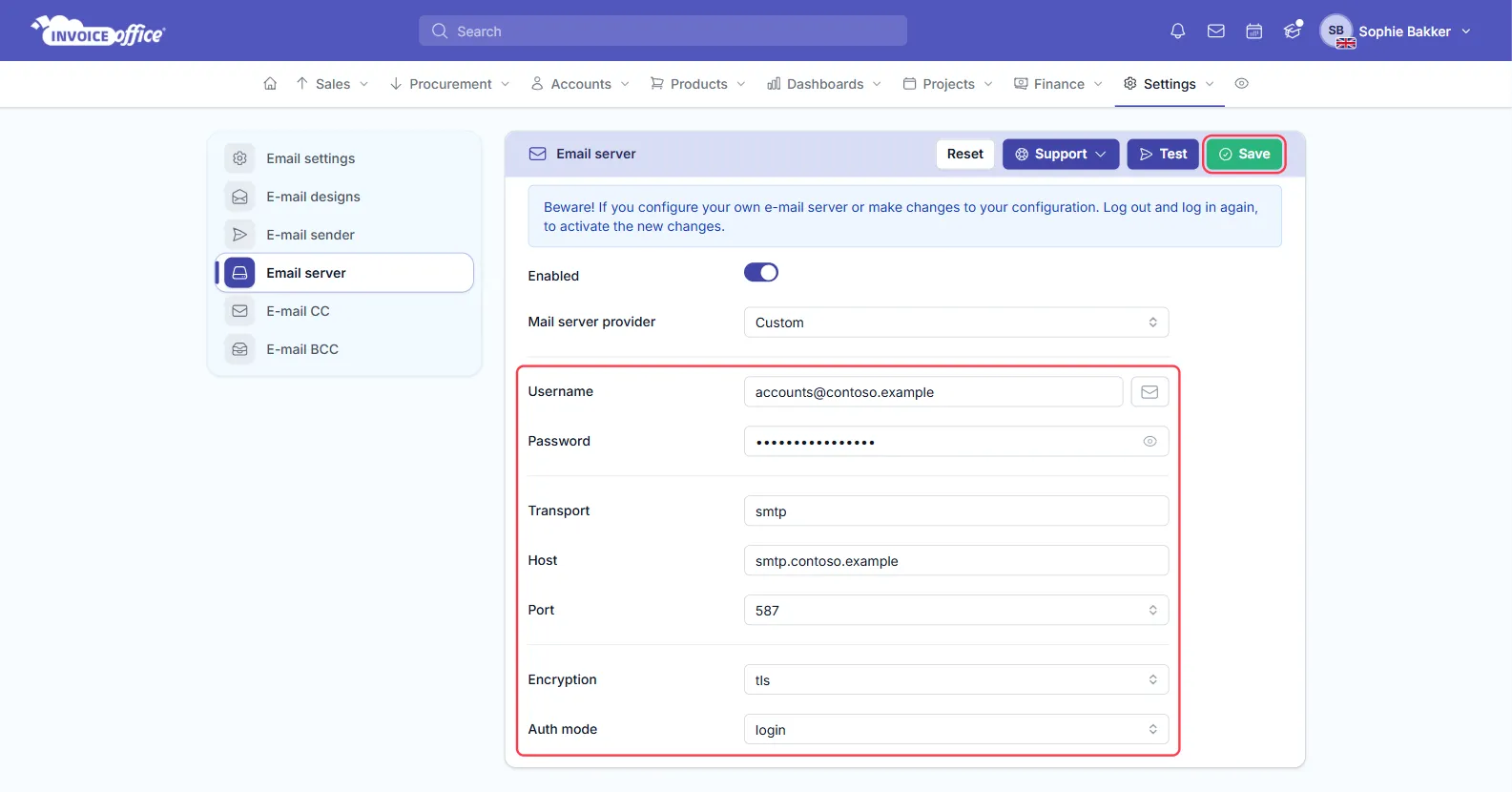
Step 3 — Save and test the connection
Click Save first, then Test. A window opens with Send email to filled in with your own address, a Subject and a Message — change the address if you like, then click Send.
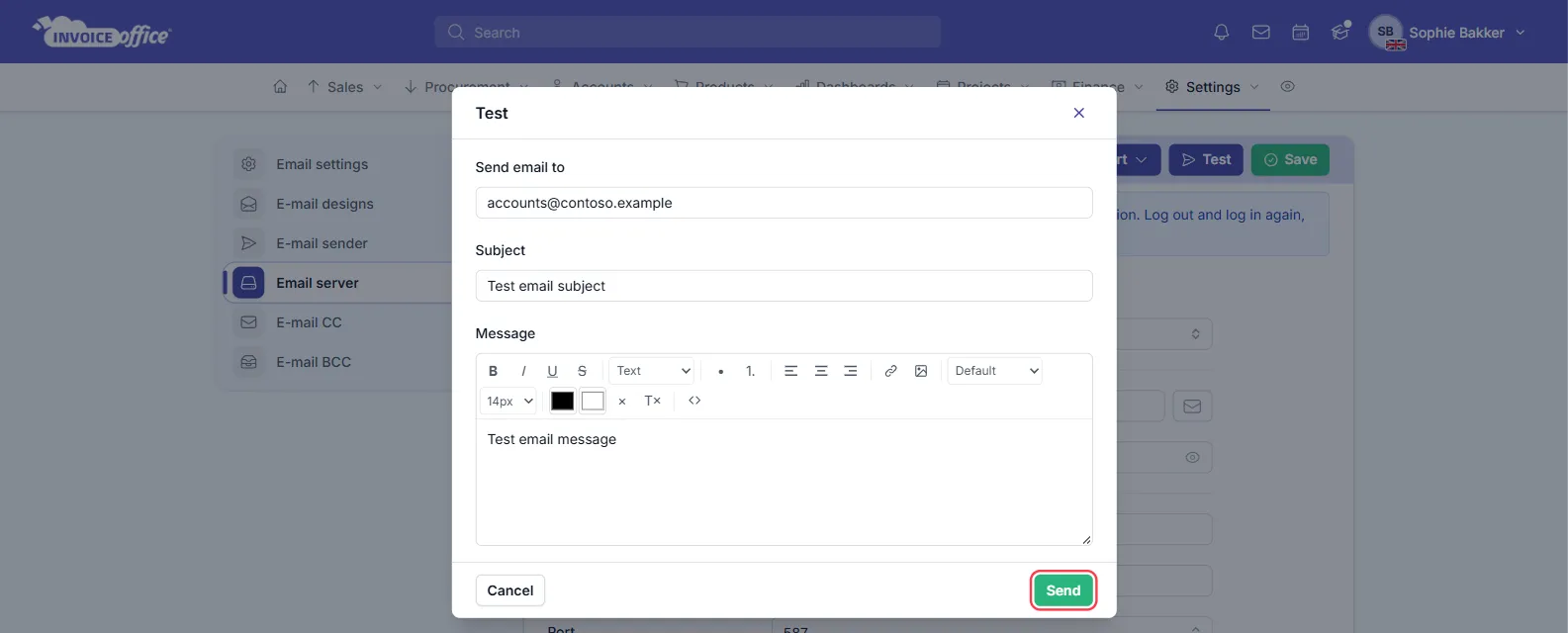
The test uses your saved password but the host, port, username and encryption currently on screen, so after the first save you can try other settings before saving them again. If the test fails, the error from your mail server is shown at the top of the page so you can correct the setting it points to. Your own account email has to be confirmed before you can send a test.
Step 4 — Set your sender name and address
Your sender details live next door, under Settings → E-mail sender:
- Sender Name — the name your customers see, usually your company name.
- From Email — the address the email comes from. Use the same address you log in to your mail server with — outgoing email may fail to send if they differ.
- Reply email — where customer replies go.
Switch on Use own e-mail address — it applies straight away — fill in your sender, mark it as the Default and click Save.
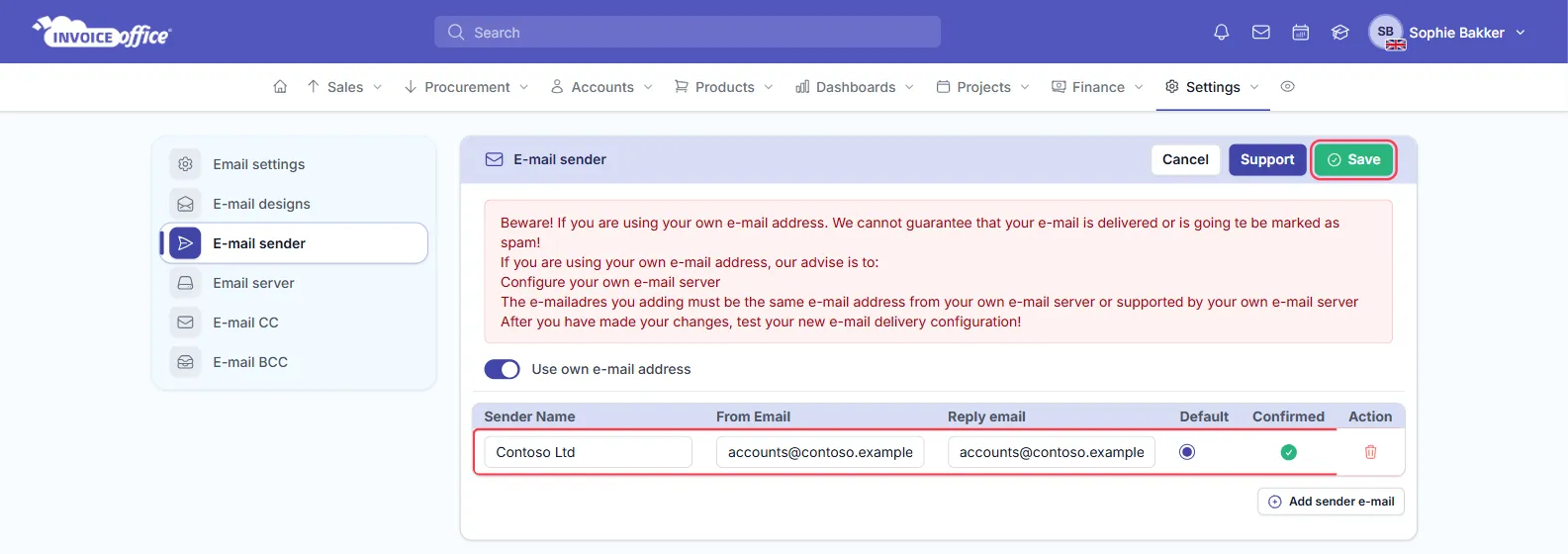
Add sender e-mail adds another sender. Invoice Office emails that address a confirmation link, and the sender stays pending until you click it: only confirmed senders are used.
Step 5 — Log out and back in
The Email server page says so itself: after you configure your own email server or change it, log out and log in again to activate the changes. Your next session sends through the new server.
Common questions
Can I send from my Gmail or Outlook address? Yes — choose Gmail / Google Workspace or Outlook / Office 365 as the provider and click Connect. See also Configure Gmail / Google Workspace for email and Configure Outlook / Office 365 for email.
Can one document go to several addresses? Yes — see How can I mail multiple e-mail addresses to a document?.
Need help setting it up? Use the Support button on the Email server page if you see it, or contact us.