To track email opens, clicks and bounces in Invoice Office, you don’t need to set anything up: every invoice, quote or other document you email from Invoice Office records what happens to the email afterwards — when it was delivered, when your customer opened it or clicked a link in it, and when it bounced. This guide shows where to find that email delivery status for each email you sent, what each status means, and how to use a bounce or an unopened email to decide your next step.
Where to see the status of an email
There are three places, from a quick glance to the full story.
The status badge in the document list
Open the list of the document type, for example Sales → Invoices. In the Status column, an emailed document shows an Email sent badge with an icon next to it. Hover over the badge to see the latest status, its date and time, and the email address it went to.
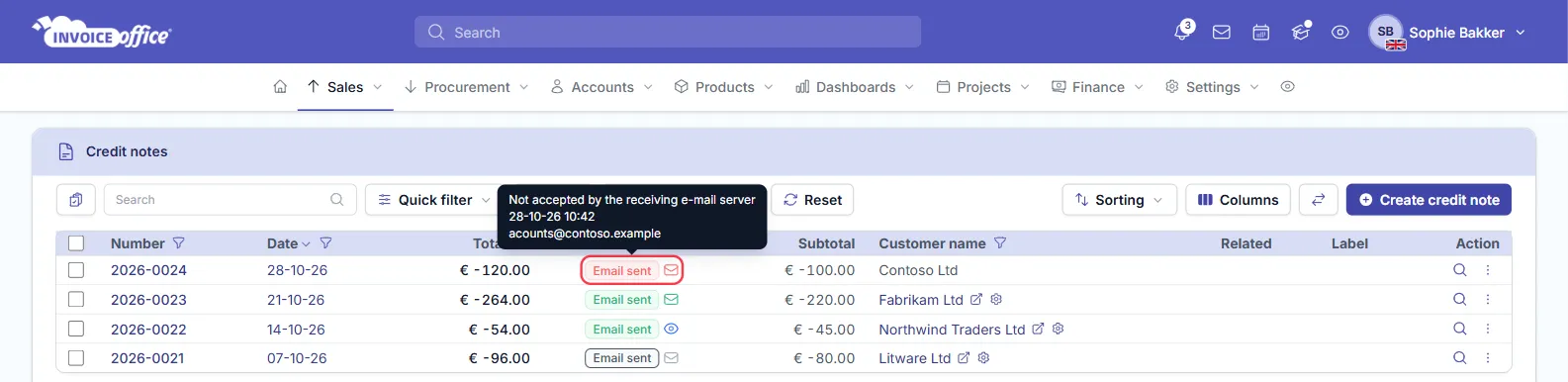
If the Status column isn’t in your list, add it with Columns in the list toolbar. The email status icon guide explains the icons in detail.
The history of the document
The badge shows only the latest step. For every step, open the Action menu of the document in the list and choose View history. From an open, finalized document you can also choose Action → View history; there it needs a Pro license. The timeline lists the newest event first; each email event shows its date and time, the address it was sent to and the status.
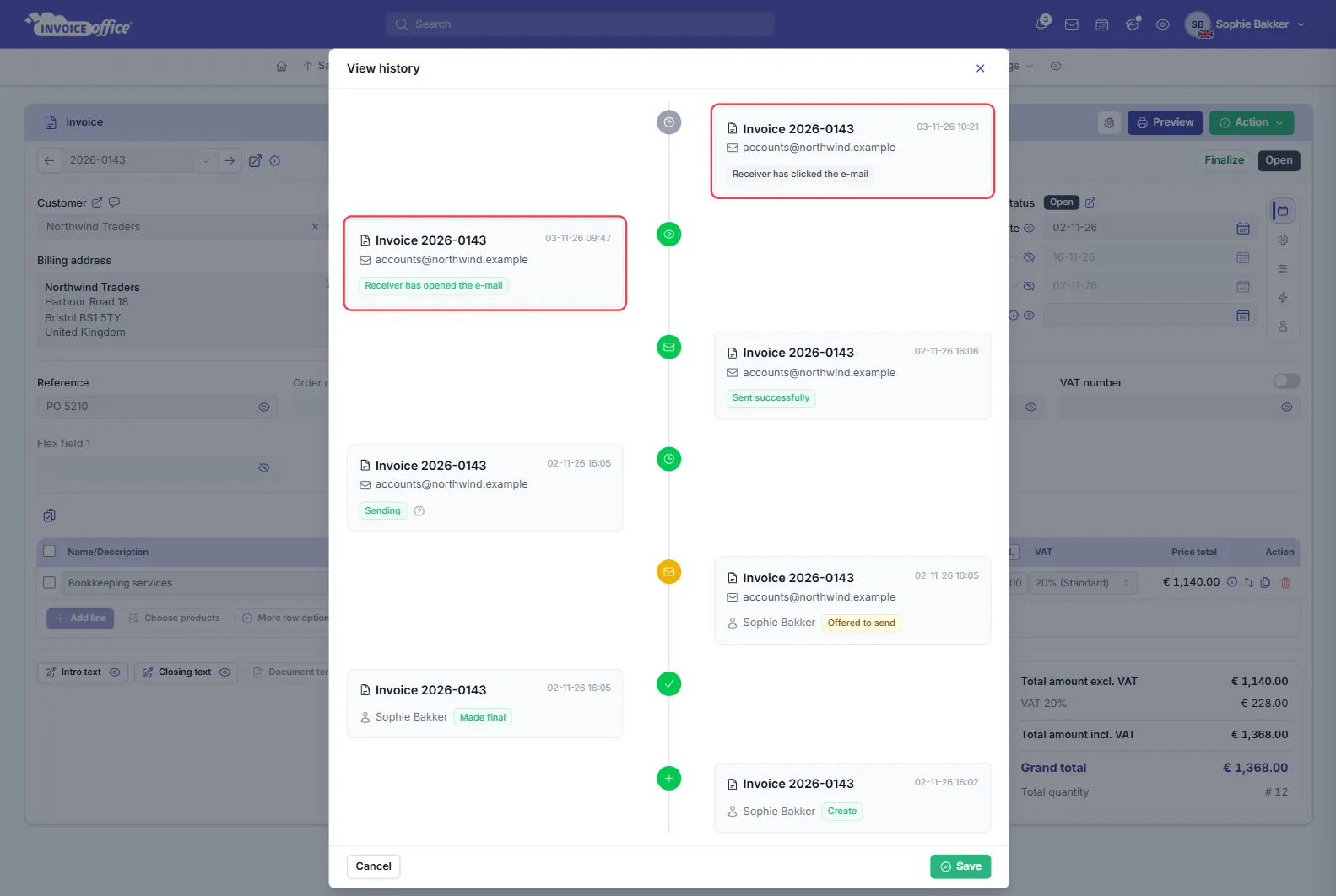
Each open and each click is logged, so you can see whether your customer came back to the email more than once.
Notifications
Some events also show up under the bell at the top of the screen, for the user who created the document. Click the bell to open Notifications; each line names the event, the document and the customer.
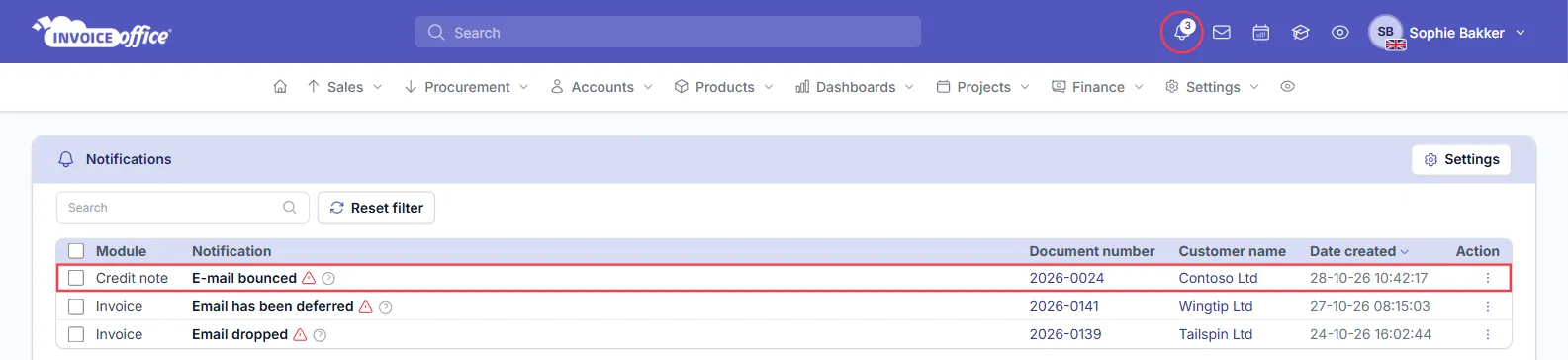
- E-mail bounced, Email dropped, Email has been deferred and Email clicked are always notified.
- Email delivered and Email opened are only notified when you switched on Email delivered or Email opened on the Email settings tab of the send window — and only the first time.
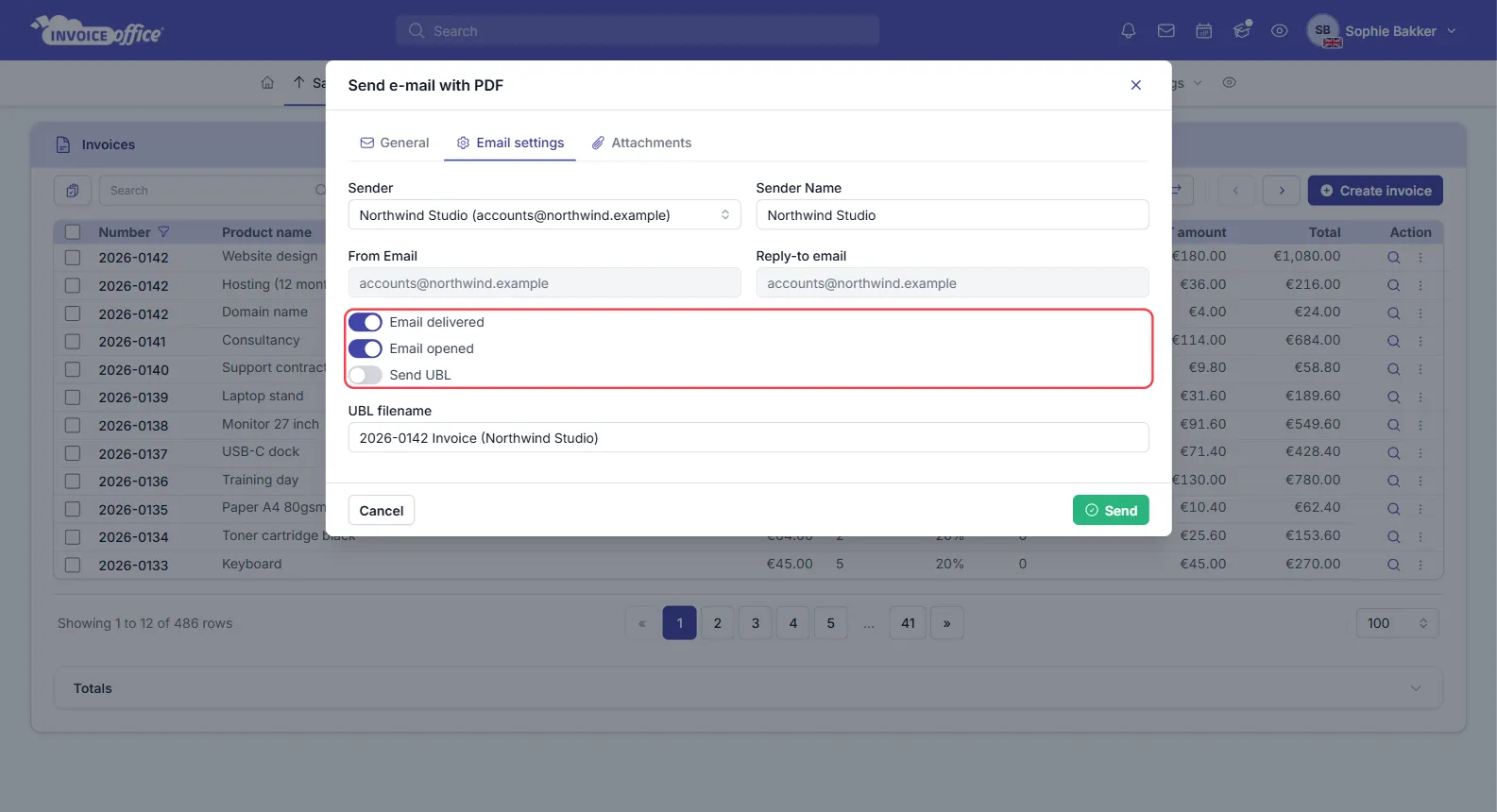
Those two switches only decide whether you get the notification. The status badge and the history are recorded either way. To switch them on by default, see how to set up an invoice email read receipt.
What each email status means (delivery, opens and bounce tracking)
The statuses appear in the badge’s hover text and in View history, in the app’s own words:
| Status | What Invoice Office shows | Badge icon | What it means |
|---|---|---|---|
| Sent | Offered to send, then Sending | Gray, then green envelope | You sent the document and Invoice Office’s mail service accepted the email. It hasn’t reached the customer’s mail server yet. |
| Delivered | Sent successfully | Green envelope | The customer’s mail server accepted the email. It may still have landed in a spam folder. |
| Opened | Receiver has opened the e-mail | Blue eye | The customer opened the email. |
| Clicked | Receiver has clicked the e-mail | Blue eye | The customer clicked a link in the email. |
| Bounced | Not accepted by the receiving e-mail server — notified as E-mail bounced | Red envelope | The customer’s mail server refused the email, for example because the address doesn’t exist. |
| Dropped | Not accepted by the receiving e-mail server — notified as Email dropped | Red envelope | The email was stopped before it reached the customer’s mail server, for example because the customer unsubscribed earlier or the address is invalid. |
| Deferred | Email has been deferred | Gray envelope | The customer’s mail server asked to try again later. Delivery is retried automatically. |
| Spam report | Receiver has reported the e-mail as spam | Red envelope | The customer marked your email as spam. |
For more on the failure statuses, see email delivery statuses explained.
When there is no status
- A blue envelope means the email went through your own email server. Invoice Office can’t see what happens after that: the history only records that the email was sent, with no opened, clicked or bounced status — see how to configure a custom SMTP email server.
- No “opened” although the customer read it. Opens are usually detected through a small image in the email, and many mail programs block images until the reader allows them. An email can be read without ever showing as opened.
Use the status to follow up
The status tells you which conversation to have with your customer:
- Bounced or dropped — the email never arrived. Hover over the badge and check the address; a typo or an old mailbox is the usual cause. Correct it, then send the document again with Action → Send e-mail with PDF — you can also send it to more than one address. Don’t send a payment reminder for an invoice the customer never received. The full checklist is in why is my email not being delivered.
- Deferred — wait. Invoice Office keeps retrying; check the history again later.
- Delivered, not opened — it reached their mail server. If the customer says they didn’t get it, ask them to check their spam folder.
- Opened or clicked, not paid — the customer has seen it. Follow up on the payment, not the email.
- Spam report — send the document another way, or ask your customer to add your address to their safe senders.
Related
- Why is my email not being delivered (bounce or spam)?
- How the viewer status icon works
- How the read and receive confirmation works
- How to configure a custom SMTP email server
- How to create an invoice
- How to mail a document to multiple e-mail addresses
- Bulk send or export documents
- Email delivery statuses explained