To show the delivery address next to the invoice address in your Invoice Office document design, put the Shipping Address block (your delivery address) in the same row as the Billing address block. Blocks in one row print side by side; blocks in separate rows print one below the other. There’s no separate on/off setting for it: the address block layout is simply how the two blocks are arranged, so you can switch between side by side and stacked yourself.
Put the delivery address next to the invoice address
-
Go to Settings → Document designs.
-
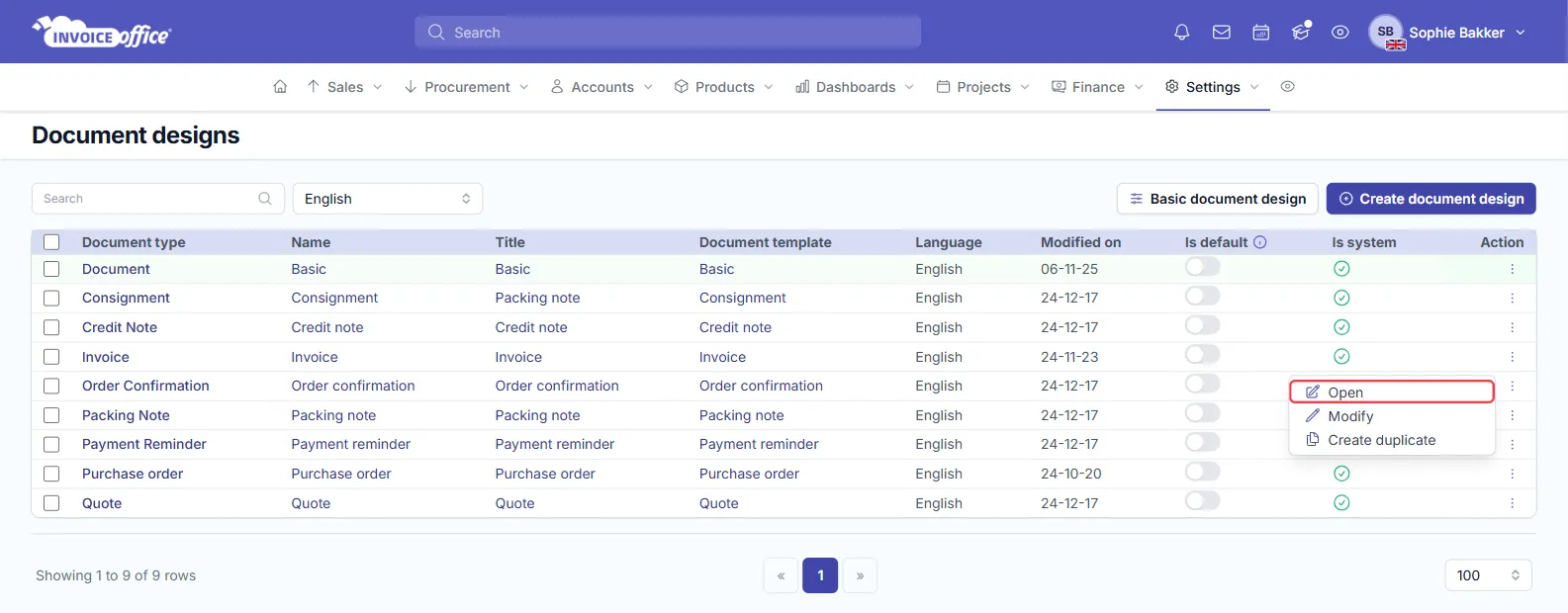
Choose the language at the top, then click the Action menu (⋮) on the document type you want to change, for example Order Confirmation, and choose Open.
-
At the top of the editor, switch from Document design to Document template: the layout of the blocks lives in the template. If you don’t see this switch, skip this step; your editor edits the layout directly.
-
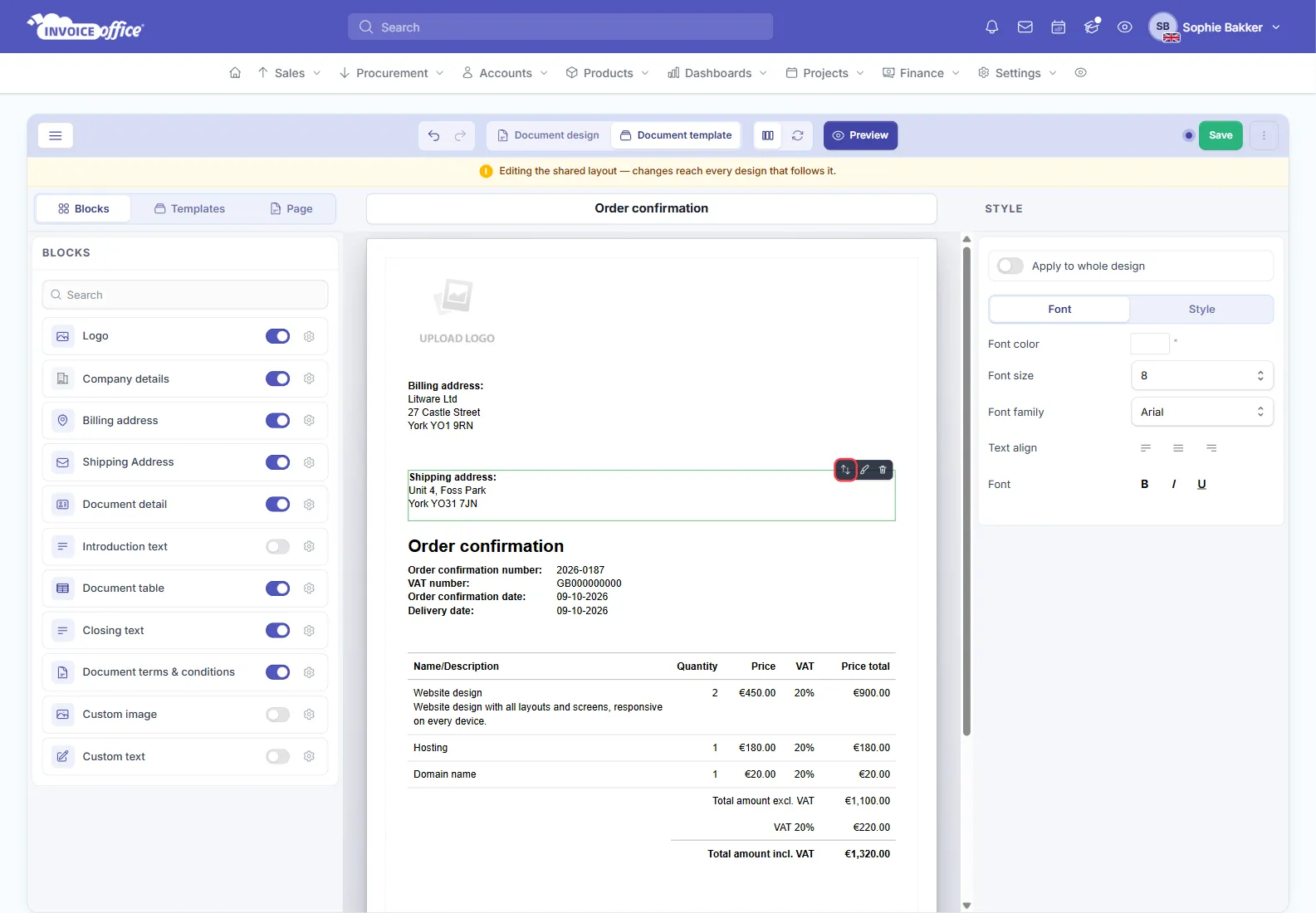
Under Blocks on the left, make sure Shipping Address is switched on. It appears on the page in its own row, below the billing address.
-
Point at the Shipping Address block on the page. A small toolbar appears above it: grab the Move handle (the arrows icon).
-
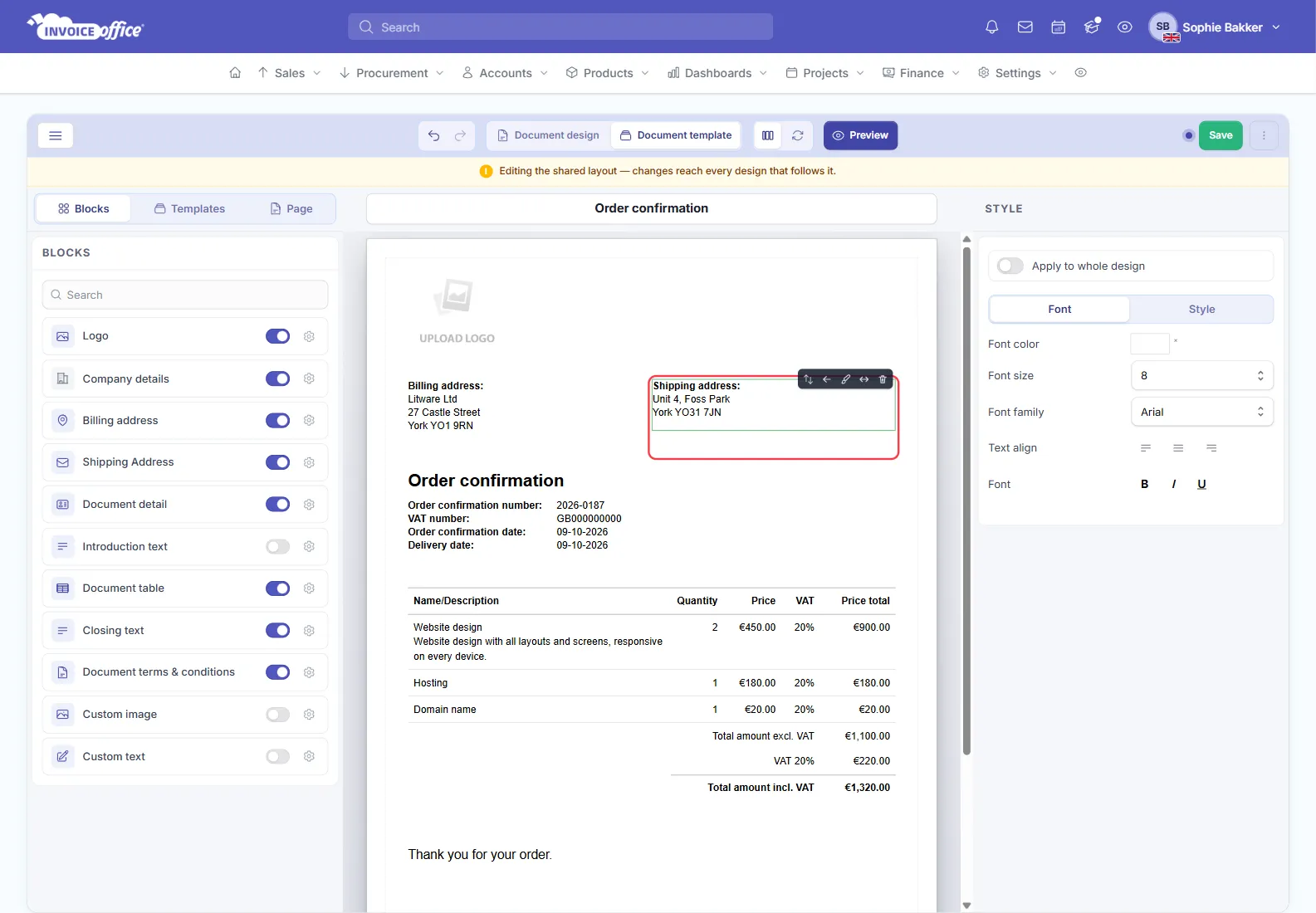
Drag the block up to the right of the Billing address block and drop it there. Both addresses now share one row, each taking half the width: the billing address on the left, the delivery address on the right.
-
Click Preview to check the result, then click Save.
If the blocks can’t be moved and the Blocks list is locked, turn off Use default design first.
If a document has no delivery address, the billing address still prints in the left half. To add a delivery address to a customer, see how to manage customer addresses.
Switch back to the stacked layout
Point at the Shipping Address block and click Full width in its toolbar. The block moves to a row of its own, below the billing address, and the two addresses are stacked again. Move left swaps the two blocks, putting the delivery address on the left. Click Save to keep the change.
The layout is set per document template
The arrangement belongs to the design’s Document template, not to the design itself. Your designs (one or more per document type and language) can each follow their own template or share one. If your invoice and order confirmation follow different templates, arrange the address blocks in each one. If they share a template, one change updates both.
While you edit the template, the editor shows “Editing the shared layout — changes reach every design that follows it.” The Document template column in the list shows which template each design follows.