You can export customer data from Invoice Office as an Excel (.xlsx) or CSV file straight from your customer list. Choose the columns you want — name, email, phone, address, contact person, created and modified dates — filter the list first to export only the customers you need, and download the file. Contact persons can come along in the same file, or you can export all customer contacts from their own list. Large Excel and CSV exports are built in the background and arrive as a download link in your notifications, so you don’t have to wait for a long download.
Step 1 — Open your customer list
Go to Accounts → Customers. The export is started from this list, and it exports what the list shows.
Step 2 — Filter the customers you export
The export follows the list: it holds the customers your search and filters show, not your whole customer base. With no rows ticked, you get every customer that matches; tick rows to export only those.
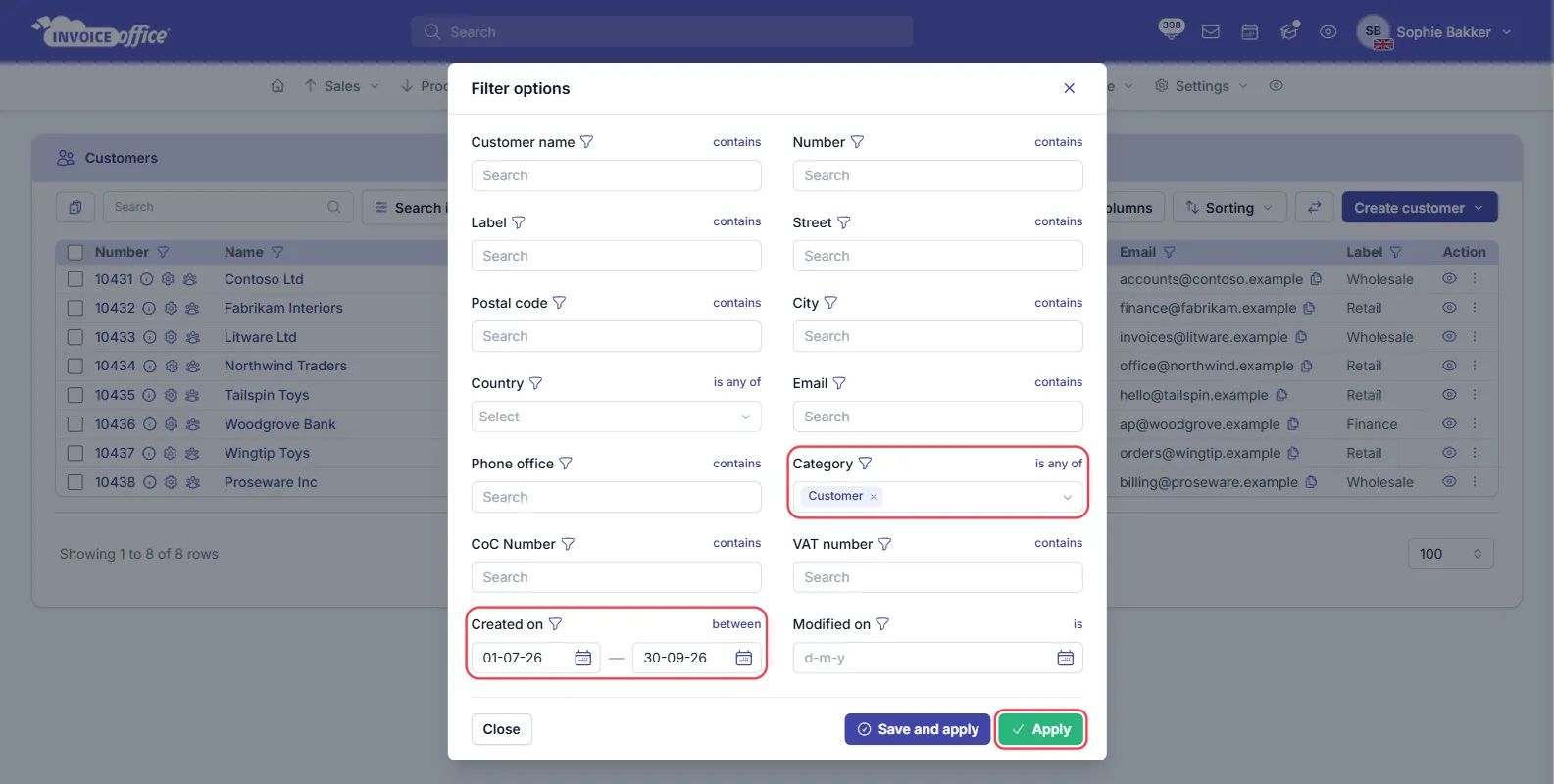
Click Filter to open Filter options. You can filter on:
- Customer name, Number, Email, Phone office, CoC Number and VAT number
- Label — handy if you use labels to tag groups of customers
- Street, Postal code, City and Country
- Category — Customer, Lead, Prospect, Offer or Not interested
- Created on and Modified on — a date range: is, before, after or between two dates (or is known / is unknown)
Text filters can match on contains, is equal to, starts with, is known or is unknown. Click Apply, or Save and apply to save the filter under a name so you can use it again. The Favorites star and the filter under each column heading narrow the export in the same way.
The search box narrows the export too, but only on customer number, name, email, label, CoC Number and VAT number. To export customers by address, use the City, Street or Postal code filter rather than the search box.
Step 3 — Choose the columns
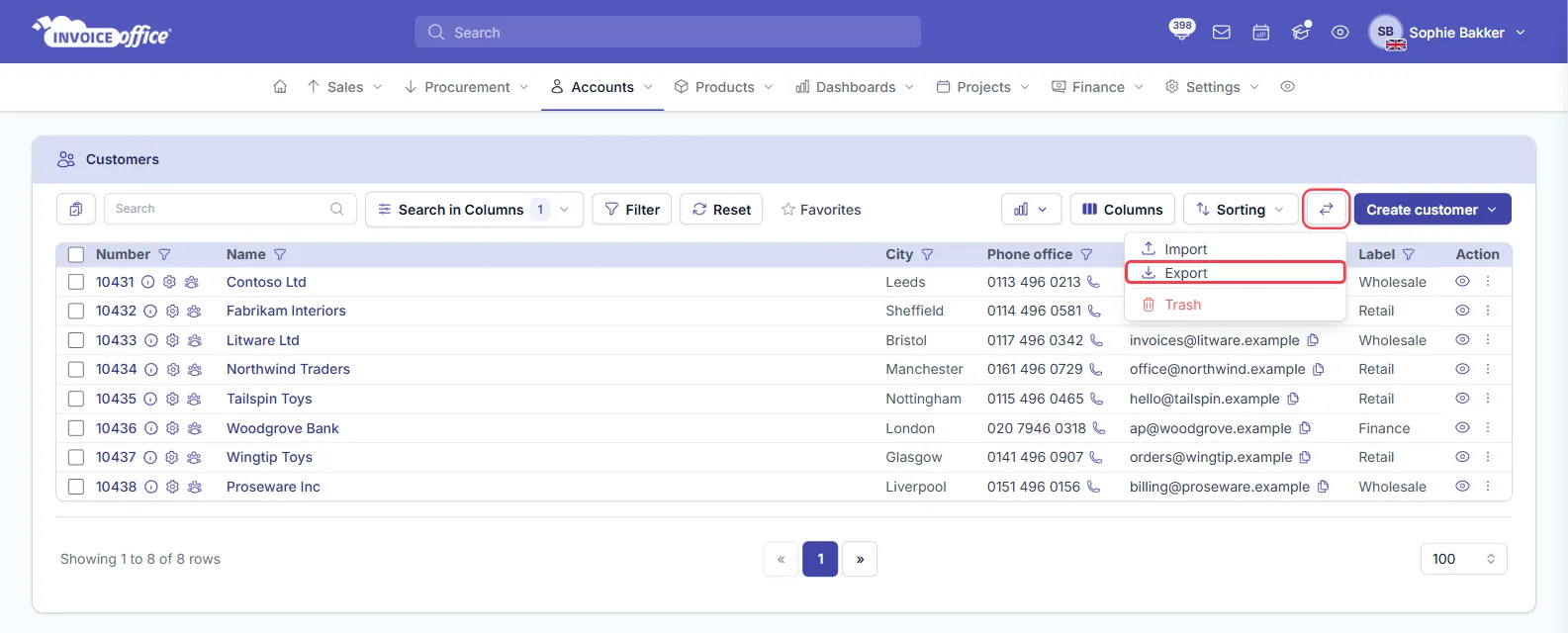
Click the ⇄ (Import / Export) button in the toolbar and choose Export. The Import option in the same menu brings customers in from a file — see Import customers, suppliers and products.
In the Export window that opens, pick a group on the left — Customer, Address or Contact — and click a field in the middle to add it as a column. The columns your file will have are listed on the right; click × to remove one. Number is always included and always comes first.
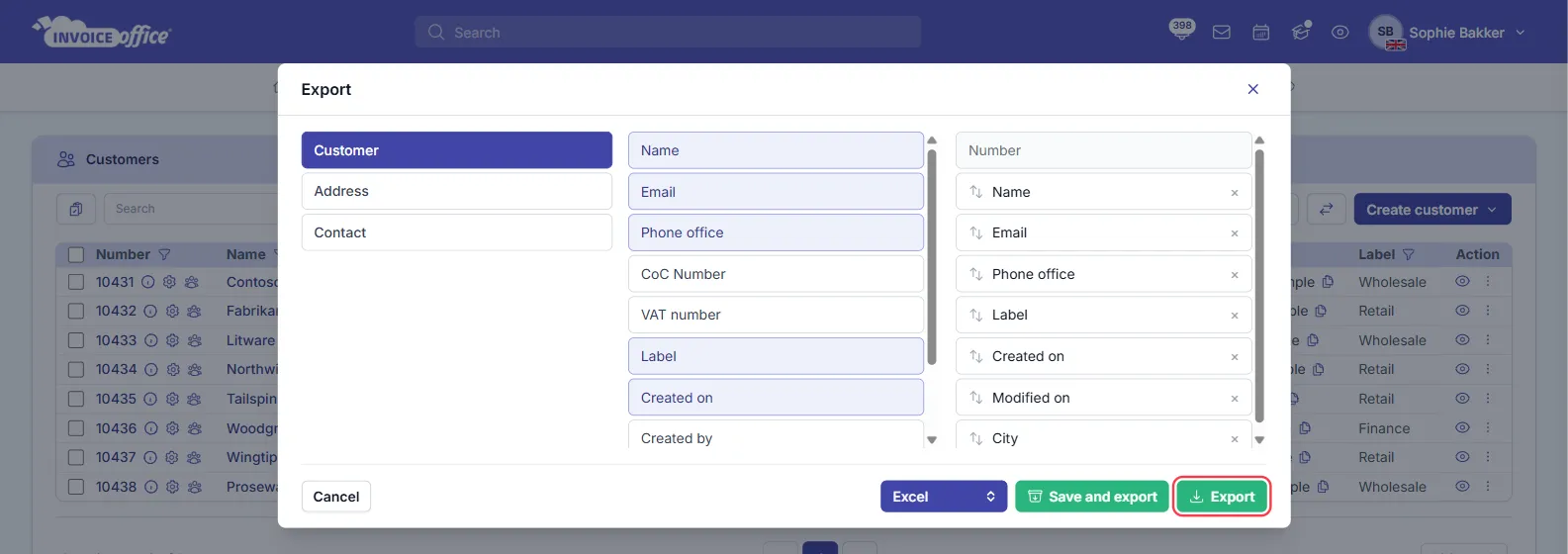
These are the fields that end up as columns in the file:
| Group | Fields |
|---|---|
| Customer | Name, Email, Phone office, CoC Number, Label, Created on, Created by, Modified on, Modified by |
| Address | City, Street, Postal code, State |
| Contact | First name, Middle name, Last name |
A few things to know about the file:
- The number column is headed Account number in the file.
- Phone office also adds a Mobile column.
- The columns are grouped: the Customer fields come first, then the Address fields, then the Contact fields.
- The address is the customer’s billing address.
- The window also lists VAT number, Country and Contact email. VAT number and Country don’t add a column to the file at the moment, and Contact email replaces the customer’s email in the Email column — leave it out if you need the customer’s own email address.
Step 4 — Choose Excel or CSV and export
At the bottom of the window, pick the format — Excel or CSV (PDF is there too) — and click Export. Click Save and export instead to keep your column choice for the next time you export customers.
If the export fits on one page of your list, the file downloads straight away. A larger export is built in the background — see Export a large customer list.
Export contact persons
There are two ways to get your customers’ contact persons into a file.
With their customer. In the customer export, add fields from the Contact group — First name, Middle name and Last name. Each row then holds one contact person next to their customer’s details, so a customer with several contact persons gets a row for each. A customer without a contact person still gets one row, with the contact columns empty.
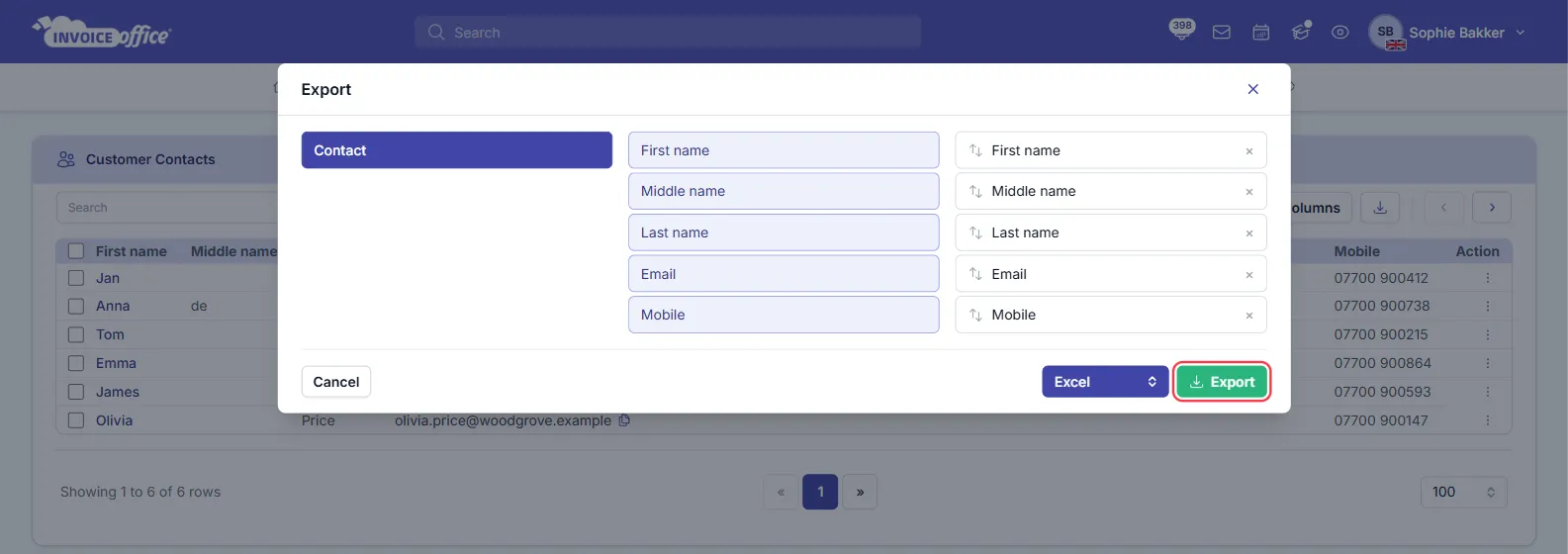
All customer contacts in one list. Go to Accounts → CRM → Customer Contacts, click the Export button (the download icon) in the toolbar, and pick from First name, Middle name, Last name, Email and Mobile. Choose Excel, CSV or PDF and click Export. This file does not say which customer each contact belongs to, so use the customer export above when you need that. On this list, the search box narrows the export.
To add or change a contact person, see Add a new contact.
Export a large customer list
When an Excel or CSV export has more rows than one page of your list, Invoice Office builds the file in the background instead of making you wait for the download:
- Click Export as usual. A message confirms that your customer export has started.
- Carry on working. When the file is ready, you’ll find a message under Notifications — the bell icon at the top of the screen.
- Open the message and click here to download the file.
The background export holds every customer that matches your filters, so you do not need to split a large list into smaller exports. The same applies to the Customer Contacts export.
A PDF export is not built in the background: it holds at most one page of rows, as set in your name menu at the top right → Account settings → Number of rows per table (up to 250). For a longer list, use Excel or CSV, or export in batches — for example one Created on date range at a time.
Created on and modified on dates
- Created on is filled for every customer: the date and time the customer was added. Created by shows the user who added them; it can be empty, for example if that user has since been removed.
- Modified on and Modified by show when and by whom the customer was last changed. For a customer that has not been changed since it was added, Modified on is the same as Created on. On some customers it can be empty.
- In a CSV file the dates are written as year-month-day with the time, for example
2026-10-13 14:05:00.
Related
- Export your data — exporting products, invoices and other lists
- Import customers, suppliers and products
- Create a new customer
- Add a new contact
- Customer management in Invoice Office
- Import and export data
- Frequently asked questions