A recurring purchase in Invoice Office records a supplier cost that comes back every period — rent, a software subscription, insurance, a phone contract. You enter the supplier invoice once, give it a Cycle, and from then on Invoice Office creates each purchase automatically on its date, so the same recurring supplier invoice never has to be typed in again.
A recurring purchase is its own document type, set up under Procurement → Recurring purchases. It is the buy-side twin of a recurring invoice.
Recurring purchases need a Pro license. Without one the Cycle, Create on and Create until fields are disabled, and the scheduled run creates nothing — you get the notification “A pro license is required to use this feature!” instead.
Step 1 — Create the recurring purchase
-
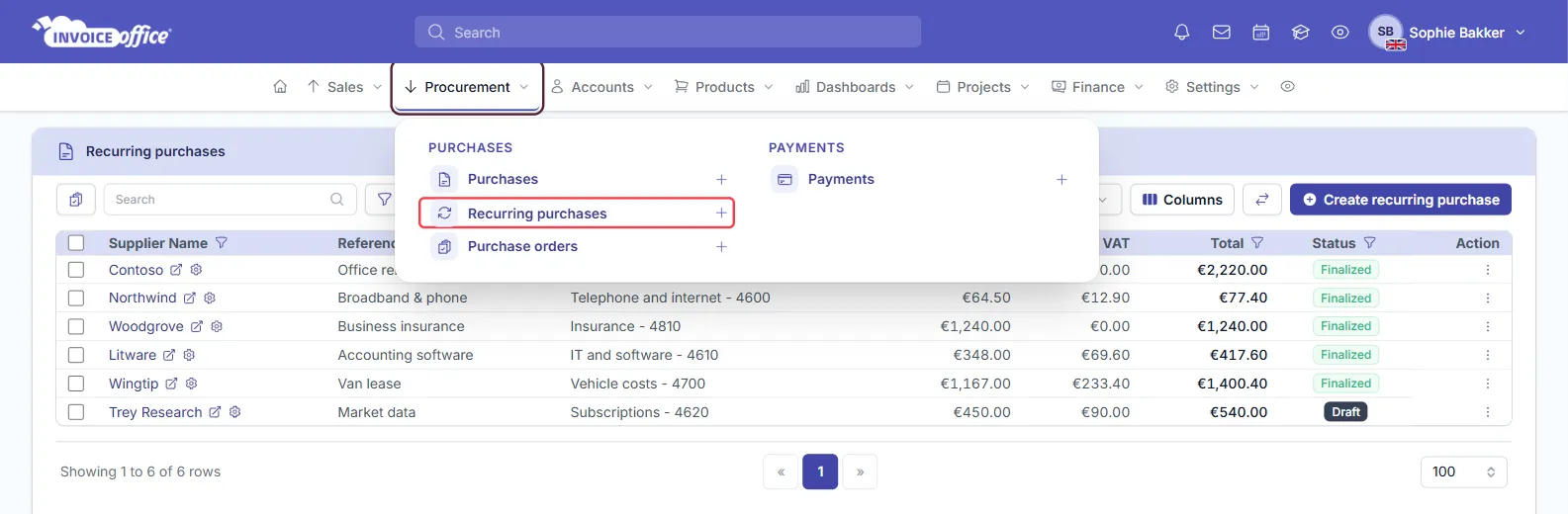
Open Procurement in the menu bar and click Recurring purchases — or the plus icon beside it to go straight to a new one.
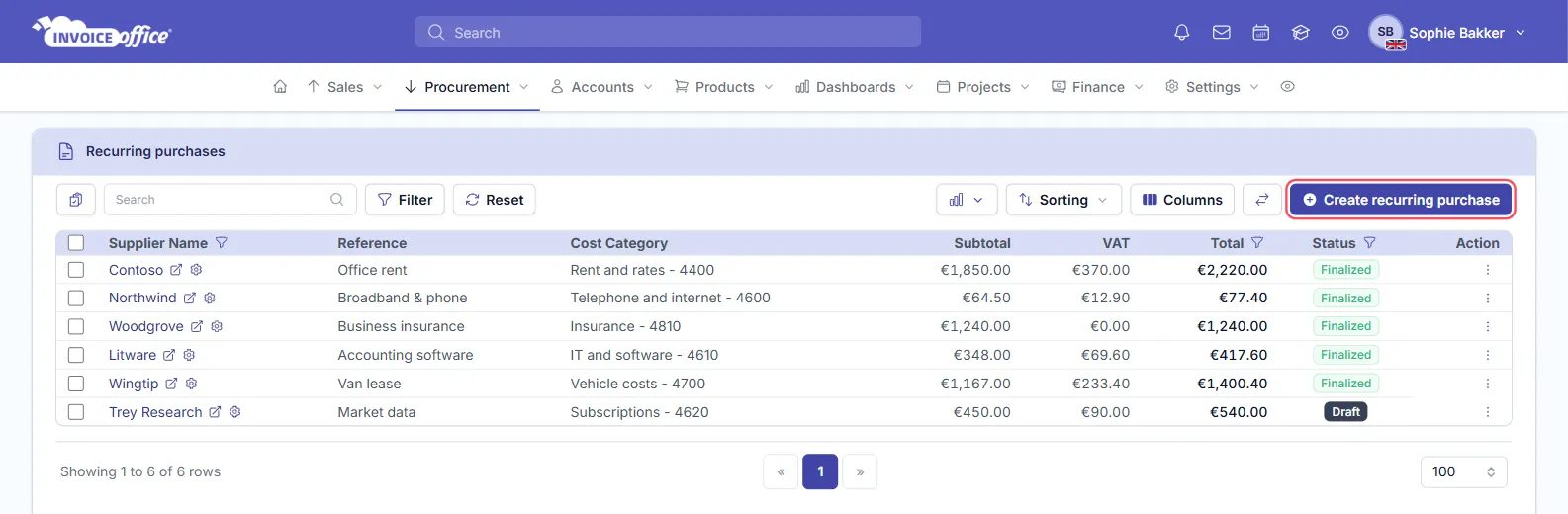
On the list, choose Create recurring purchase.
-
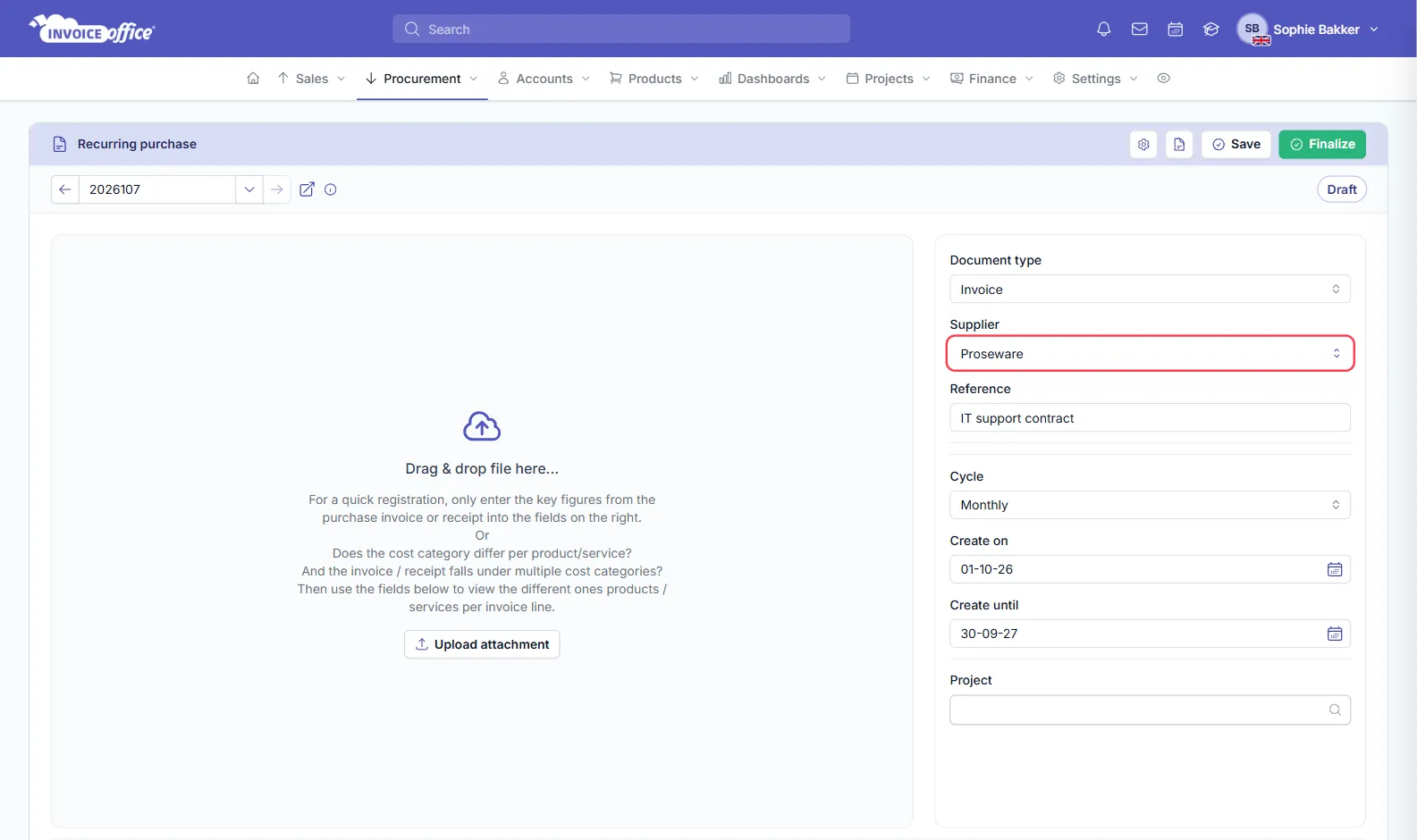
Pick the Document type: Invoice (the default), Receipt or Credit Note.
-
Choose the Supplier. If they are not in your list yet, first add a new supplier.
-
Add a Reference if you want one — it shows in the Reference column of the list, so something like “IT support contract” makes each series easy to find.
-
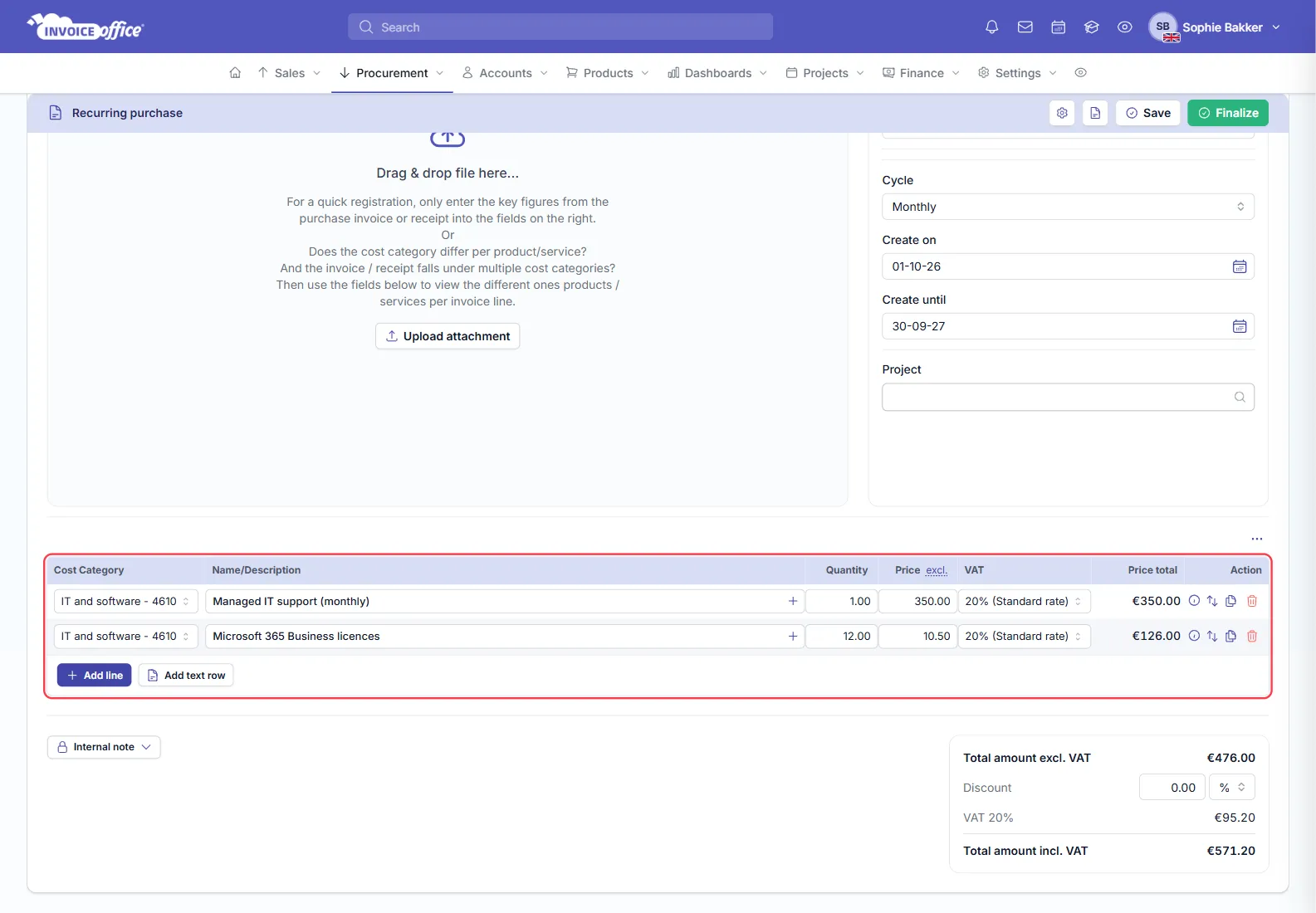
Add the lines as you would on a normal purchase: the Cost Category, a description, the Quantity, the price and the VAT rate. The amount you enter here is the amount every purchase in the series gets.
Step 2 — Set the cycle and dates
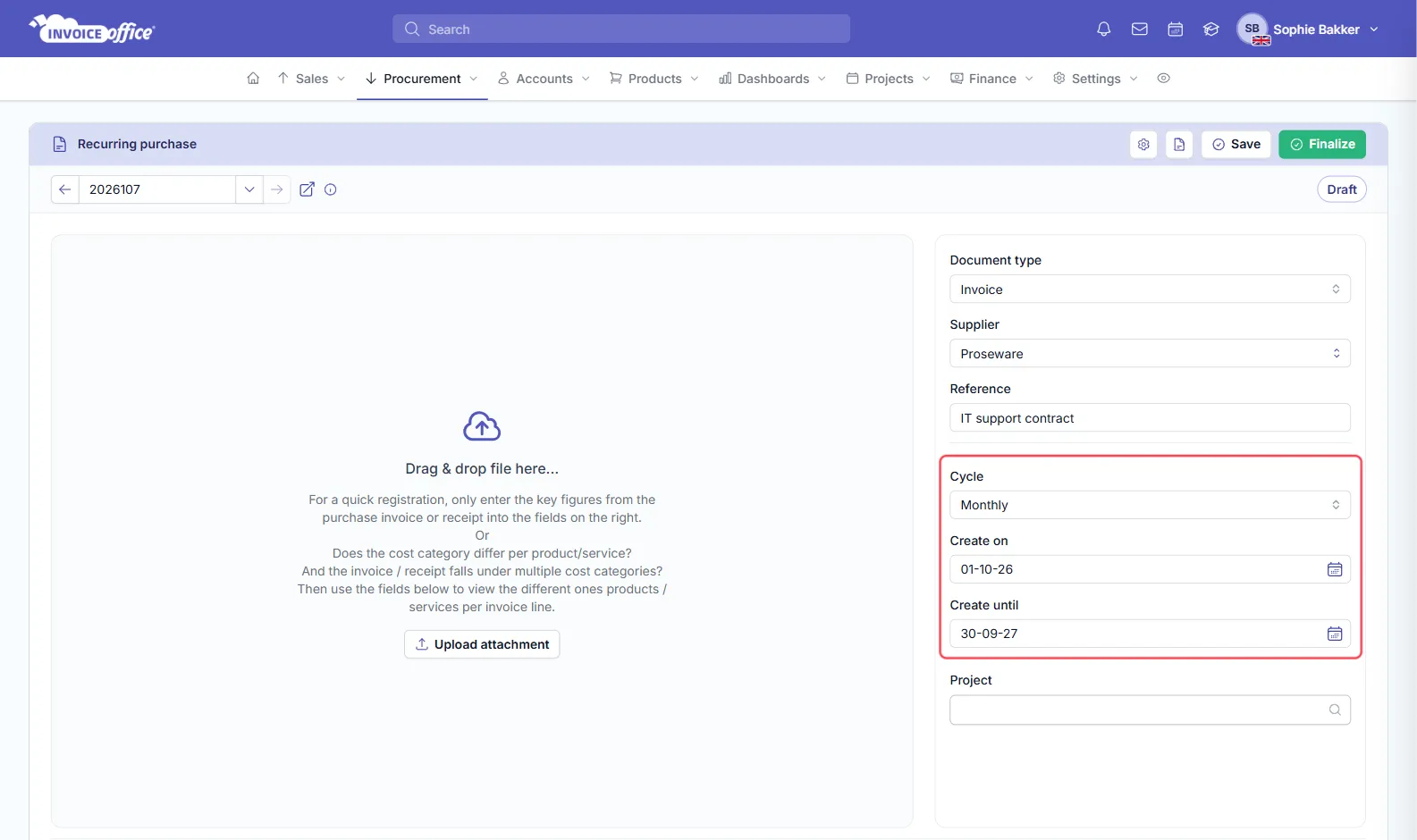
The schedule sits beside the supplier, in three fields:
- Cycle — how often the purchase repeats. A new recurring purchase starts on Once, so change it if the cost comes back.
- Create on — the date the first purchase is created. It is prefilled with tomorrow’s date and cannot be earlier.
- Create until — the date the series stops. Leave it empty for a cost with no end date.
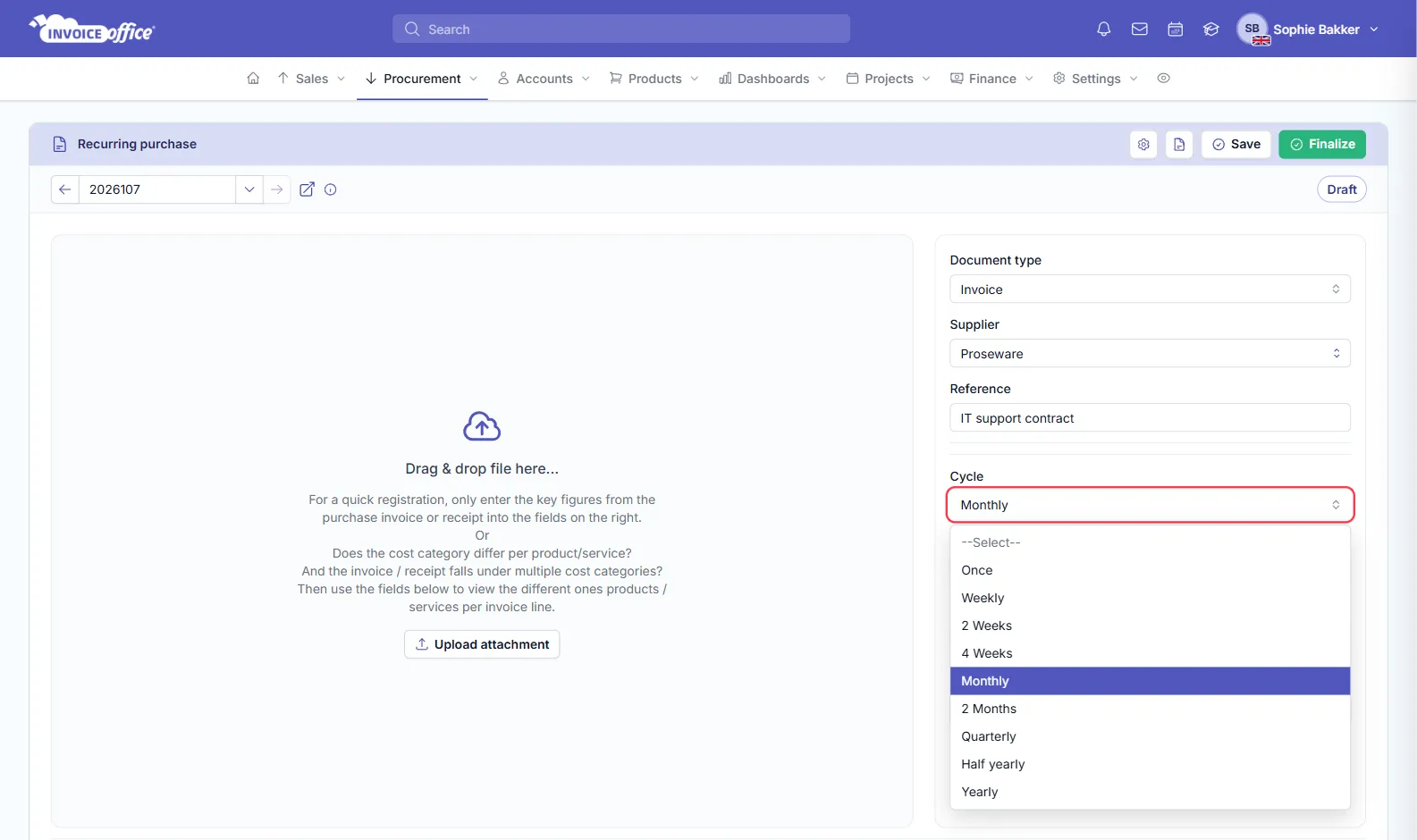
The Cycle list has nine options:
Once · Weekly · 2 Weeks · 4 Weeks · Monthly · 2 Months · Quarterly · Half yearly · Yearly
Once creates a single purchase on the Create on date instead of repeating it.
Step 3 — Save and finalize
- Click Save in the top-right of the card. The recurring purchase is now a Draft.
- When it is right, click Finalize.

Only a Finalized recurring purchase is picked up by the schedule — a Draft is never run. The Status column on Procurement → Recurring purchases shows which series are which.
What happens on each date
On each date the Cycle reaches, Invoice Office:
- Creates a new purchase from the recurring purchase, dated that day, with the same supplier, lines and attachments.
- Leaves it as a Draft, without a document number, so you can check it against the supplier’s actual invoice before it goes into your books.
- Adds a “Created recurring purchase” notification, and records the run under Action → View history on the recurring purchase.
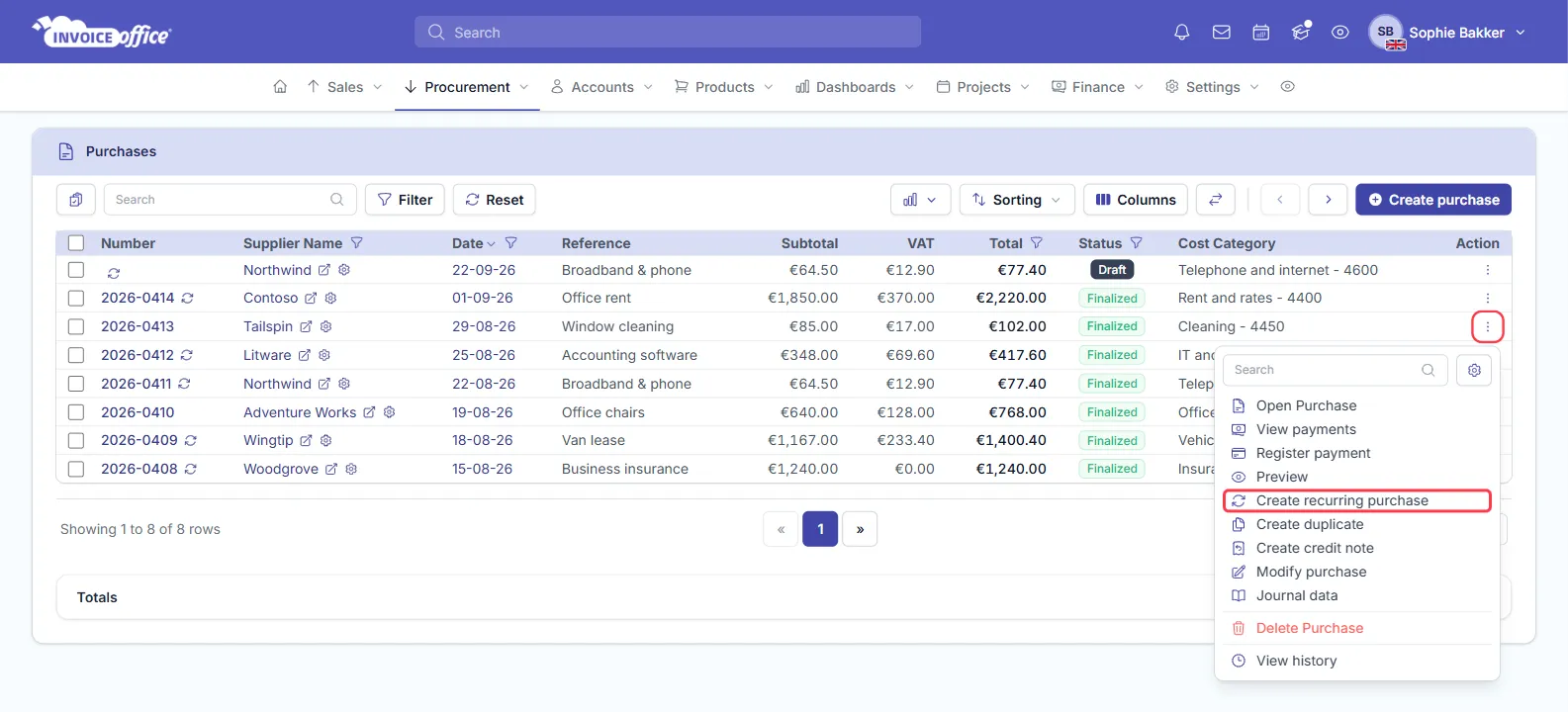
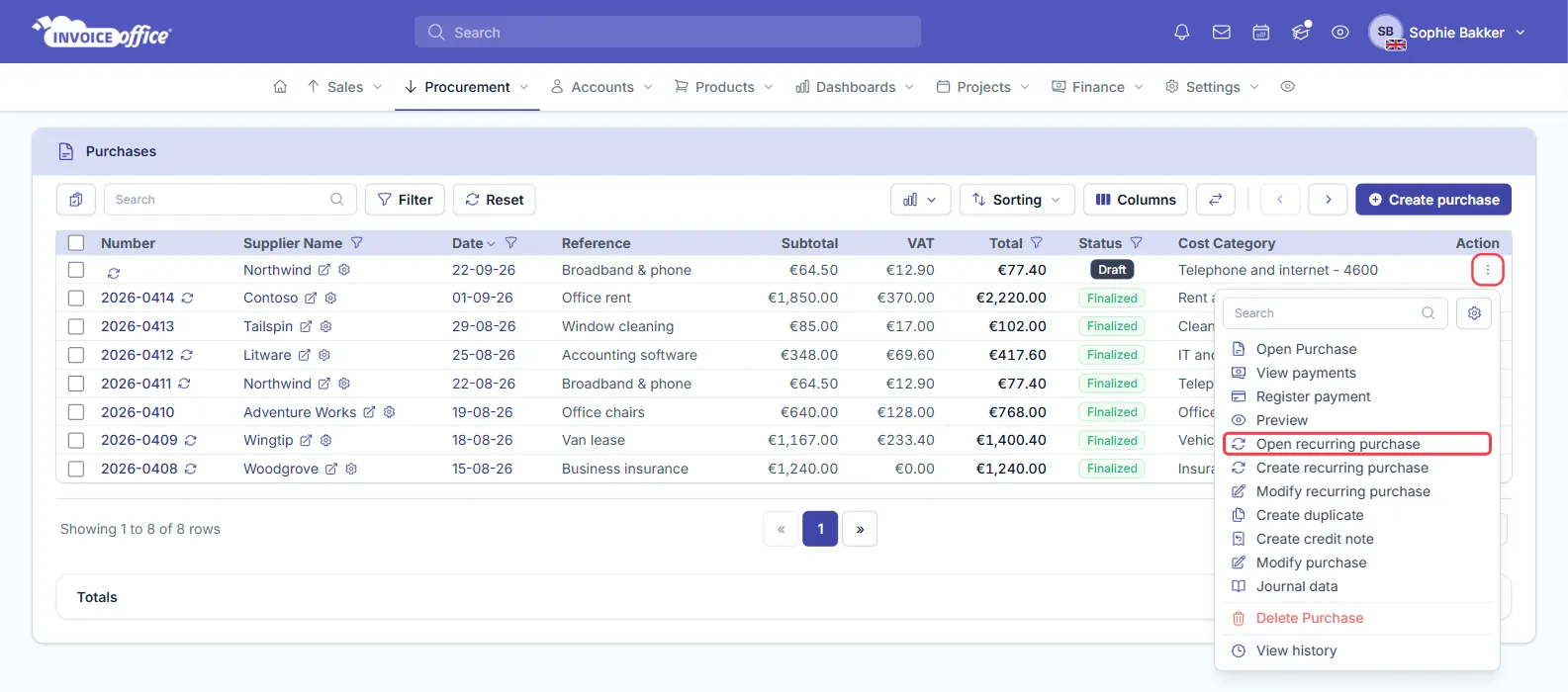
There is no setting that finalizes the new purchases automatically. Open each one under Procurement → Purchases, adjust the amount if the supplier’s bill differed this time, and finalize it there. Purchases created by a series carry a small ↻ icon beside their number, and their row’s Action menu has Open recurring purchase and Modify recurring purchase, so you can jump straight back to the series.
Follow your recurring purchases on the dashboard
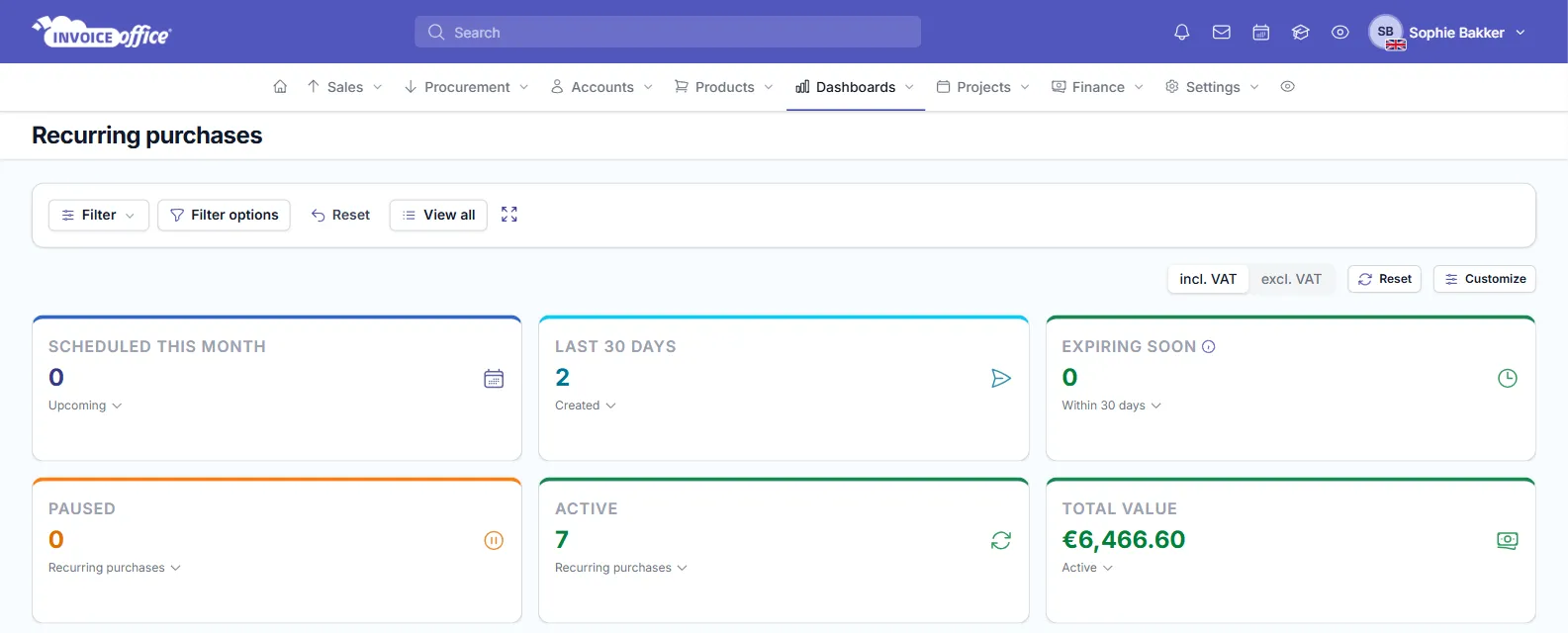
Go to Dashboards → Recurring purchases, or on the recurring purchase list click the Dashboard chart icon and choose Recurring purchase. The tiles along the top — Scheduled this month, Last 30 days, Expiring soon, Paused, Active and Total value — show what is coming up and what has run, and Recent documents further down lists the purchases the schedule created, with their Status and Payment.
Edit a recurring purchase
A finalized recurring purchase is read-only — the Cycle, Create on and Create until fields are locked too. To change anything:
-
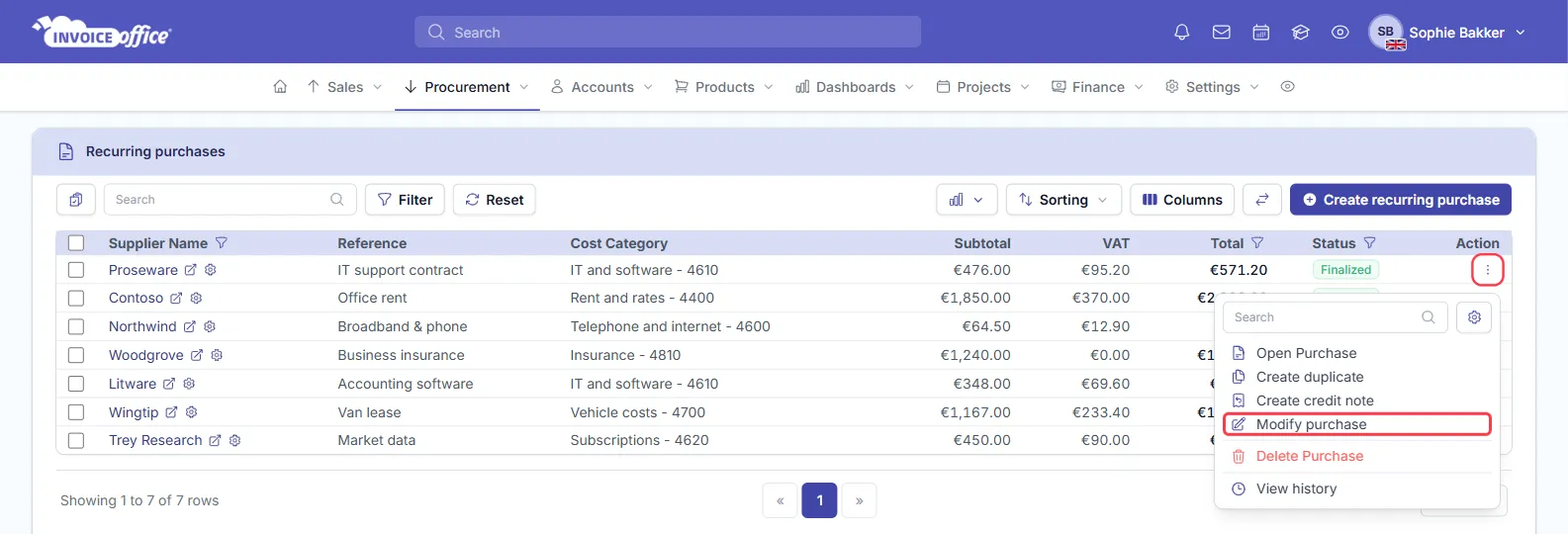
On Procurement → Recurring purchases, open the row’s Action menu and choose Modify purchase, then click Save in the window that opens.
-
It returns to Draft. Change the supplier, lines, Cycle or dates.
-
Save and Finalize it again.
While it is a Draft the schedule skips it, so do not leave it there longer than you mean to.
Stop or cancel a recurring purchase
There is no separate pause switch. A series ends in one of three ways:
- It reaches its Create until date. Use Modify purchase, set Create until, and finalize it again.
- You leave it in Draft. Modify purchase alone stops new purchases being created until you finalize it again.
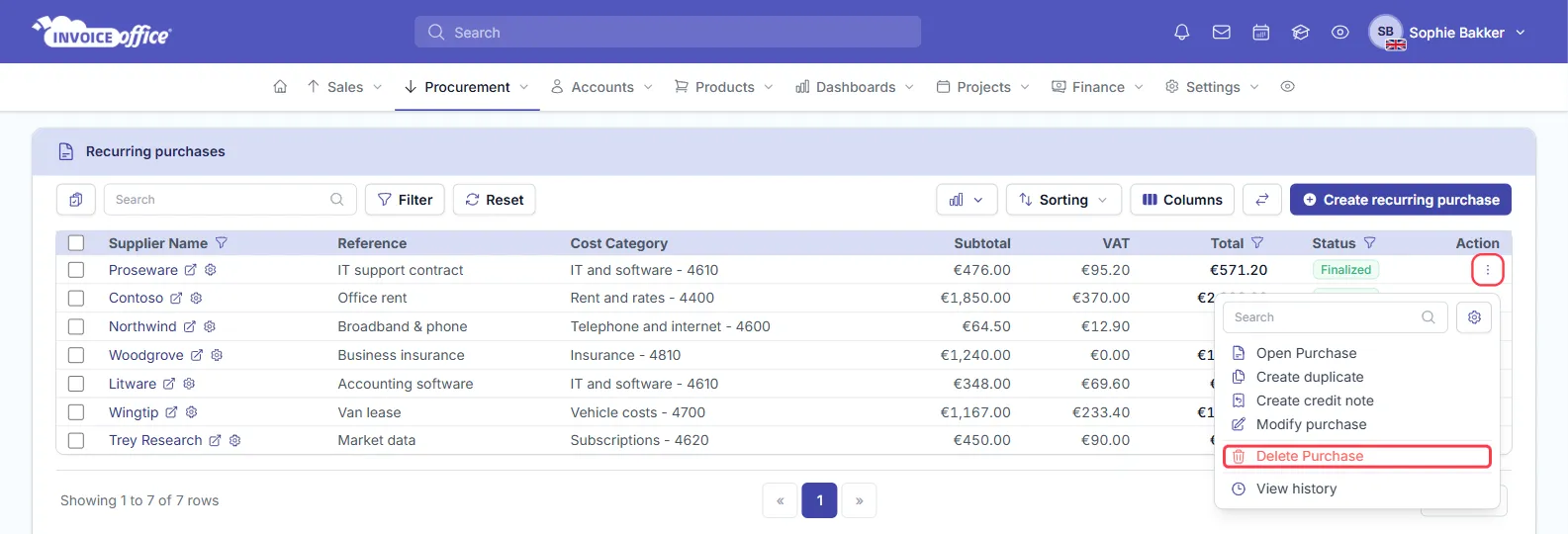
- You delete it. Action → Delete Purchase on the recurring purchase’s row removes the series.
Turn an existing purchase into a recurring one
If a supplier bill you already registered turns out to come every month, you do not need to rebuild it. On Procurement → Purchases, open that purchase’s Action menu and choose Create recurring purchase. Invoice Office saves a new recurring purchase straight away, as a Draft with the supplier and lines copied over, and opens it — set the Cycle and dates, then Save and Finalize it. Until you finalize it, the schedule ignores it.