To duplicate a document in Invoice Office — an invoice, a quote or another document — choose Create duplicate, from the list or from the open document. You get a new draft with the same customer and lines, so copying an invoice for a repeat order or a second quote takes seconds instead of retyping everything. It works for invoices, quotes, credit notes, order confirmations, packing notes, proforma invoices, purchase orders and recurring invoices.
Step 1 — Choose Create duplicate
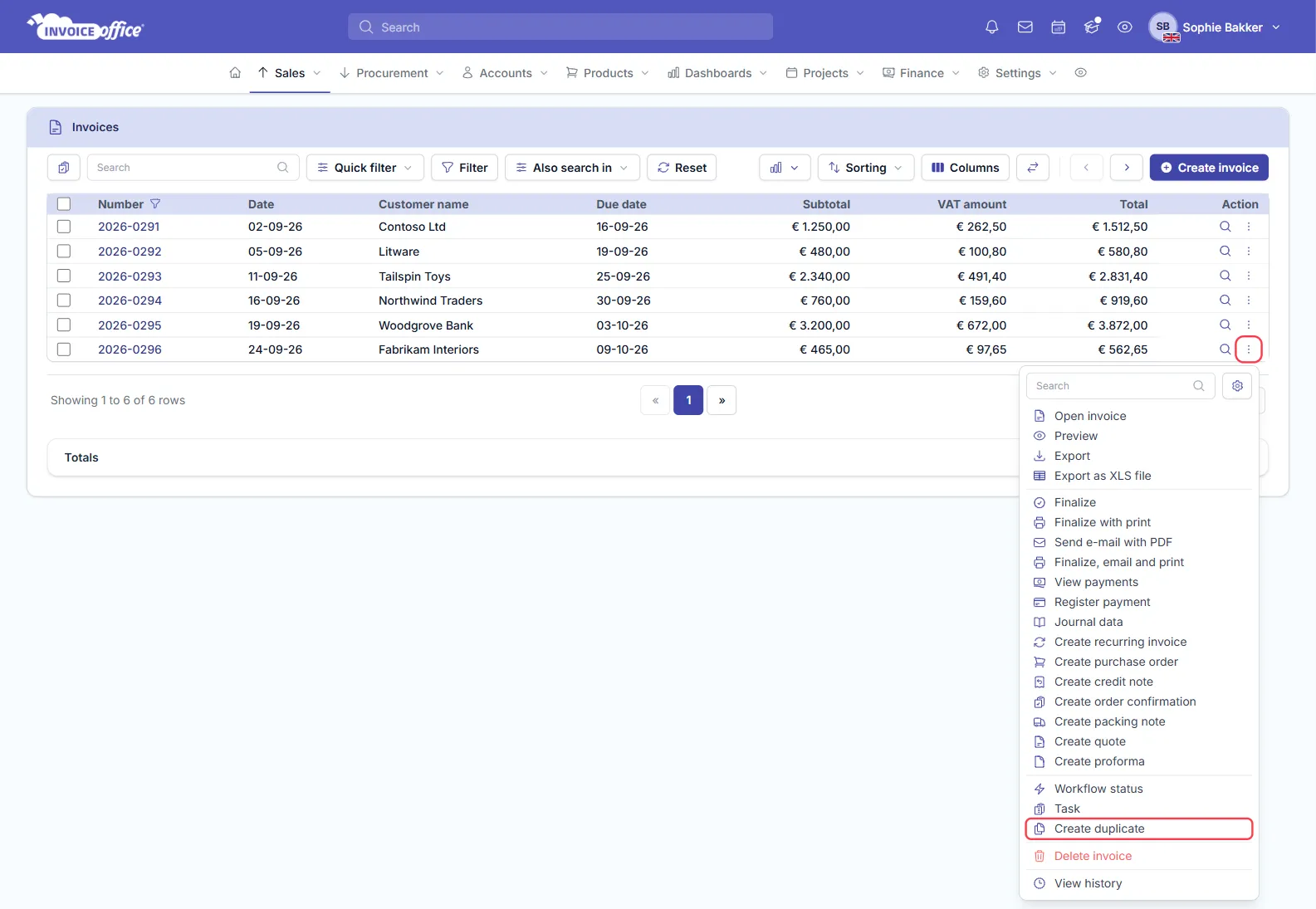
Click the Action button on the document’s row in the list, or at the top of an open document, and choose Create duplicate.
From the list — open the list, for example Sales → Invoices, click the ⋮ (Action) button on the document’s row and choose Create duplicate.
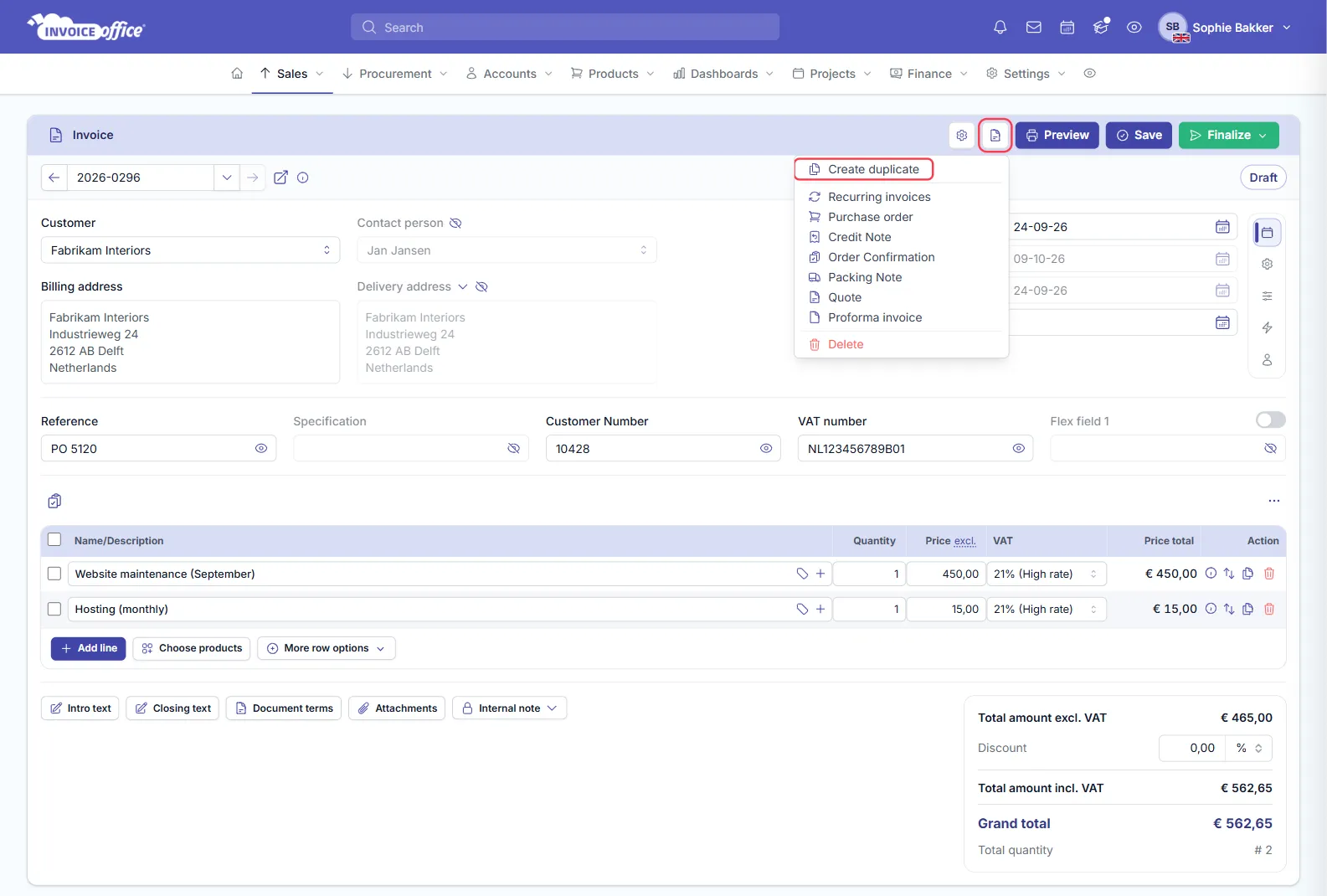
From an open document — click the Action button at the top of the document and choose Create duplicate. On a draft it is the icon between the settings gear and Preview, and any unsaved changes are saved first; on a finalized document it is the green Action button after Preview.
Step 2 — Check the new draft
Invoice Office creates the copy straight away and opens it. The original document is not changed.
The duplicate is a normal Draft: change the customer, edit or add lines, adjust the dates, then Save or Finalize it as you would any new document — see Create an invoice for the finalize options.
For an invoice that repeats on a schedule, set up a recurring invoice instead of duplicating it every month.
What is copied to the duplicate
- The customer and the billing and delivery addresses — as they were on the original document. If the customer’s details have changed since, select the customer again.
- Every line, with its description, quantity, price, discount and VAT rate.
- The document’s attachments.
- The Reference, Specification, flex fields and the internal text.
What starts fresh
- Number — the duplicate gets a new, preliminary number from your number series; it becomes final when you finalize the document. To change it, see Change the document number.
- Status — always Draft, whatever the original’s status was. Nothing is sent, and the email counter starts at zero.
- Dates — the document date is today, the payment date is empty, and the expiry date is recalculated from today.
- Document design — your default design for that document type and language, not the original’s.
- Approval — a duplicated quote starts without the customer’s approval.
- Created by — you, not the author of the original.
Choose which texts and terms are copied
Whether the texts and terms come from the original or from your defaults is set in the document copy settings, part of the Professional plan. Click your name or profile picture at the top right, choose Company settings and open the Document copy tab. Switch on what should come from the original:
- Introduction text and Closing text
- Email Template
- Document term, Payment term and Delivery term
- Document reminder
The tab also has switches for Internal text and Flex fields; those are copied from the original either way.
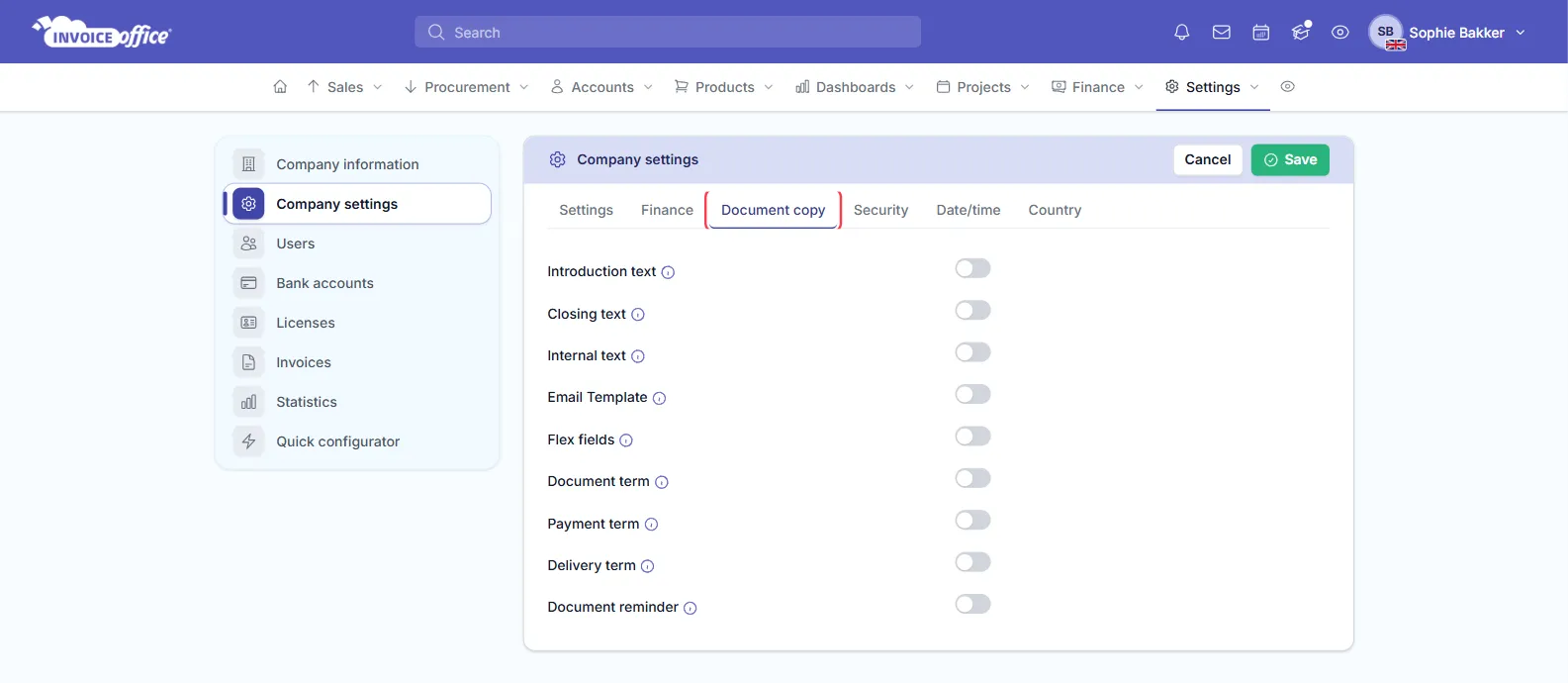
Click Save. The email template, terms and reminder you leave off use the default for that document type instead. If you use a different introduction or closing text per document design, keep those two off — otherwise the original’s text replaces the one your design would use.
Turn a document into another type
The same Action menu also creates a different document from this one — for an invoice, for example, a credit note, order confirmation, packing note, quote or proforma invoice. The new document is linked to the original as a related document. See Convert a quote to an invoice for an example.