Two-factor authentication (2FA) protects your Invoice Office account with a second step at sign-in: after your password, you enter a six-digit code from an authenticator app on your phone. Someone who learns your password still cannot get in without that phone. In Invoice Office, two-factor authentication is called Two-step verification and takes about two minutes to set up.
You need an authenticator app on your phone — Google Authenticator, Microsoft Authenticator or any other app that shows six-digit codes that change every 30 seconds.
Enable two-factor authentication
- Open the Settings menu and choose Security center, then click Two-step verification in the menu on the left.
- The first time, the page shows Two-step verification is not enabled. Click Generate secret key and confirm, and Invoice Office creates a key for your account and shows it as a QR code. If a key was created before, the page opens straight on the QR code — carry on with step 3.
- Open your authenticator app, add an account and scan the QR code. Cannot scan it? Under Can’t scan the code? the same key is shown as text — copy it and enter it in your app by hand.
- Your app now shows a six-digit code for Invoice Office. Type it into Enter the 6-digit code from your app and click Enable two-step verification.
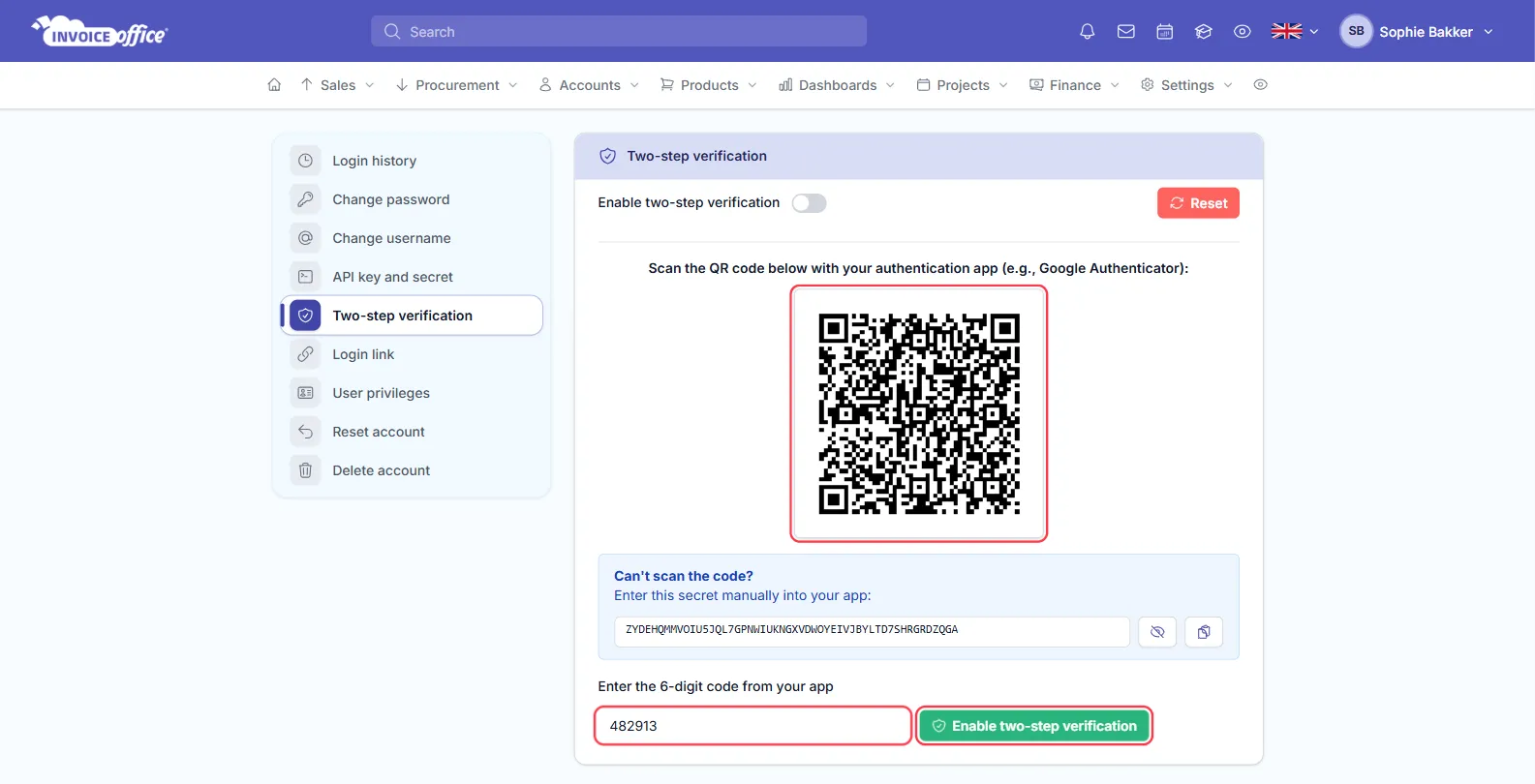
Invoice Office confirms with Two-step verification enabled successfully. If you see Invalid authentication code, the code probably changed while you were typing — wait for the next one and try again.
Always turn two-step verification on this way, with a code from your app. Entering a code proves your app is set up correctly; without that check you could lock yourself out at your next sign-in.
Two-step verification belongs to your own login. Every user on the account sets it up for themselves, from their own Security center.
Sign in with two-factor authentication
- Sign in with your username and password as usual.
- On the Please Sign In screen, Invoice Office asks for your Google Authentication Code — it is called that whichever authenticator app you use. Open your app, type the current six-digit code for Invoice Office and click Login.
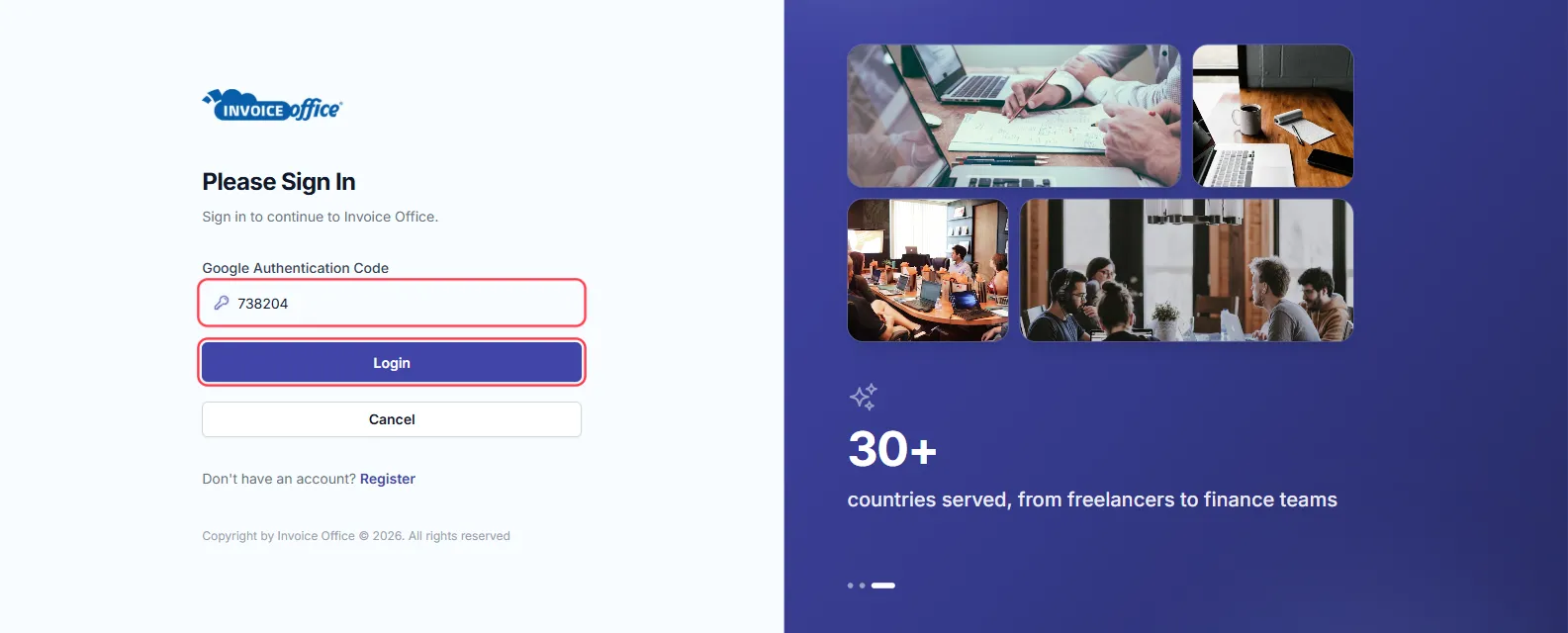
You are asked for a code at every sign-in, on every device. Cancel takes you back to the sign-in page. If the code is rejected, check that your phone’s clock is set automatically — authenticator codes depend on the right time.
Disable two-factor authentication
- Go to Settings → Security center and click Two-step verification on the left.
- Switch Enable two-step verification off.
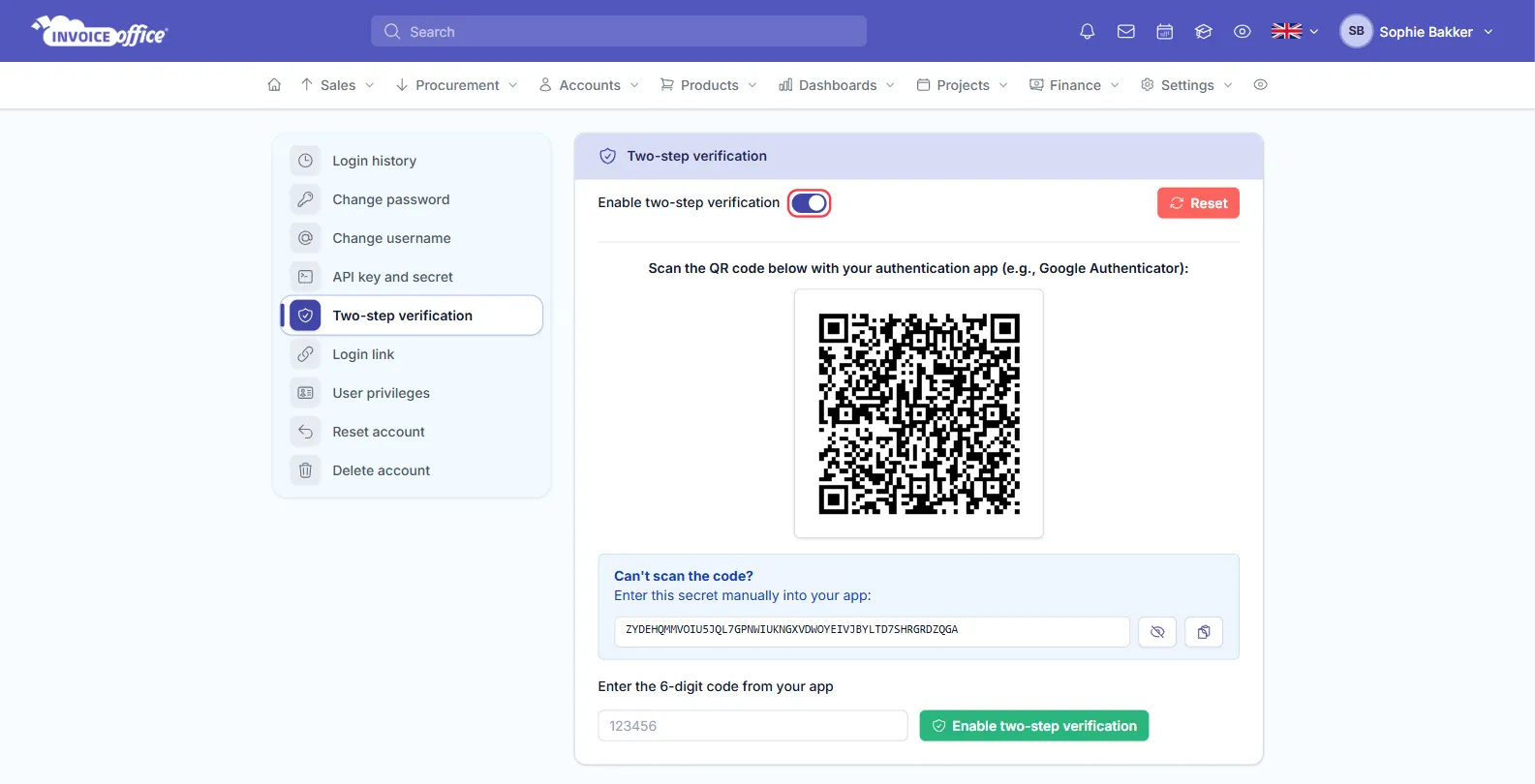
The switch turns grey and your next sign-in asks for your password only. To turn it back on, go through Enable two-factor authentication again, with a code from your app.
If you lose your authenticator device
Invoice Office has no backup codes, so what to do depends on whether you are still signed in somewhere.
Still signed in — on another computer, or in a browser you have not logged out of:
- Go to Settings → Security center, click Two-step verification on the left and click Reset. Confirm that you want a new secret key.
- Scan the new QR code with the authenticator app on your new phone, straight away.
- Enter the six-digit code from the new phone and click Enable two-step verification to check it works.
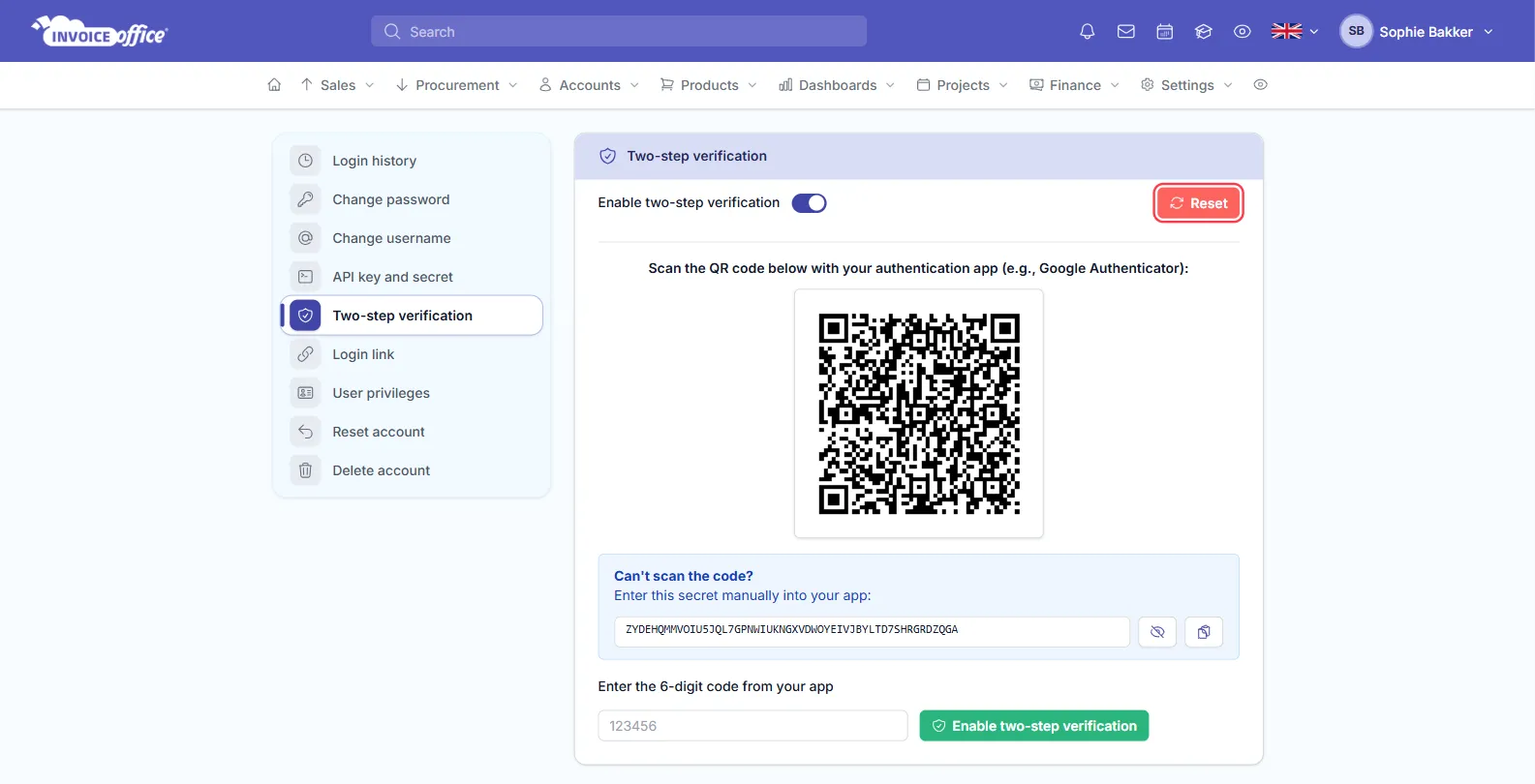
The old key stops working the moment you reset, so your lost phone can no longer produce valid codes. Do not sign out before you have scanned the new code.
Not signed in anywhere — you cannot switch it off yourself. Contact us from the email address of your account and we will help you get back in, so you can set two-step verification up again on your new phone.
Forgotten your password as well? Reset it first — two-step verification asks for your code after the password, not instead of it.
When Invoice Office asks you to turn it on
After you sign in, Invoice Office may show an Enable two-step verification screen. Click Enable two-step verification to go through the steps above, or Continue without two-step verification to do it another time. On some accounts the screen has no continue option — then two-step verification is required before you can use Invoice Office.