The activity log in Invoice Office is the history kept on every document. Each invoice, quote and purchase carries its own audit trail: who created it, who edited it, when it was made final, when the email went out and was opened, and when the payment came in. You open it with View history. A second log, the Login history, shows who signed in to your account and when. This guide shows where to find both, what they record and how to use them when a question comes up.
Step 1 — Open the history of a document
- Go to the list the document is in — for example Sales → Invoices.
- Open the Action menu at the end of the document’s row.
- Choose View history, at the bottom of the menu.
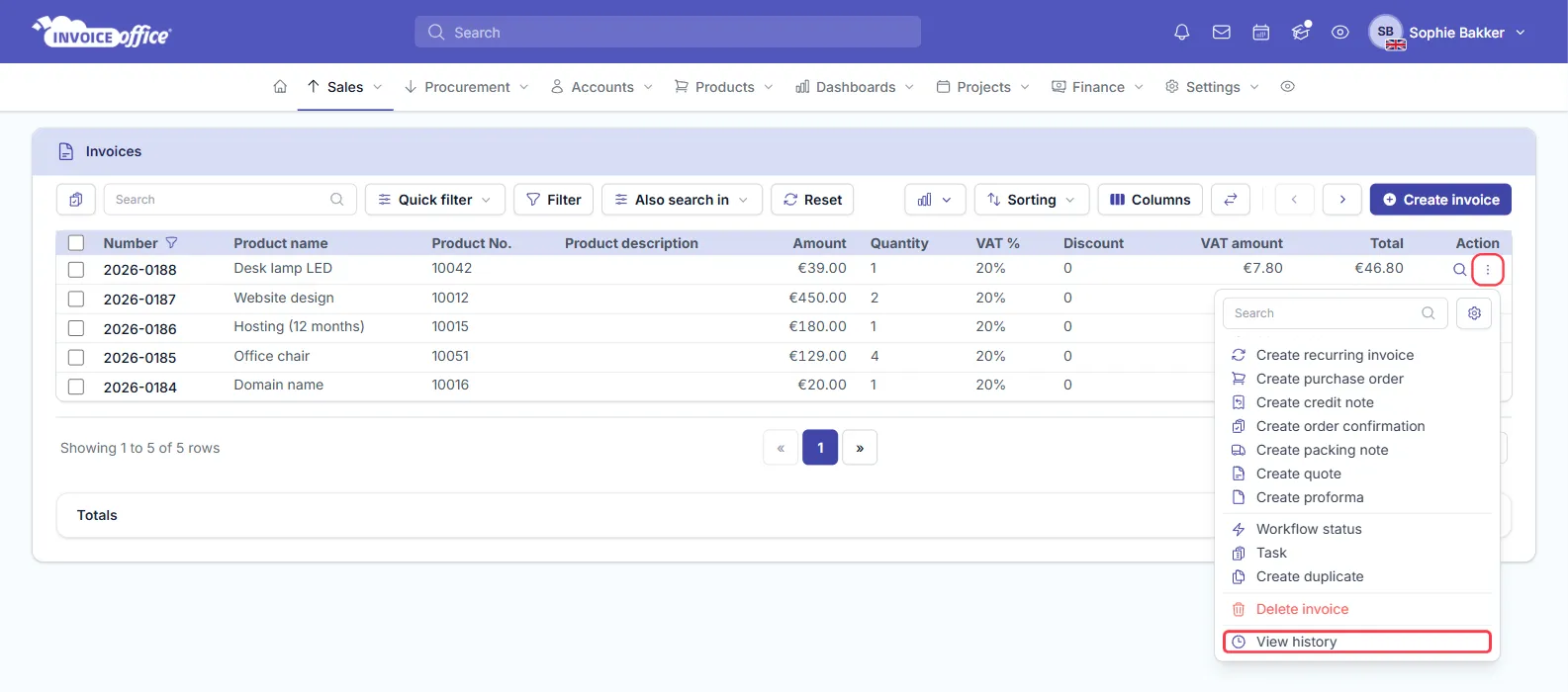
You can reach the same window from two other places:
- From the document itself — open a finalized document and choose Action → View history. There it needs a Pro license.
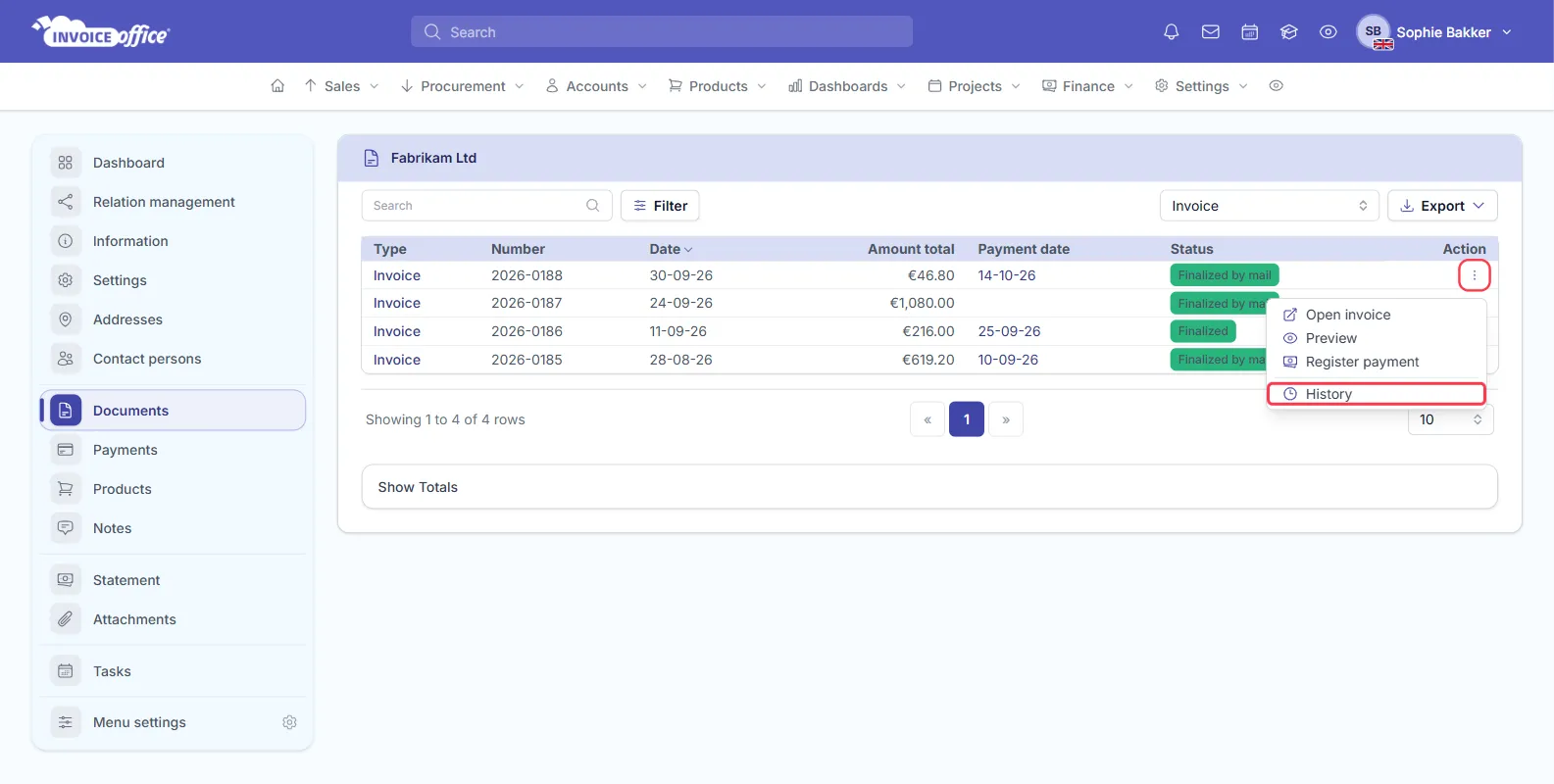
- From a customer record — open the customer’s Documents list, open the Action menu of a document and choose History.
Step 2 — Read the change history
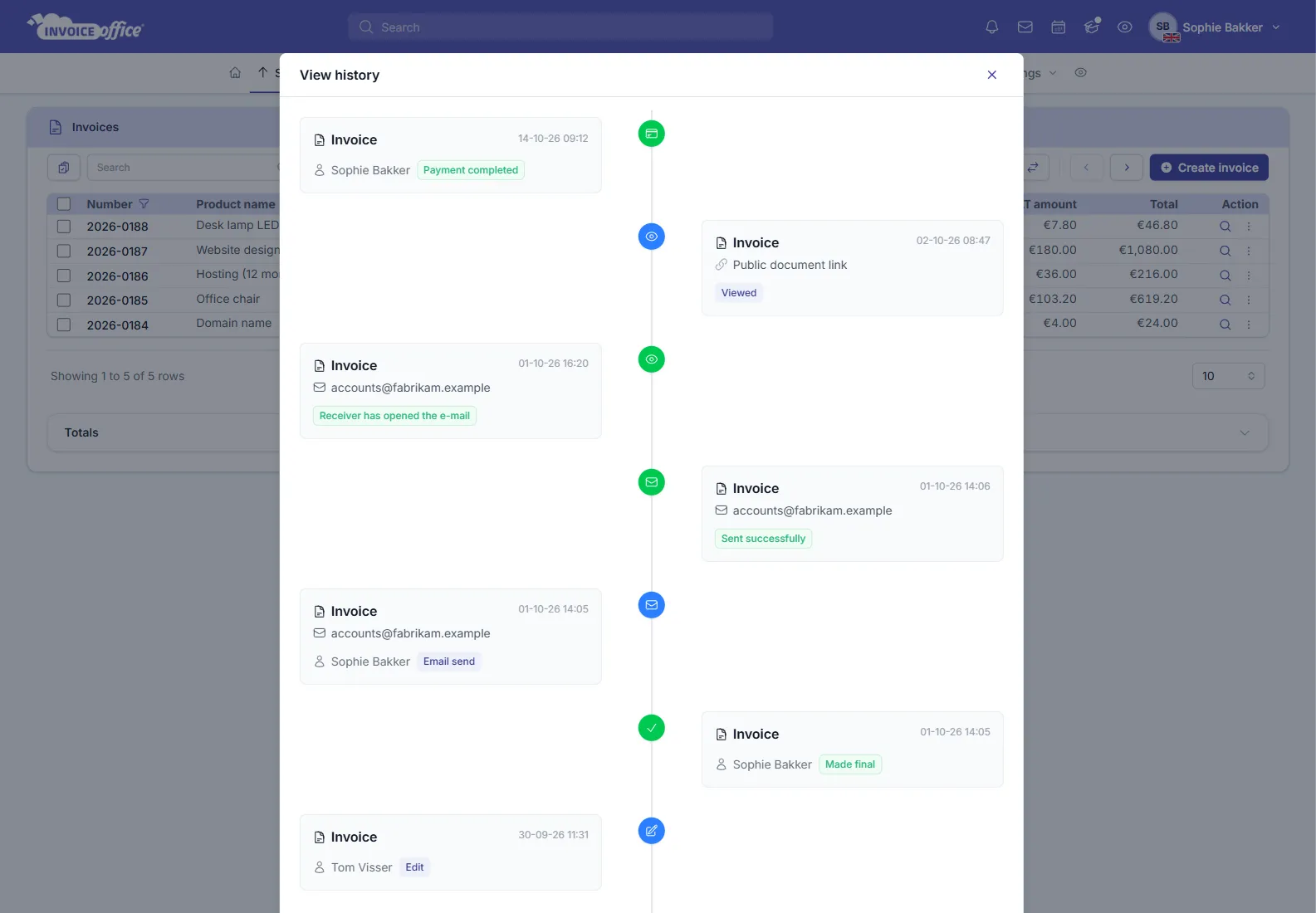
The View history window is a timeline, newest entry first. Every entry shows:
- the document it belongs to, as a link that opens it;
- the date and time;
- the user who did it, when it was done by someone in your account;
- the action, as a coloured label;
- for emails, the email address the document went to.
What the document log tracks
| Kind of event | What you see in the history |
|---|---|
| Edits | Create, Edit, Autosaved, Duplicate |
| Status changes | Made final, Label |
| Sends | Email send, Sent successfully, Receiver has opened the e-mail, and the reason when an email is not delivered |
| Views | Viewed through the Public document link, Print and Download |
| Payments | Payment completed, Partial Payment, Payment deleted |
| Follow-ups | documents created from this one, such as Invoice created on a quote |
| Peppol | Sent to Peppol and the replies that come back |
The history covers documents. Changes to customer records and to your settings are not listed in it. With a Pro license, a product that tracks stock has a History of its stock workflow status on its Stock tab.
What the email labels mean is explained in email delivery statuses explained.
Step 3 — See who signed in, and when
The document history tells you who did something to a document. The Login history tells you who was signed in.
- Go to Settings → Company → Security center.
- The Login history page opens.
The tiles at the top sum up your logins: Login today, Login last 30 days, Unique users last 30 days, Unique IPs last 30 days, Avg logins per day and Last logins. The graphs underneath show Logins per month, Logins per day, Unique user vs login, Logins by hour of day, Logins by day of week and Login by day name, followed by logins by country and IP address.
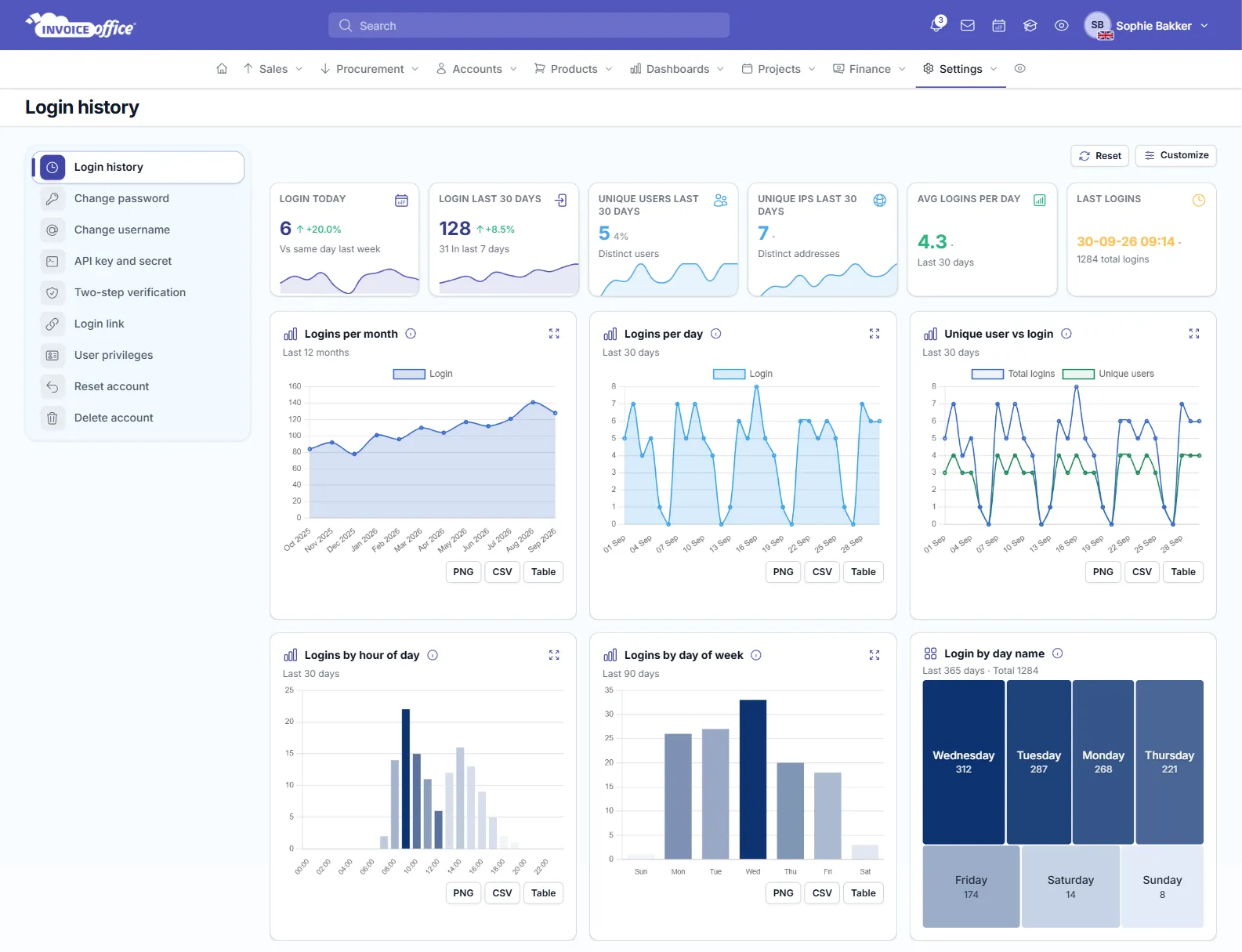
Most graphs have PNG, CSV and Table buttons underneath them.
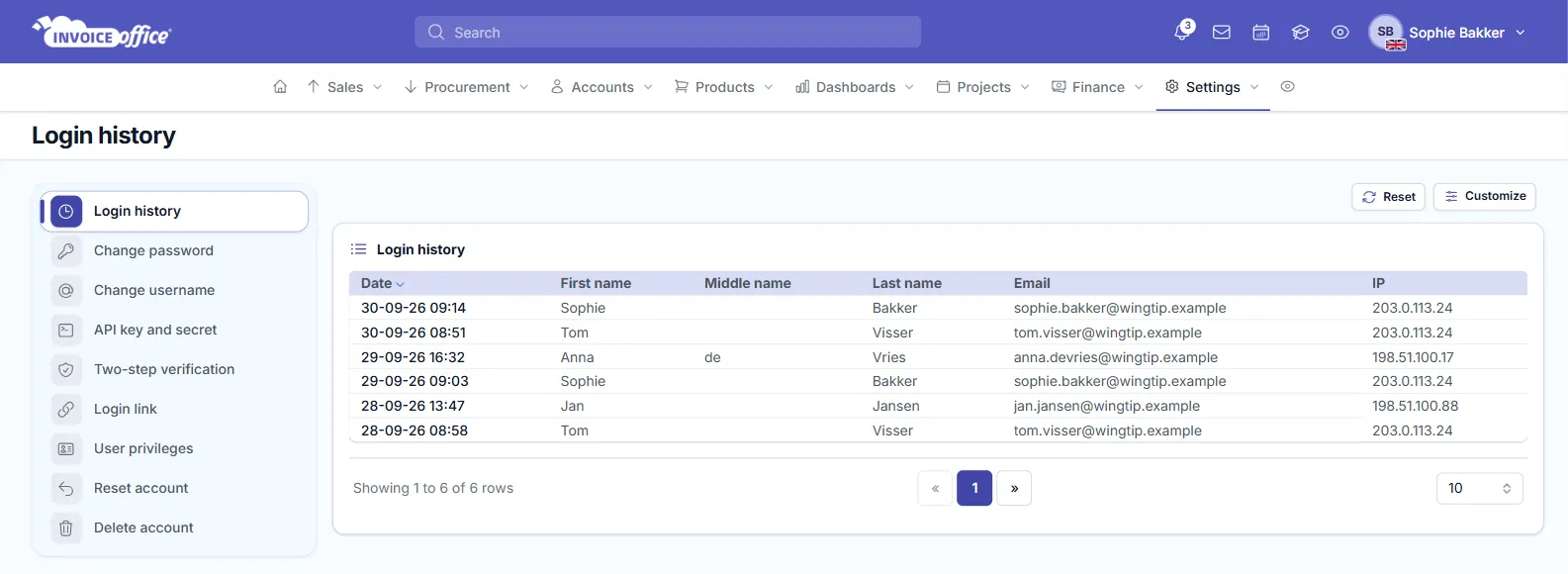
Scroll to the bottom of the page for the Login history table.
The table lists every login with its Date, the user’s First name, Middle name and Last name, their Email and the IP address. Click Date to sort it.
The Security center is where you manage sign-in too. See how to create and manage your users and how to manage user roles and permissions.
Filter activity by user or date
The View history window has no filter. It always shows the complete history of one document, which is usually short enough to read in full.
To narrow things down, filter the documents first and open the history of the ones that matter:
- On a document list, Filter lets you limit the list by Date range and Status, and the search box finds a document by its number or customer.
- In the Login history table, sort by Date and page through the logins to see who was signed in on a given day.
Use the log for disputes and compliance
The history answers the questions that come up when a customer, a colleague or an auditor asks what happened:
- “I never received the invoice.” Look for Sent successfully and Receiver has opened the e-mail, with the address it was sent to and the time.
- “I never saw it.” A Viewed entry shows the document was opened through its public link.
- “Who changed this?” Edit and Made final carry the name of the user and the time.
- “Was it paid?” Payment completed and Partial Payment show when a payment was registered, and Payment deleted shows when one was taken off again.
The entries are written by Invoice Office as things happen; there is no button to add, change or remove them. Deleting a document also removes its history.