To import invoice lines in Invoice Office, you upload an Excel or CSV file with the products and quantities you want, and Invoice Office adds a line for each of them to your invoice or quote in one go — up to 300 lines at a time. That saves typing when an order has dozens of products. The lines are built from the products in your product list: the file says which product and how many, and the name, description, price and VAT rate come from the product itself (a VAT setting on the customer still applies).
The import works on invoices, quotes, order confirmations, credit notes and the other documents with product lines, including purchase orders. It is not available on purchases. It needs a Pro licence.
Before you start: your products must exist
Each imported line points to a product in Products, by its product number or article code. Products that are not in Invoice Office yet cannot be imported as lines — add them first, or import them in bulk, see Import customers, suppliers and products.
The file has no columns for price, description or VAT. To change them for one document, edit the line after the import.
Step 1 — Open the import on the document
-
Open the invoice or quote you want to fill, or create a new one — see Create an invoice. The document must not be finalized yet.
-
Click the ⋯ button at the top right of the product lines and choose Import.
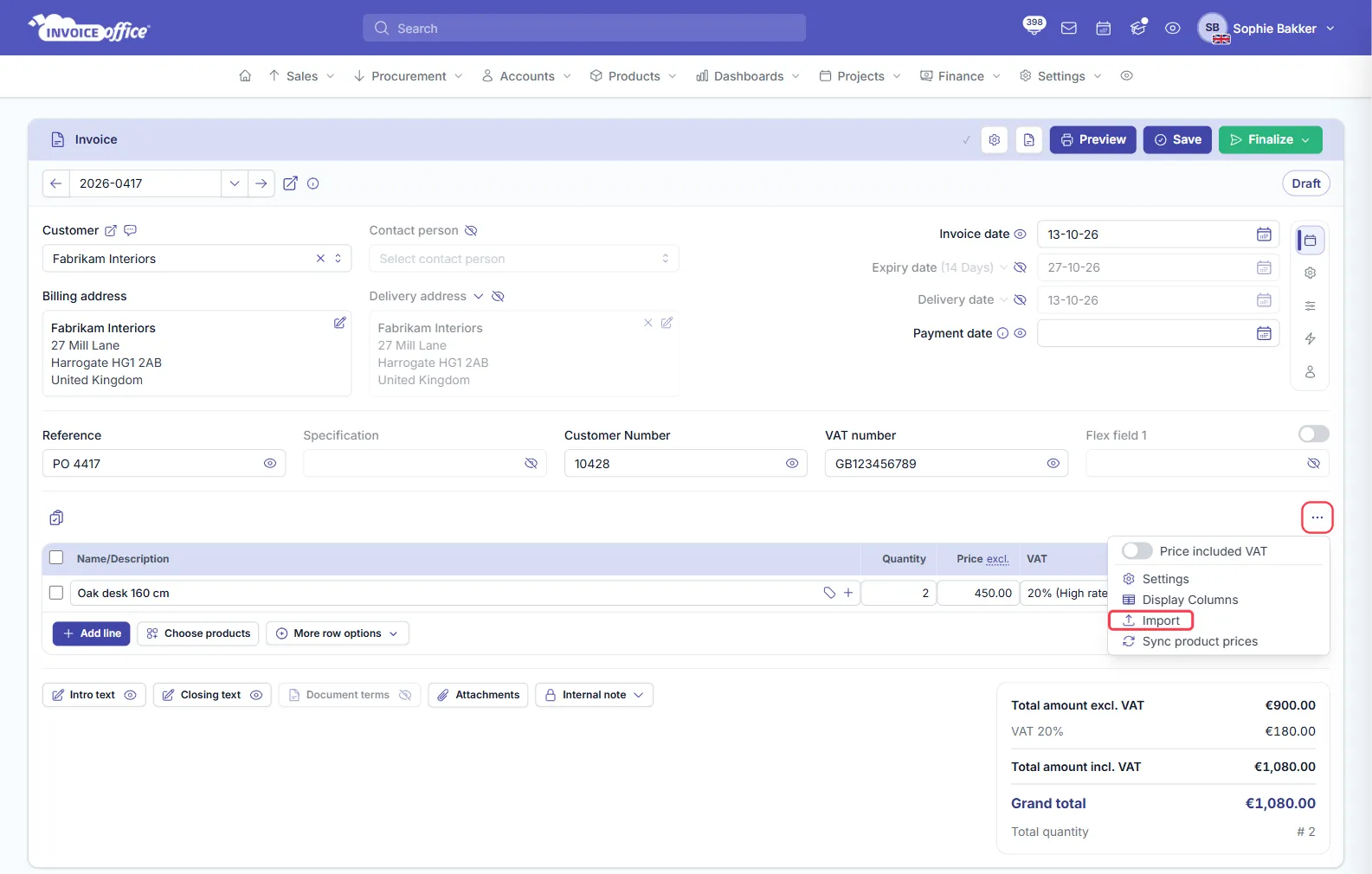
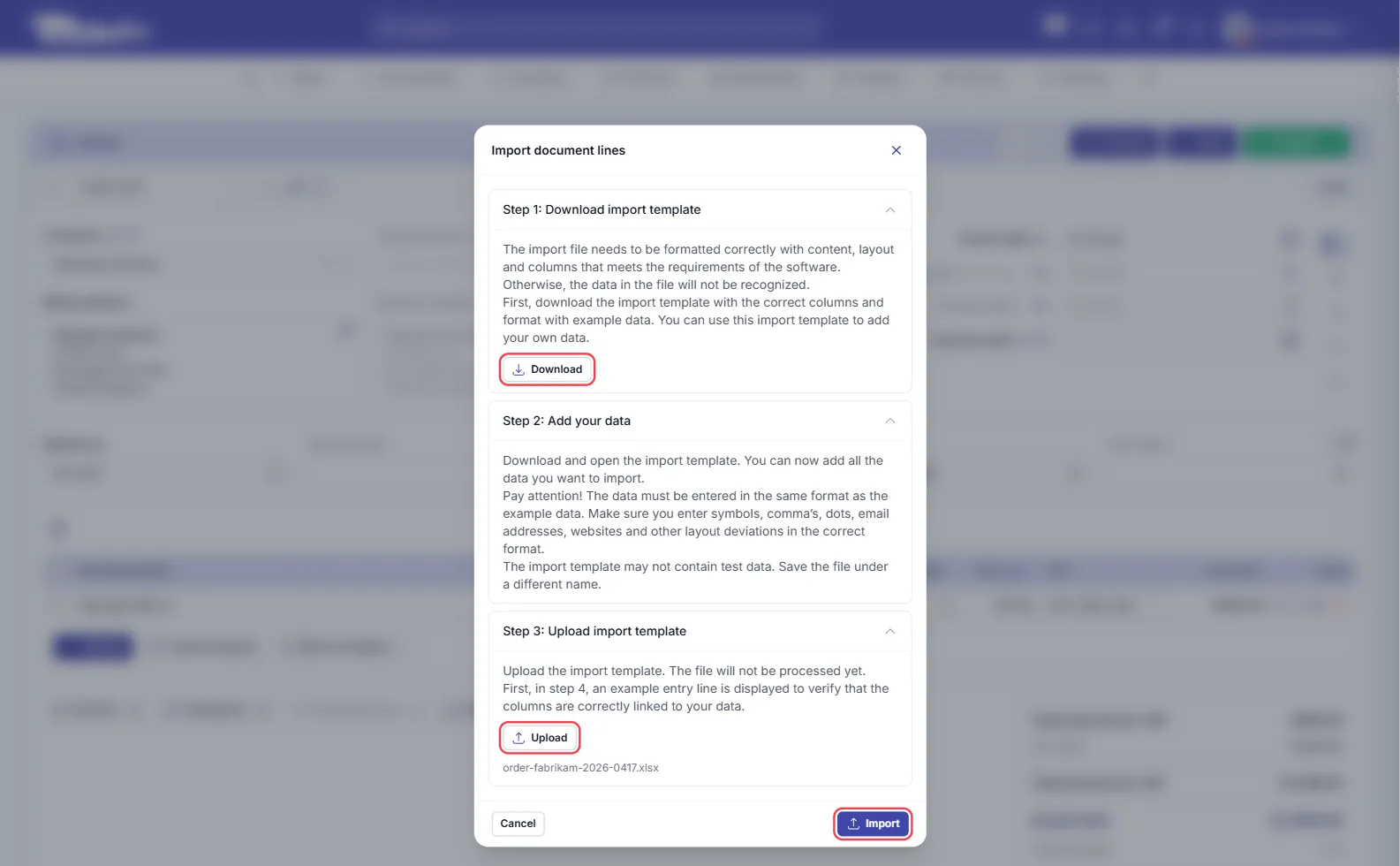
The Import document lines window opens with three steps.
Step 2 — Download the template
Under Step 1: Download import template, click Download. You get an Excel file with two columns:
| Column | What to enter |
|---|---|
| Article code | The product. In the first row you can pick it from a drop-down list of your own products, shown as product number and name — for example 1001 - Oak desk 160 cm. The full list is on the second sheet of the file; in the other rows, type or copy the value. |
| Quantity | How many. Left empty, the line gets quantity 1. |
Step 3 — Add your lines
Replace the example row with your own lines — one row per line you want on the document, in the order you want them. Keep the column headings in the first row as they are: Invoice Office uses them to recognise the columns. You can also type only the product number in Article code.
Save the file as Excel (.xlsx or .xls) or .csv.
Step 4 — Upload and import
- Under Step 3: Upload import template, click Upload and choose your file — from your computer, or from Google Drive, Dropbox or OneDrive.
- Click Import.
The lines are added below the lines already on the document, and the window closes. On a new document, the empty first line stays above the imported lines — delete it if you do not need it. The text under Step 3 mentions a check in a step 4, but there is no such step: Import adds the lines straight away. Check the lines and the totals, then save the document as usual.
If the import does not work
| Message | What to do |
|---|---|
| Choose one… | Upload a file under Step 3 before you click Import. |
| No rows found | The file has no lines under the headings. Add your products and quantities. |
| Please do not import more than 300 rows at once | Split the file and import it in parts. |
Other things to check:
- No Import in the menu — the document is finalized, or your account has no Pro licence.
- A row was not imported — rows with an empty Article code are skipped.
- Nothing was added and the window says Products import template uploaded — no row had an Article code Invoice Office could read. Check that the first row still has the headings Article code and Quantity, and that the rows under them are filled in.
- An empty line came in — the product number does not match a product in your product list. Check the number, or add the product first.